Picket Fence Cards 🦋 Spring CC 2026
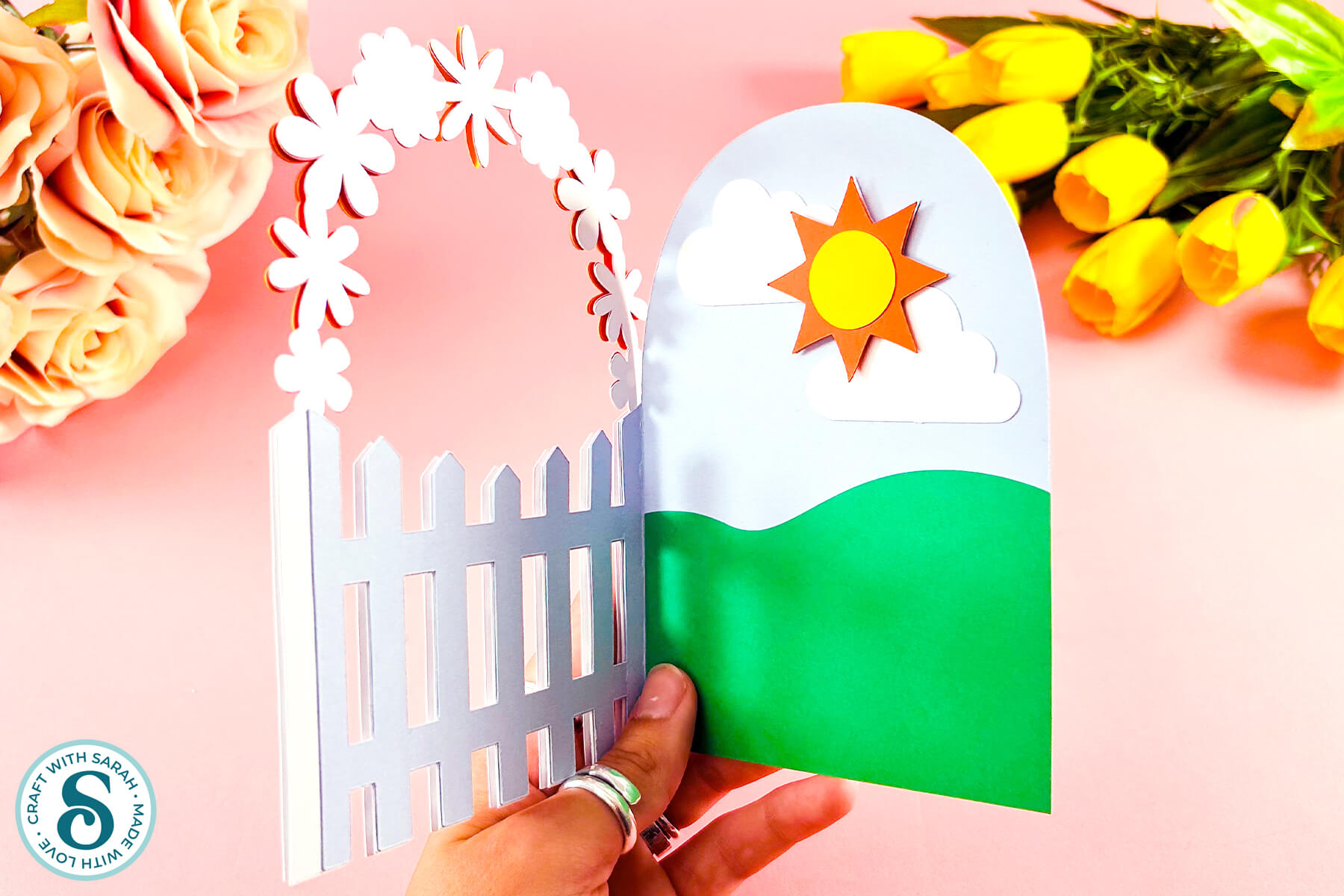
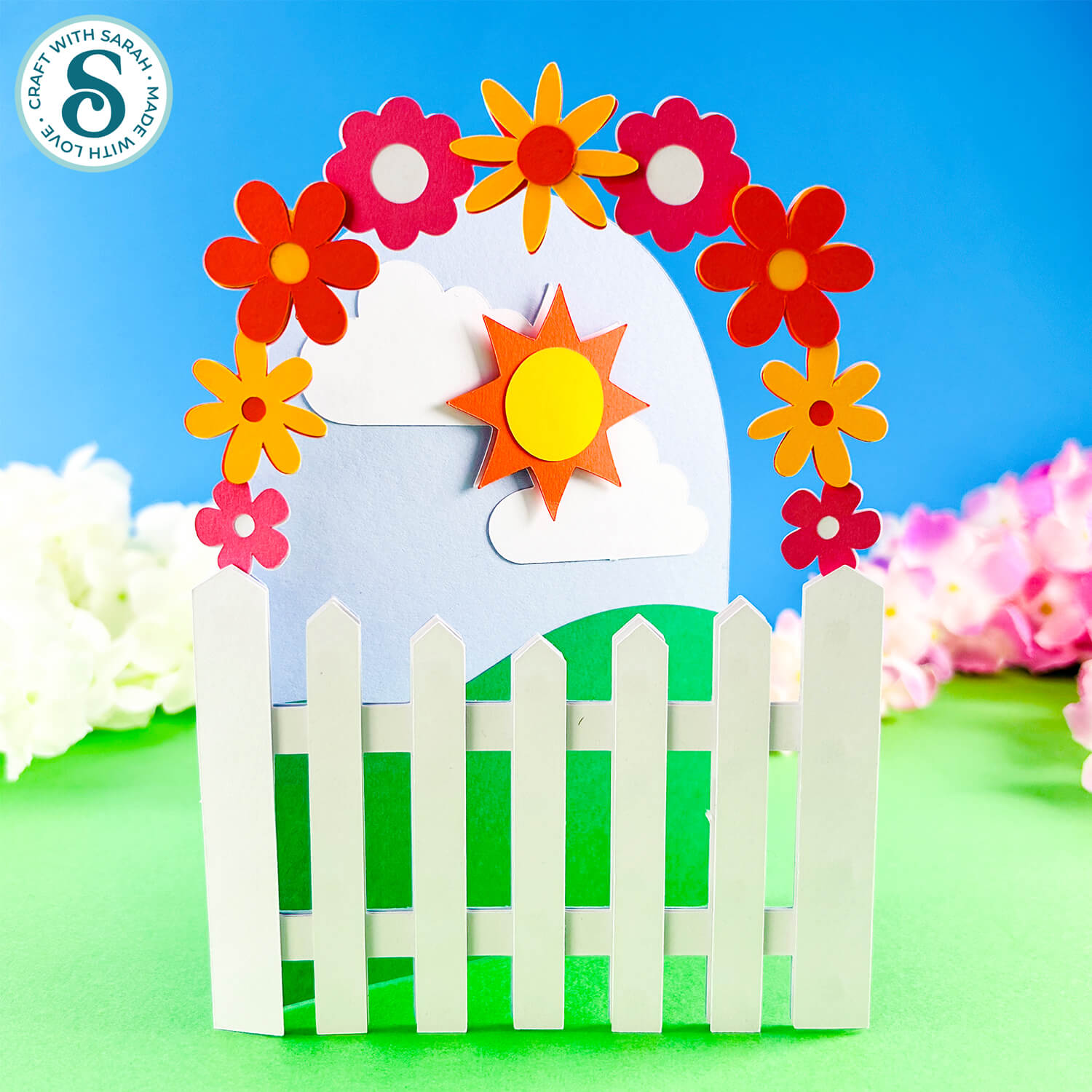
Make a pretty floral picket fence card and then design your own with the included blank template.
In this tutorial, I’m going to walk you through how to make a picket fence greetings card using your Cricut machine.
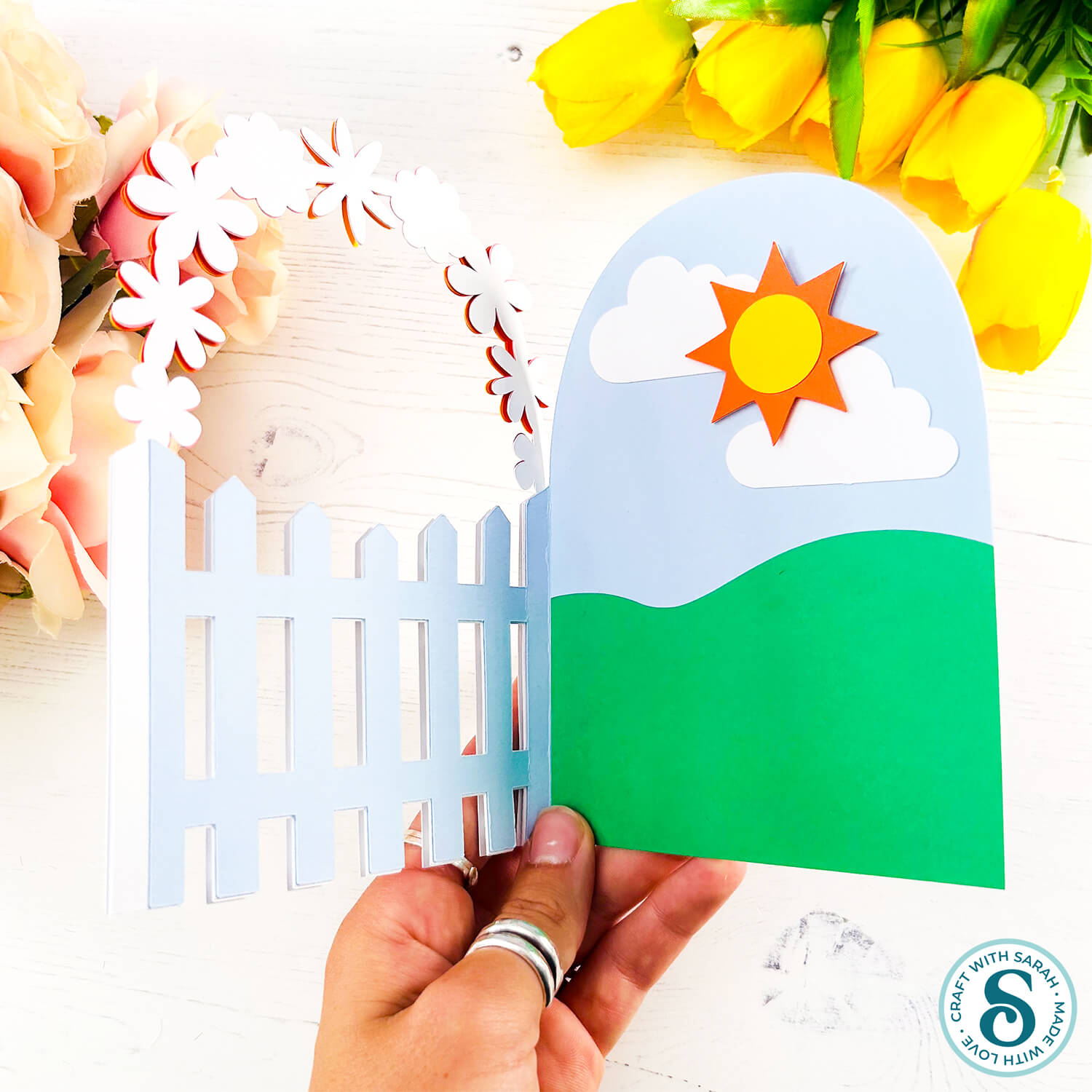
The picket fence sits on the front of the card, which means it flips open in a fun and unexpected way. You can add your personal message on the back, where there’s a message panel waiting for you.
We’ll go through both versions of the design: a blank one where you can add your own embellishments, and a pre-made one with a flower arch already included.
This Project was part of the Spring Craft Countdown 2026
Picket fence cards materials supply list
Here is a list of the materials that I used to make this project.
Please note that some of the links included in this article are affiliate links, which means that if you click through and make a purchase I may receive a commission (at no additional cost to you). You can read my full disclosure at the bottom of the page.
- Cricut machine
- Light blue Cricut cutting mat
- Coloured Card (any thickness)
- Glue (I like Bearly Art Glue and Collall)
- 3D foam pads
- Cricut scoring wheel or scoring stylus (optional)
This project is suitable for the following types of Cricut machines: Explore series, Maker series and Joy Xtra. It is too big to make on the Joy or Joy 2.
Foundation learning
If you're new to making papercrafts with your cutting machine, check out these links to get you started.
They include videos on topics such as: which file to use with your type of cutting machine, how to load the files into your cutting machine's software, how to cut cardstock with your type of cutting machine, how to recolor and modify/customize the cut files and tips for displaying your projects.
- How to use zip folder downloads
- Help guides for Cricut machines
- Help guides for Silhouette machines
- Help guides for ScanNCut machines
The following tutorials are Cricut-specific, but many of the ideas will work similarly with a Silhouette or ScanNCut machine and any cut files that are shared in them are compatible with all types of cutting machine.
- How to score with a Cricut (even without scoring tools)
- Print then cut tutorial
- Design Space tools (Combine, Attach, Slice, Weld, Flatten, etc.)
- Pattern fill tutorial (for making backgrounds & cutting images to a specific shape/size)
- Free envelope SVGs that can be sized to fit any card
- Presentation boxes for handmade cards
- How to write inside cards with Cricut pens
- How to cut layered designs at a small size
- Design Space tips & tricks
- Cricut pens tutorial
- How to mount multiple designs in the same frame with magic guides
Picket fence card video tutorial
Watch the video below to see how to make this project. Keep scrolling for a written tutorial.
PART 1: Blank Picket Fence Template
First, we will start with the blank template.
Step 1) Download the cutting file & upload to Design Space
Get the files using the box below.
Purchase the File(s)
This cut file is available as part of the Instant Access Bundle.
Or, purchase this design individually here
Before you upload the SVGs to Design Space, you need to unzip the download folder that they come in.
Not sure how to do this? Click here for a tutorial that covers all the following types of computer and device:
- How to unzip a folder on a Windows computer
- How to unzip a folder on a Mac
- How to unzip a folder on an iPad
- How to unzip a folder on an iPhone
- How to unzip a folder on an Android device
After unzipping, upload the SVG file(s) into your cutting machine software.
Not sure how to use cut files with your type of machine? The following links lead to tutorials on how to use cut files in:
- Cricut Design Space
- Silhouette Studio
- CanvasWorkspace (for ScanNCut machines)
If you are using Cricut Design Space, start a new project and then click the “Upload” button on the left of the screen.
You can then either click “Browse” to find the file on your computer, or drag-and-drop it.
Select the file in the “01 Cricut Version” subfolder called svg-01-picket-fence-blank-craftwithsarah.svg
Press “Upload” on the next screen.
After uploading, the design should be automatically inserted onto your Canvas.
To hide the left sidebar (to give you more space for designing!), click the arrow that’s about half way down the page.
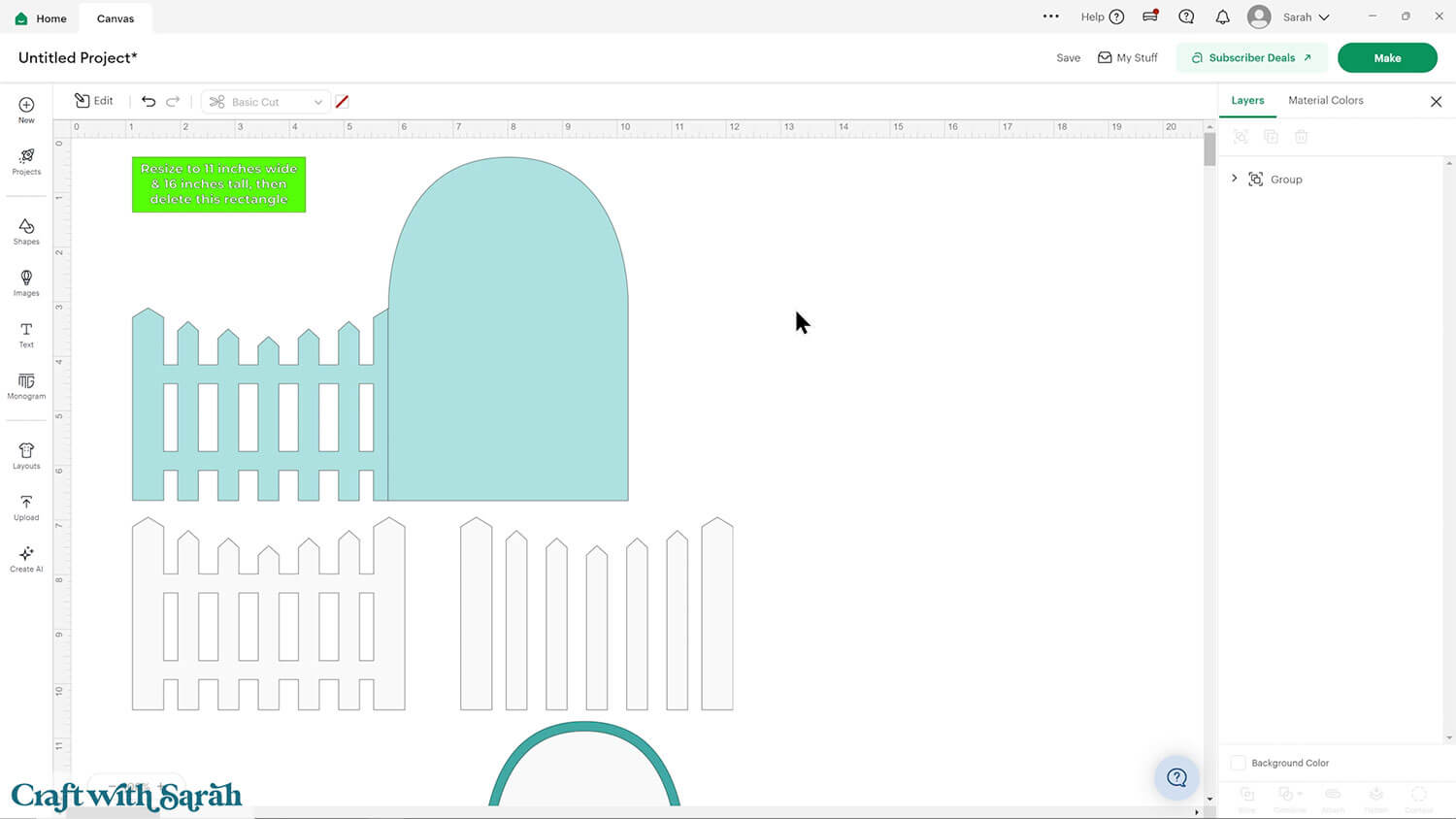
If the design doesn’t get inserted onto your Canvas, it will show under “Uploads” in your “Recently Uploaded Images”. Click on it and then press “Add to Canvas” to put it onto your Project.
Need help uploading SVGs? Get step-by-step instructions here in our detailed help guides for Cricut, Silhouette and ScanNCut.
Step 2) Check the size and add a score line
The card should load in at 11 inches wide and 16 inches tall. If not, adjust it to match those dimensions.
TIP: Make sure the padlock icon above the width/height boxes is CLOSED before you resize. If it appears “open”, click it with your mouse to close it.
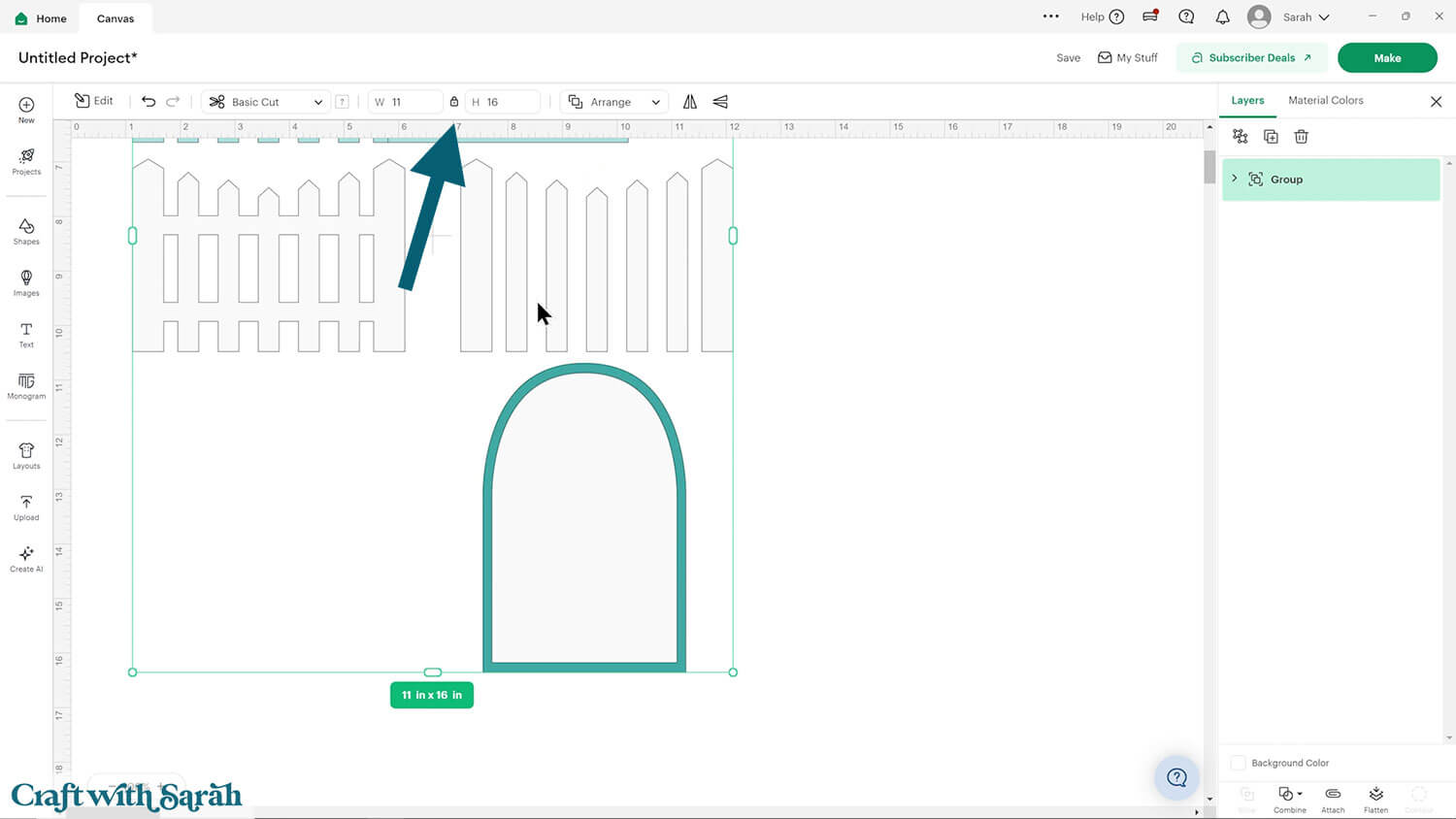
Click the design and press the “Ungroup” button at the top of the layers panel.
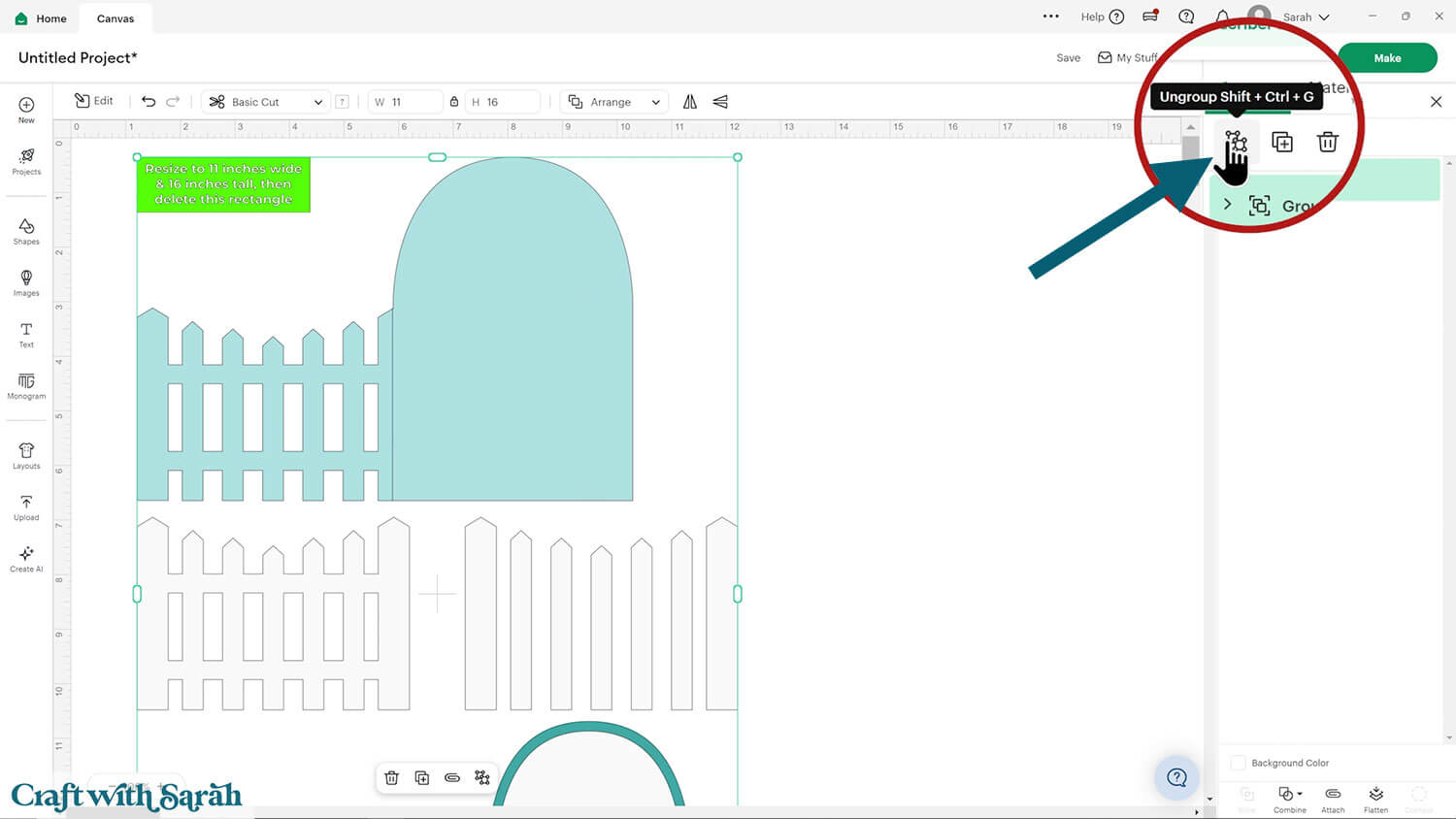
Click the lime green size rectangle and then delete it.
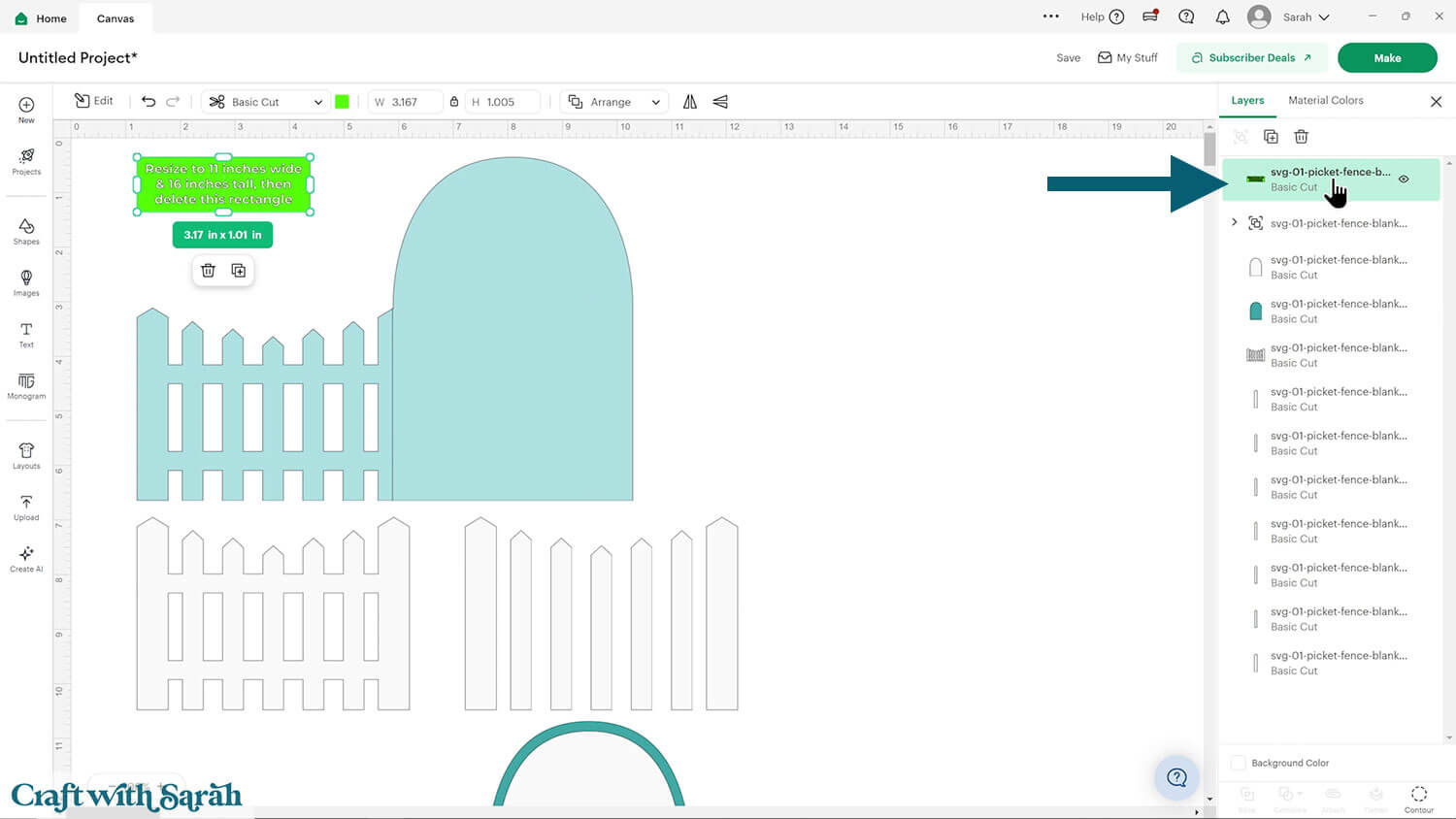
Find the base card (blue) in the layers panel and click the chevron arrow to open up the layers.
Click the layer that looks like a single line.
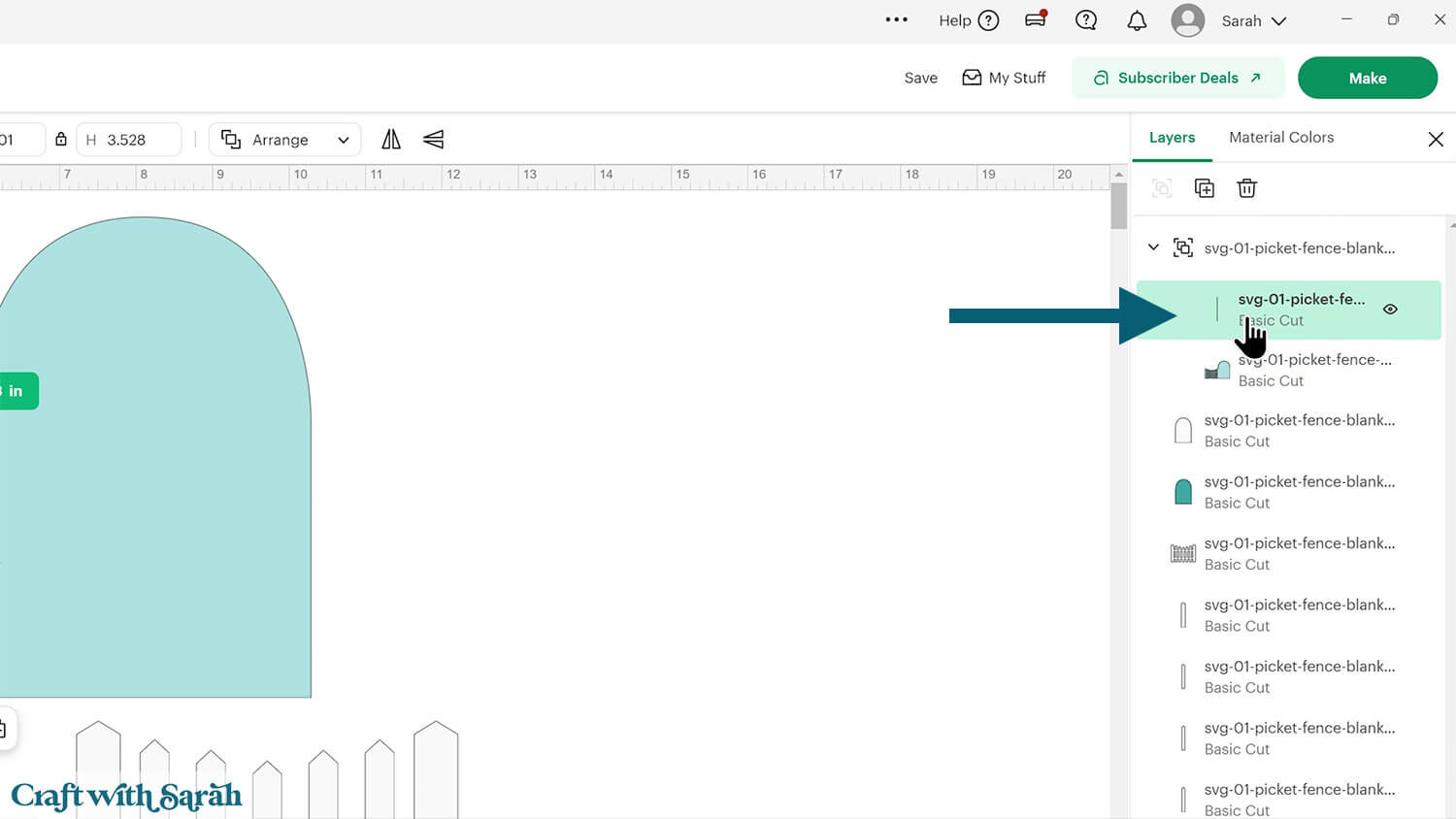
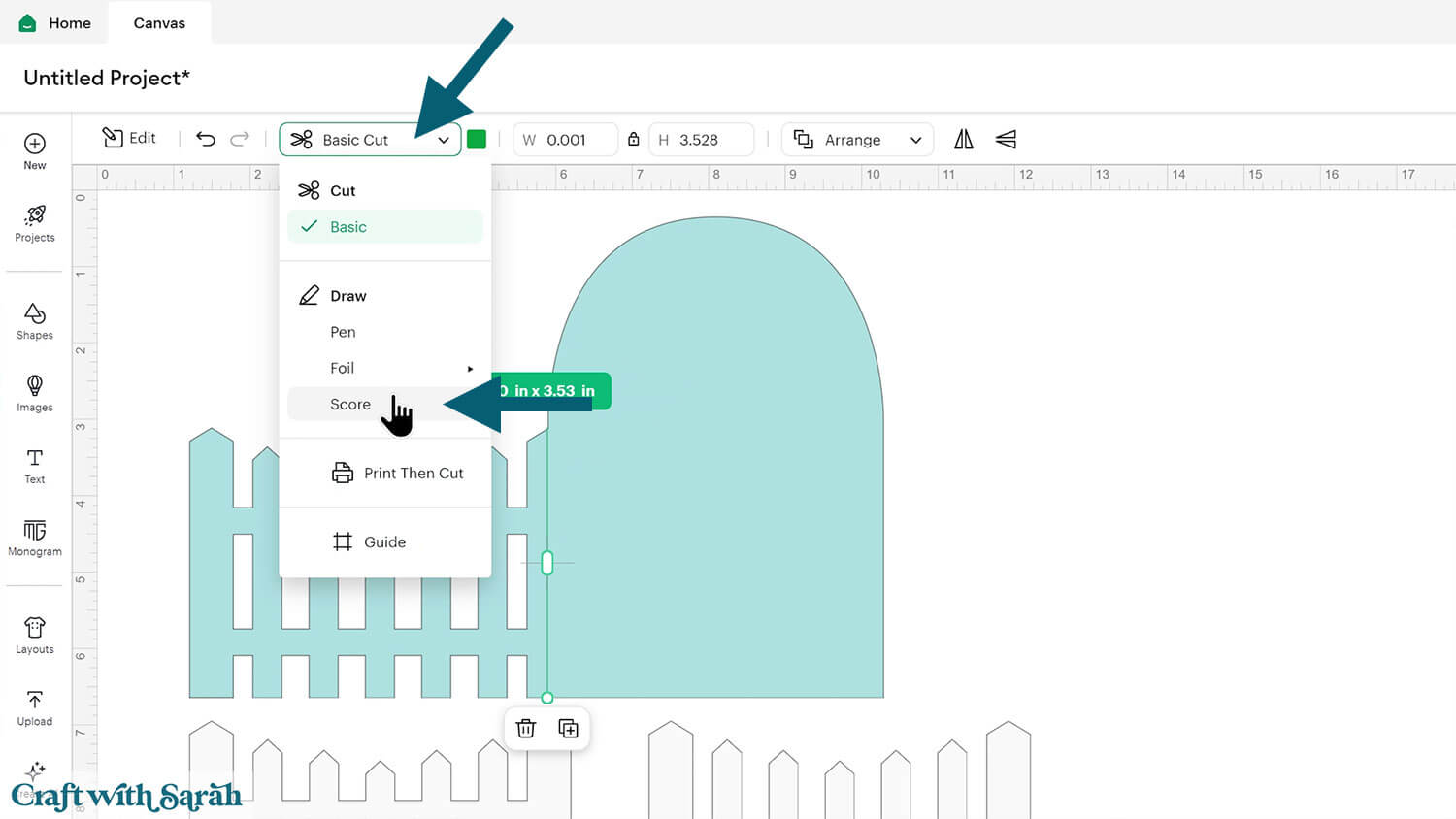
If you do NOT have a scoring tool for your Cricut then delete this line.
If you DO, then change the line to “Score” in the operations menu along the top of the screen.
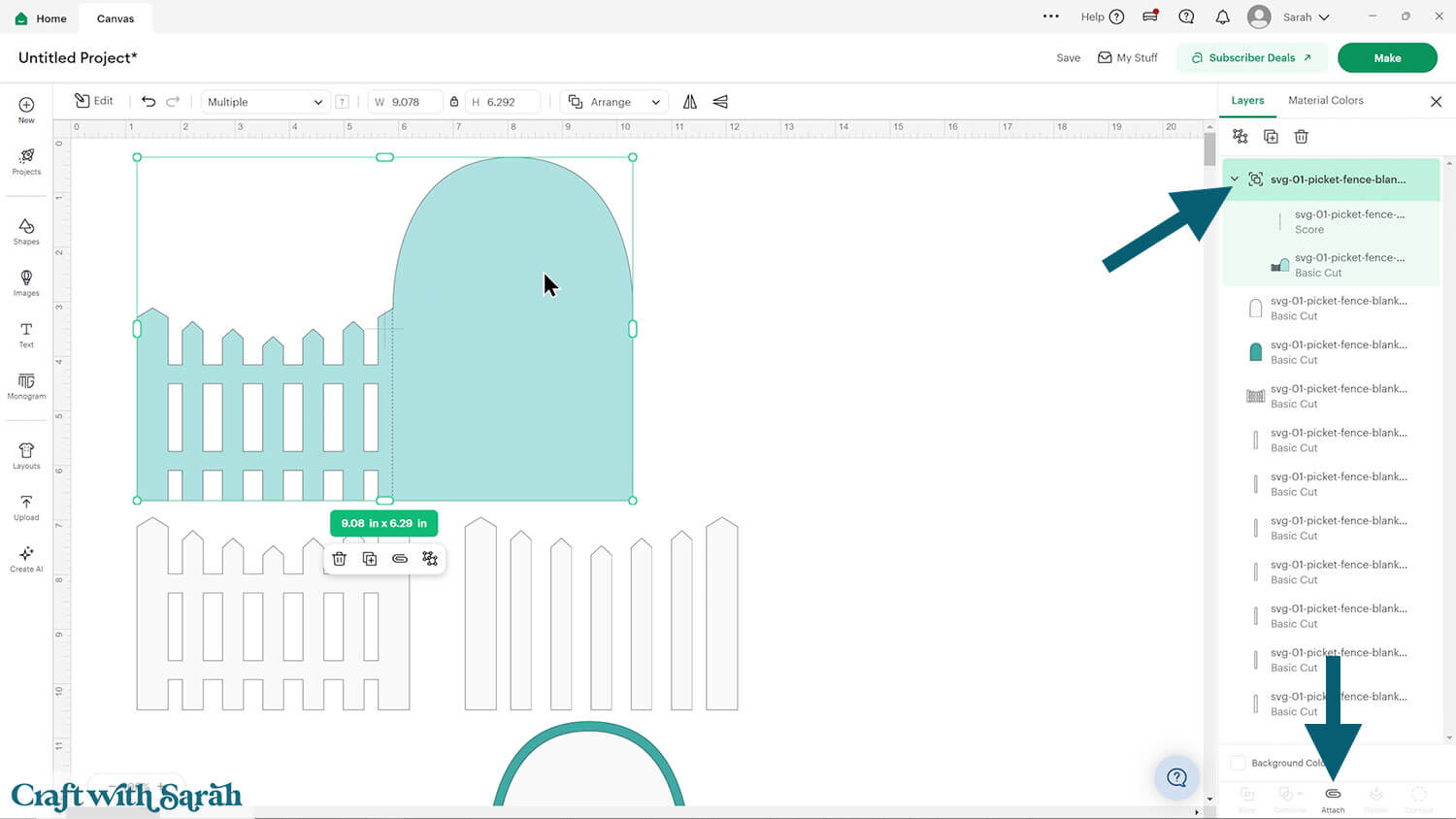
After changing to “Score”, select the base card layer and the line and click “Attach” to tell the Cricut to do the scoring in that exact position.
Step 4) Add decorations to the card (optional)
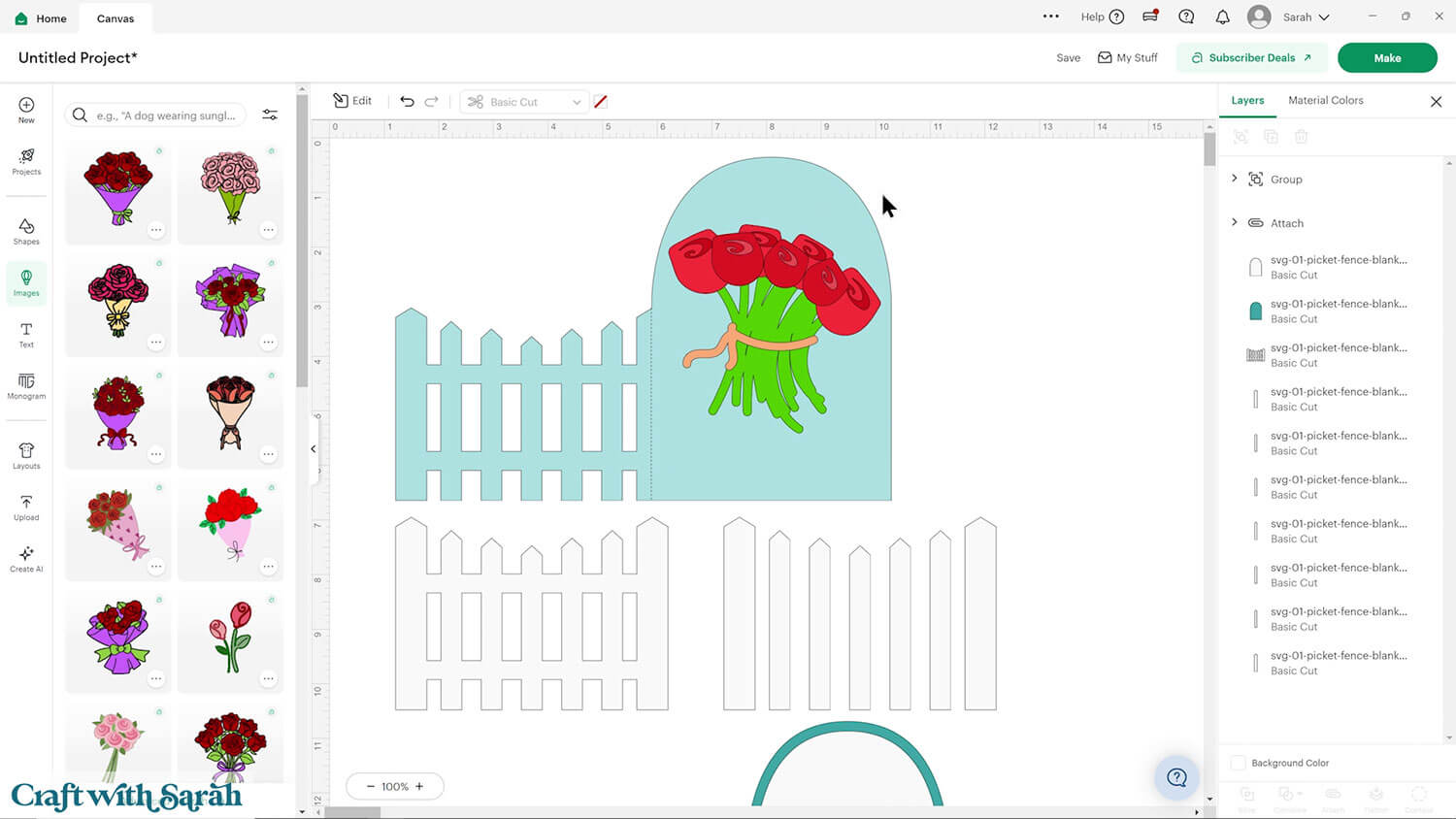
You can either create decorations or pictures for the card in Design Space, or use your other craft supplies such as printed flowers, stamps, die-cuts, or embellishments from your craft stash.
For a guide on adding images in Design Space, watch the video near the top of this tutorial.
Step 3) Cut out all the pieces
When you’re happy with how the project is looking in Design Space, click “Make” and follow the instructions on-screen to cut out all the pieces.
To change the paper size, go into the dropdowns over on the left side of the screen and choose the paper size that you want to use. You need to change it for every single colour.
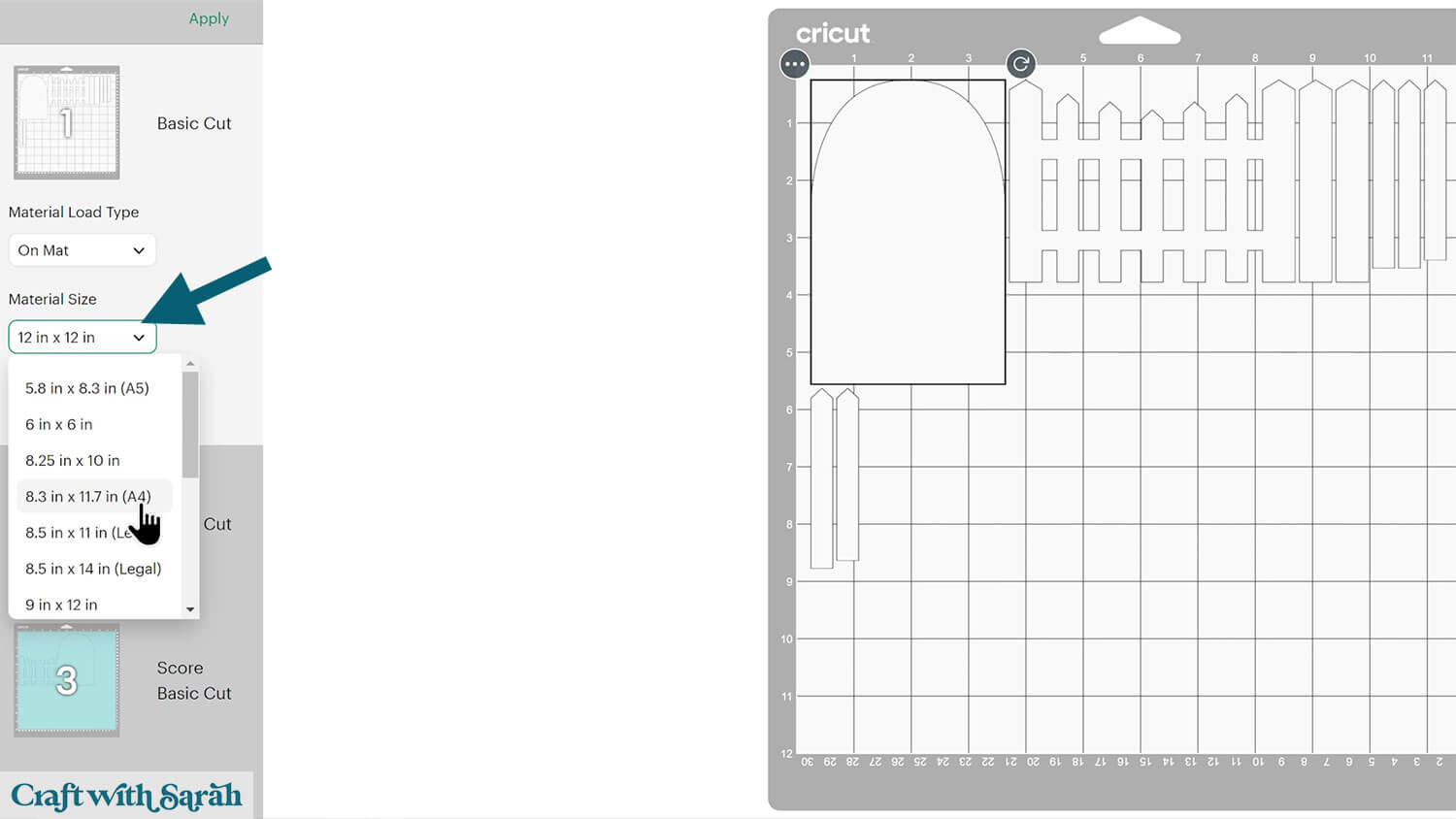
To save space on your cardstock, you can move things around by clicking and dragging. Make sure when you’re moving things about that nothing overlaps because otherwise, it won’t cut out properly.
TIP: New to using cardstock with your cutting machine? Check out these machine help guides for Cricut, Silhouette and ScanNCut that go through every step of the process, including tips for getting the best quality cuts from your machine.
Step 4) Assembling the blank card
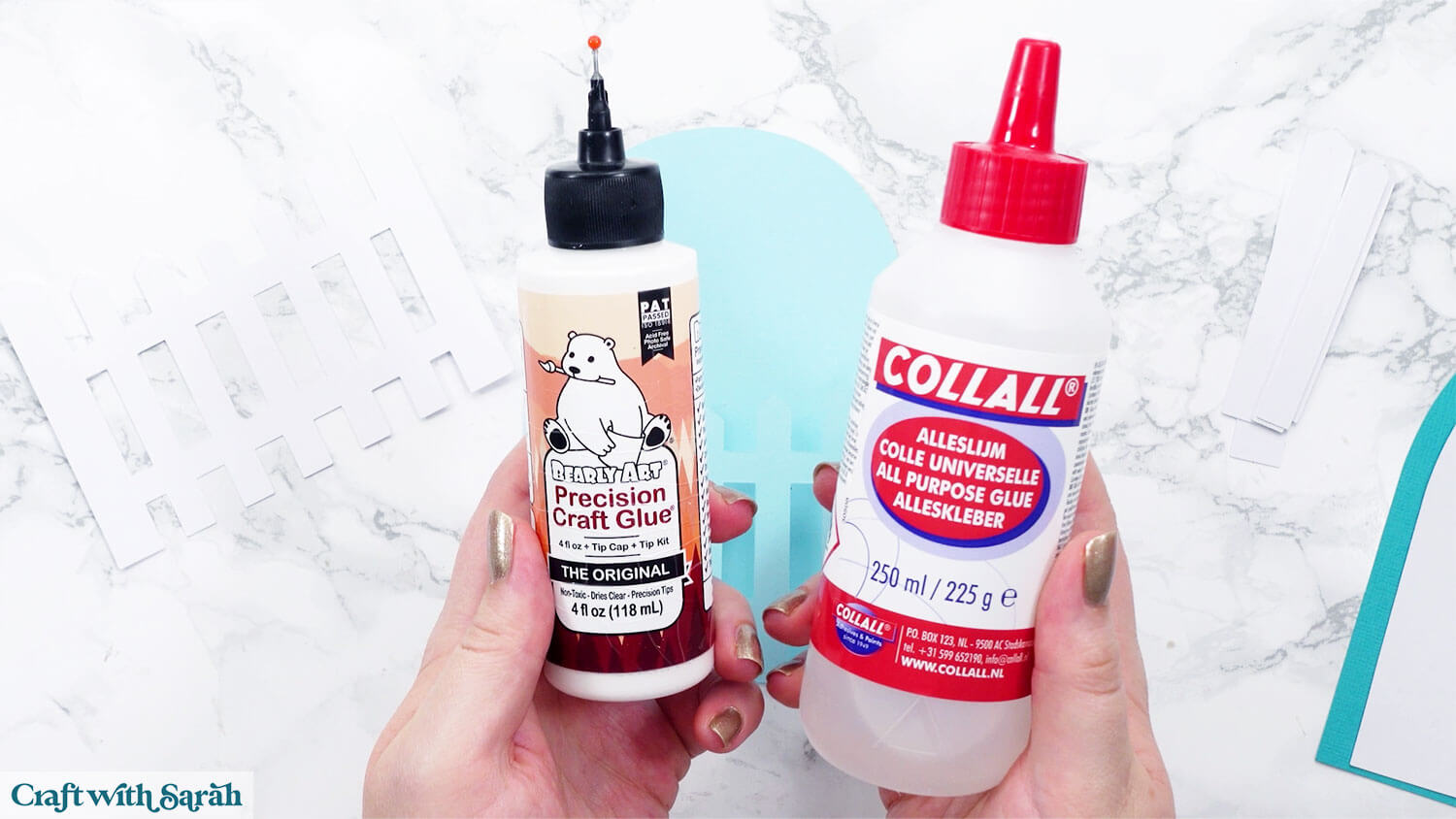
My favourite glues to use on papercraft projects are Bearly Art Glue and Collall All Purpose Glue.
These are great because they don’t “warp” or bend the cardstock like some glues do. You can use as much of it as you want and the card stays perfect – and it dries perfectly clear too!
Bearly Art Glue comes with a tiny nozzle to make it easy to apply glue to small areas of card. The Collall glue doesn’t come with this, so it’s easiest to decant it into needle tip applicator bottles so that you have more control.
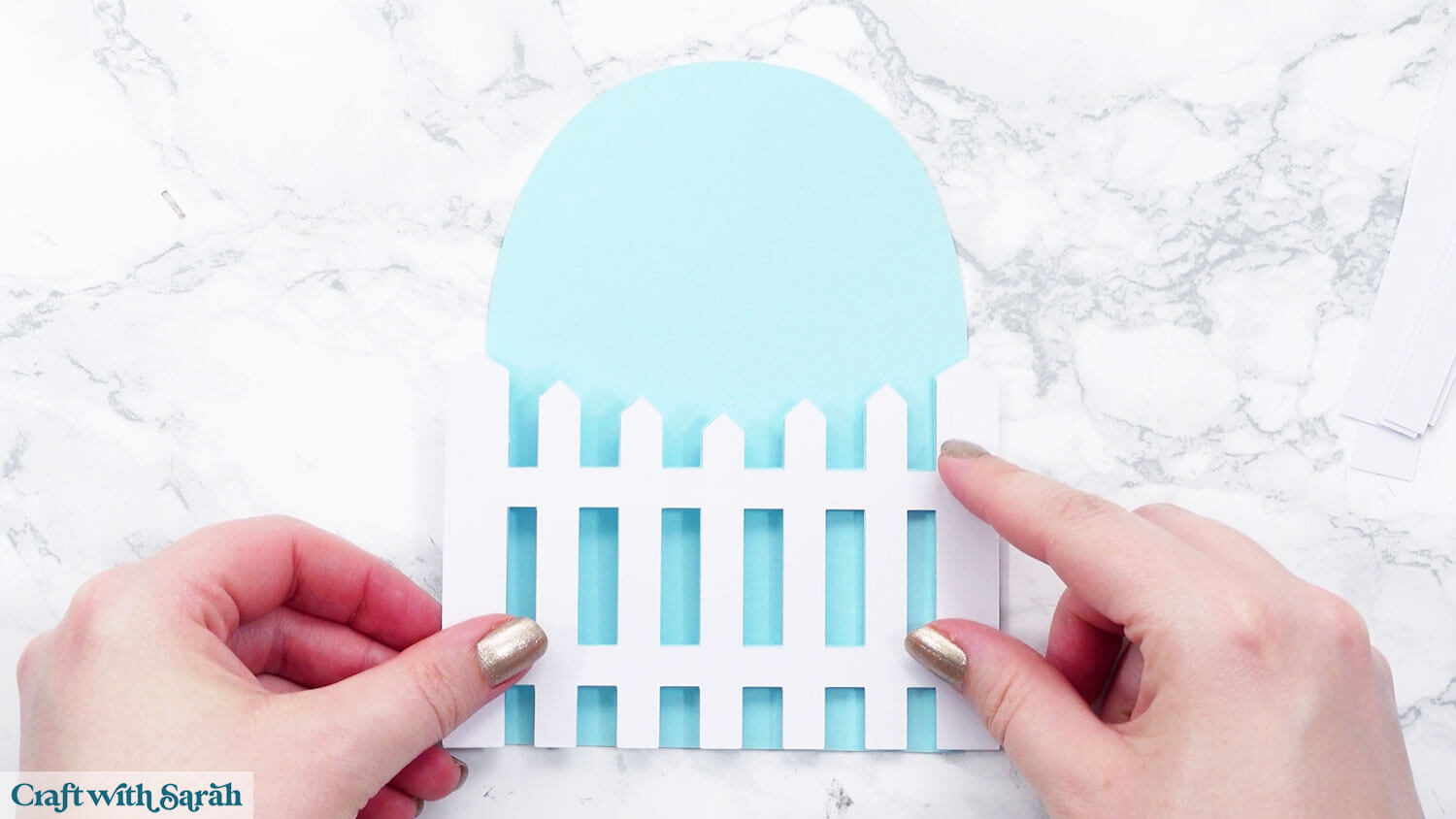
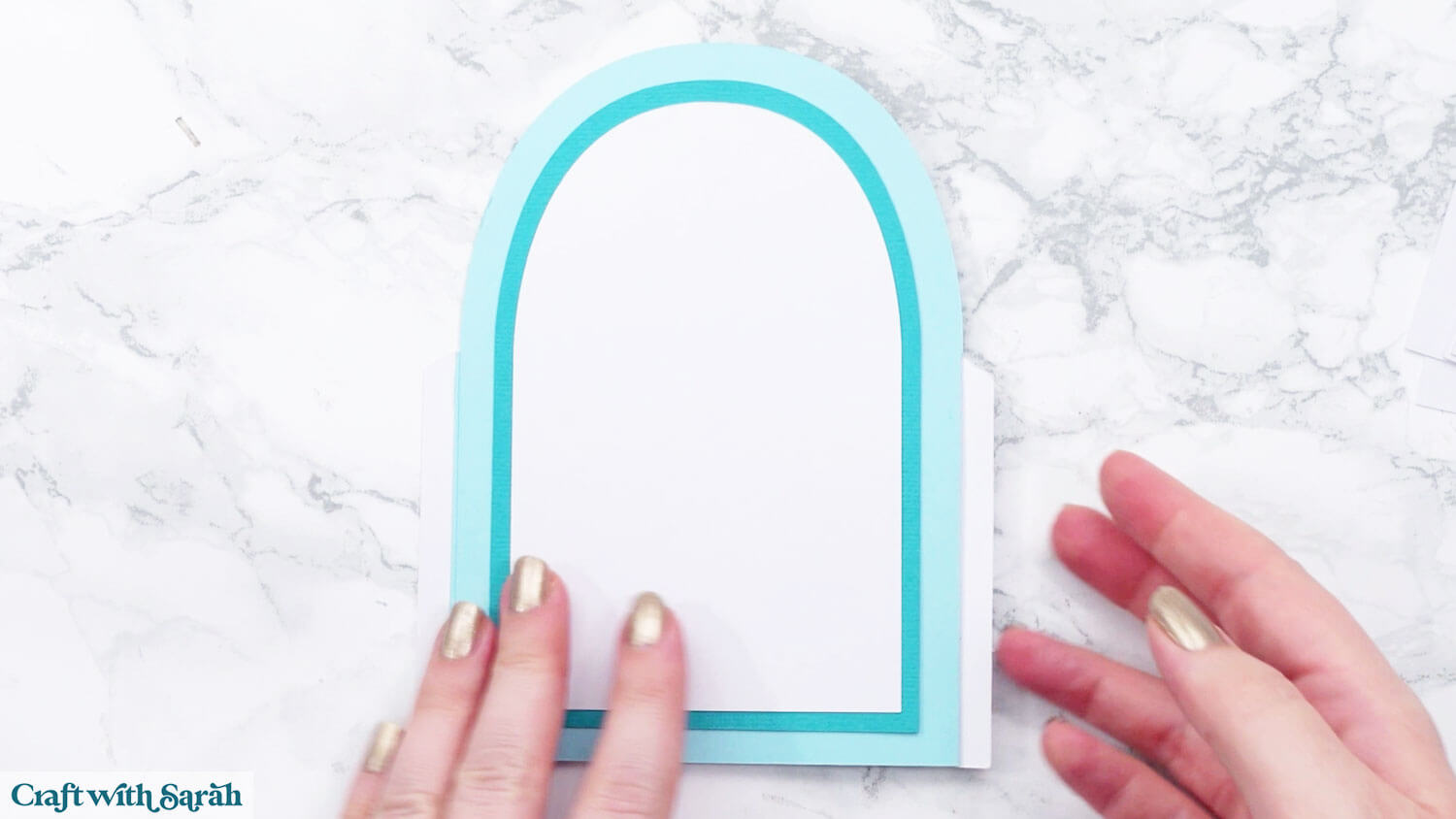
Glue the fence piece on top of the front of the card. It overlaps a little on the left and right – that’s intentional. It adds character and gives space for decorations.
Glue the message panel onto its border, then glue it to the back of the card. This makes it a little sturdier and gives you a neat spot to write your note.
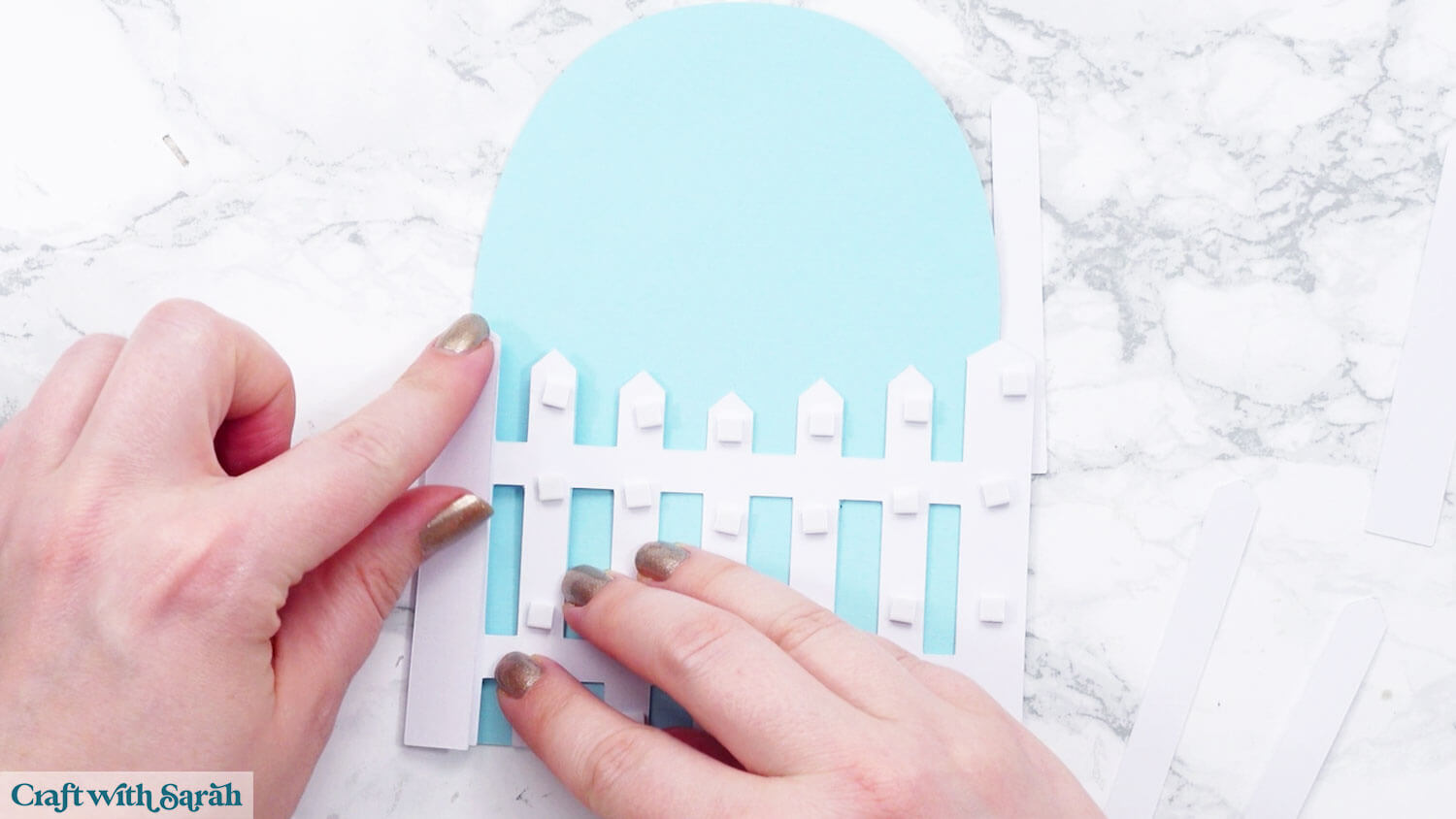
Add the vertical fence posts using foam squares to create a nice bit of dimension. Make sure you add foam squares to the middles of the fence posts so that you get an even stick.
The posts vary slightly in size, so make sure to line them up in the correct order from end to middle.
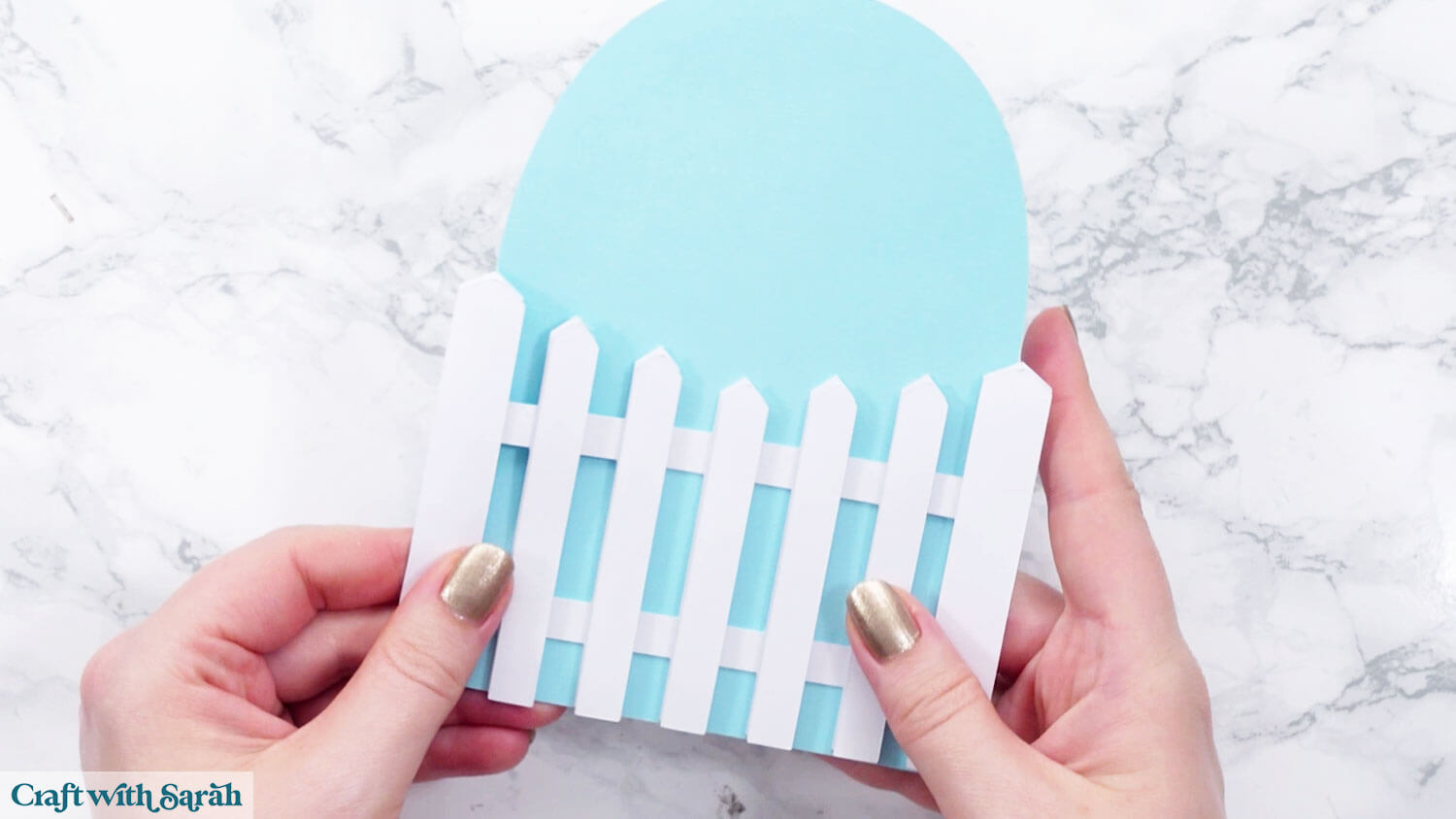
This finishes your blank card – ready for you to decorate any way you want.
PART 2: Flower Arch Fence Template
Here is how to make the predesigned flower arch picket fence card from the download folder.
Step 1) Load and cut the project
The steps for uploading the SVG and getting it ready to cut are the same as written above for the blank template.
This time, the file to upload is the one called svg-01-picket-fence-flower-arch-craftwithsarah.svg
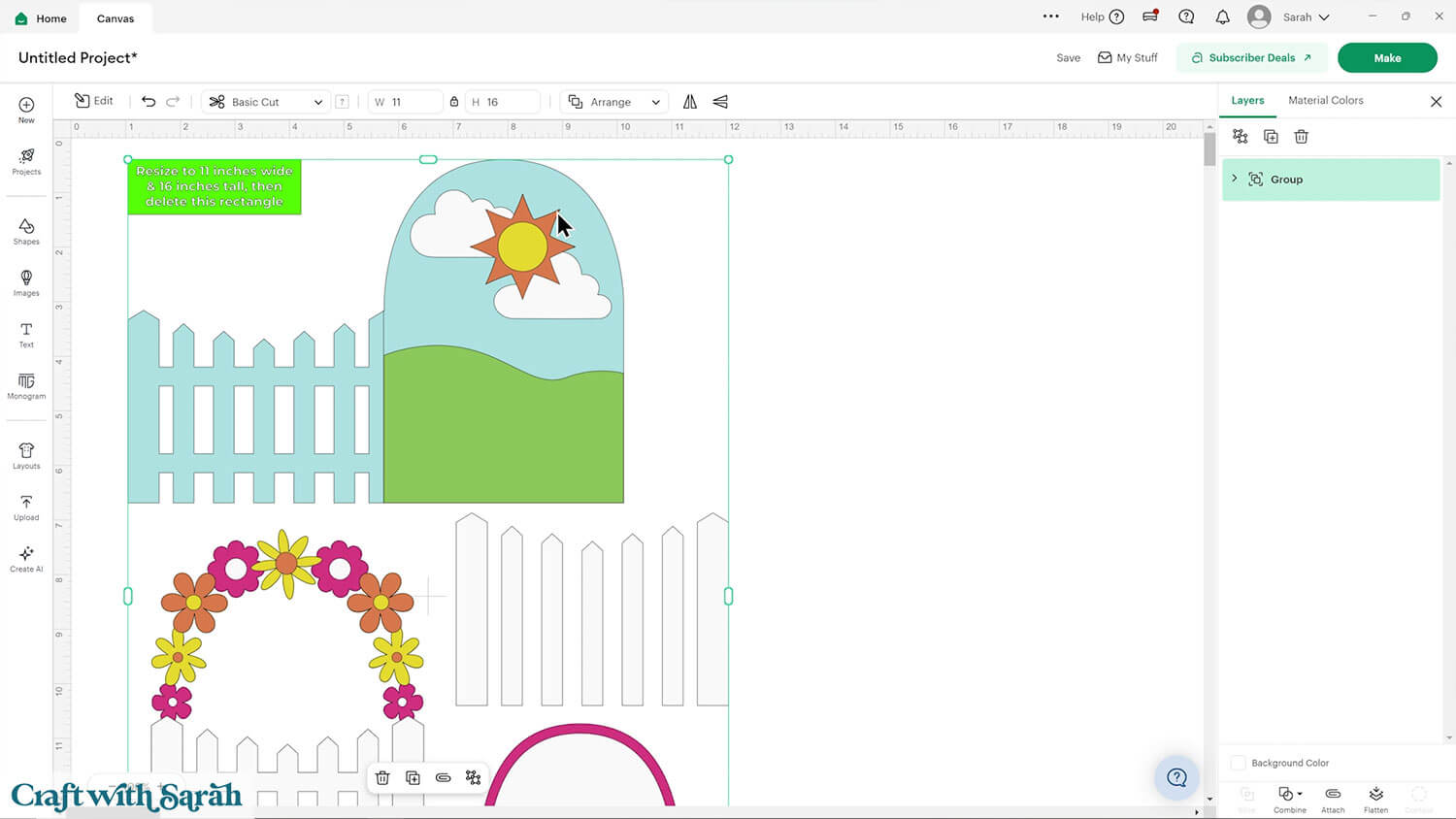
Upload the SVG, check the size, delete the lime green size guide rectangle, format the score line (or delete it if you aren’t using it) and then cut the card.
Step 2) Assemble the floral arch card
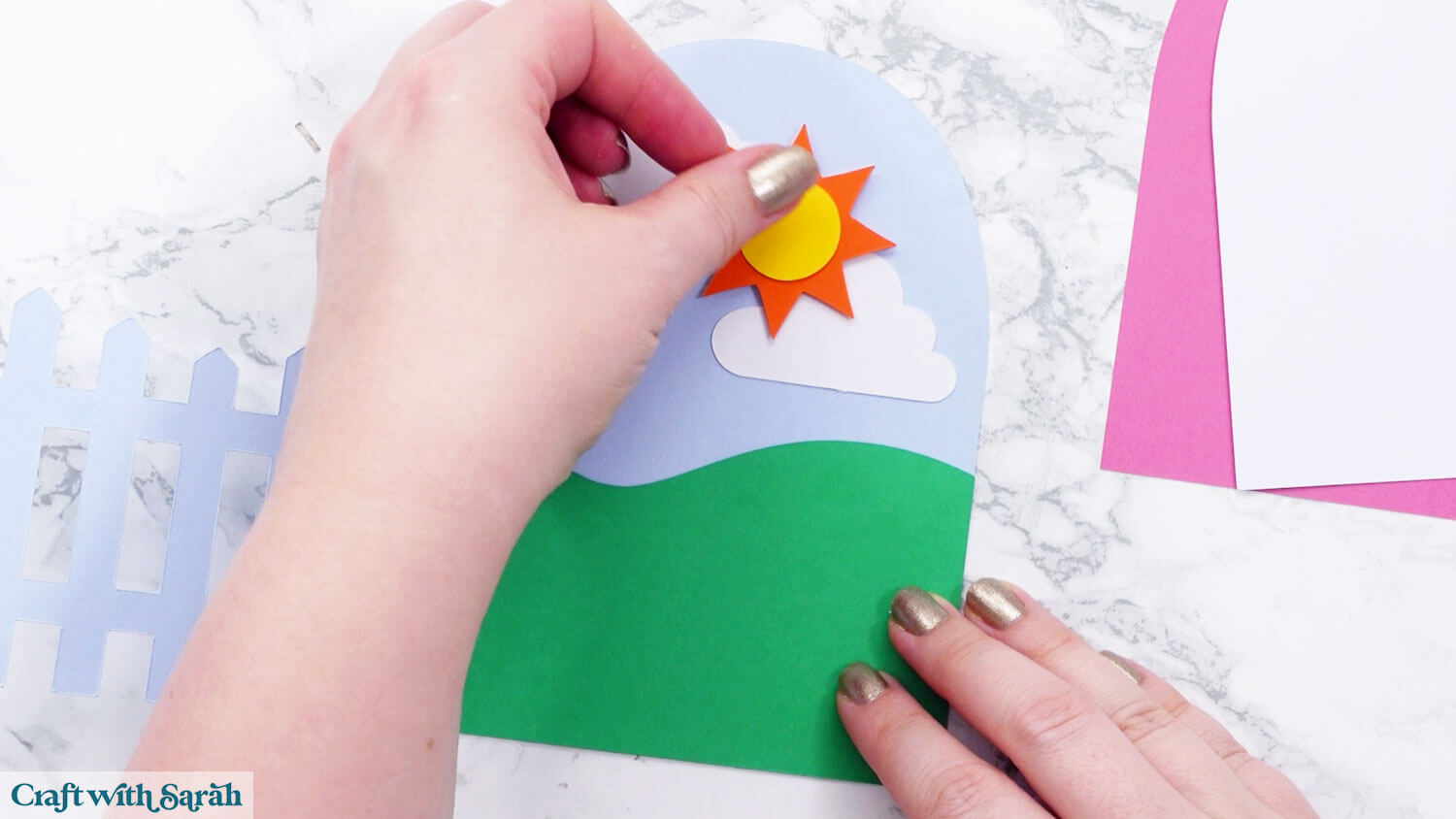
Start by gluing the hill shape to the inside of the card, then add the clouds and sun. The sun can be attached with foam squares to add a bit of dimension and balance out the design.
Next, attach the message panel to the back of the card just like before.
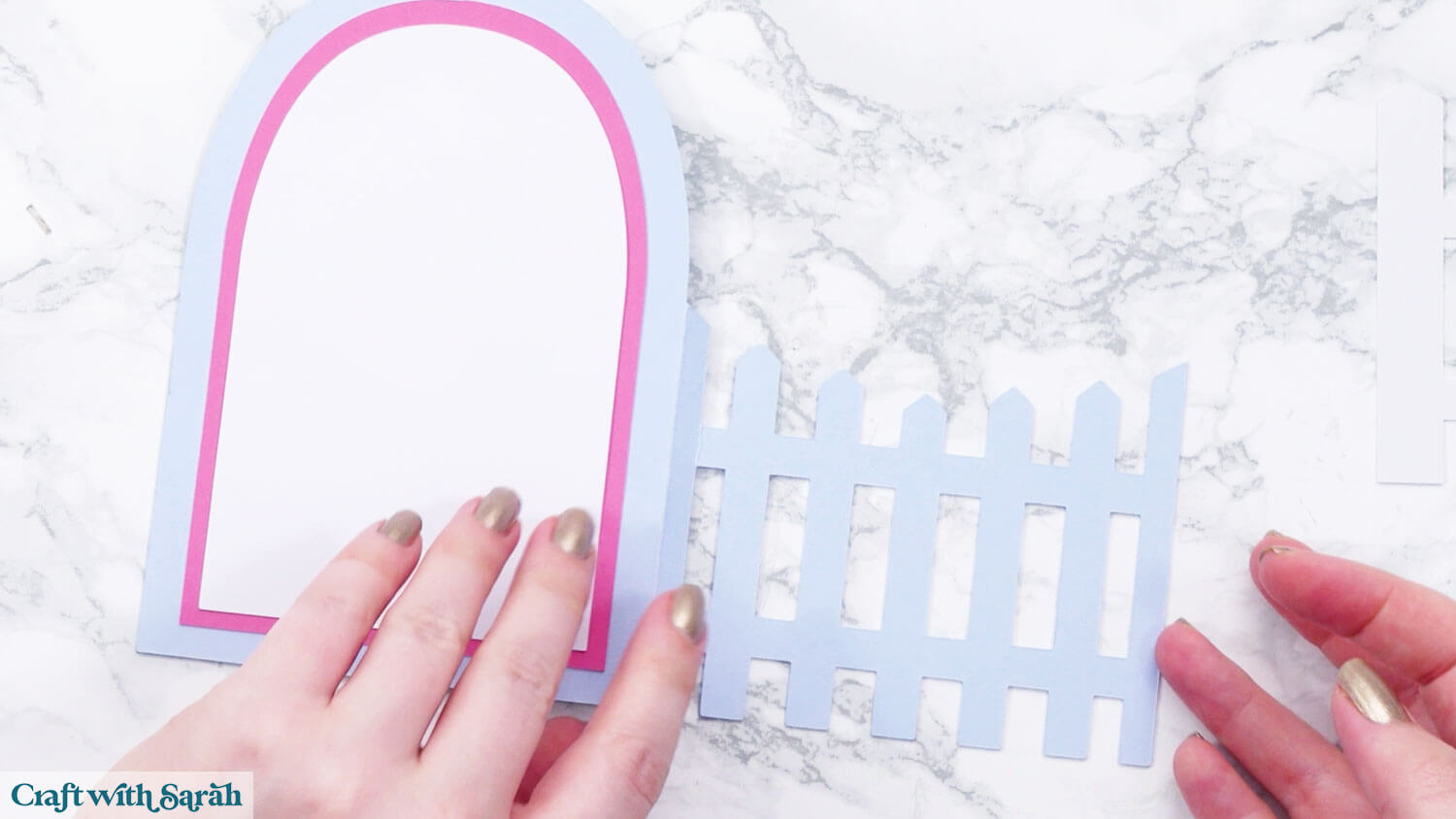
Now, glue the archway piece to the front fence section.
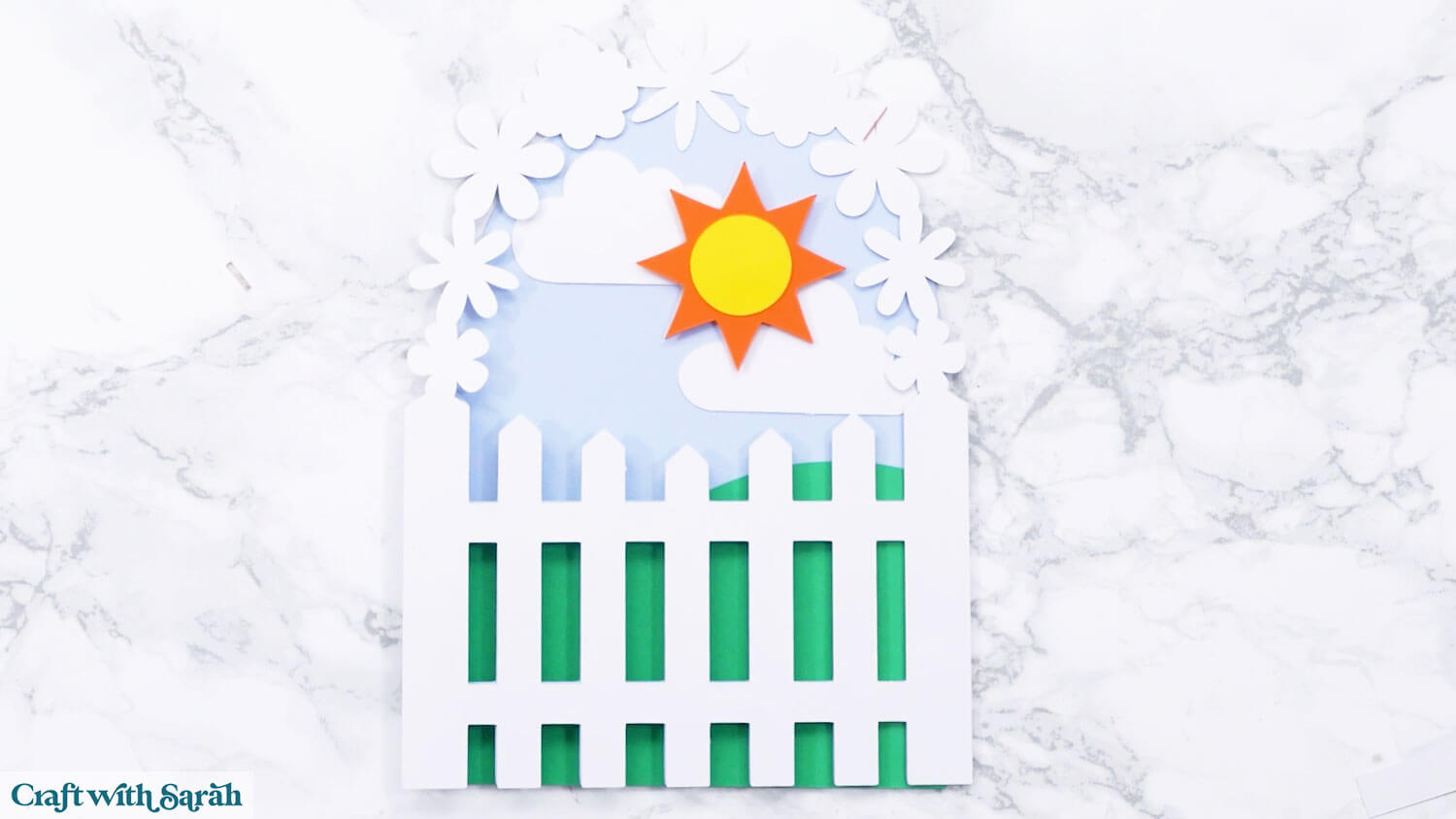
Glue the pink flower piece on top.
Be sure to double-check the flower alignment before gluing – it’s not perfectly symmetrical, so accidentally putting it the wrong way might throw things off.
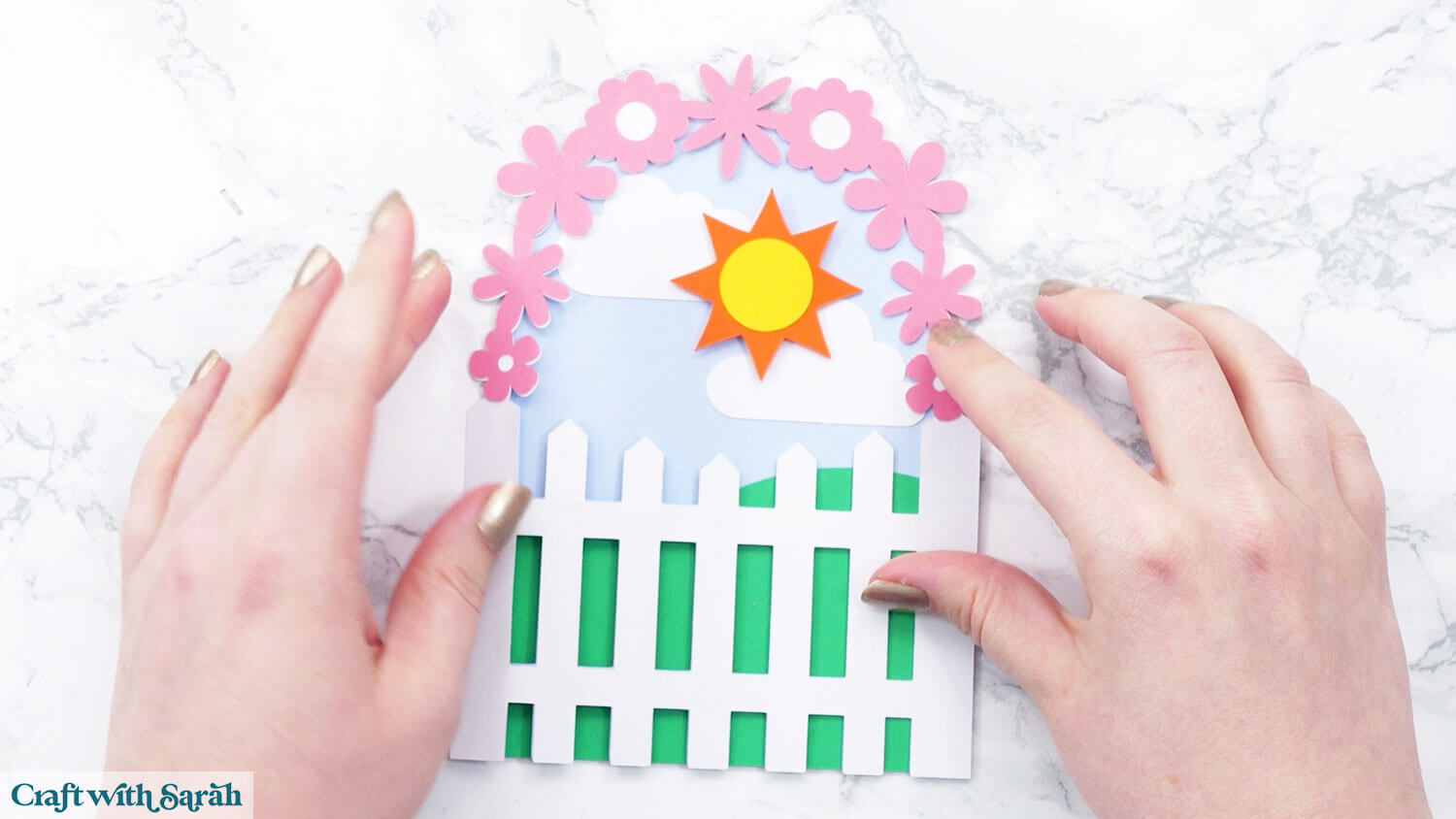
Use the assembly guide included in the download folder for more information on the flowers below.
Foam square the next pieces of the flowers (the solid bottoms).
Glue the rest of the flower pieces.
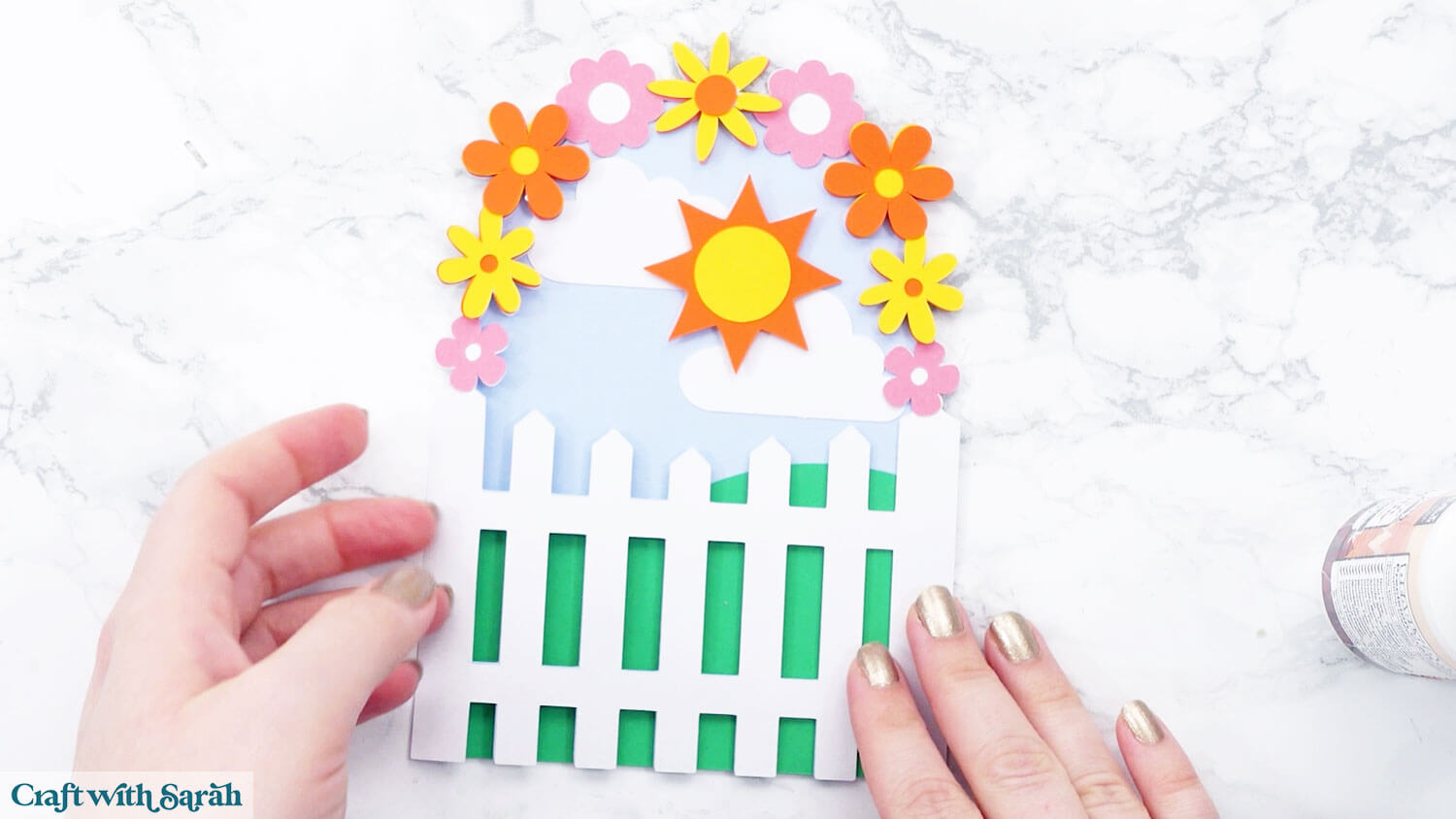
Glue the largest picket fence piece to the front of the card. This is to add stability.
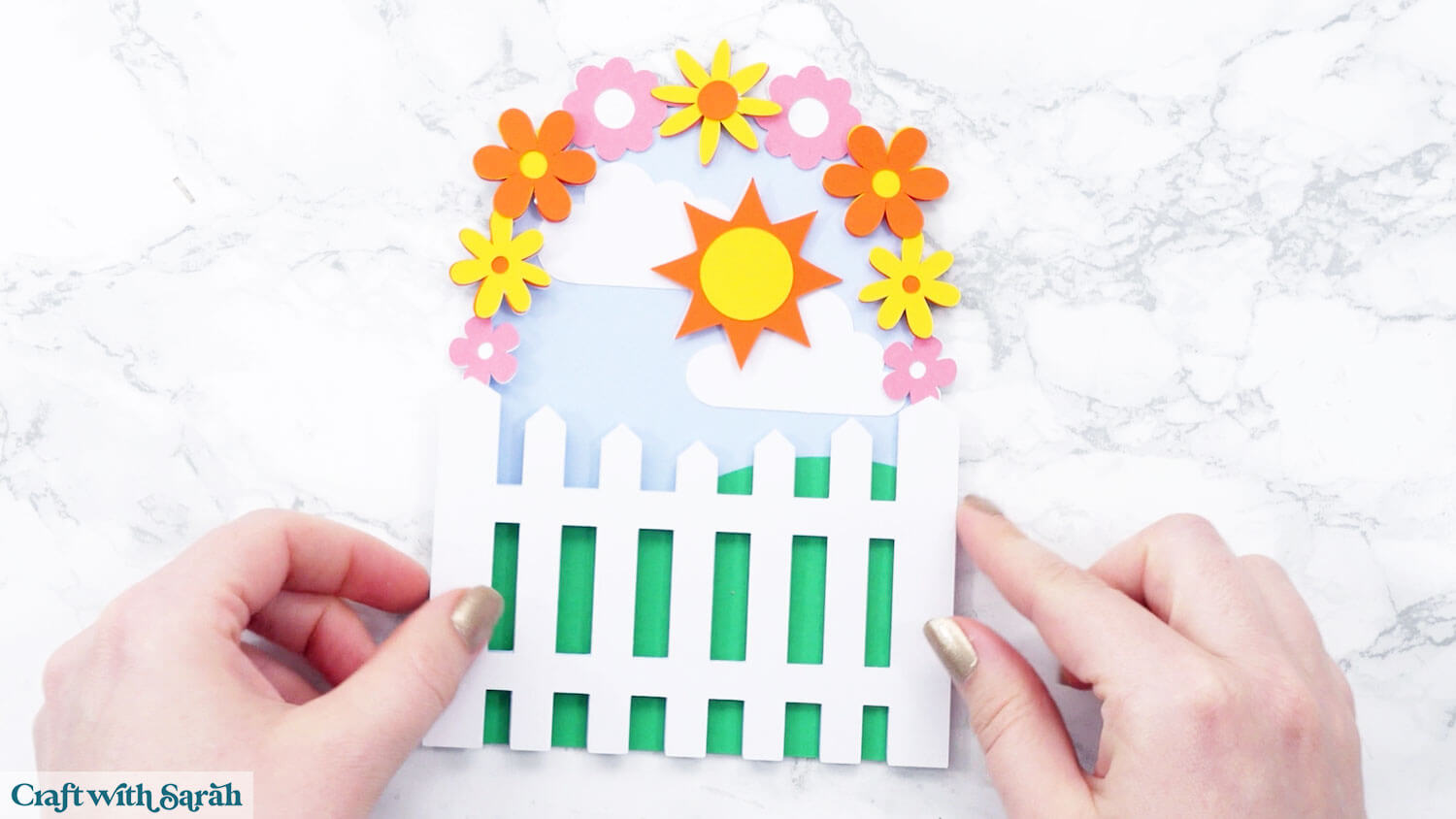
Add the vertical fence posts using foam squares to create a nice bit of dimension. Make sure you add foam squares to the middles of the fence posts so that you get an even stick.
The posts vary slightly in size, so make sure to line them up in the correct order from end to middle.
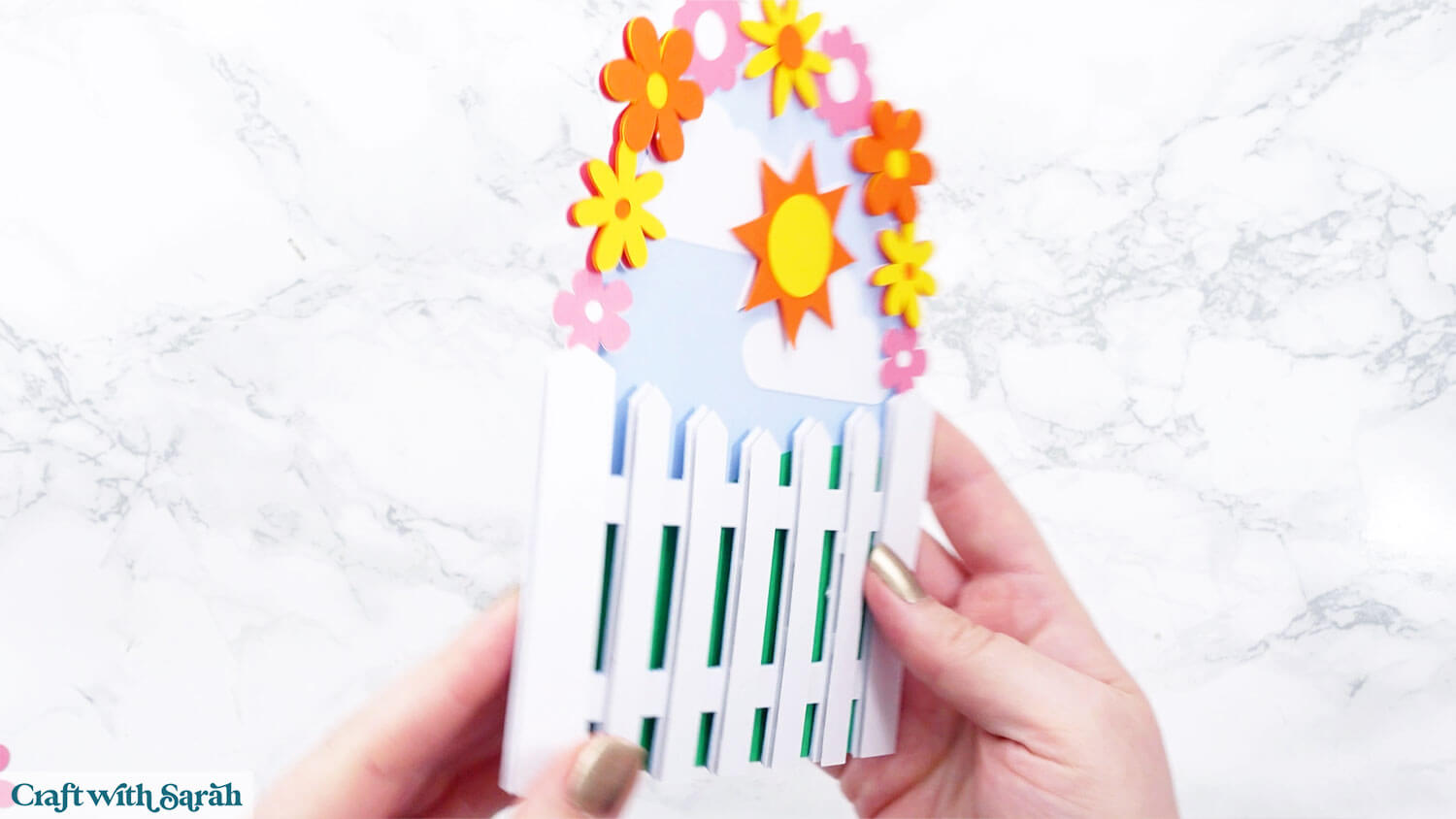
Picket fence cards to make with a Cricut
And there you have it – your picket fence greetings card is complete!
Whether you go for the blank version and add your personal touch, or use the pre-made flower design, this project is a joy to put together.
The layers, colours, and details make it a card your friends and family will love receiving.
Love card making with your Cricut?
Check out these other card making tutorials, all with free SVGs.
- 4 floral greetings cards
- Cut & tuck cards
- Cricut Joy insert cards
- Presentation boxes for handmade cards
- Bend out cards for Christmas
Happy crafting,
Sarah x