How to Unzip Folders to use SVG Files

Have you downloaded an SVG file only to find it comes in a ZIP folder that Cricut Design Space can’t open?
This can be confusing when you’re first getting started with SVG files, but don’t worry – it’s easy to work with zip folders once you know what to do with them.
In this tutorial, I’ll show you how to unzip (also called extracting) ZIP folders on Windows, Mac, Android, iPhone and iPad.
Once you’ve extracted the folders, you can then upload the SVGs files into Cricut Design Space (or any cutting machine software) without any problems.
What is a ZIP folder?
Many websites (including this one!) provide downloadable files as ZIP folders.
It’s a way to combine multiple files into one simple download link.
For example, the free SVGs on this website actually contain multiple files: separate SVG, PNG, EPS and DXF version of the cutting file as different types of cutting machine use different versions, an assembly guide to show how to make the project, instructions, terms of use and a photo of the finished project.
Putting all those files in a ZIP folder means that you can download them all with one click, rather than having to have separate links/buttons for each single file.
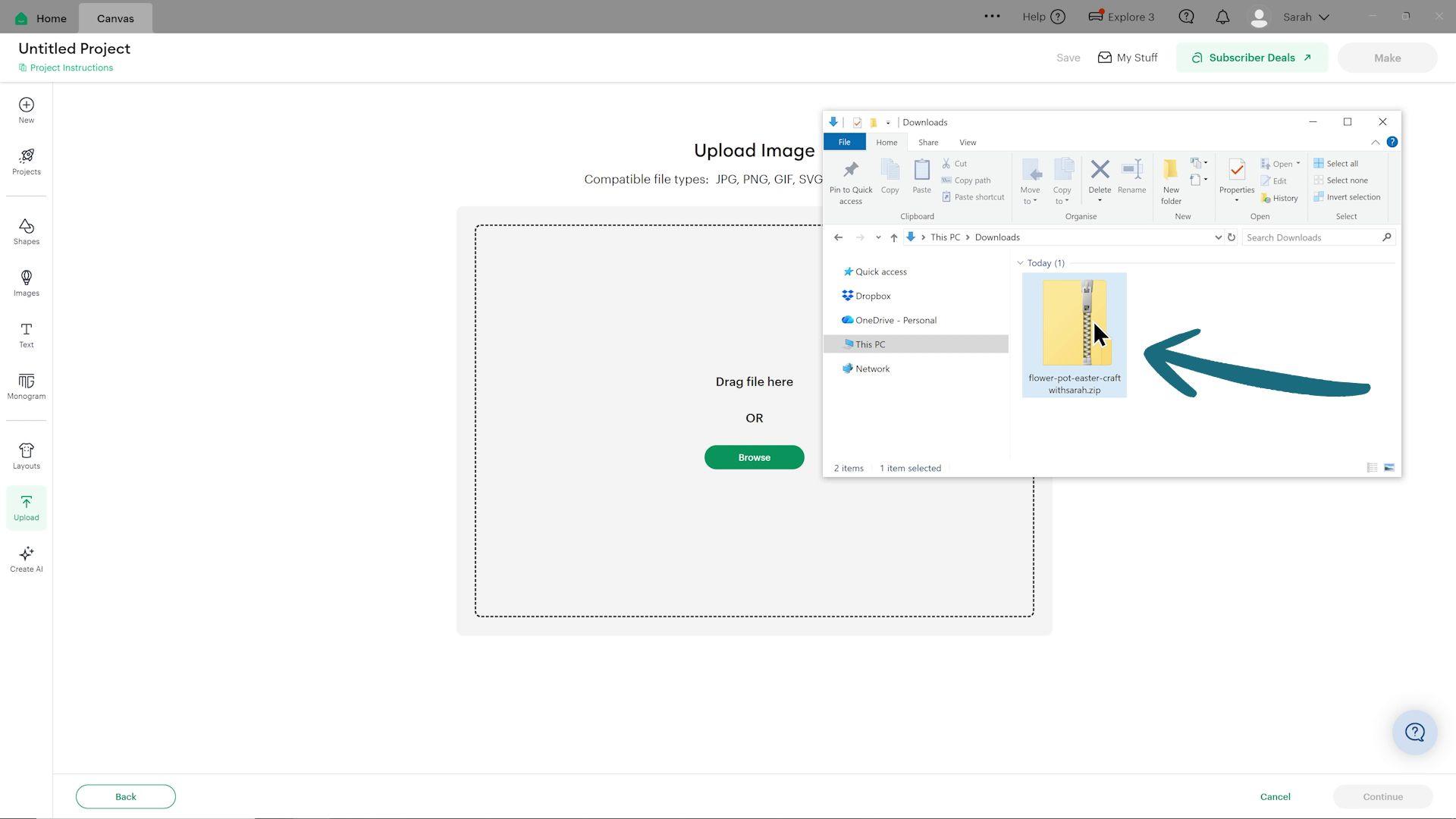
However, files in ZIP folders cannot be directly used by Cricut Design Space.
If you try to drag an SVG file into Design Space while it is inside a ZIP folder, you’ll usually get an error message saying that something went wrong.
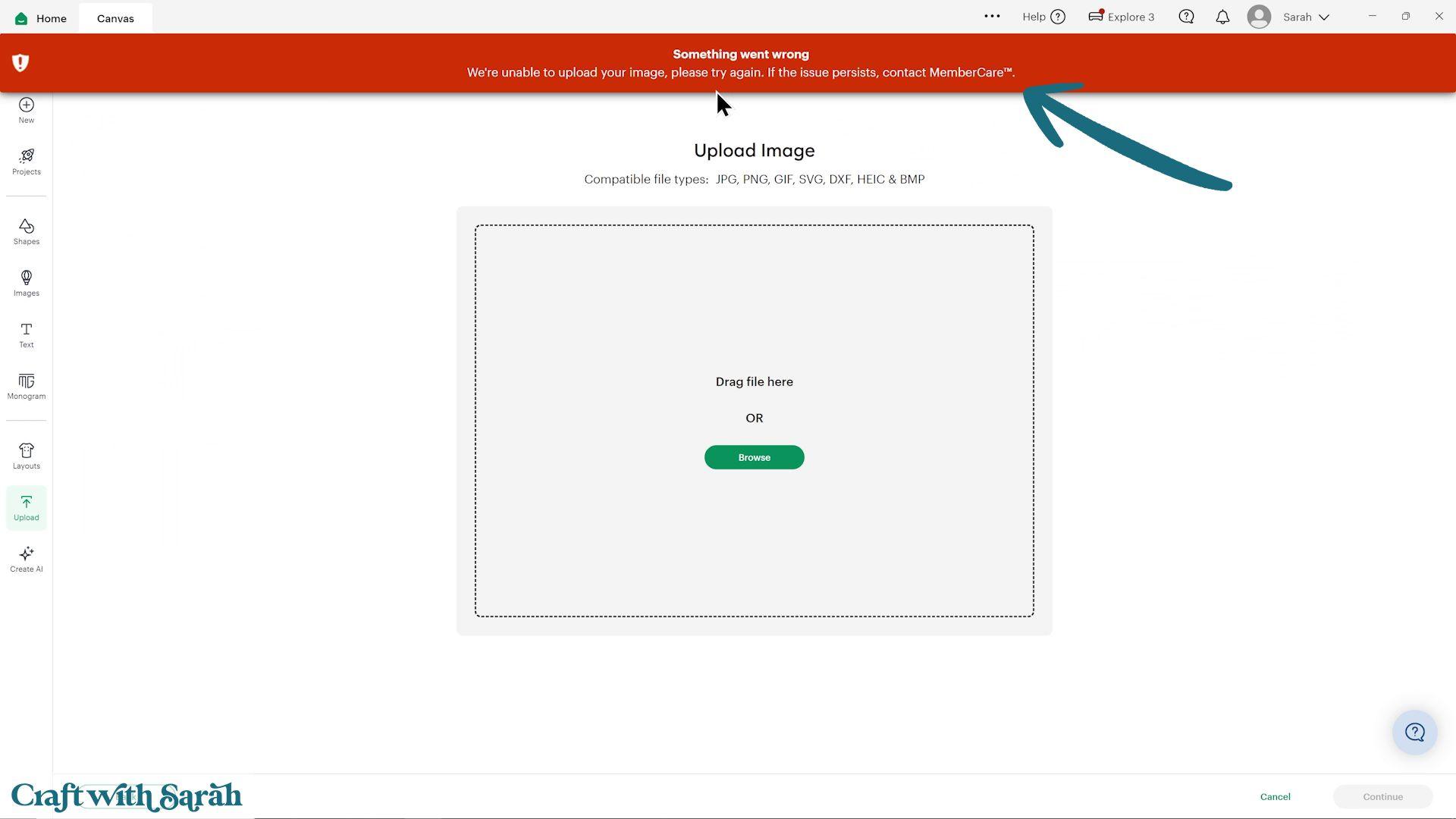
To fix this error, you need to unzip the download folder – this is also called “extracting”.
Once you’ve extracted the ZIP folder, Cricut Design Space will be able to see the SVG files normally.
How to use ZIP folders with Cricut Design Space
Start by downloading the SVG file that you’d like to use.
Once the download has finished, you’ll usually find the zip folder in your Downloads folder.
Depending on your internet browser, you may also be able to click the completed download and choose an option such as ‘Show in folder’ to jump straight to it.
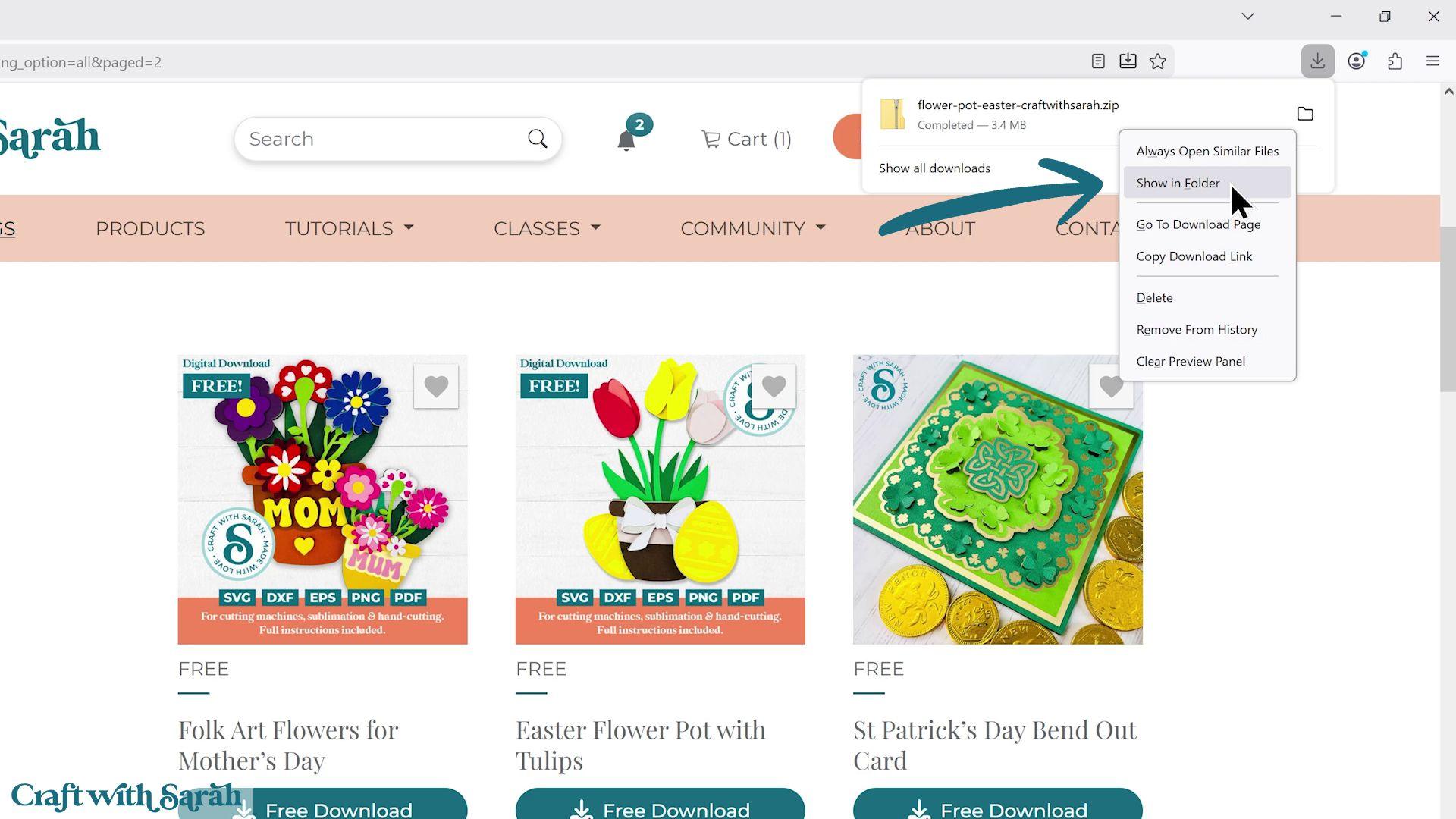
From this point onwards, the process depends on the type of computer or device that you’re using.
Click the links below to read the steps for that particular type of operating system.
How to unzip folders on Windows computers
On a Windows computer or laptop, locate the ZIP folder in File Explorer.
You can usually find it in your Downloads folder, although it may be stored somewhere different depending on your browser and computer settings.
Right-click the ZIP folder and choose ‘Extract All’.
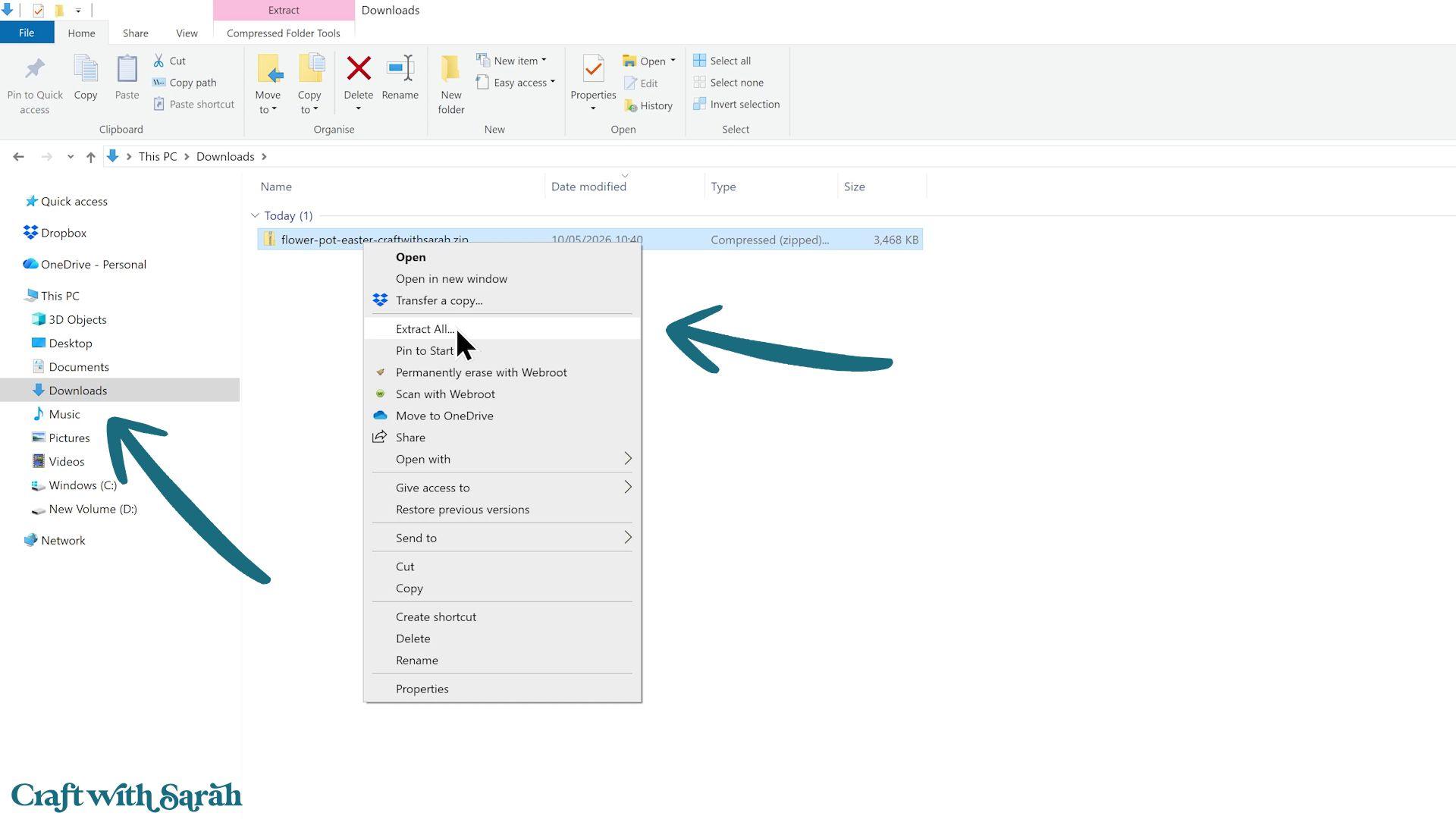
Choose where you’d like to save the extracted files and click ‘Extract’.
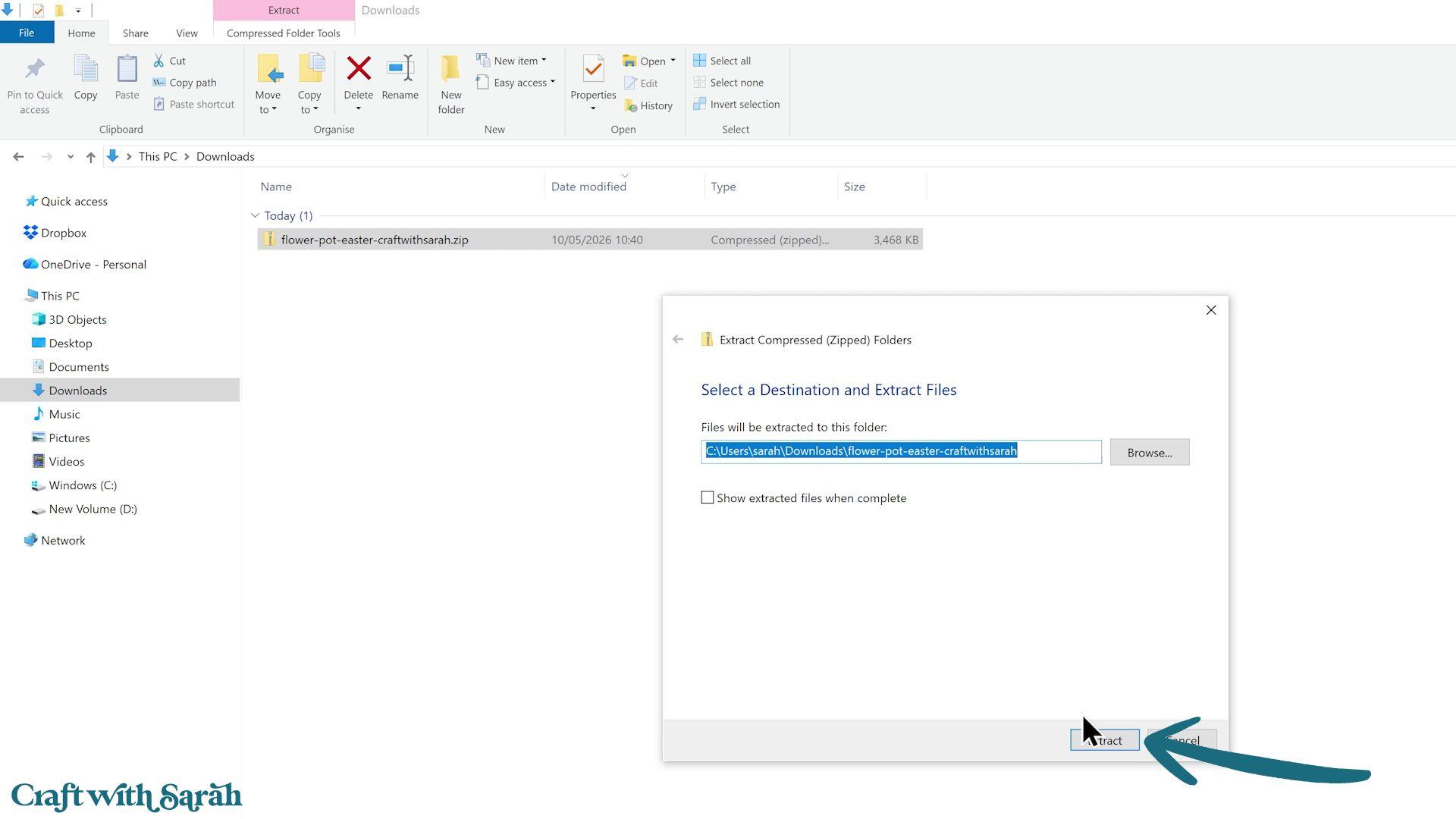
Windows will create a new folder containing all of your files.
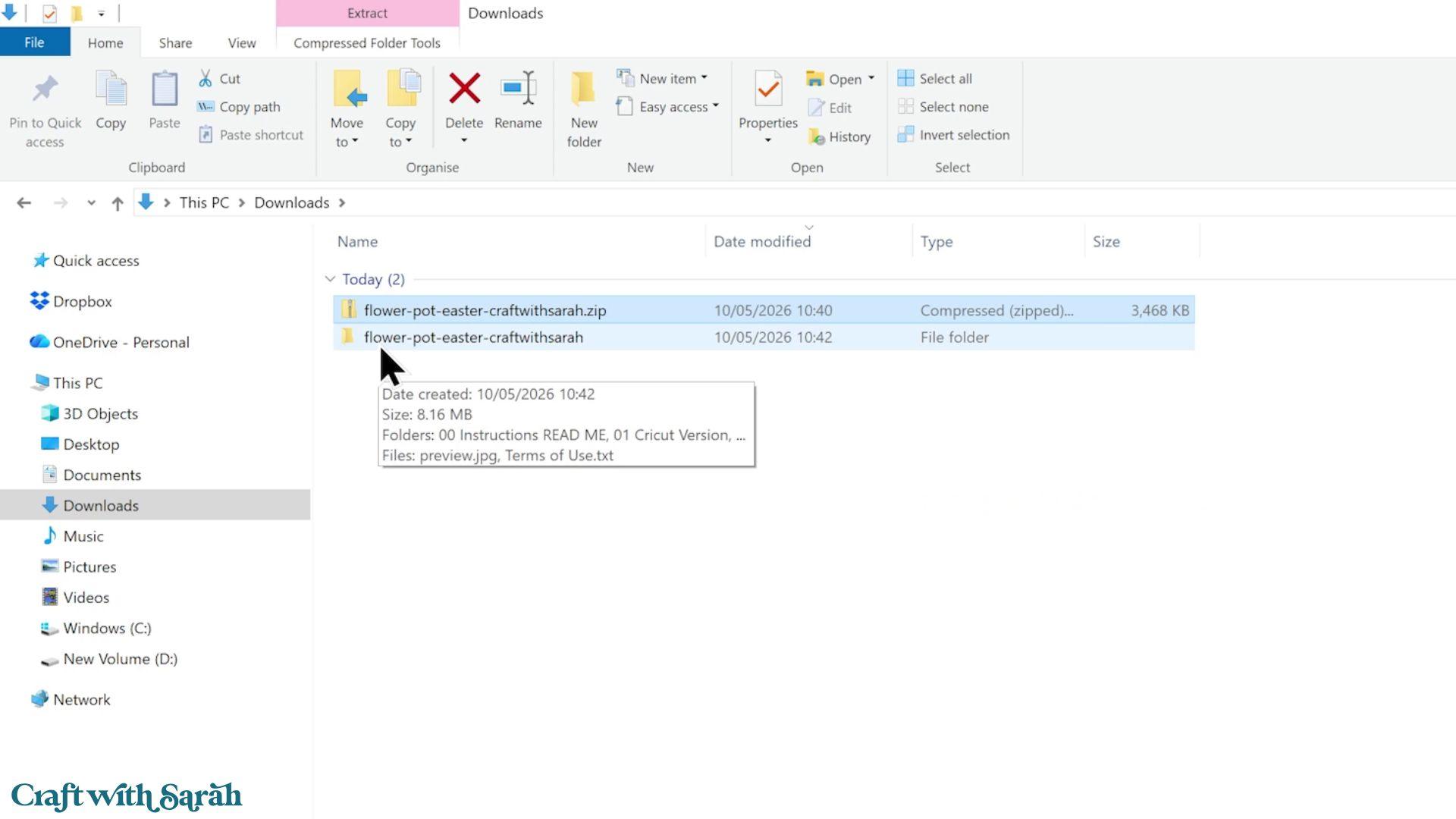
You’ll now have two versions: the original ZIP folder and the new extracted folder.
Once you’ve confirmed everything has extracted successfully, you can safely delete the original ZIP folder if you’d like to save space on your computer.
If you’re using one of my Craft with Sarah SVGs, you’ll notice several folders inside the extracted download:
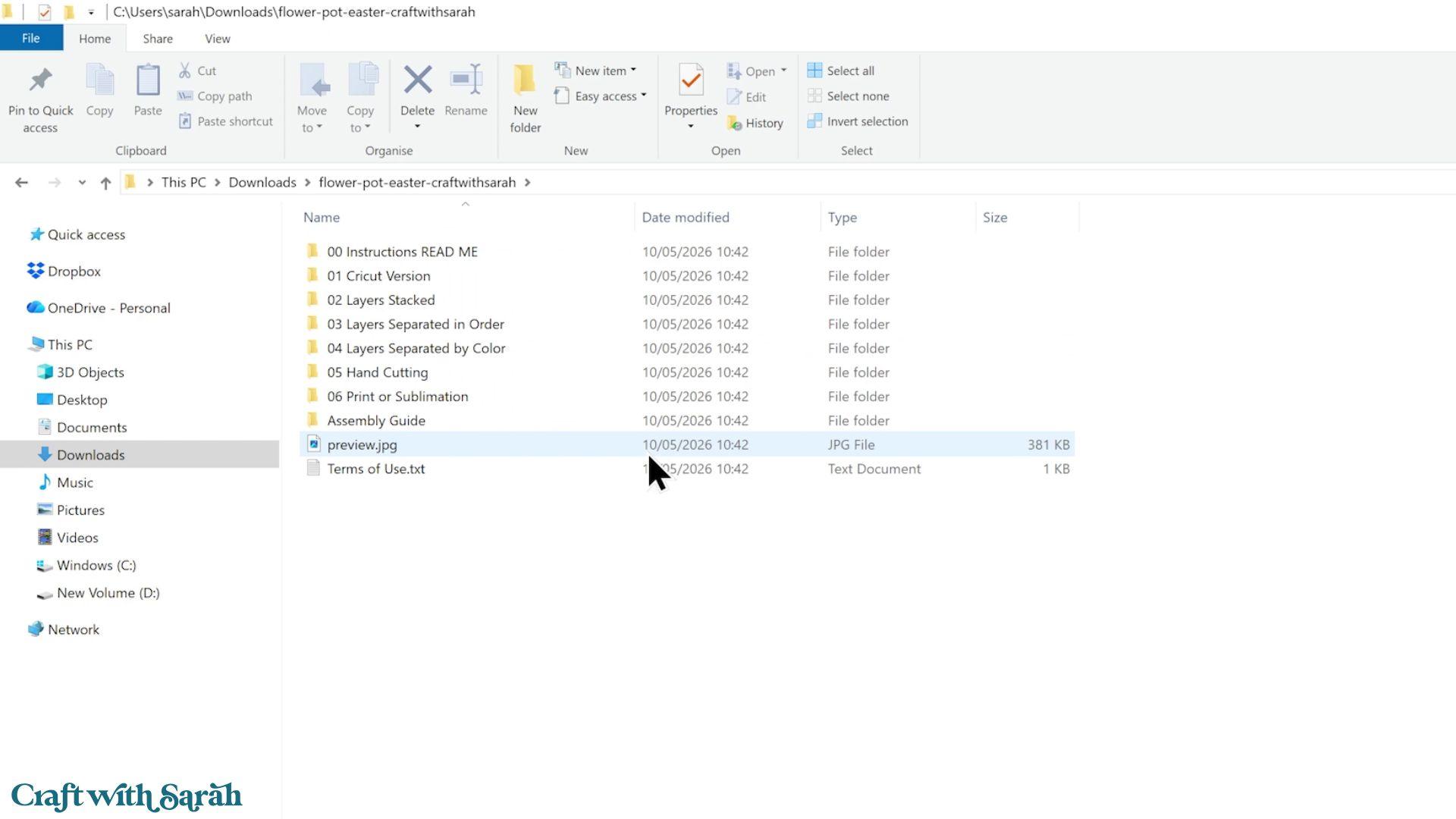
The folder you’ll need for Cricut Design Space is called ’01 Cricut Version’.
The other folders are included for different cutting machines or file formats. If you’re only using a Cricut machine, you can delete folders 02, 03, 04 and 05 if you’d like to free up some storage space on your computer.
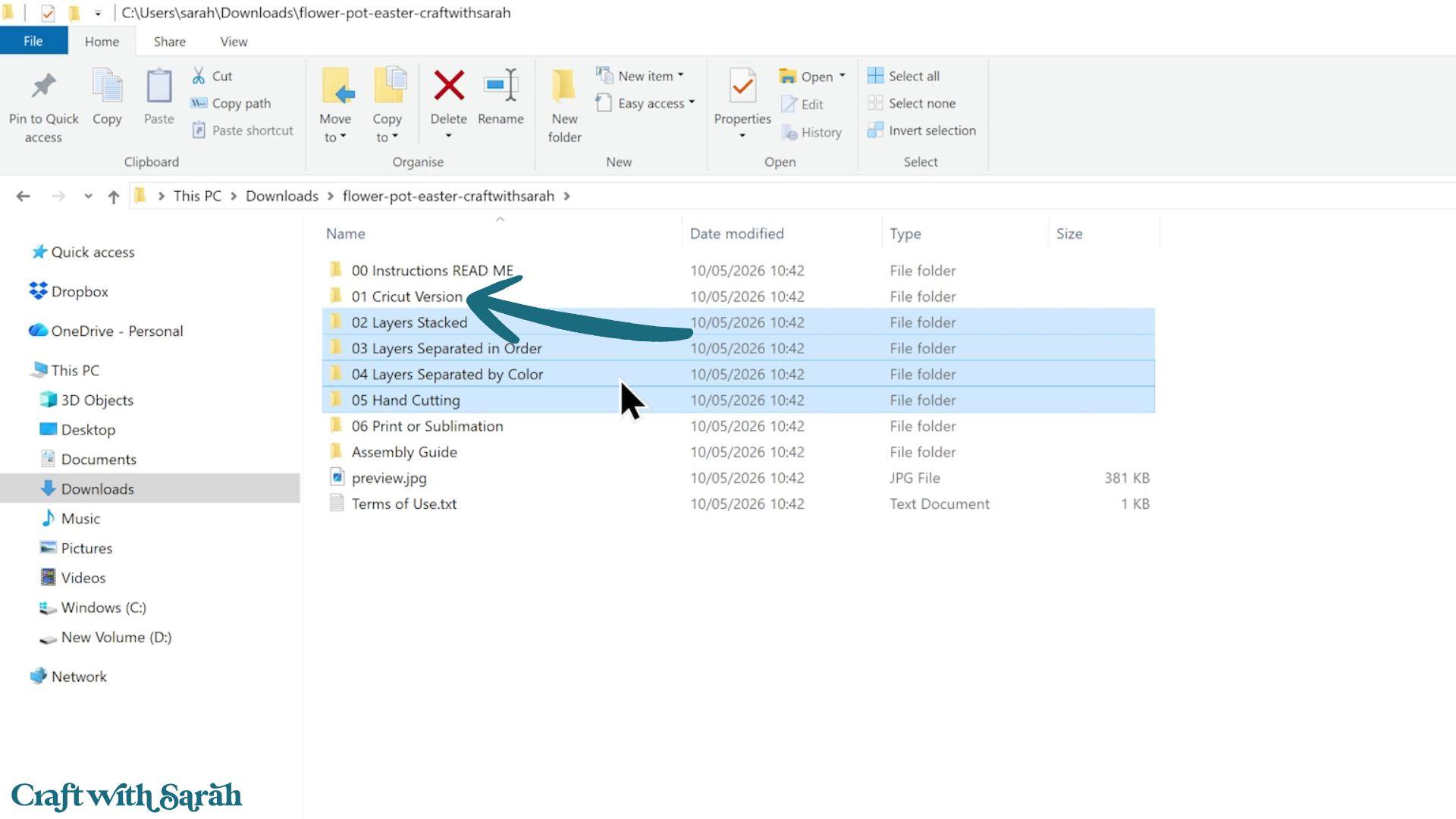
Some downloads also include Print or Sublimation versions. If you know you’ll never use those, they can also be deleted.
How to unzip folders on Mac
On a Mac, the process is even simpler.
Find the ZIP folder in your Downloads folder or wherever you’ve chosen to save it.
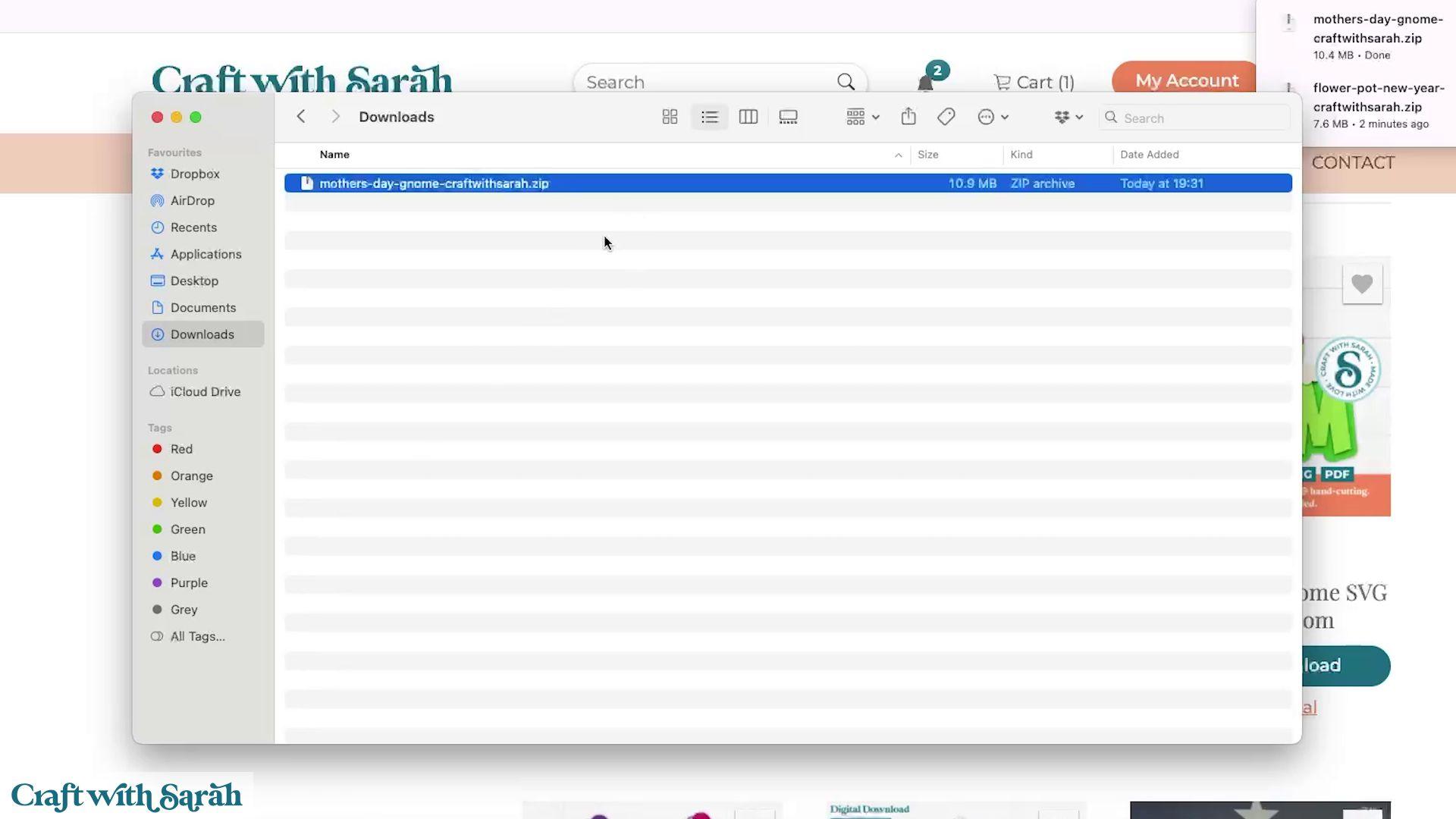
Simply double-click the ZIP folder and macOS will automatically extract everything for you.
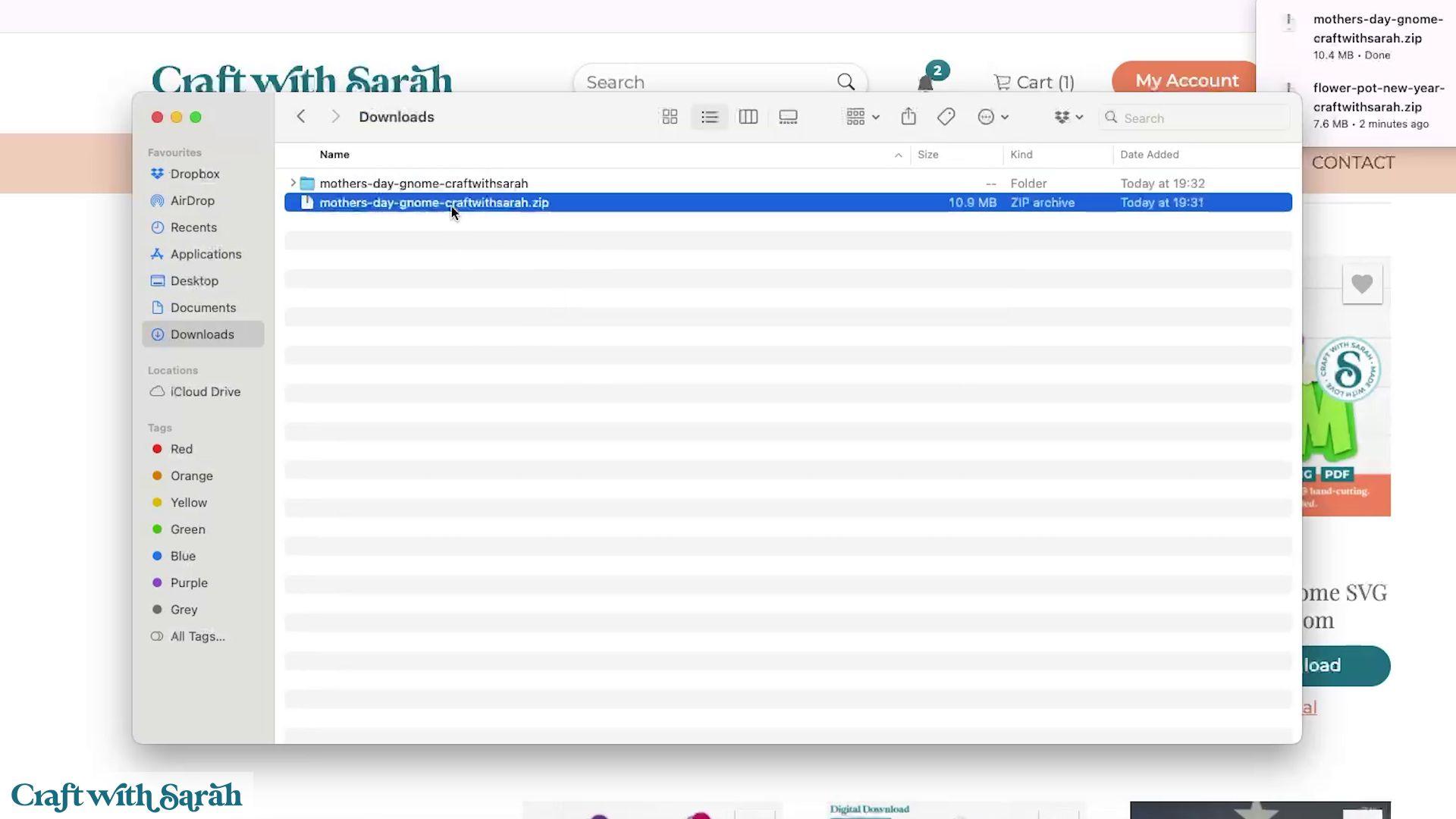
Once the extraction has finished, you’ll see a new folder alongside the original ZIP file.
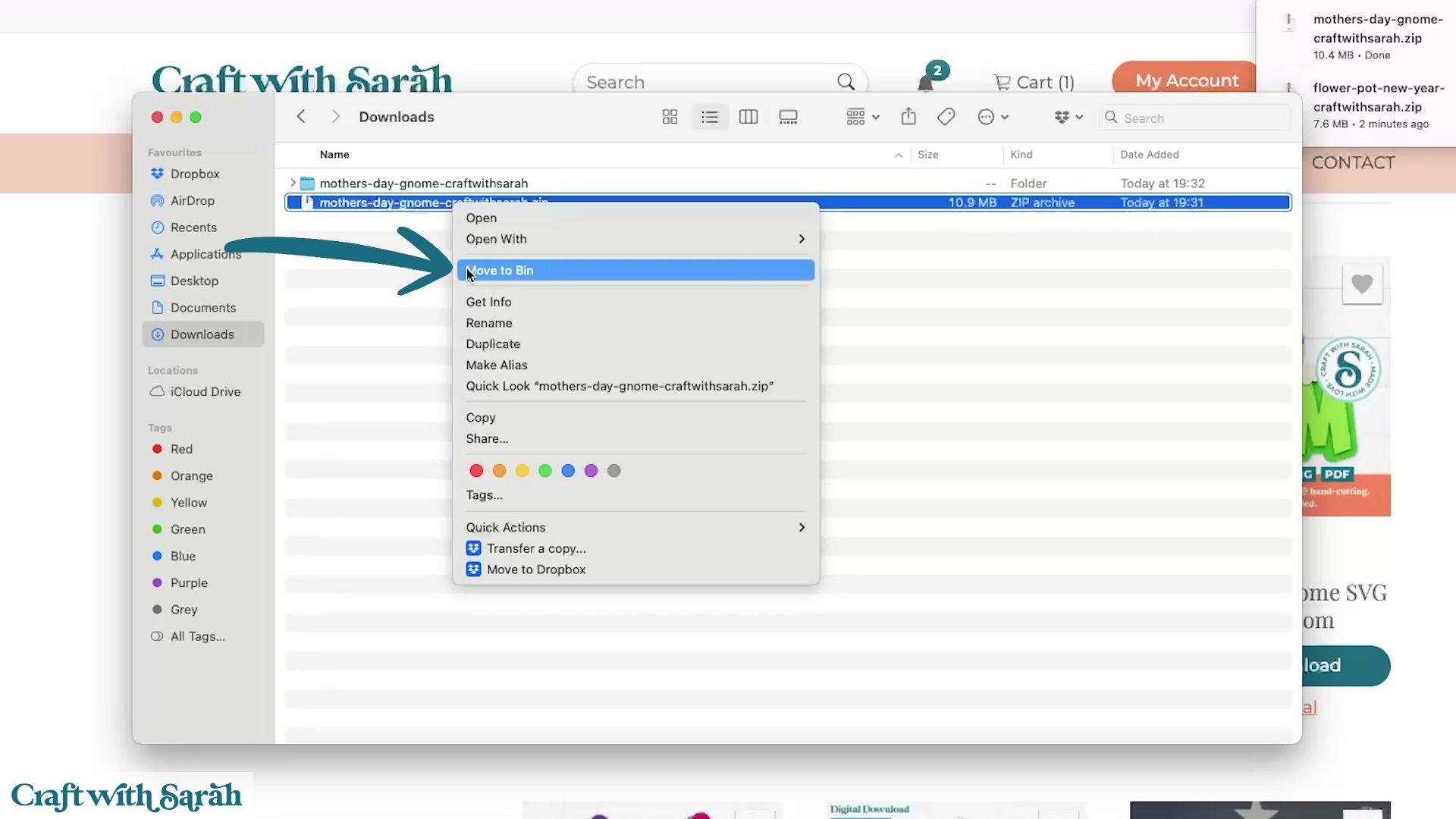
You can now delete the original ZIP folder if you no longer need it.
Open the extracted folder and you’ll see all of the files ready to use.
If you’ve downloaded one of my SVGs, upload the file from the ’01 Cricut Version’ folder into Cricut Design Space.
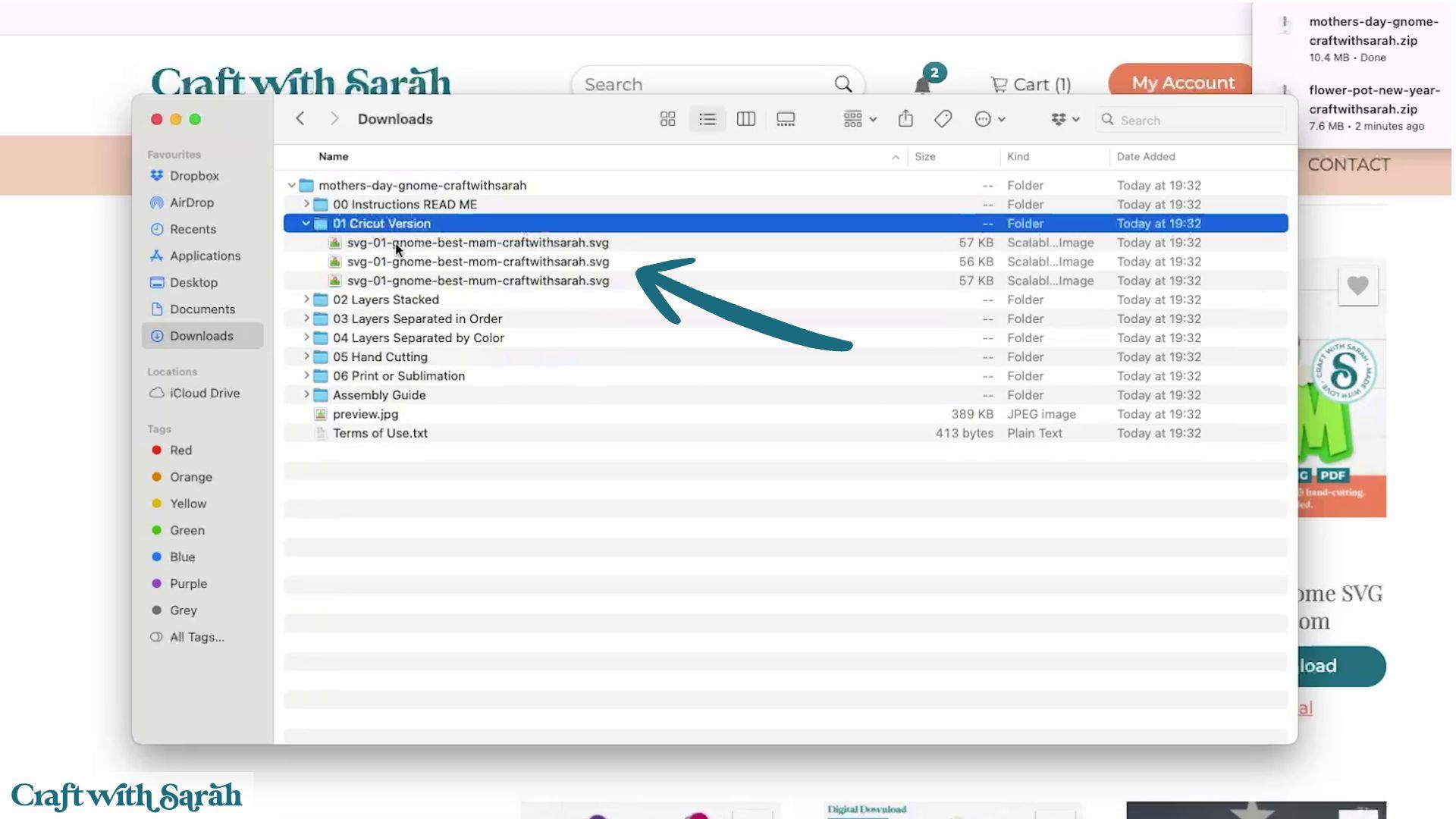
The other folders are included for different cutting machines or file formats. If you’re only using a Cricut machine, you can delete folders 02, 03, 04 and 05 if you’d like to free up some storage space on your computer.
Some downloads also include Print or Sublimation versions. If you know you’ll never use those, they can also be deleted.
How to unzip folders on Android devices
The exact steps can vary slightly depending on which Android phone or tablet you’re using, but the overall process is very similar.
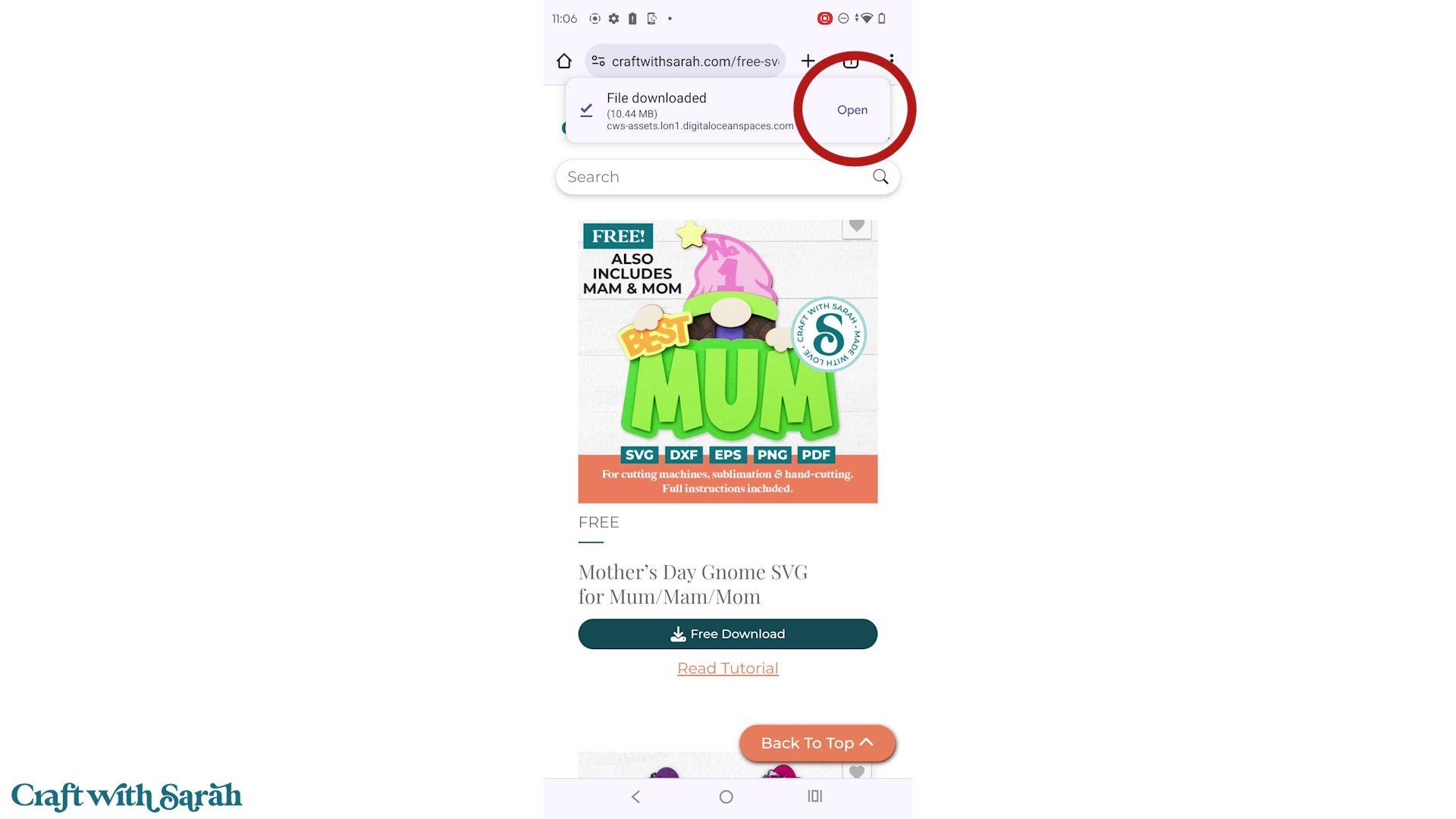
Download your SVG file and then tap ‘Open’.
Your device should offer an ‘Extract’ option.
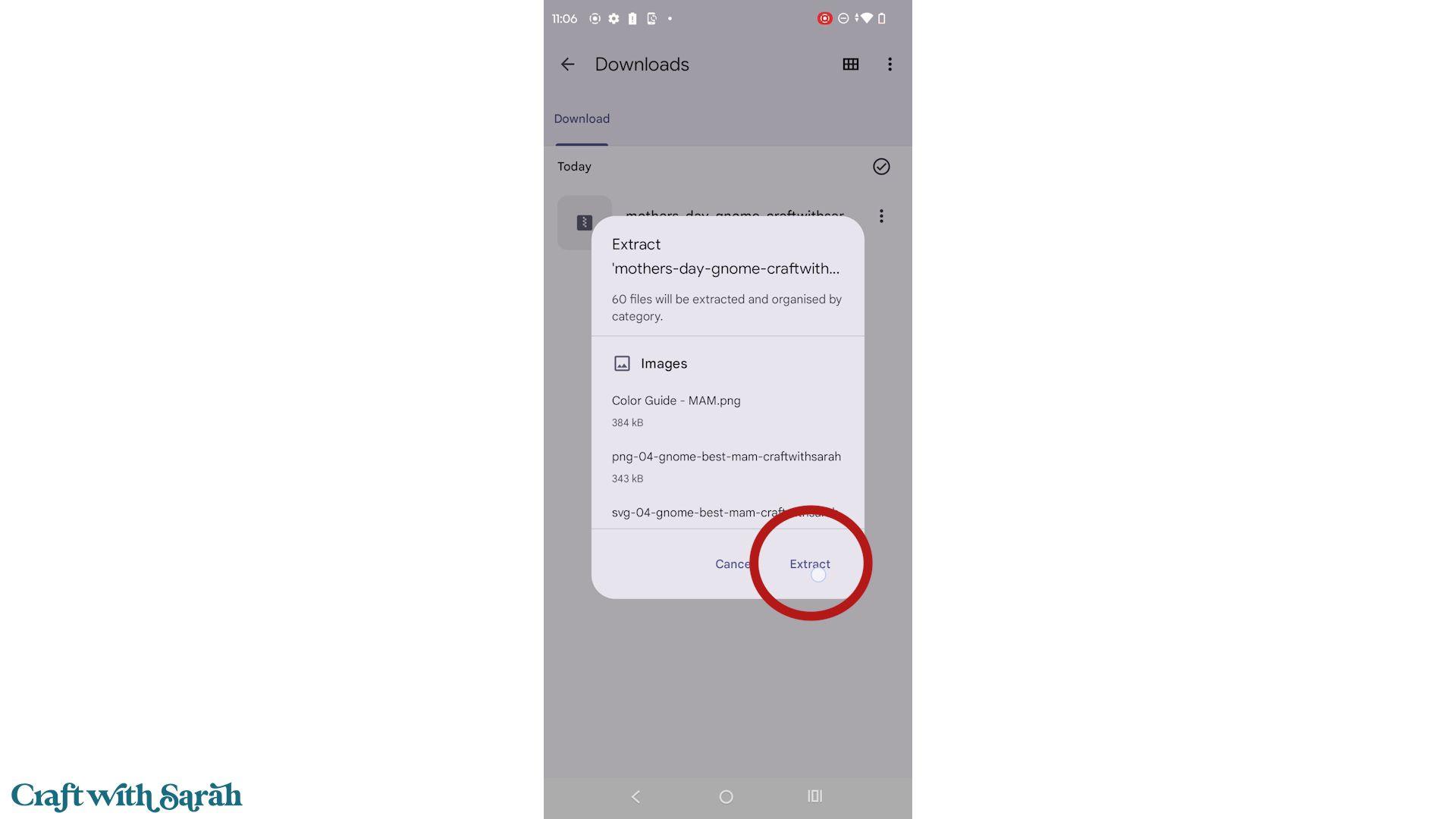
Tap it and Android will extract all of the files for you.
Some Android devices place all of the extracted files into a single list rather than keeping the original folder structure. If yours does this, don’t worry – the files are still there, it’s just a little harder to tell them apart and to find the one you need.
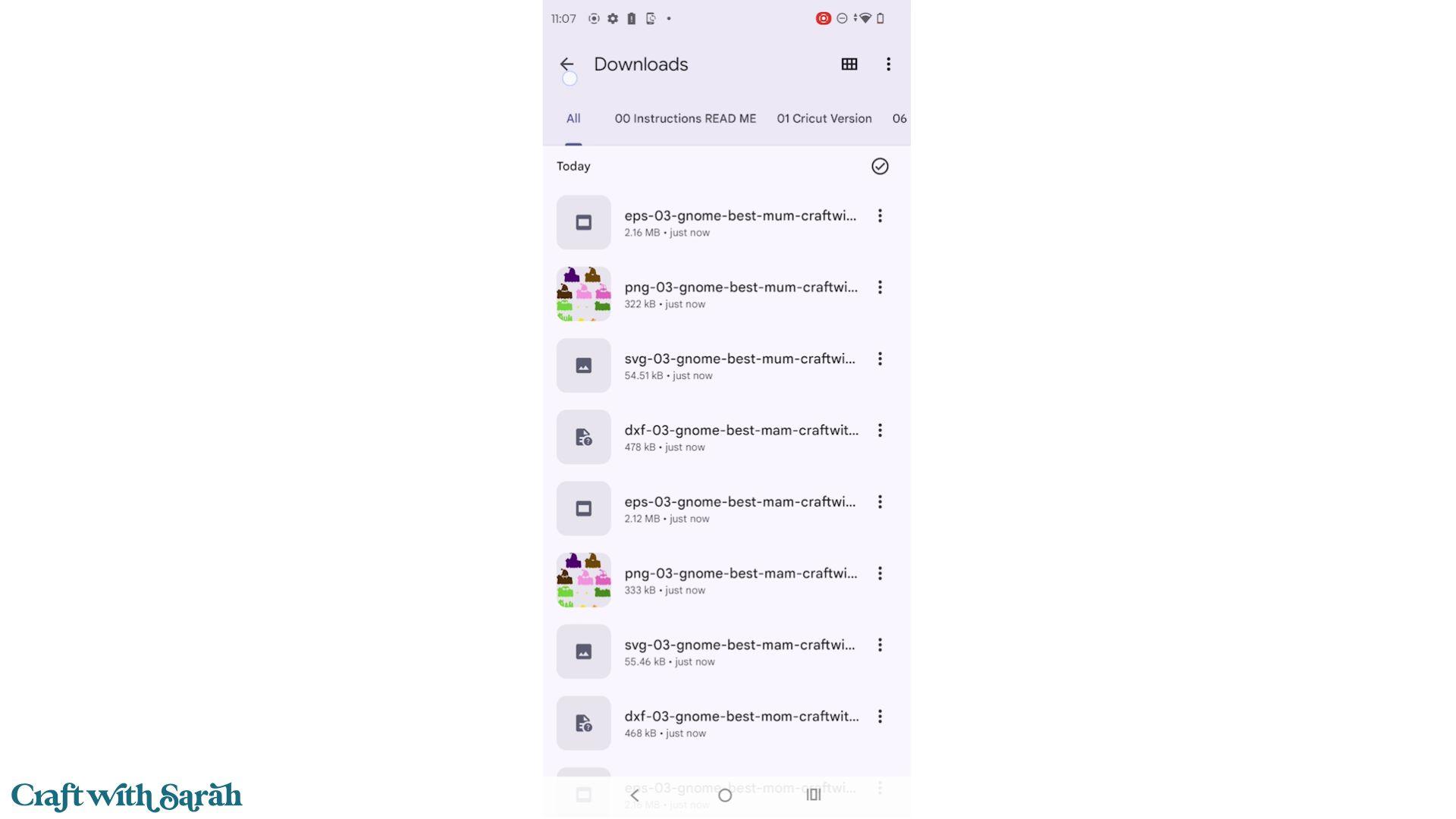
Open the extracted folder and then navigate into the ’01 Cricut Version’ folder to find the SVG file for Cricut Design Space.
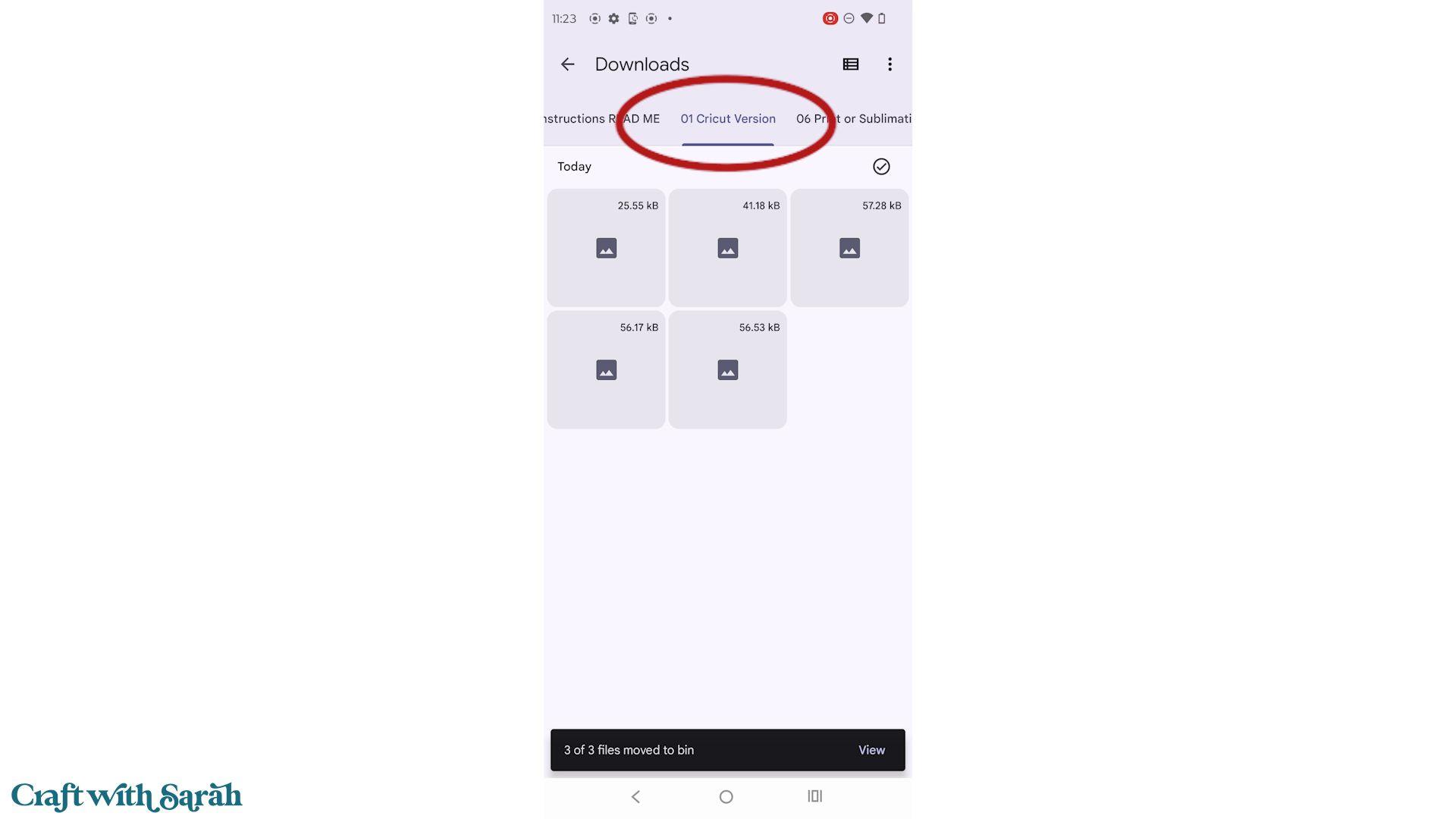
The other folders are included for different cutting machines or file formats. If you’re only using a Cricut machine, you can delete folders 02, 03, 04 and 05 if you’d like to free up some storage space on your computer.
Some downloads also include Print or Sublimation versions. If you know you’ll never use those, they can also be deleted.
How to unzip folders on iPhones
After downloading your SVG, open the Downloads folder in the Files app.
You can either press and hold the ZIP folder and choose ‘Uncompress’ or simply tap the ZIP folder once.
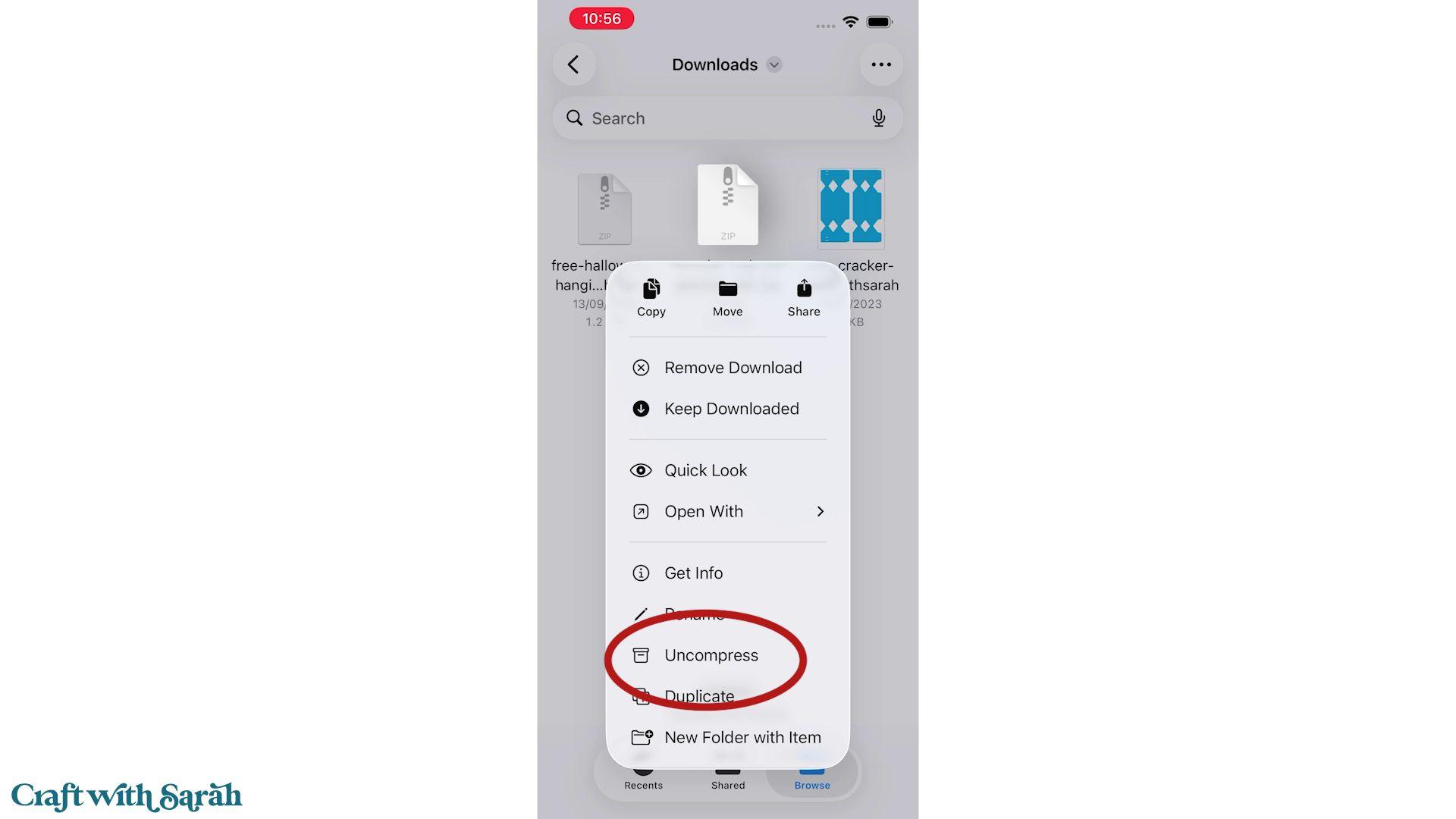
Your iPhone will automatically create a new extracted folder.
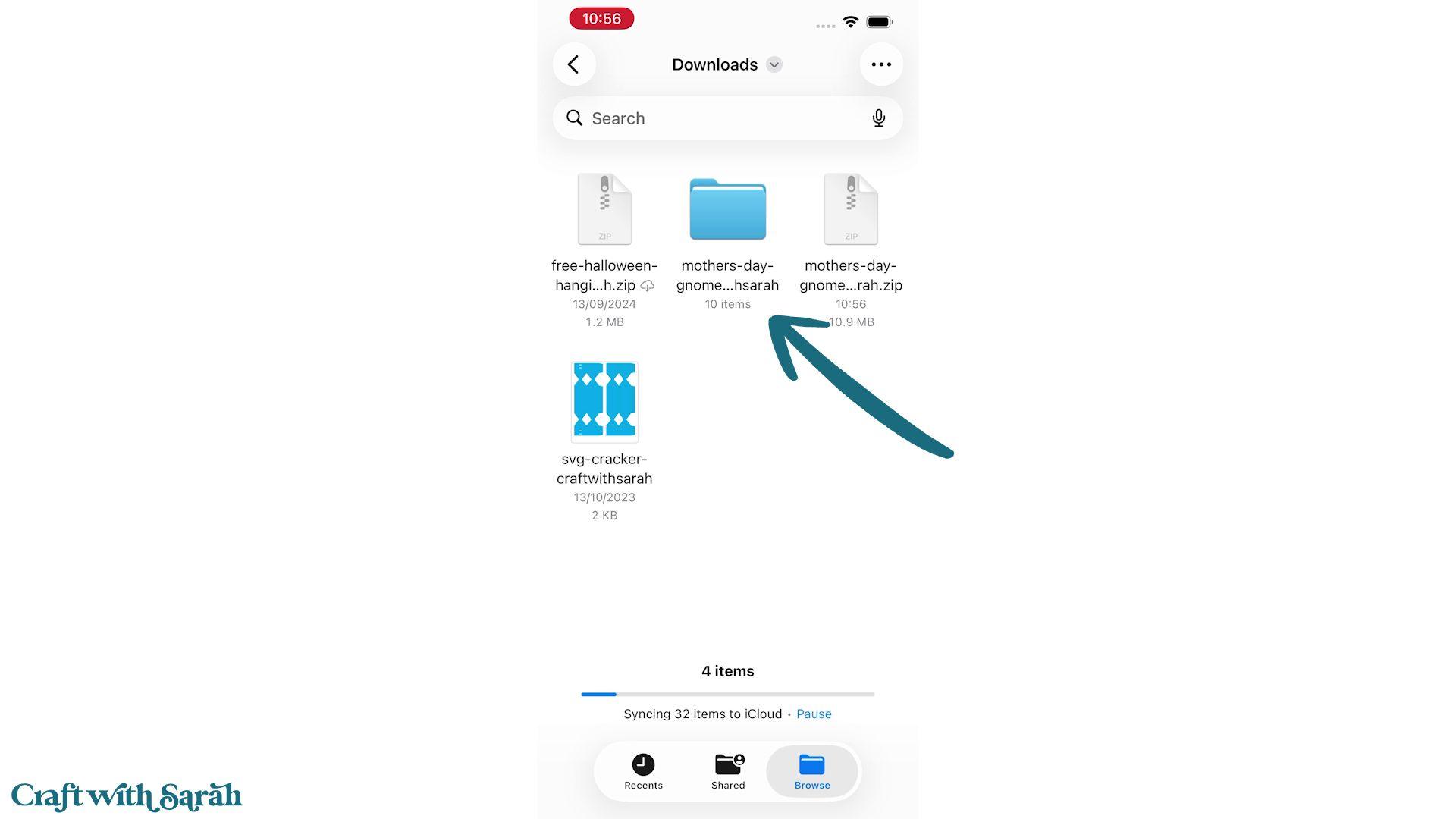
Once you’ve confirmed everything has been extracted correctly, you can delete the original ZIP folder.
Open the extracted folder and then navigate into the ’01 Cricut Version’ folder to find the SVG file for Cricut Design Space.
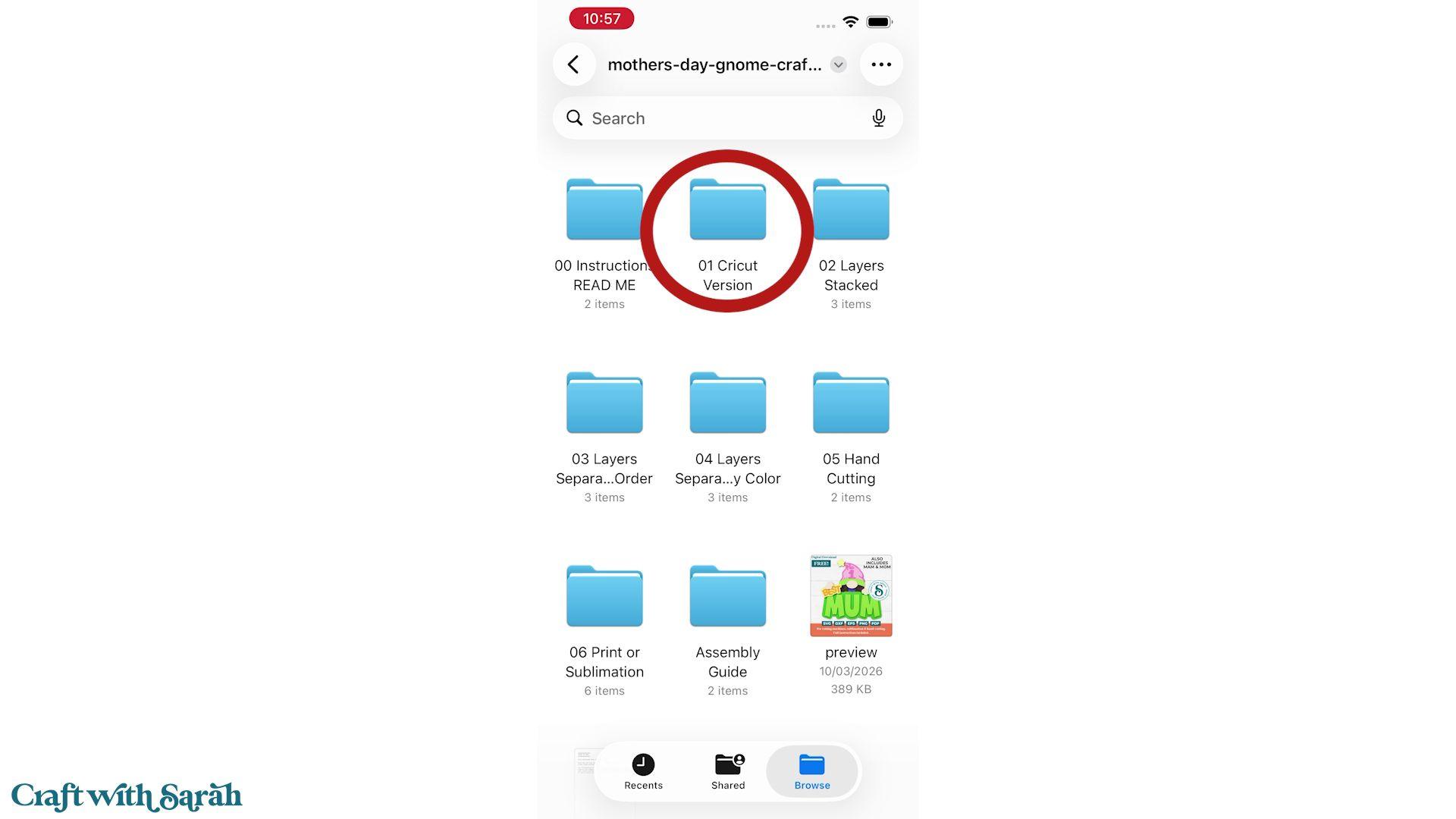
The other folders are included for different cutting machines or file formats. If you’re only using a Cricut machine, you can delete folders 02, 03, 04 and 05 if you’d like to free up some storage space on your computer.
Some downloads also include Print or Sublimation versions. If you know you’ll never use those, they can also be deleted.
Unzip SVG files on an iPad
The process on an iPad is almost identical to an iPhone.
After downloading your SVG, open the Files app and go to your Downloads folder.
Tap the ZIP folder to extract it, or press and hold it and choose ‘Uncompress’.
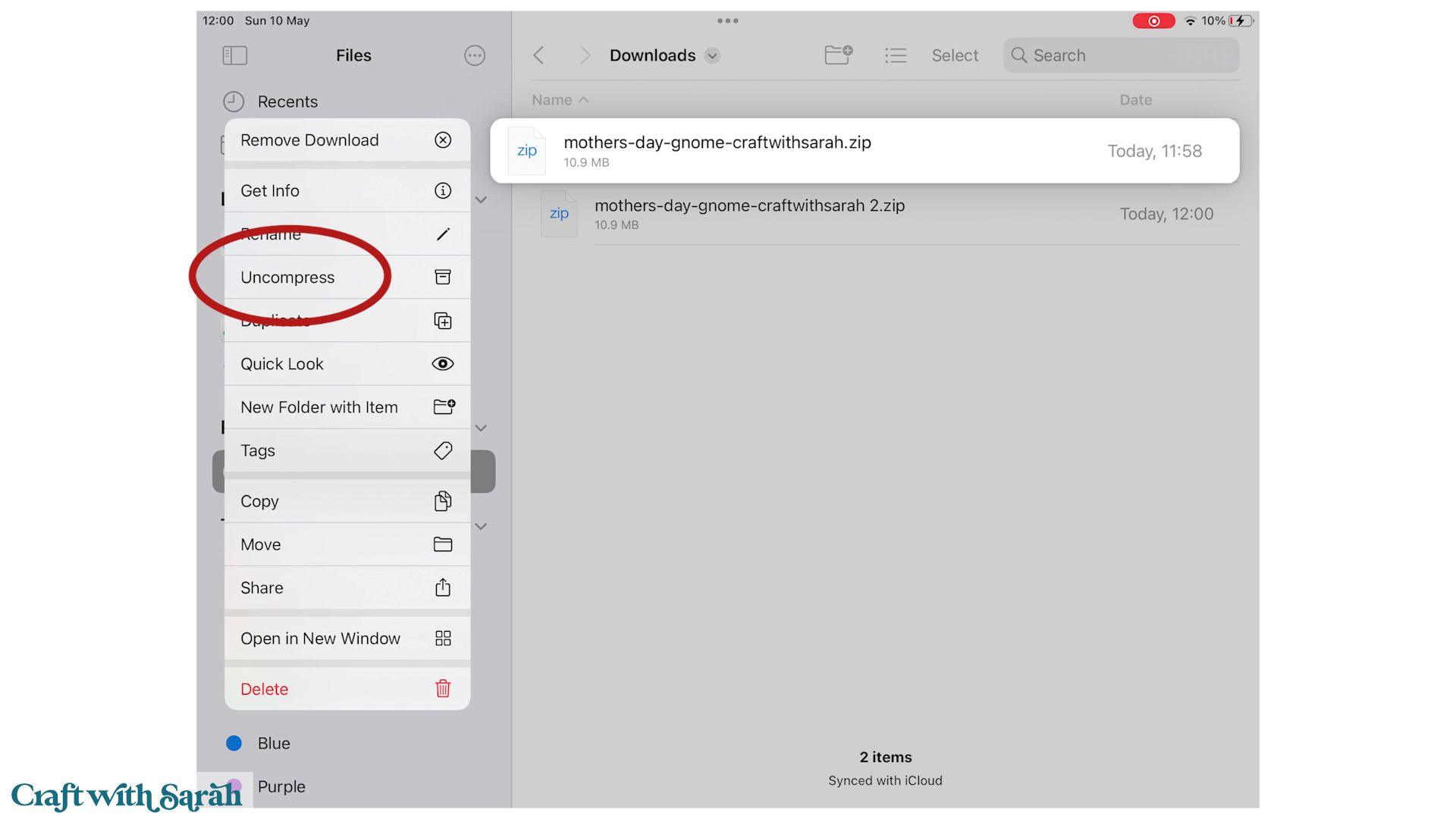
Once the extraction has finished, you can safely delete the original ZIP folder. You should see a new folder with your extracted files.
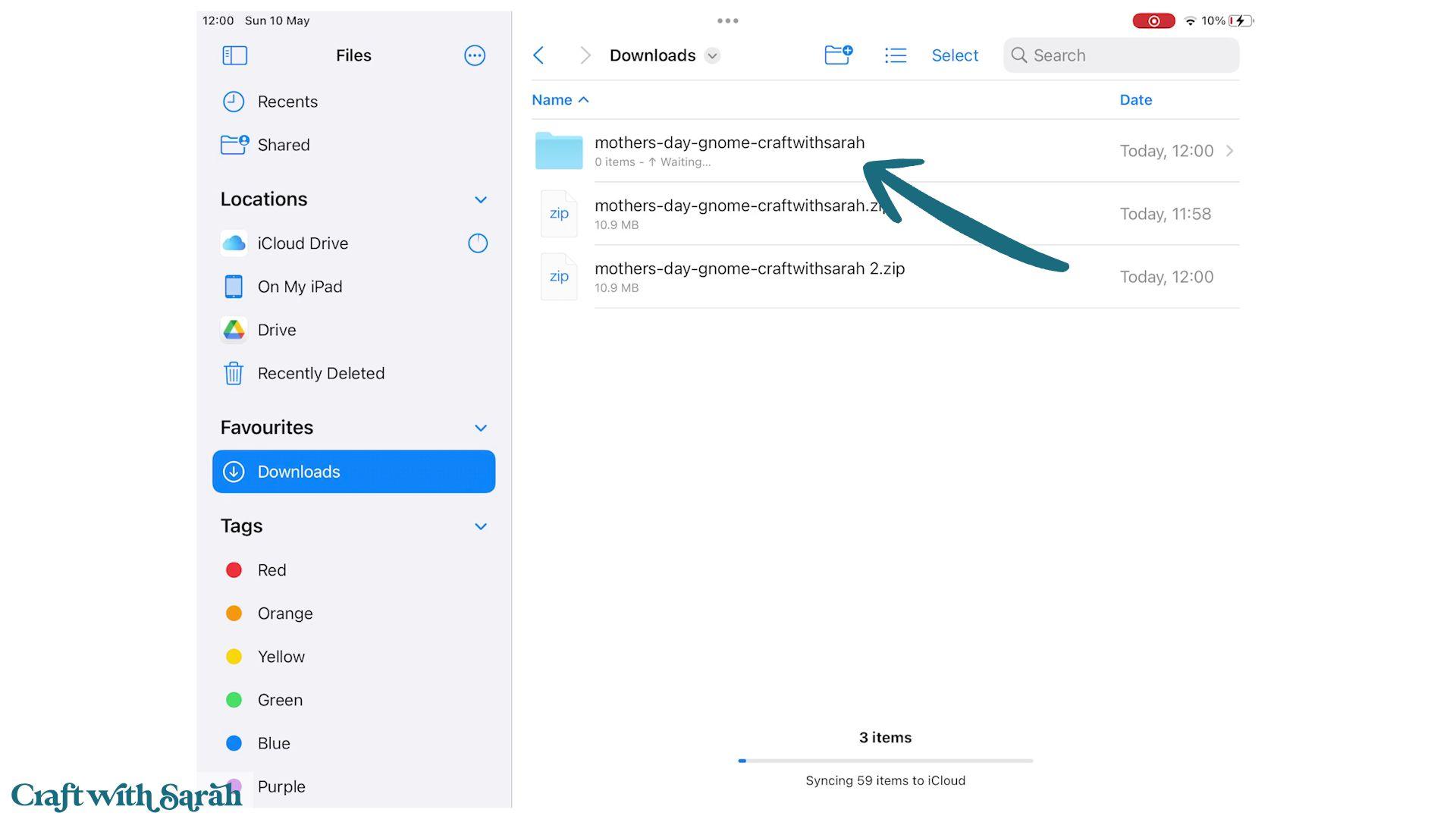
Once you’ve confirmed everything has been extracted correctly, you can delete the original ZIP folder.
Open the extracted folder and then navigate into the ’01 Cricut Version’ folder to find the SVG file for Cricut Design Space.
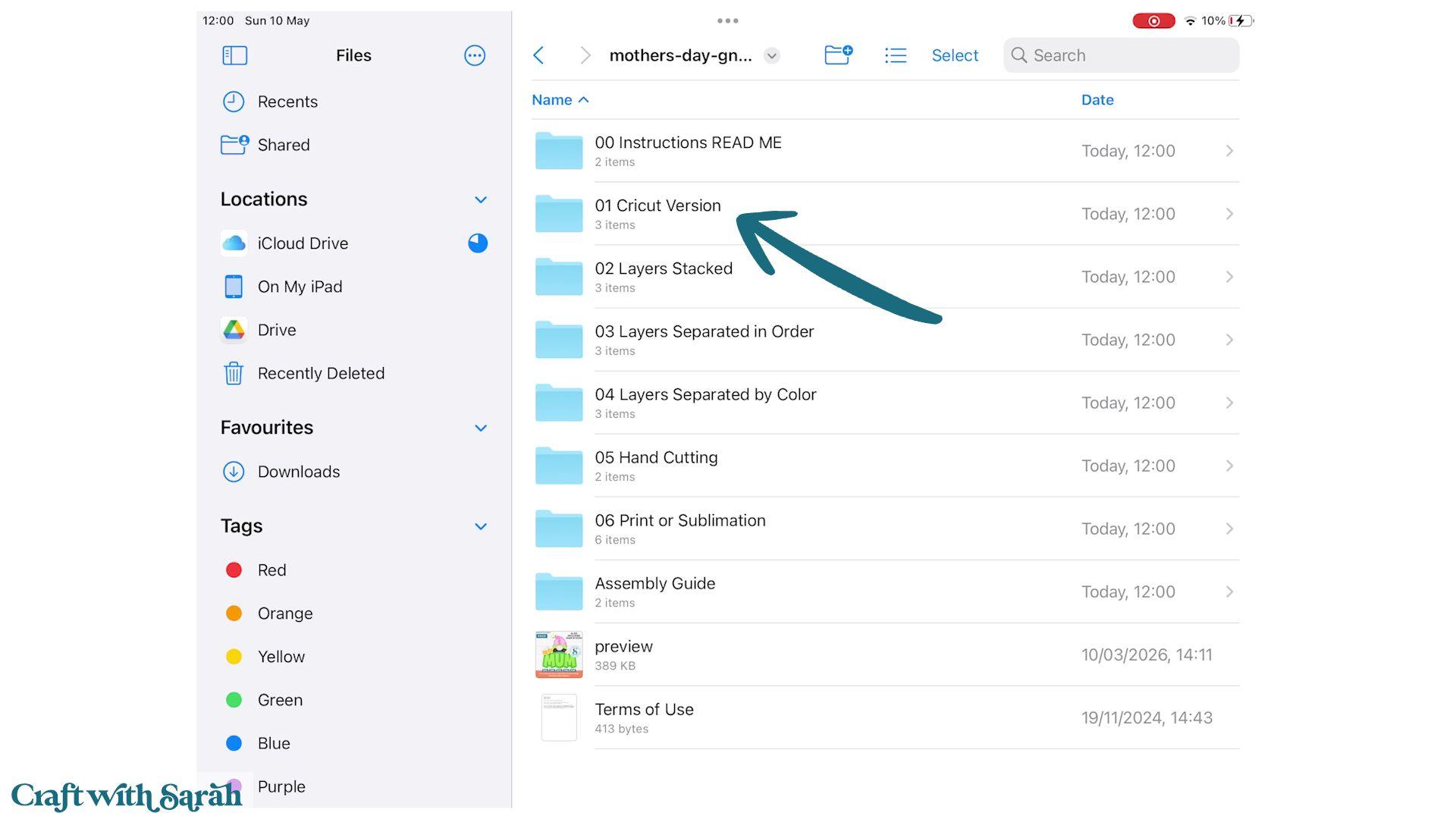
The other folders are included for different cutting machines or file formats. If you’re only using a Cricut machine, you can delete folders 02, 03, 04 and 05 if you’d like to free up some storage space on your computer.
Some downloads also include Print or Sublimation versions. If you know you’ll never use those, they can also be deleted.
Upload your SVG into Cricut Design Space
Once your files have been extracted, you’re ready to upload them into Cricut Design Space.
Click ‘Upload’, then ‘Upload Image’, and browse to the extracted folder.
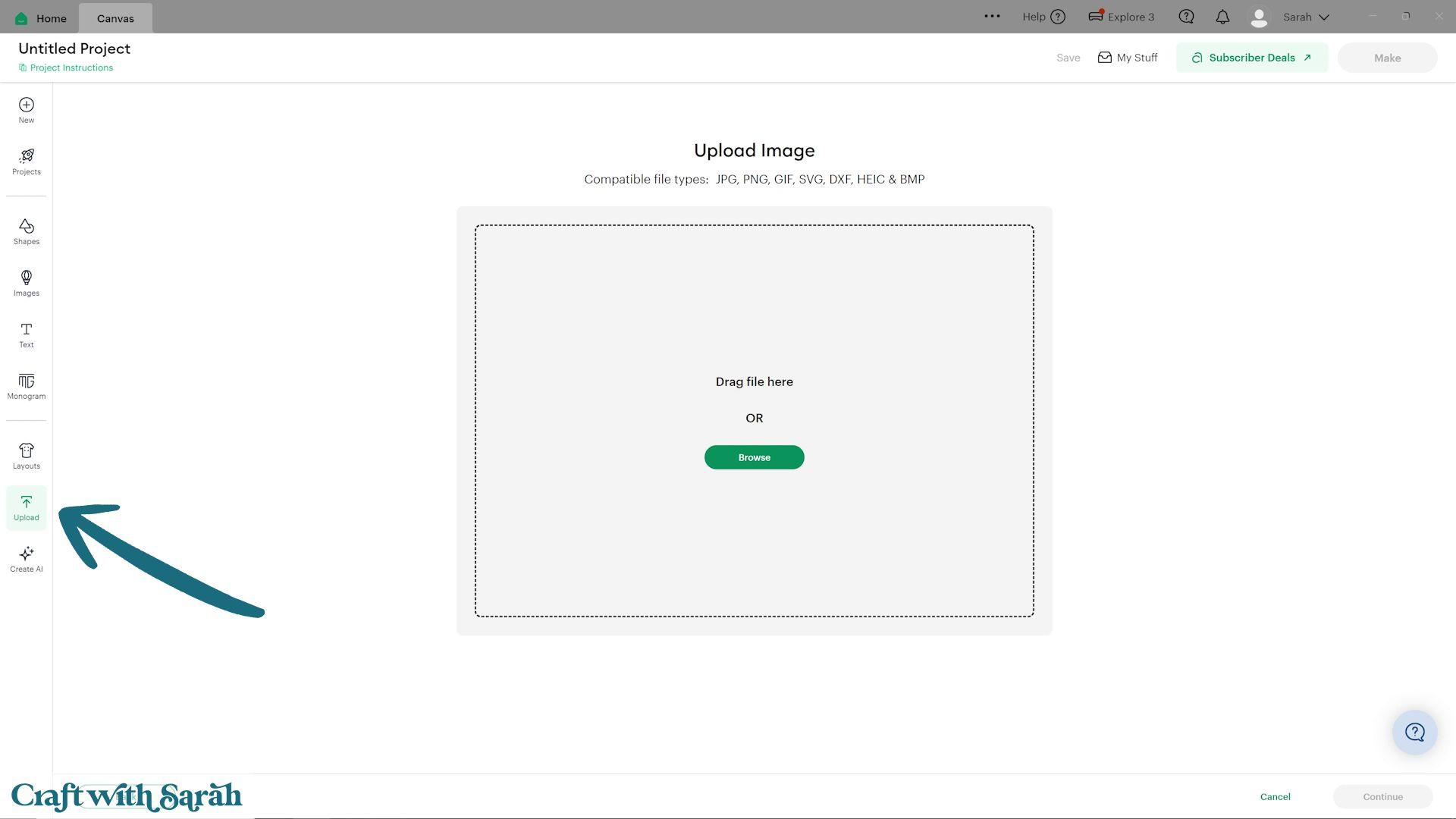
Open the ’01 Cricut Version’ folder and select the SVG file inside.
Note – some of my older files are saved in a different folder structure and may not have the “01 Cricut Version”. If that’s the case, upload the file that starts svg- or SVG_ in the filename.
Because the file has already been extracted, Design Space can upload it seamlessly, and within no time you’ll be ready to start creating your project.
If you would like a more in-depth tutorial on how to upload SVGs, please visit the following:
- How to upload SVGs to Cricut Design Space
- How to open SVG and DXF files in Silhouette Studio
- How to import SVG files in CanvasWorkspace (for ScanNCut machines)
Download folder unzipping made easy!
Although ZIP folders can seem confusing when you’re first downloading SVG files, they are easy to use once you master the steps in this tutorial.
Whether you’re using Windows, Mac, Android, an iPhone or an iPad, it only takes a few seconds to extract the files to get the SVGs ready to upload into Cricut Design Space.
Hopefully this tutorial has helped you understand exactly what ZIP folders are and how to unzip them so you can get crafting with your SVG files.
If you’re new to crafting with SVG files, here are some collections of tutorials for different types of cutting machine.
Happy crafting,
Sarah