Flower Shadow Box 🦋 Spring CC 2026
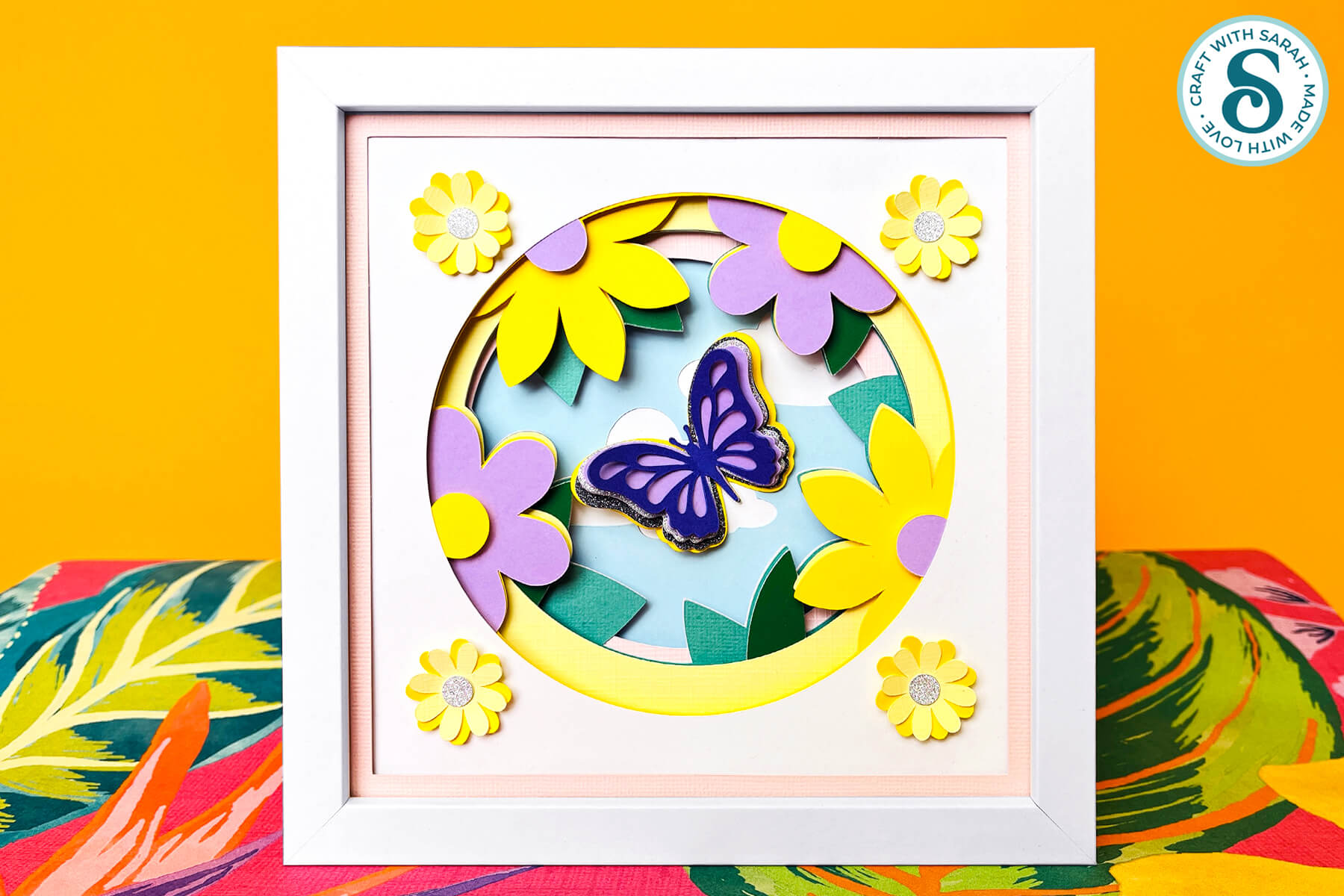
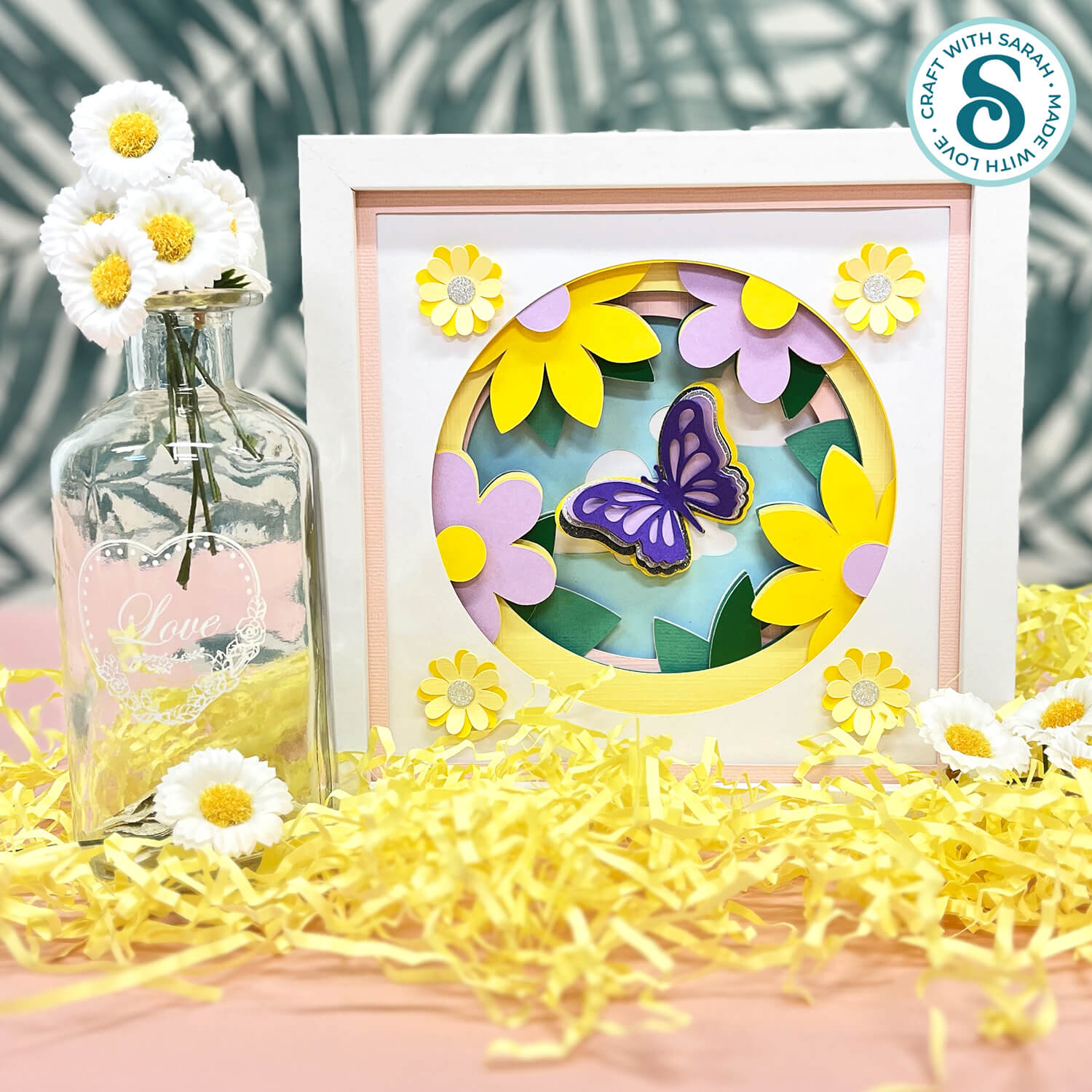
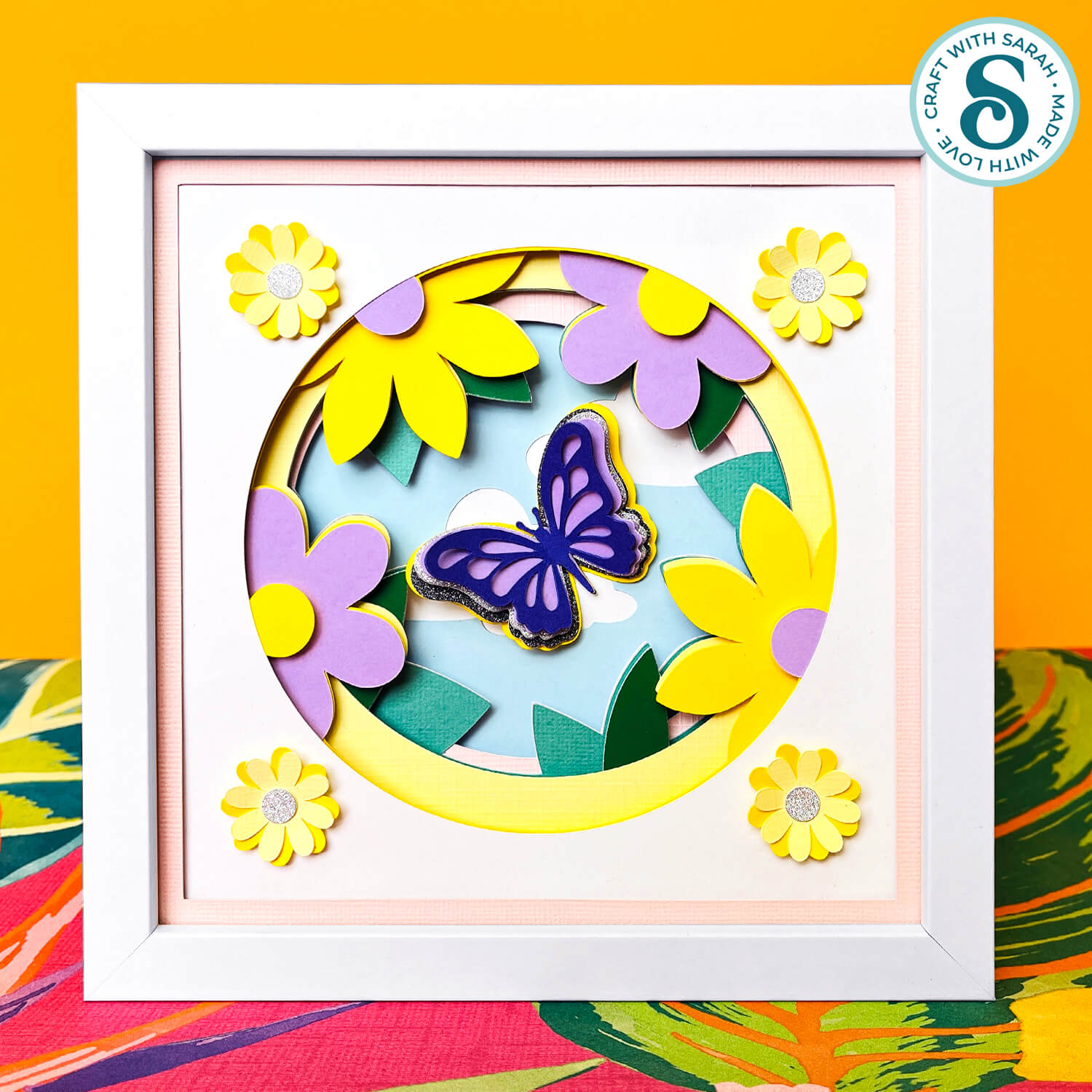
Make a pretty shadow box for spring that’s bursting with flowers and a delicate 3D butterfly in the middle.
If you’re new to making shadow box papercrafts, this is a great one to start with as the layers are easy to cut and simple to put together.
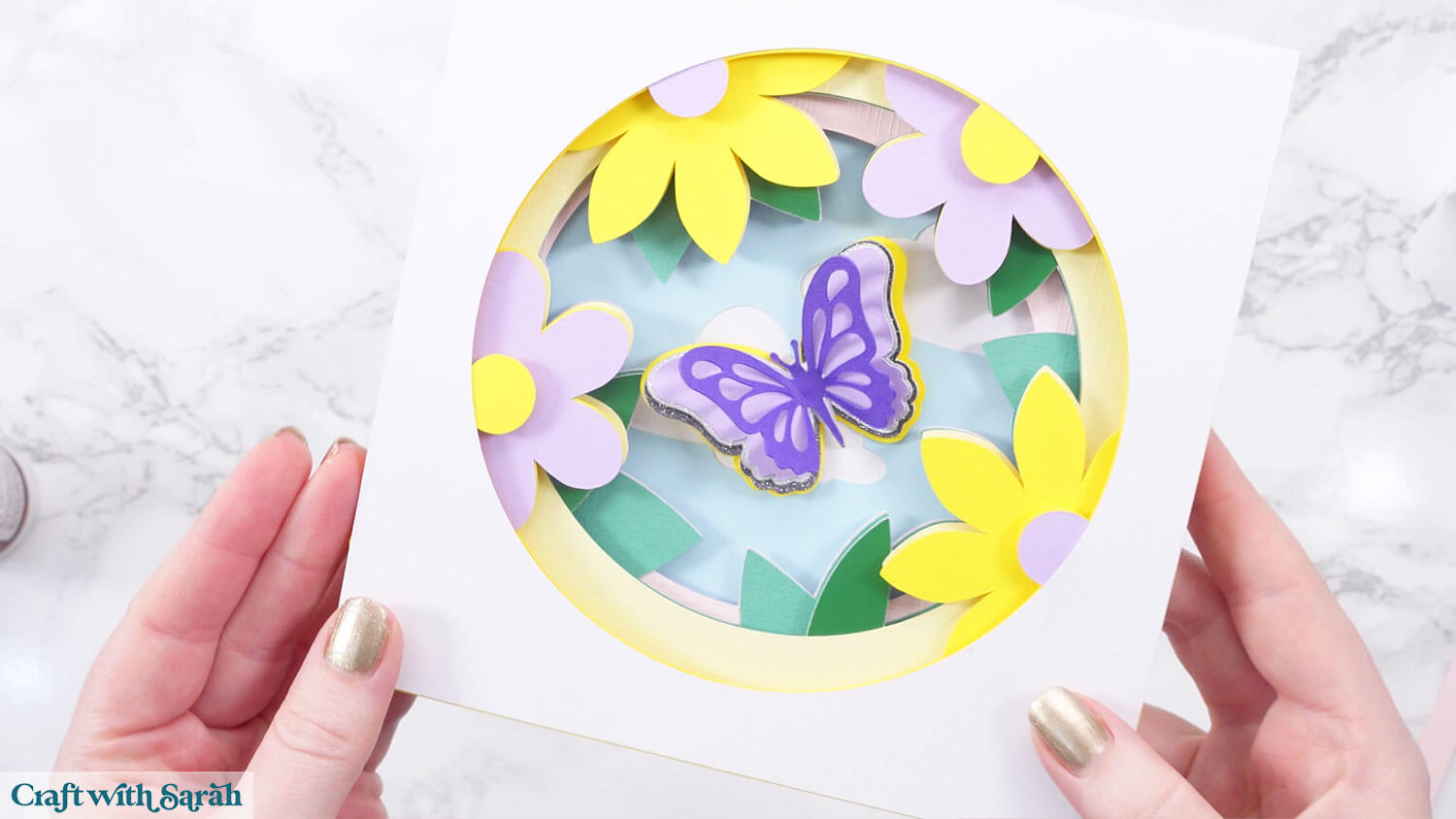
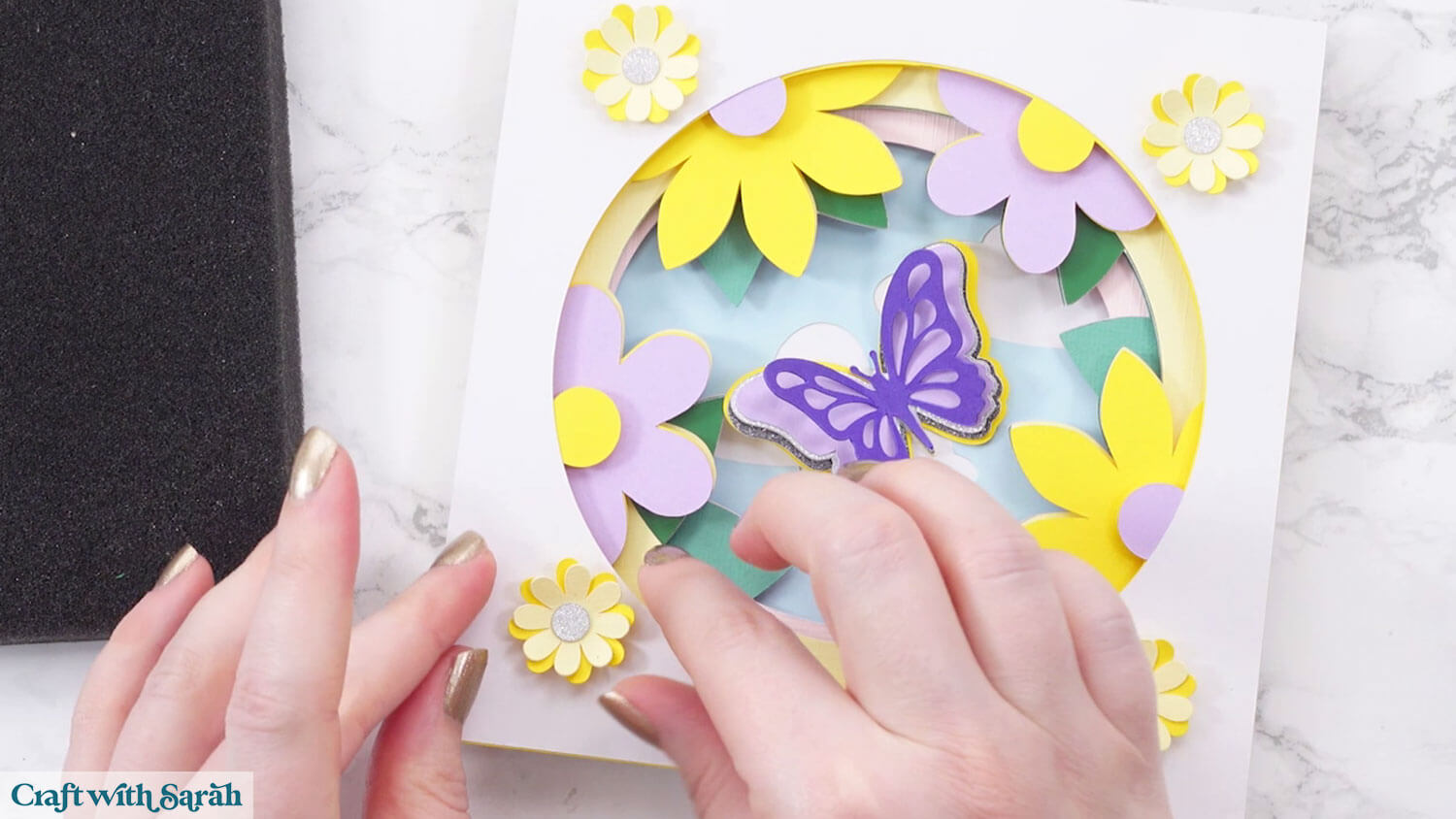
The butterfly wings and the edges of the four flowers in the corners are gently bent upwards to give a dimensional appearance.
It looks like the butterfly is ready to fly right off the design!
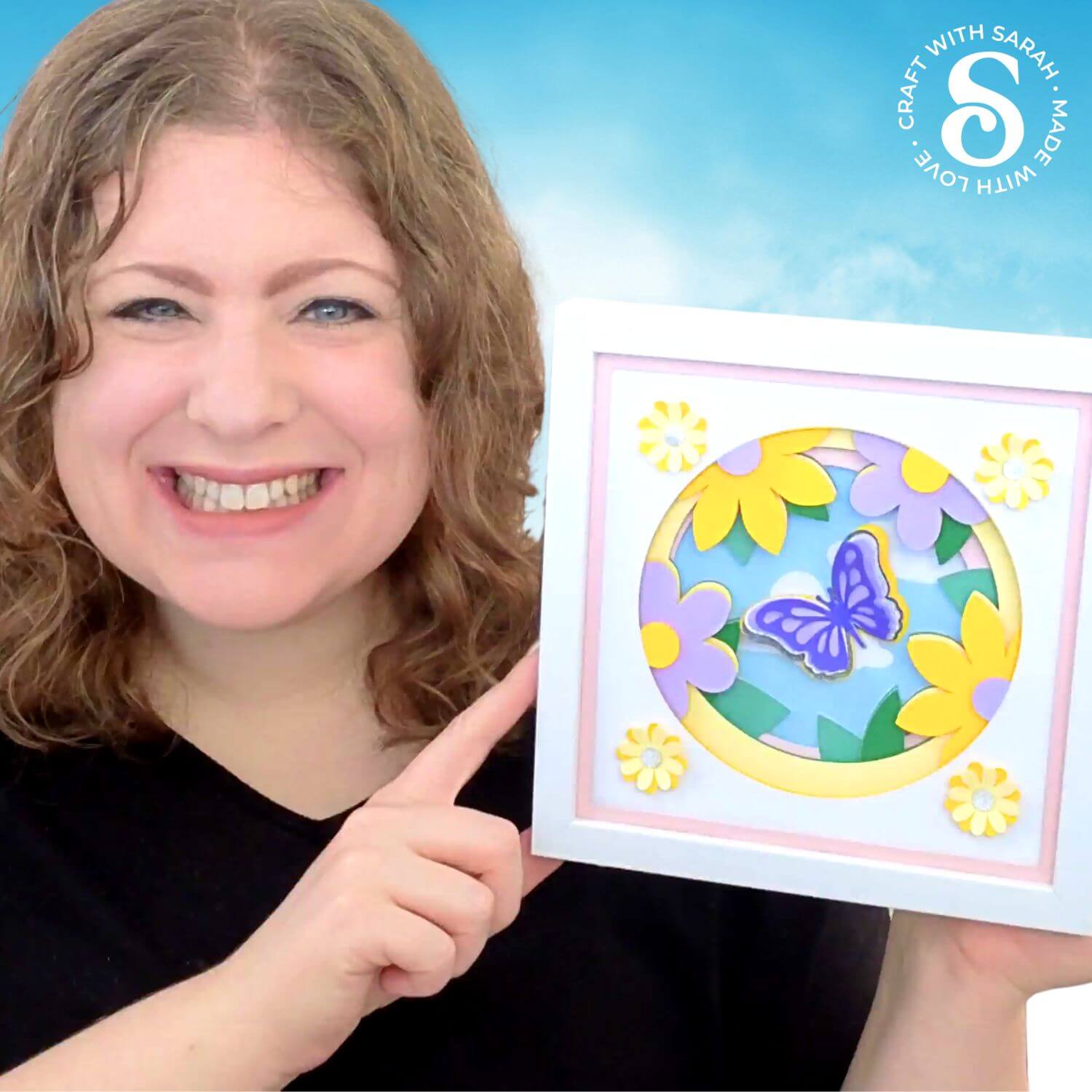
I had a bit of an unexpected realisation on this project, completely by accident, and ended up discovering a new (to me, at least!) way of sizing the SVG to go into the shadow box frame.
Keep scrolling to find out how I did it…
This Project was part of the Spring Craft Countdown 2026
Flower shadow box materials supply list
Here is a list of the materials that I used to make this project.
Please note that some of the links included in this article are affiliate links, which means that if you click through and make a purchase I may receive a commission (at no additional cost to you). You can read my full disclosure at the bottom of the page.
- Cricut machine
- Light blue Cricut cutting mat
- Coloured Card (any thickness)
- Glue (I like Bearly Art Glue and Collall)
- 3D foam pads
- Shadow box frame (mine is from Hobbycraft)
- Piece of foam (e.g. packaging foam) and a ball tool (optional)
This project is suitable for the following types of Cricut machines: Explore series, Maker series, Joy Xtra, Joy and Joy 2. You will need to make the design 4.5 inches wide to cut on the Joy or Joy 2.
Foundation learning
If you're new to making papercrafts with your cutting machine, check out these links to get you started.
They include videos on topics such as: which file to use with your type of cutting machine, how to load the files into your cutting machine's software, how to cut cardstock with your type of cutting machine, how to recolor and modify/customize the cut files and tips for displaying your projects.
- How to use zip folder downloads
- Help guides for Cricut machines
- Help guides for Silhouette machines
- Help guides for ScanNCut machines
The following tutorials are Cricut-specific, but many of the ideas will work similarly with a Silhouette or ScanNCut machine and any cut files that are shared in them are compatible with all types of cutting machine.
- How to score with a Cricut (even without scoring tools)
- Print then cut tutorial
- Design Space tools (Combine, Attach, Slice, Weld, Flatten, etc.)
- Pattern fill tutorial (for making backgrounds & cutting images to a specific shape/size)
- Free envelope SVGs that can be sized to fit any card
- Presentation boxes for handmade cards
- How to write inside cards with Cricut pens
- How to cut layered designs at a small size
- Design Space tips & tricks
- Cricut pens tutorial
- How to mount multiple designs in the same frame with magic guides
Layered flower papercraft video tutorial
Watch the video below to see how to make this project. Keep scrolling for a written tutorial.
Written tutorial (with photos!)
Here’s how to make a pretty flower and butterfly shadow box using a Cricut machine.
Step 1) Download the cutting file & upload to Design Space
Get the files using the box below.
Purchase the File(s)
This cut file is available as part of the Instant Access Bundle.
Or, purchase this design individually here
Before you upload the SVGs to Design Space, you need to unzip the download folder that they come in.
Not sure how to do this? Click here for a tutorial that covers all the following types of computer and device:
- How to unzip a folder on a Windows computer
- How to unzip a folder on a Mac
- How to unzip a folder on an iPad
- How to unzip a folder on an iPhone
- How to unzip a folder on an Android device
After unzipping, upload the SVG file(s) into your cutting machine software.
Not sure how to use cut files with your type of machine? The following links lead to tutorials on how to use cut files in:
- Cricut Design Space
- Silhouette Studio
- CanvasWorkspace (for ScanNCut machines)
If you are using Cricut Design Space, start a new project and then click the “Upload” button on the left of the screen.
You can then either click “Browse” to find the file on your computer, or drag-and-drop it.
Select the file in the “01 Cricut Version” subfolder called svg-01-box-simple-flowers-craftwithsarah.svg
Press “Upload” on the next screen.
After uploading, the design should be automatically inserted onto your Canvas.
To hide the left sidebar to give you more room on the screen, click the arrow that’s about half way down the page.
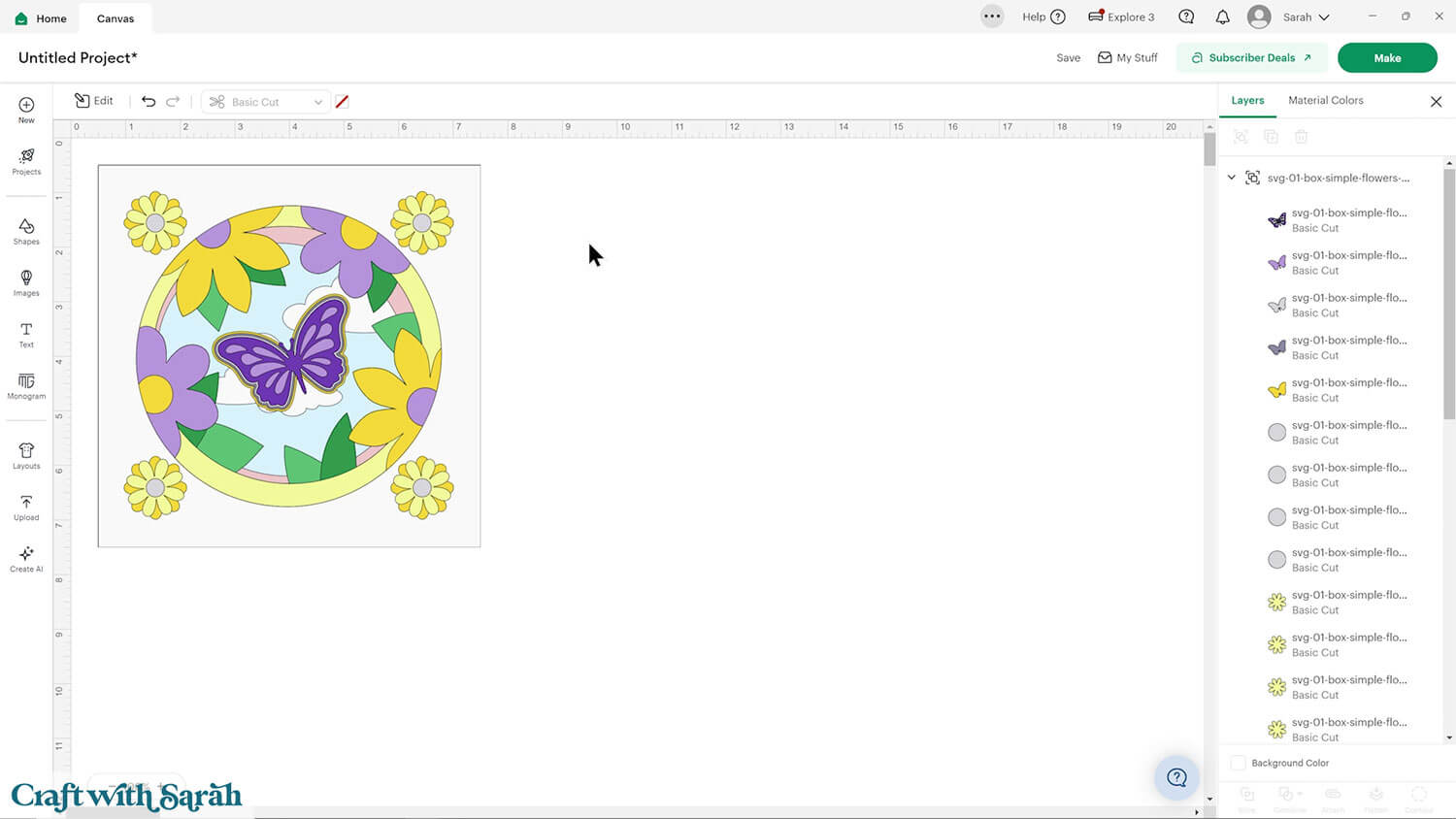
If the design doesn’t get inserted onto your Canvas, it will show under “Uploads” in your “Recently Uploaded Images”. Click on it and then press “Add to Canvas” to put it onto your Project.
Need help uploading SVGs? Get step-by-step instructions here in our detailed help guides for Cricut, Silhouette and ScanNCut.
Step 2) Size the design
There are two different ways that you can measure the SVG to make it fit in your frame.
In the past, the way I have always done it is by measuring the full width of the back of the shadow box frame.
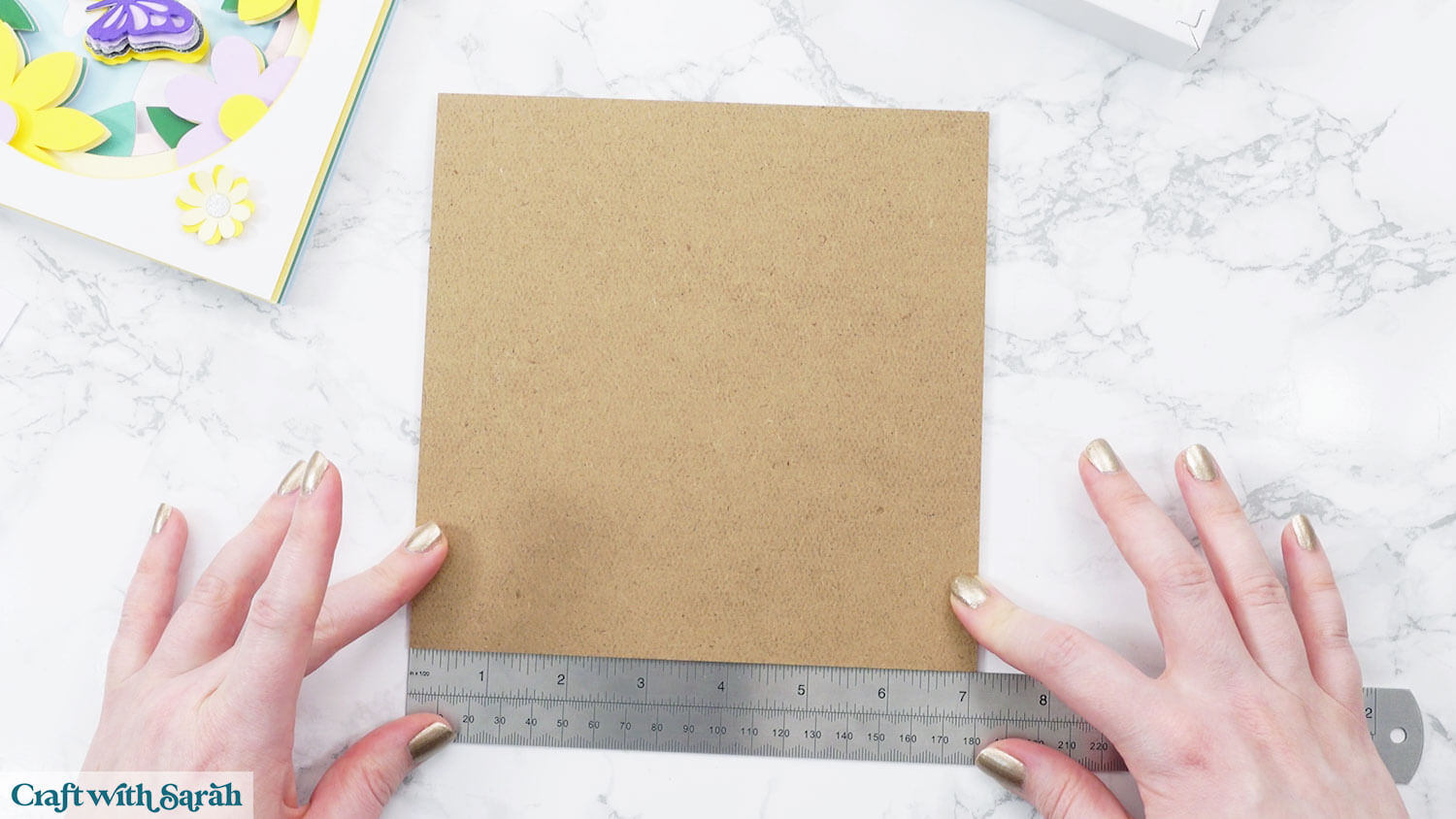
This makes the papercraft fit into the frame like this, with the wooden spacer piece removed:
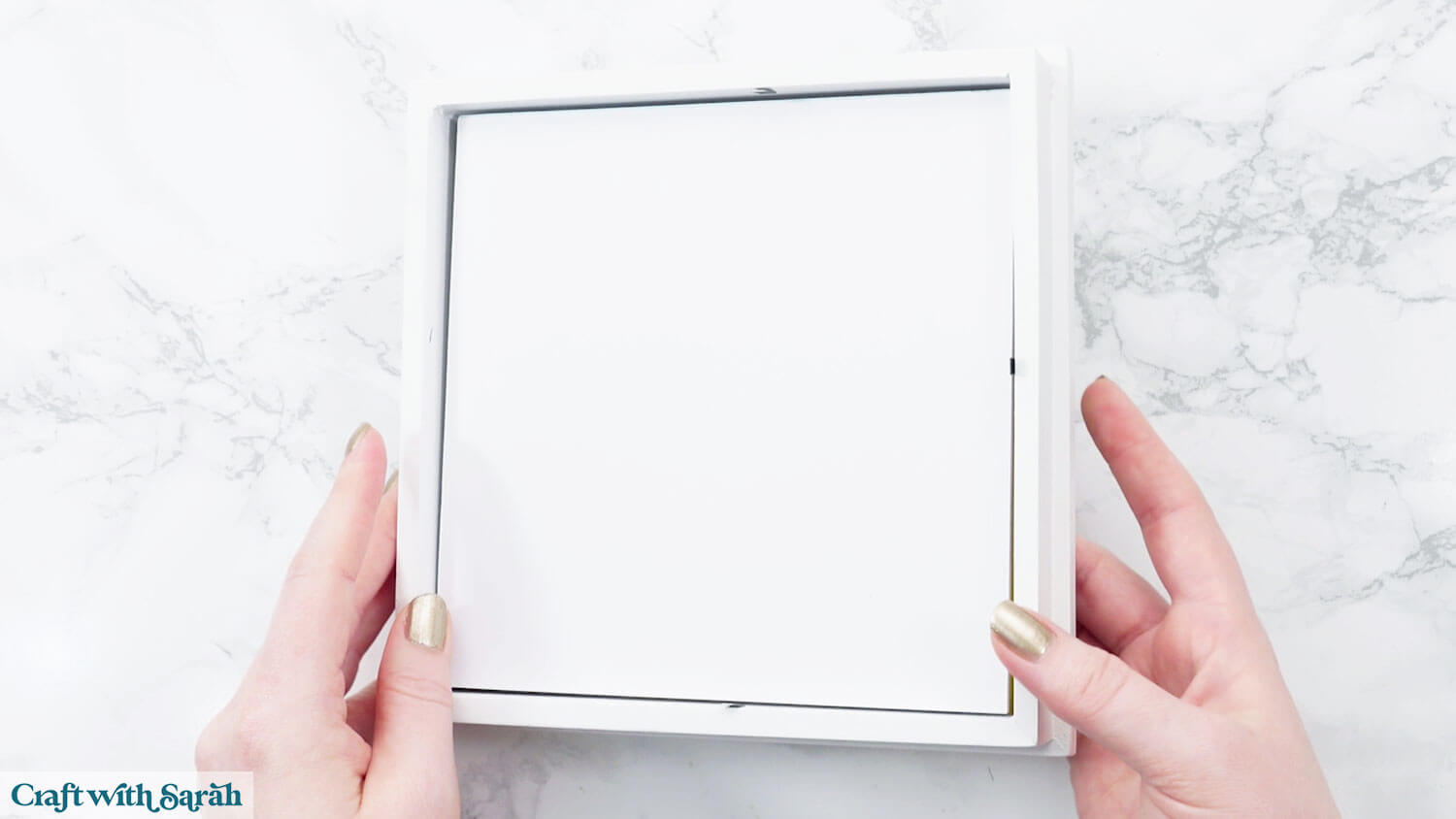
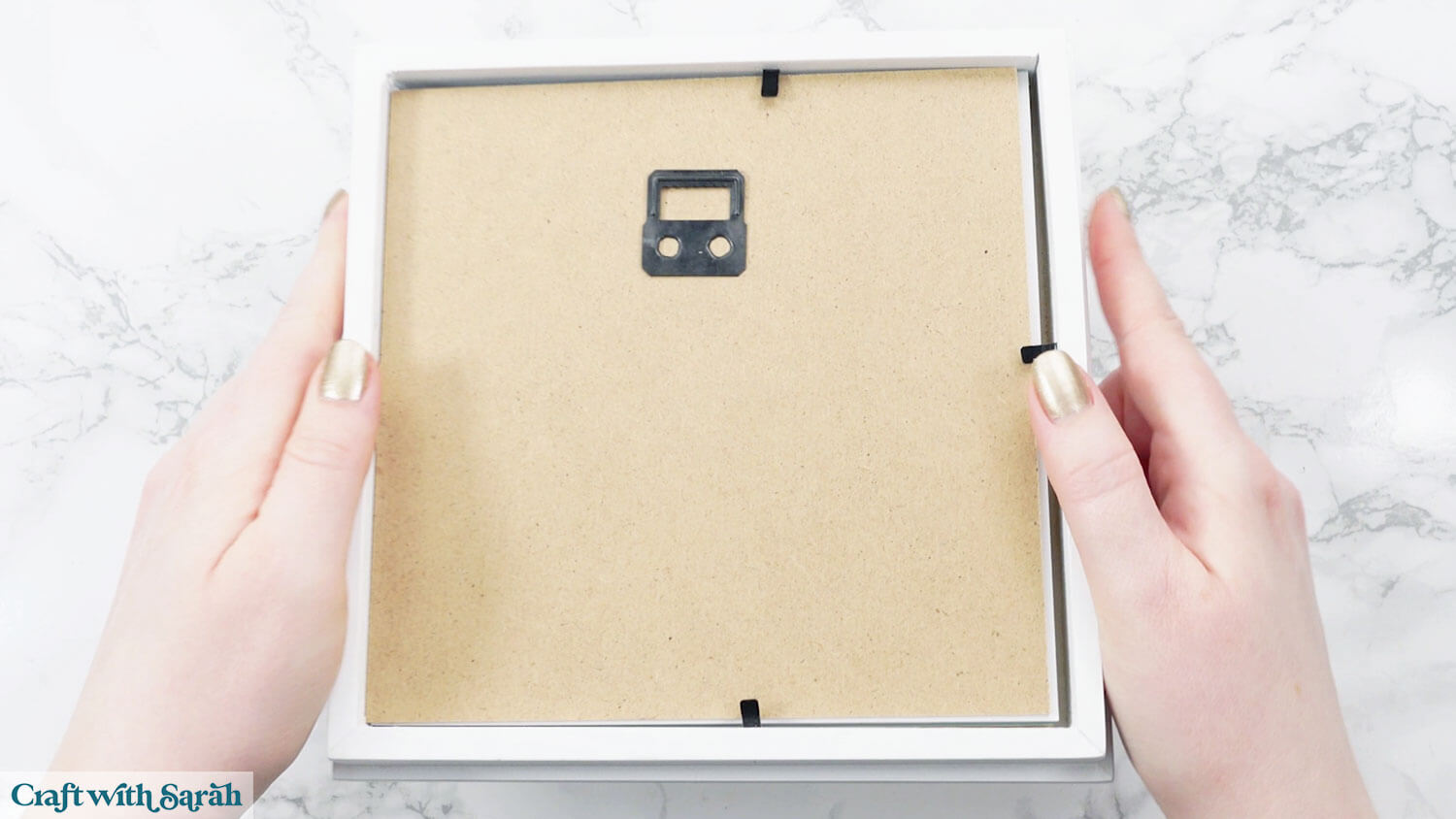
It works fairly well, but it can be problematic if the layering of the design doesn’t quite fill the whole depth of the frame, as it can cause the design to move about or to not sit straight, or it can make it difficult to put the back on the frame if it doesn’t come “up” high enough against the little metal tabs that get folded over to secure everything in place.
For example, in the image below, there is a big “gap” between the metal tabs and the back of the frame, so everything moves about a bit and it’s not as secure as I would like.
While making this project, I had an accidental discovering.
I had cut the design to fit the frame as shown above, BUT when I went to put it inside my frame after sticking it together, I accidentally picked up a slightly different sized frame.
By sheer coincidence, the papercraft I had made still fit in the frame… but this time it sat perfectly INSIDE the spacer.
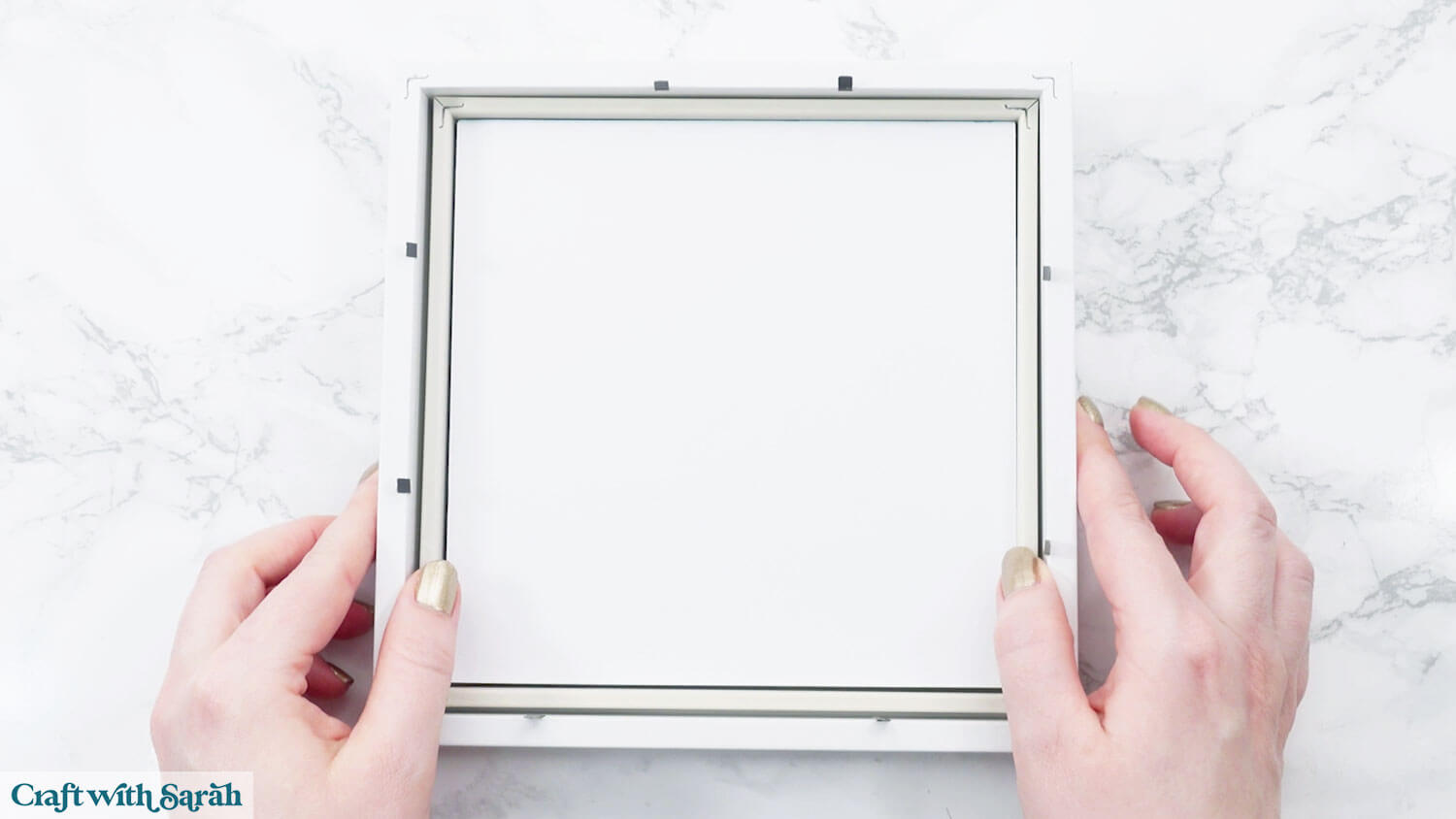
This sparked an idea, which was to cut a square of cardstock to put behind the spacer, then glue the papercraft to the middle – that way, it will always stay at the “back” of the frame and not move about.
I also cut a frame for the front of the design to hide the edges where the papercraft met the space.
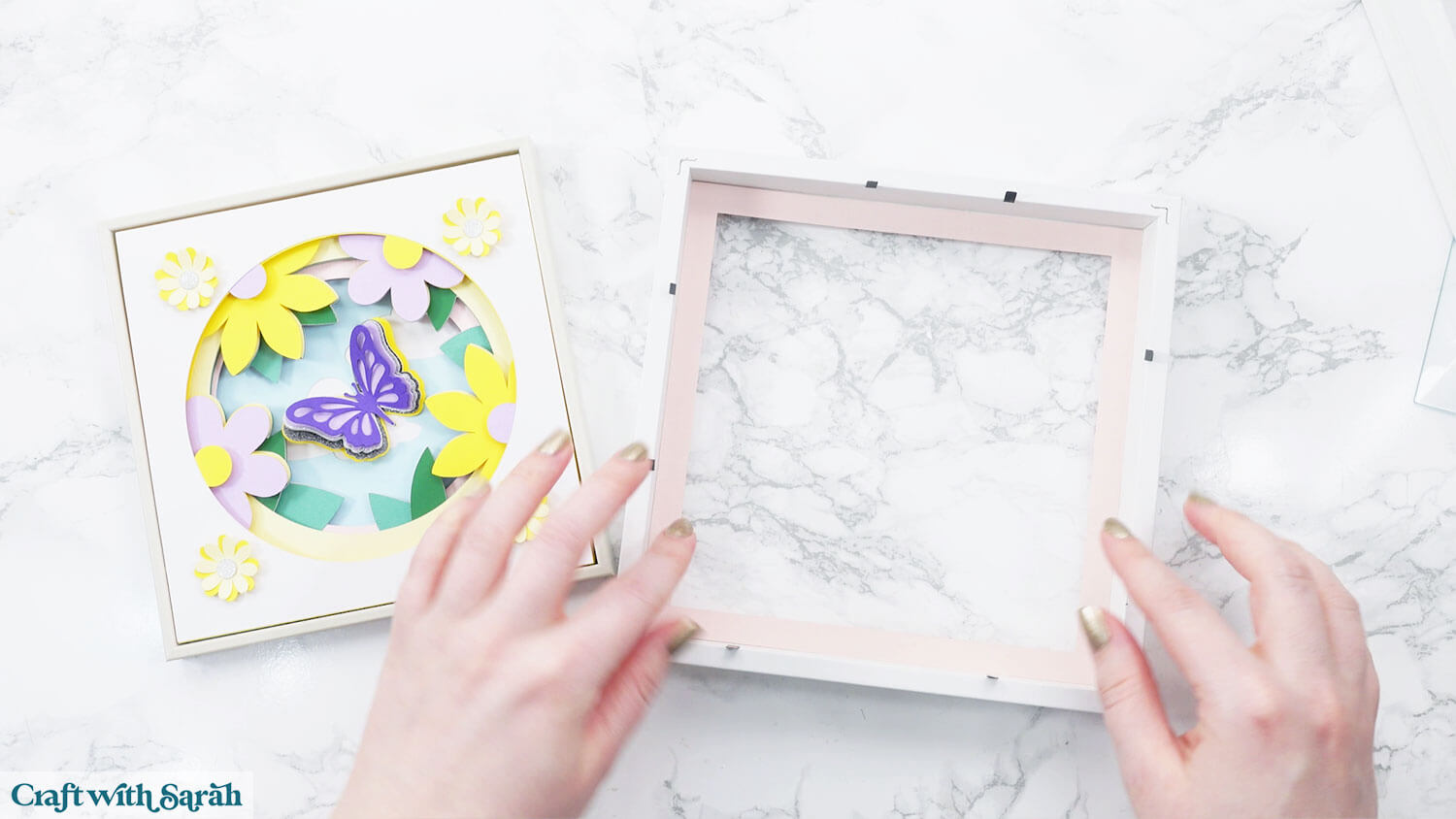
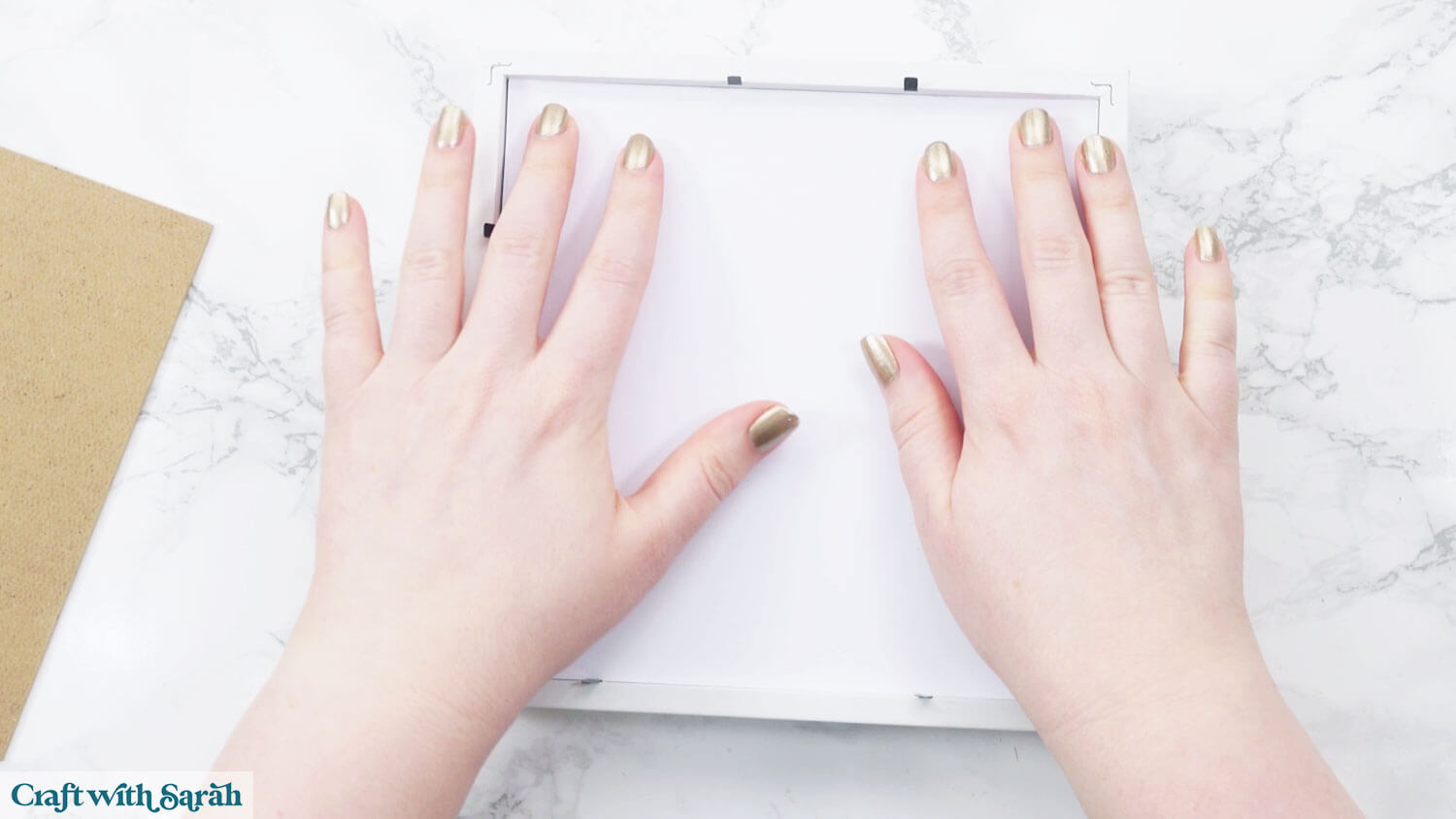
I gave it a try and this worked really well. I was far happier with how the papercraft looked in the frame using this method than with the way I used to do it.
If you would like to try this way too, here’s how.
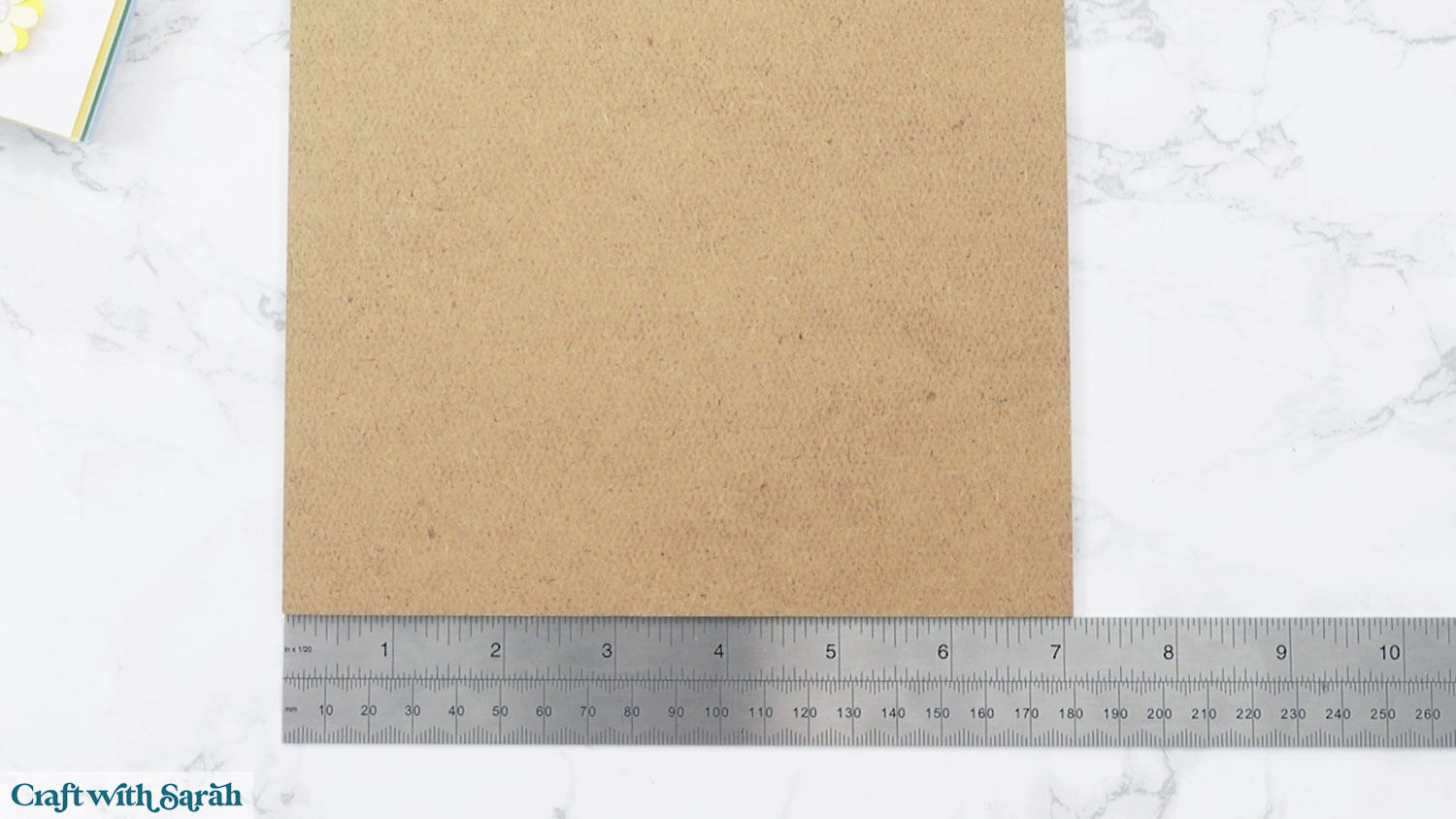
First, measure the size of the gap INSIDE the middle of the frame spacer.
This is the size you will make the flower design in Design Space.
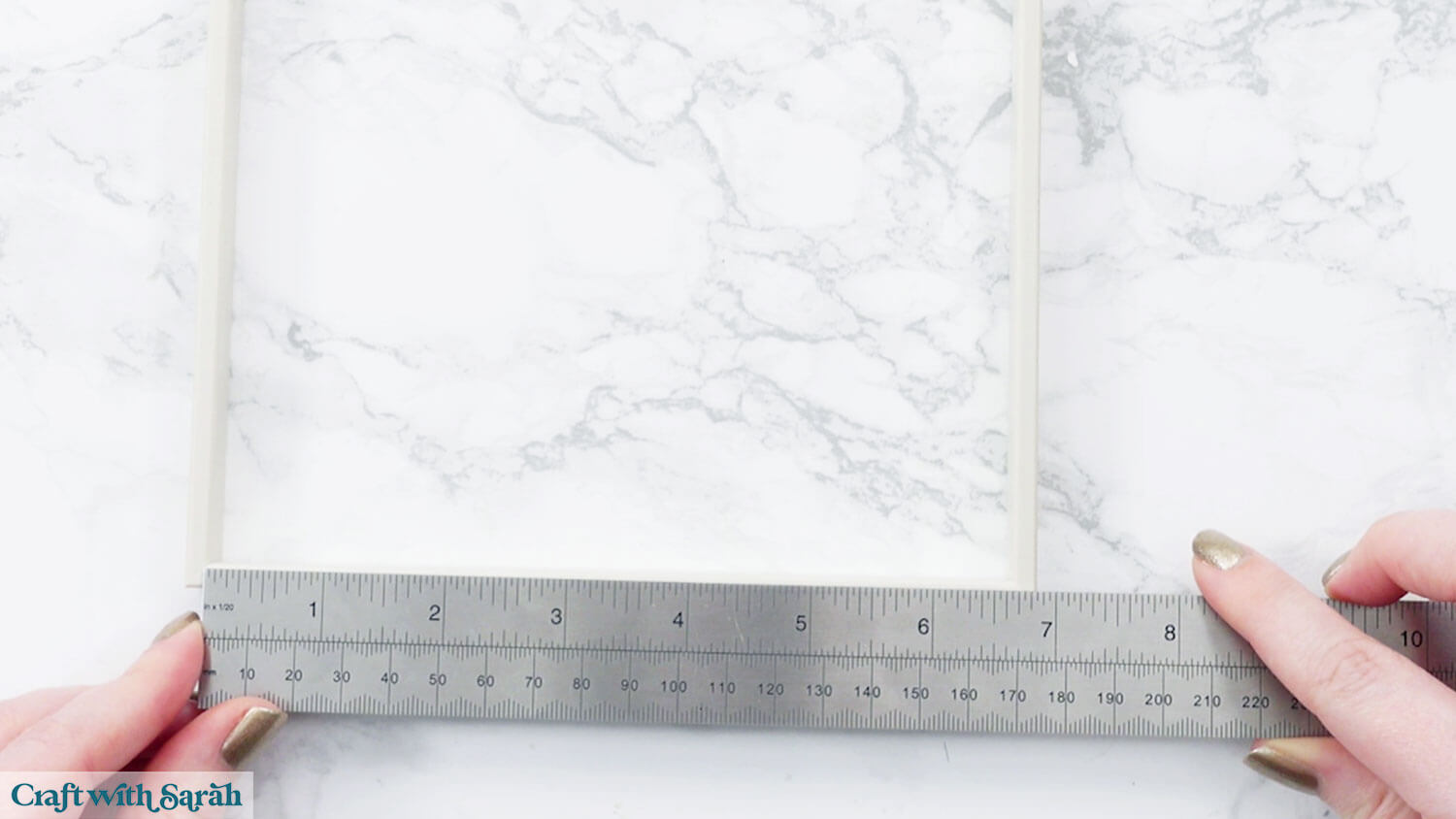
Also measure the full width of the back of the frame. This will be used to make the decorative frame piece and the large square for the back that will hold everything in place.
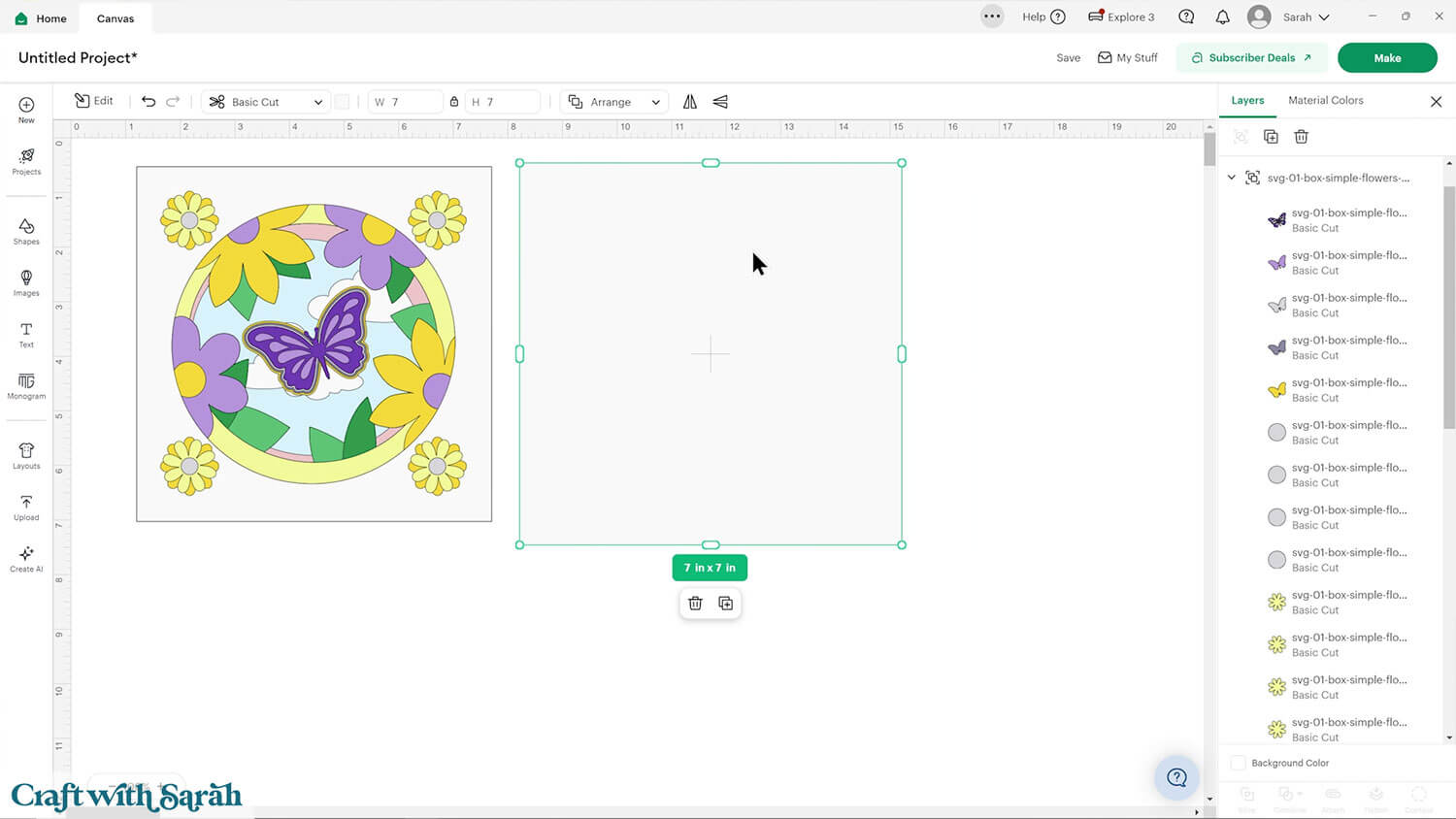
Size the SVG to match (mine was 6.5 inches) and then make a square the size of the full back of the frame (mine was 7 inches).
If you are cutting this design on a Cricut Joy or Joy 2 machine then the maximum width you can cut is 4.5 inches.
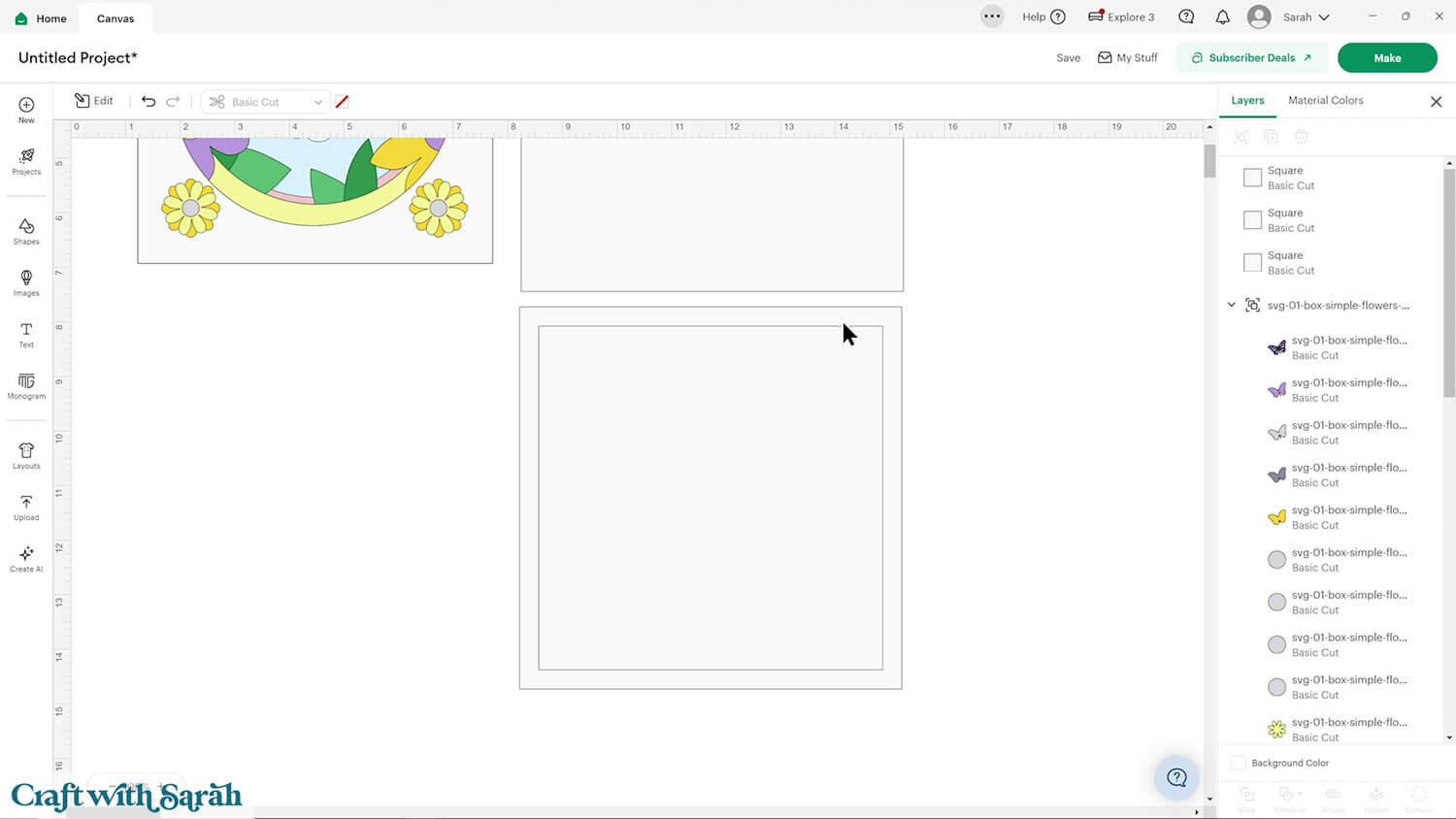
To make the frame, duplicate the square and then make another square that’s slightly smaller than the size of the SVG.
I made my smaller square 6.15 inches.
Select both squares and press Align > Center to put them in the middle of each other.
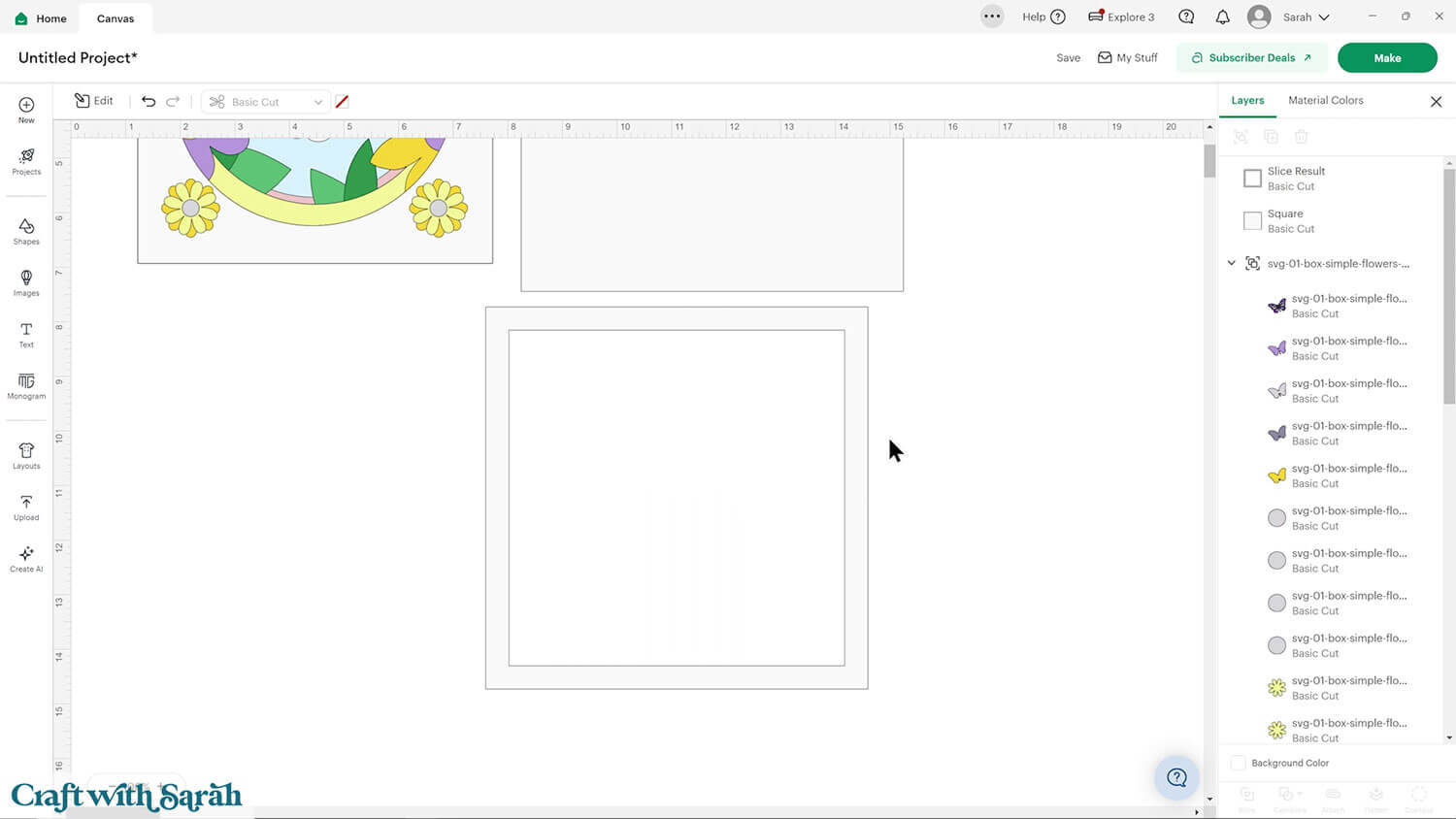
With both squares still selected, click “Slice”.
This will cut the smaller square out of the larger one.
Delete the middle square and you will be left with a frame.
Choose a colour for your frame. I used the pink from the SVG design.
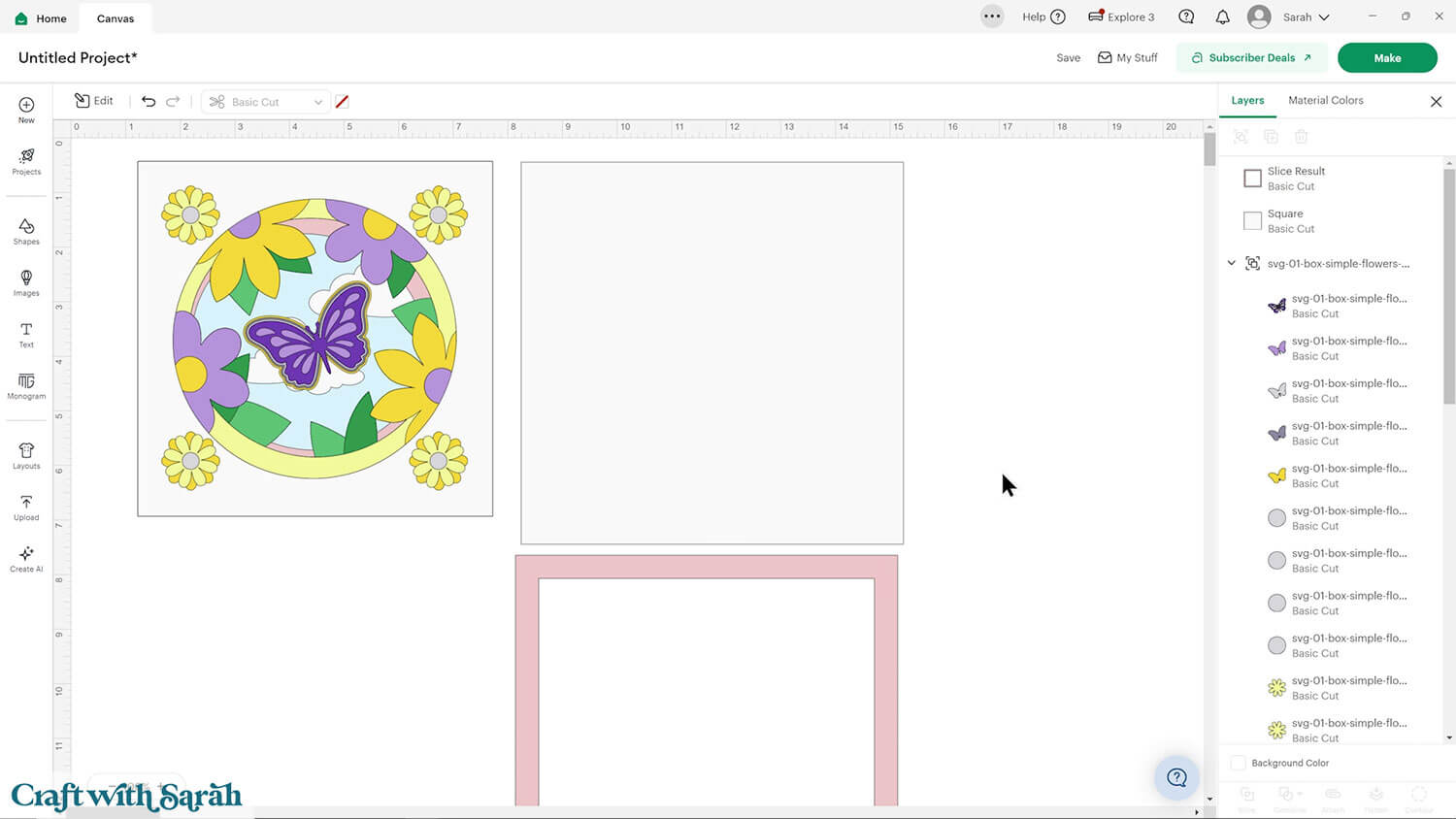
Step 3) Cut out all the layers
When you’re happy with how the project is looking in Design Space, click “Make” and follow the instructions on-screen to cut out all the pieces.
To change the paper size, go into the dropdowns over on the left side of the screen and choose the paper size that you want to use. You need to change it for every single colour.
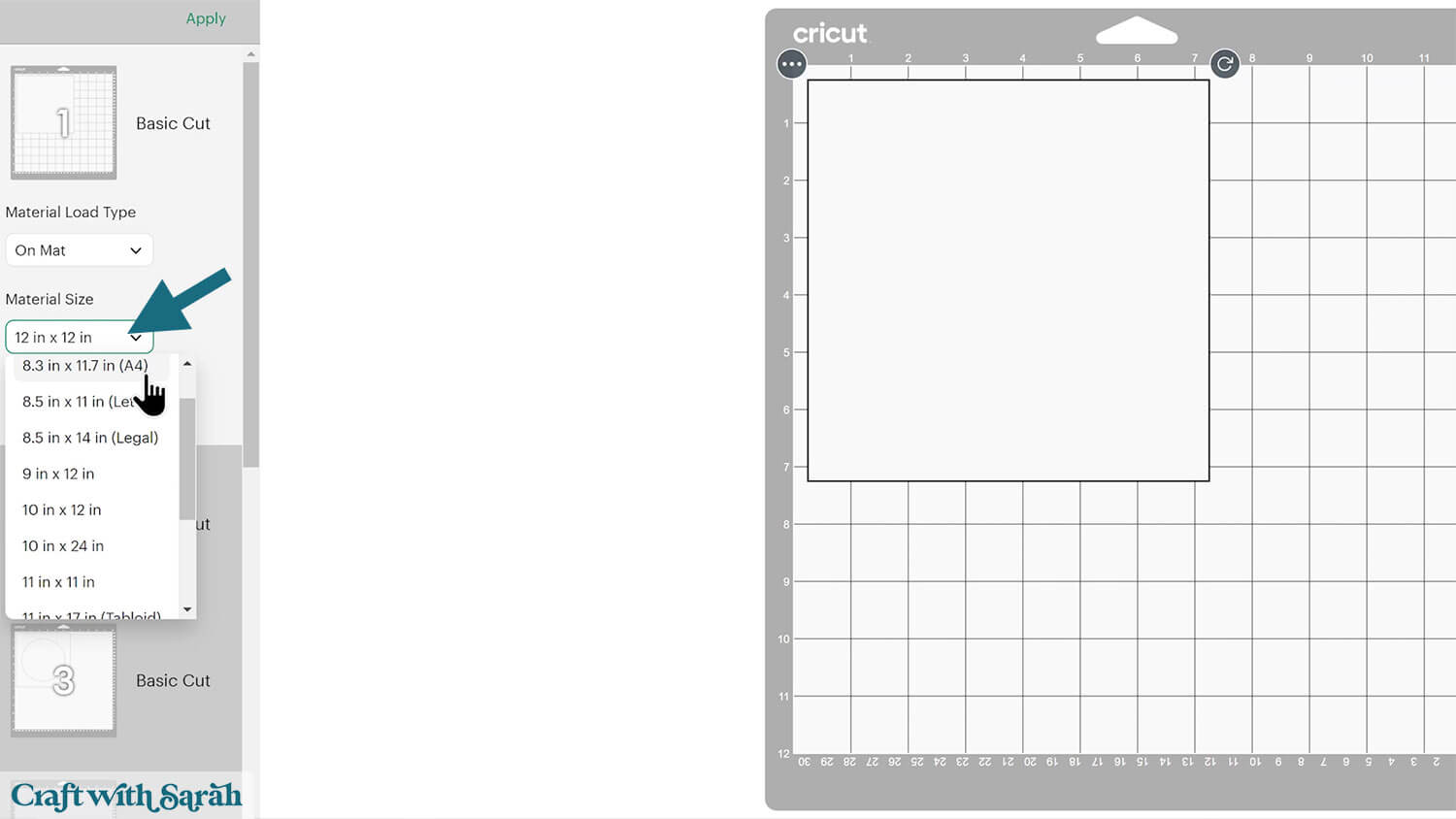
To save space on your cardstock, you can move things around by clicking and dragging. Make sure when you’re moving things about that nothing overlaps because otherwise, it won’t cut out properly.
TIP: New to using cardstock with your cutting machine? Check out these machine help guides for Cricut, Silhouette and ScanNCut that go through every step of the process, including tips for getting the best quality cuts from your machine.
Step 4) Stick the project together
Use 3D foam pads and glue to stick the layers together.
Use this guide to see the order to stick the layers together in.
A printable version of this assembly guide is included in the folder when you download the cut files.
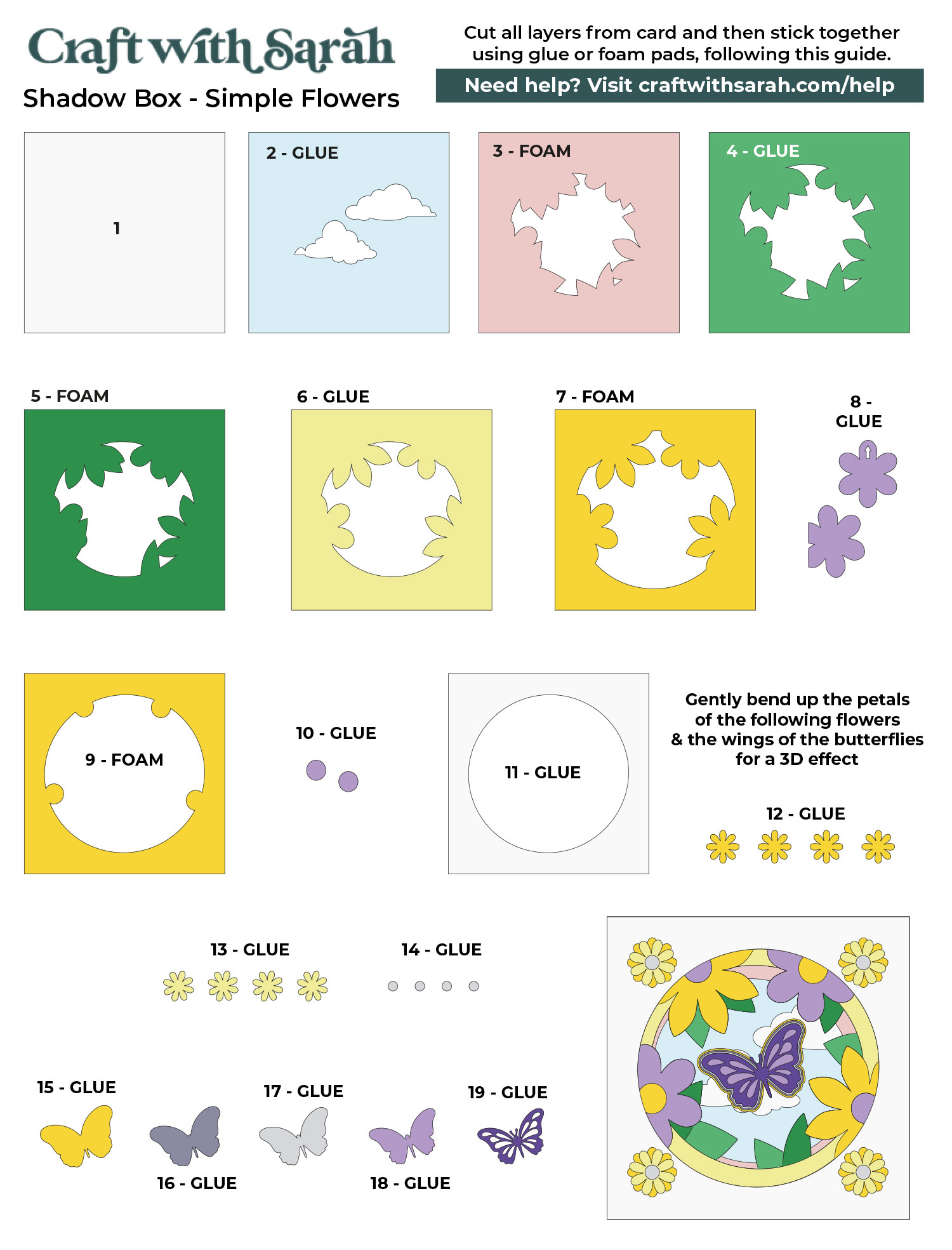
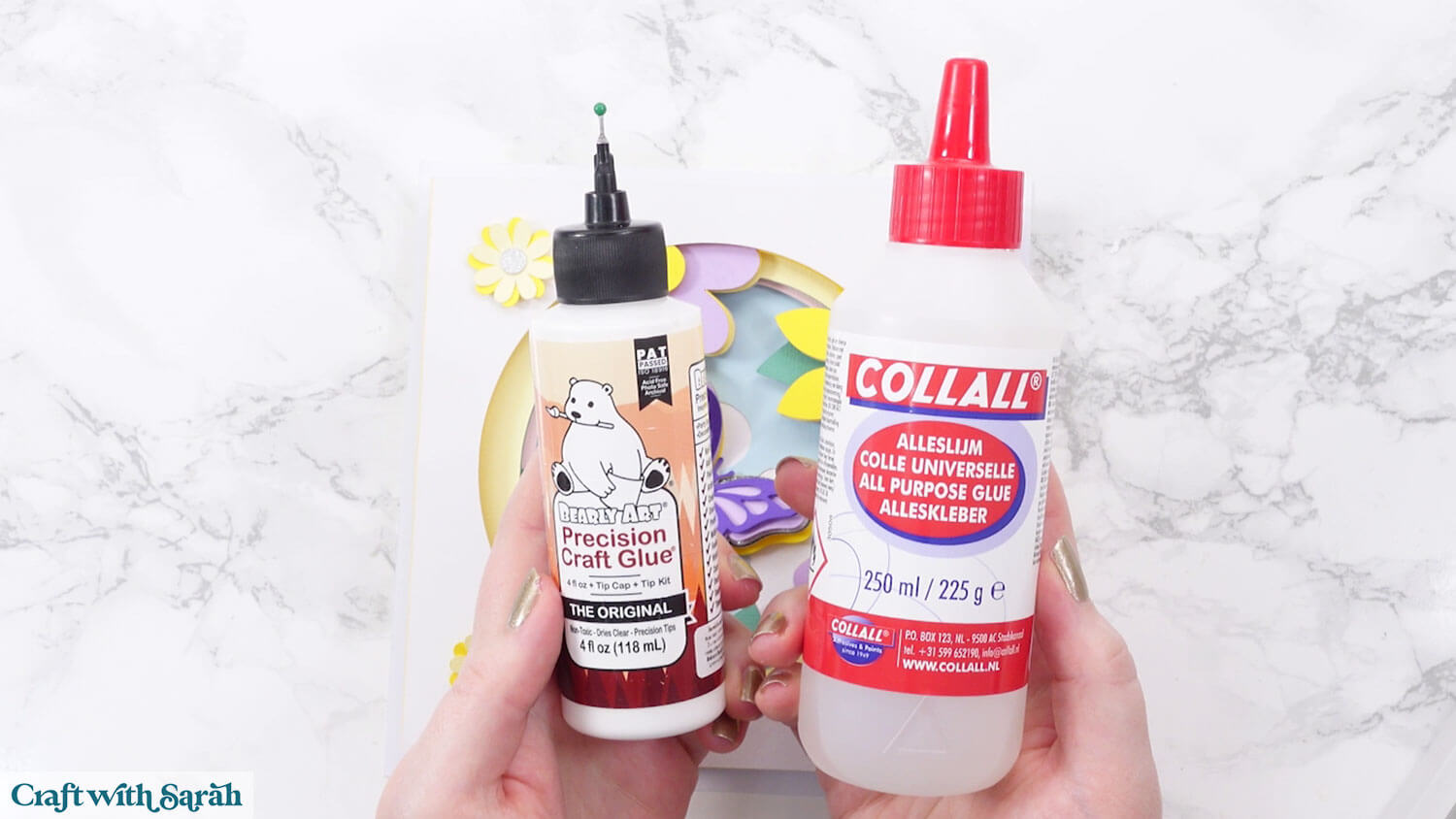
My favourite glues to use on papercraft projects are Bearly Art Glue and Collall All Purpose Glue.
These are great because they don’t “warp” or bend the cardstock like some glues do. You can use as much of it as you want and the card stays perfect – and it dries perfectly clear too!
Bearly Art Glue comes with a tiny nozzle to make it easy to apply glue to small areas of card. The Collall glue doesn’t come with this, so it’s easiest to decant it into needle tip applicator bottles so that you have more control.
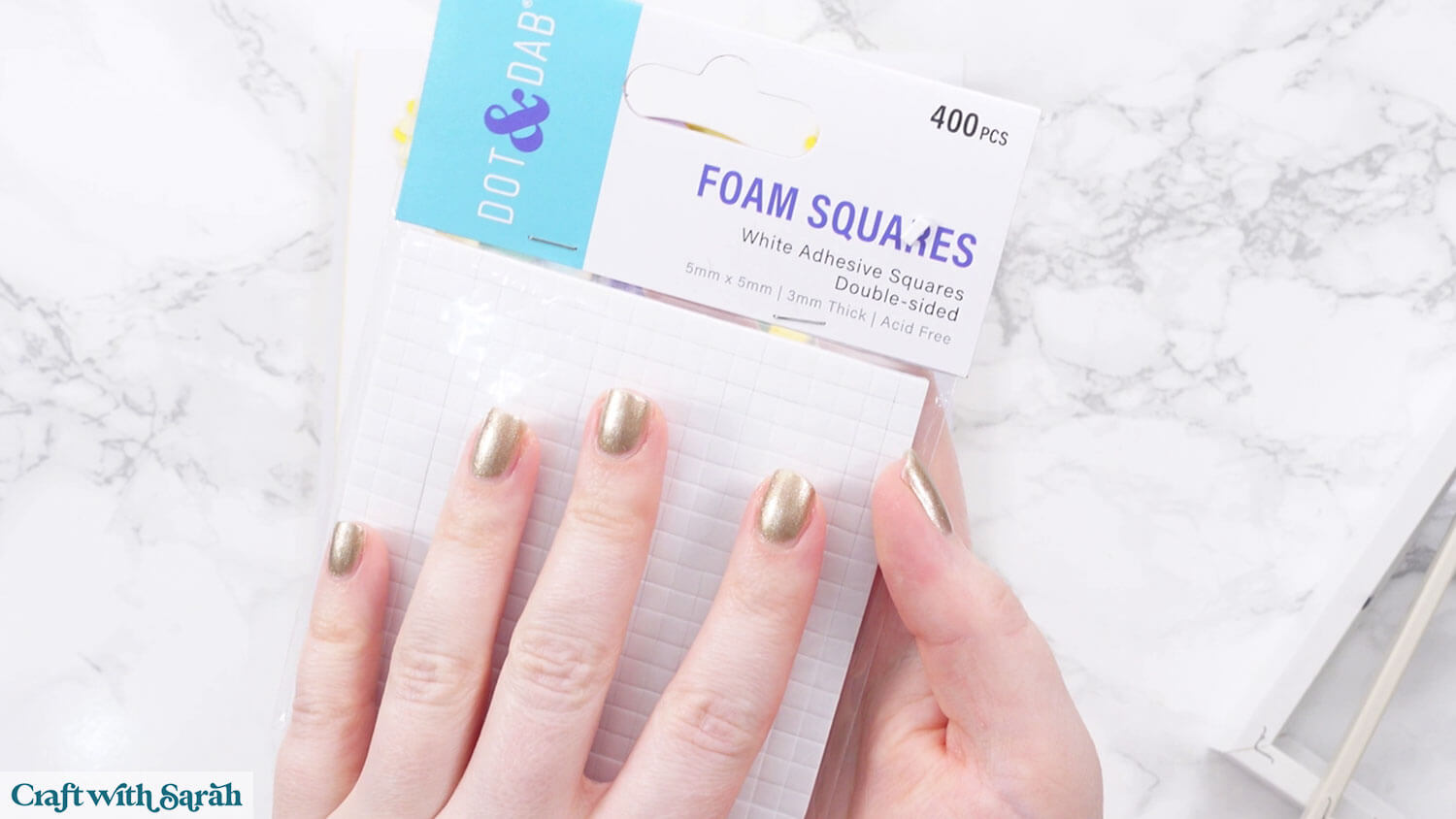
The foam pads that I use are from “Dot & Dab”, but any foam squares will work. If yours are big then you may need to cut them smaller with scissors to fit inside the edges of the layers.
Note – I usually use foam squares that are 2mm thick, but the picture below shows 3mm thick. I bought these by mistake, thinking they were the 2mm ones, so tried them out for this project. They worked out but I definitely prefer the normal 2mm thickness.
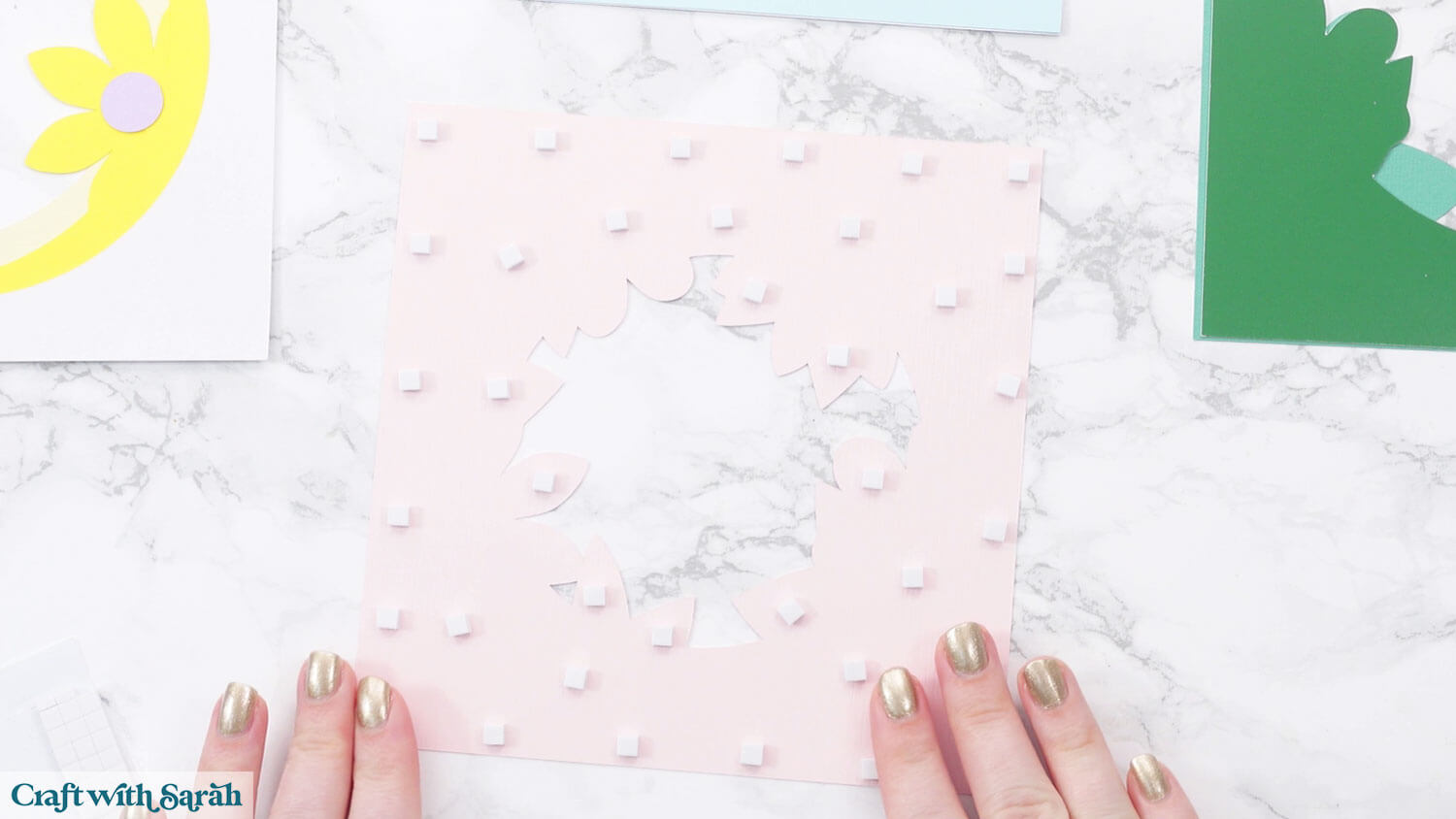
When adding the foam pads to larger pieces of card, make sure you add some in the middles of the pieces of card so it gives stability to the middles.
If you don’t add any foam pads in the middles then it can “sag” under the weight of the other layers which doesn’t look as good.
Continue sticking the pieces together, following the assembly guide.
When you get to the butterfly shapes, gently bend the wings up to make them look 3D.
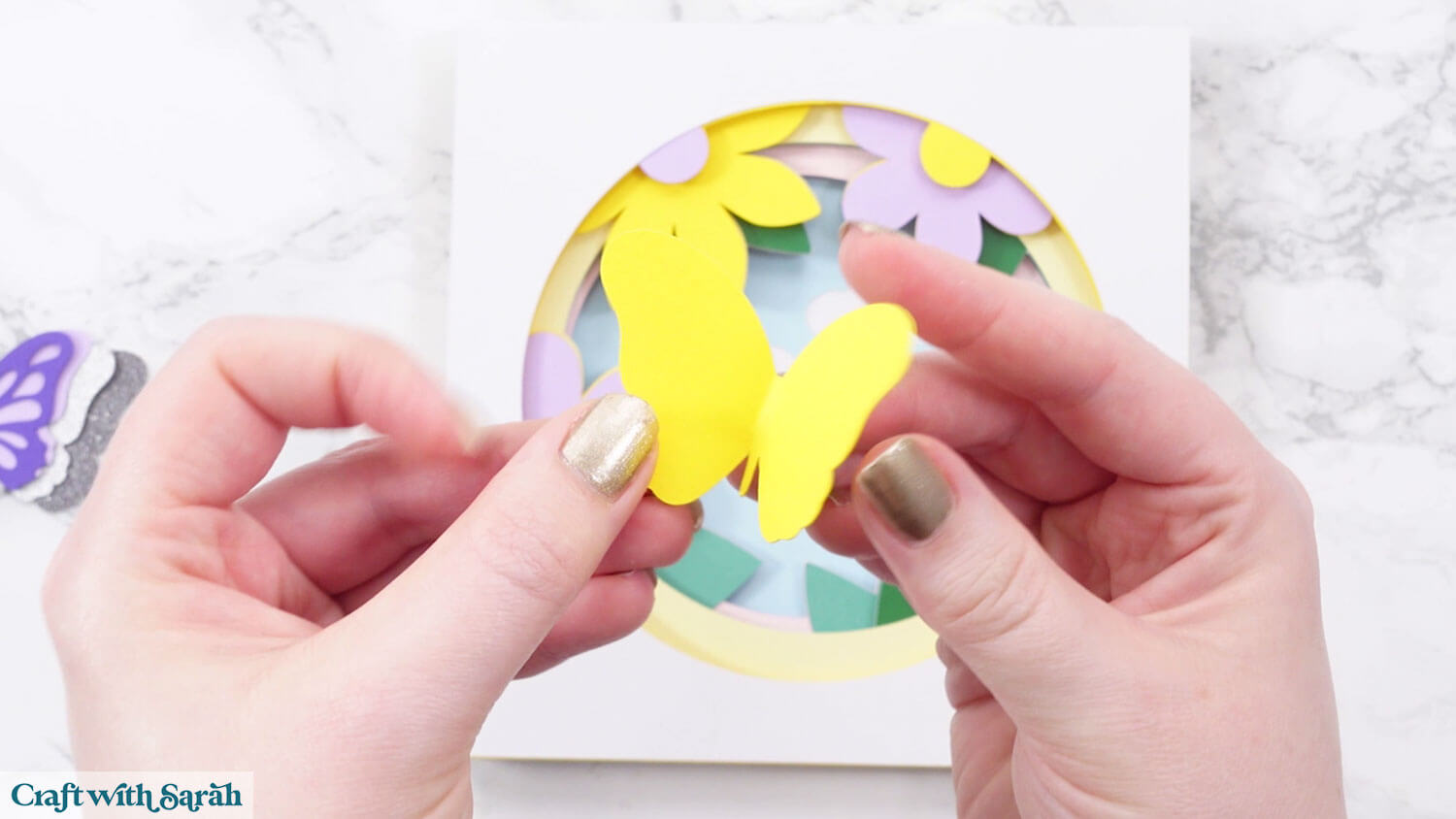
Then just put glue down the butterfly body and leave the wings free to bend upwards.
To make the flowers look 3D you can roll around the middles of them with a ball tool placed on a piece of foam.
If you don’t have these then gently bend the petals upwards with your fingers instead.
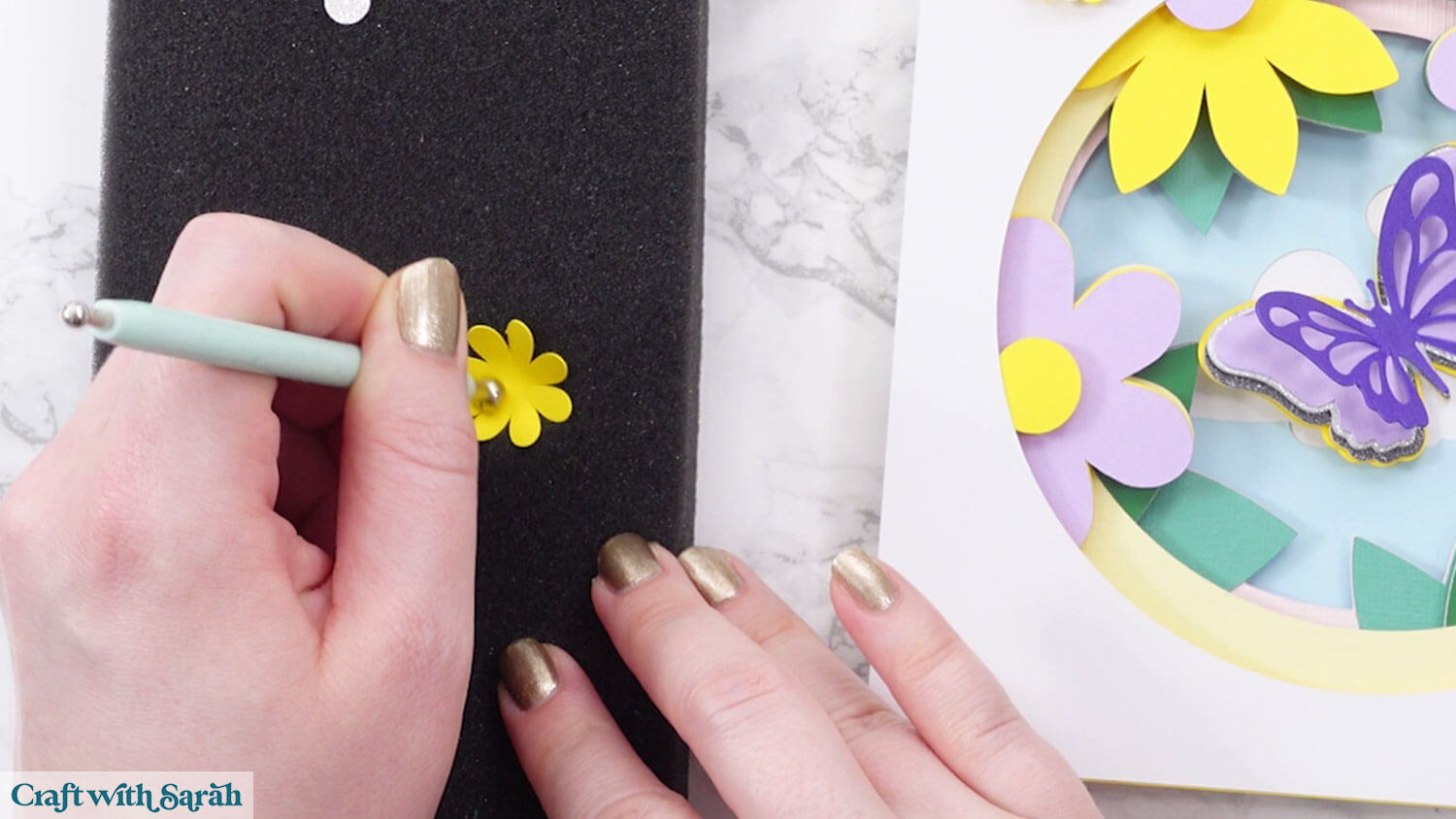
Glue the lighter flowers into the middle of the darker ones, then glue the silver middles on top.
Then, glue them to the front of the papercraft.
Step 5) Frame the project
Take the largest square that you created in Design Space and place your frame’s spacer over the top, lining up the edges exactly.
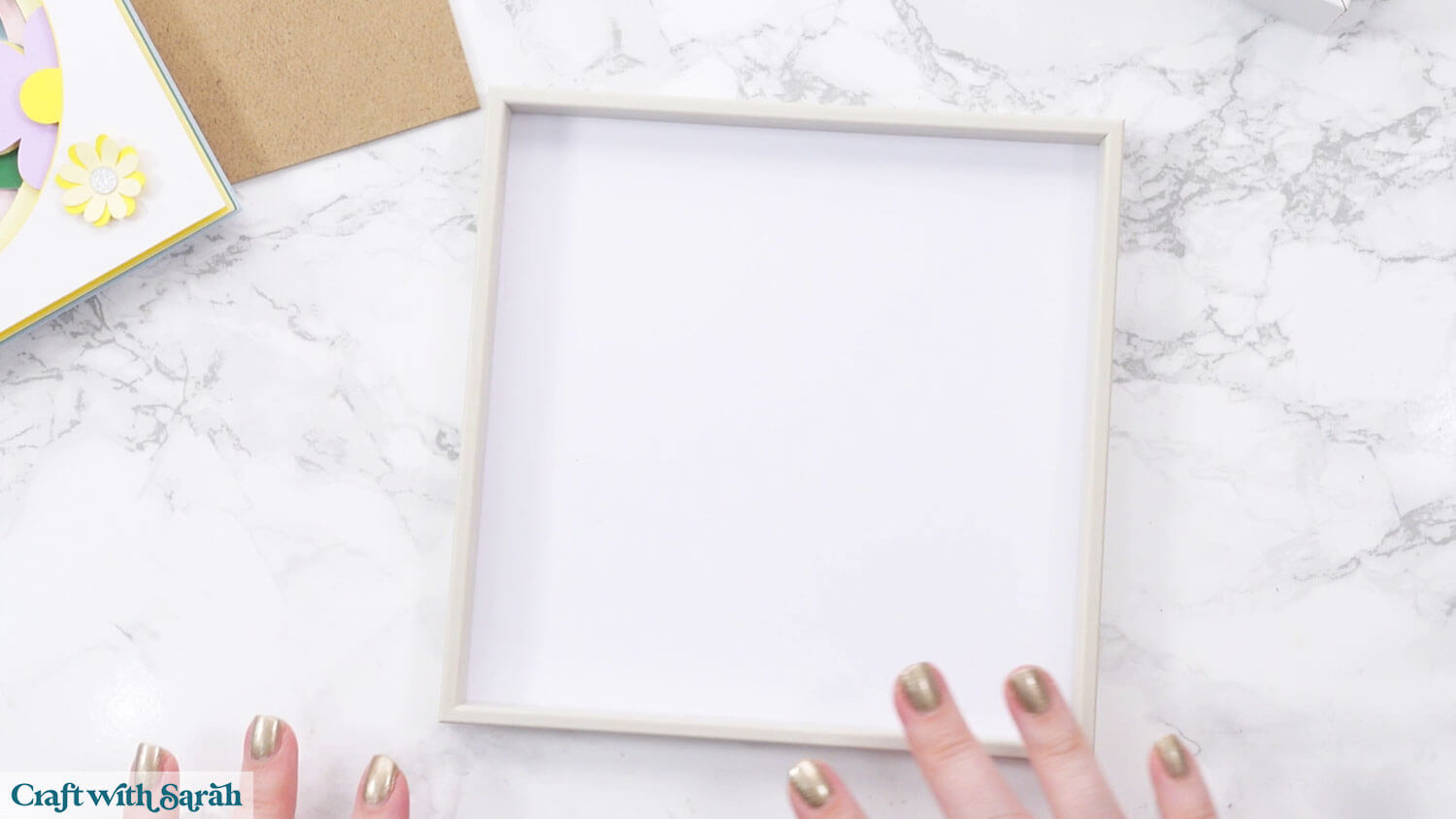
This shows you where to glue the papercraft to get it exactly in the middle.
Glue the papercraft to the middle of the large square.
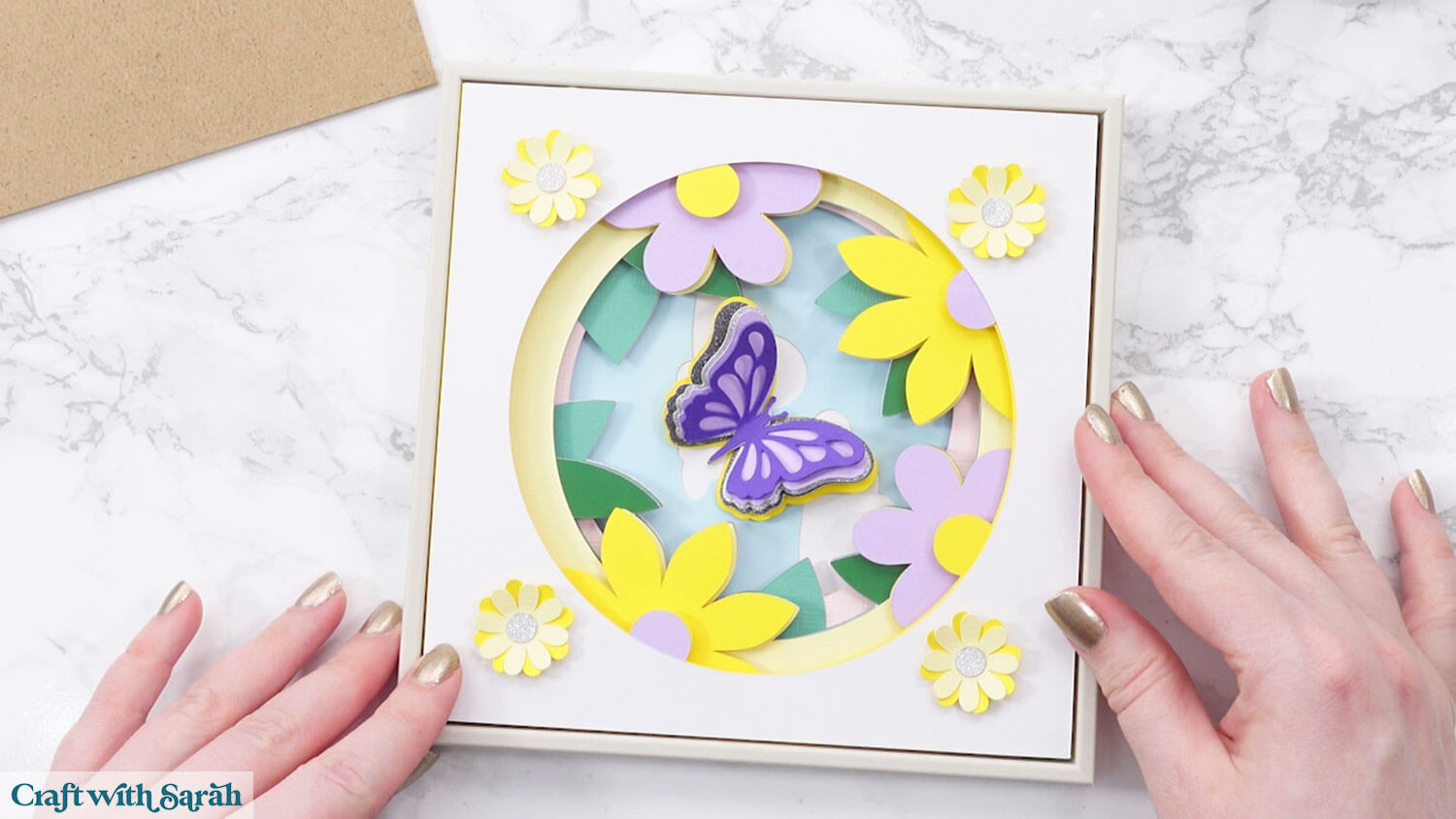
If you are using the glass in the frame, clean it and insert it.
I left the glass out so it didn’t reflect my camera lights.
Then, add the frame piece inside.
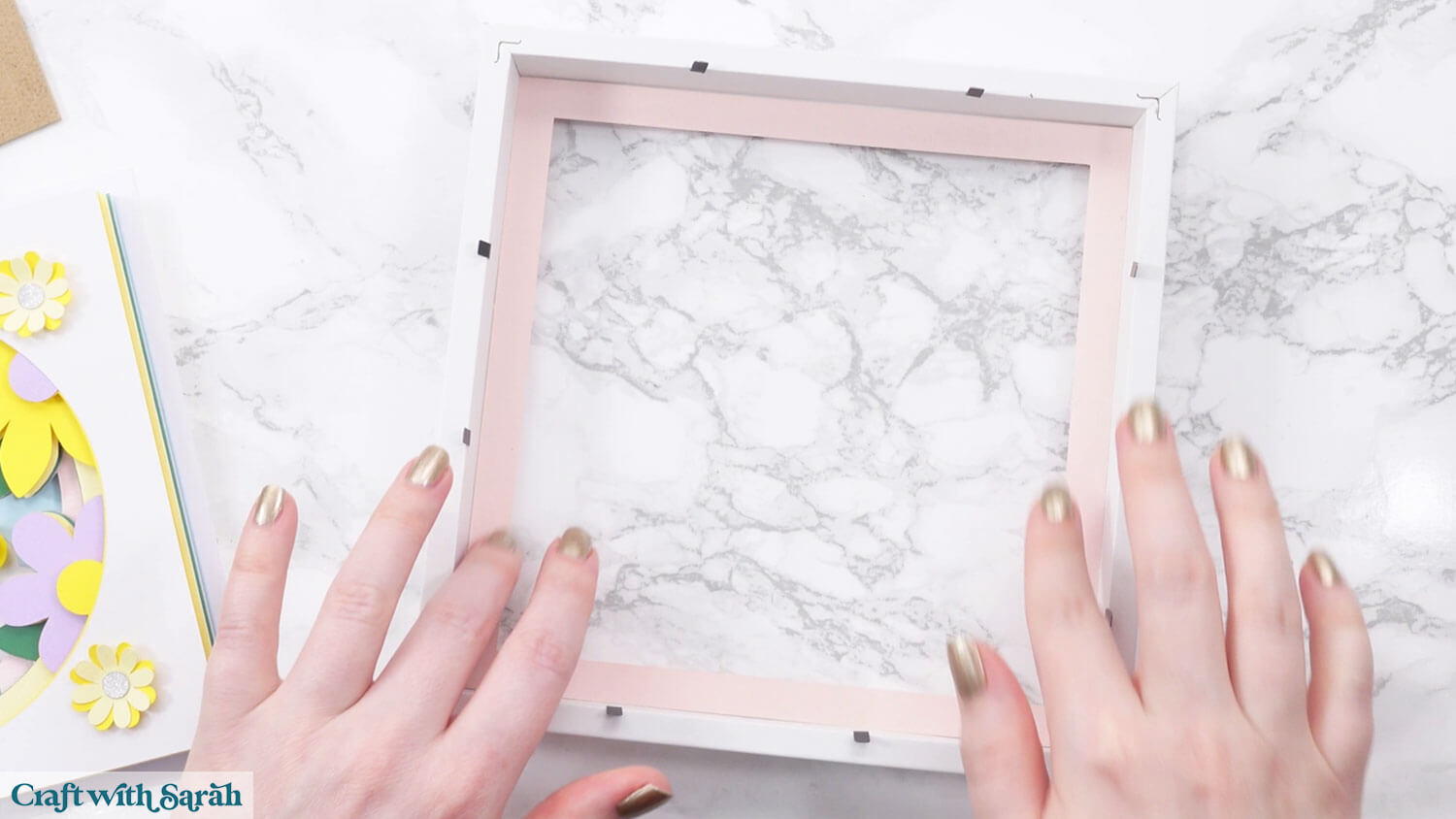
Place the wooden spacer into the frame.
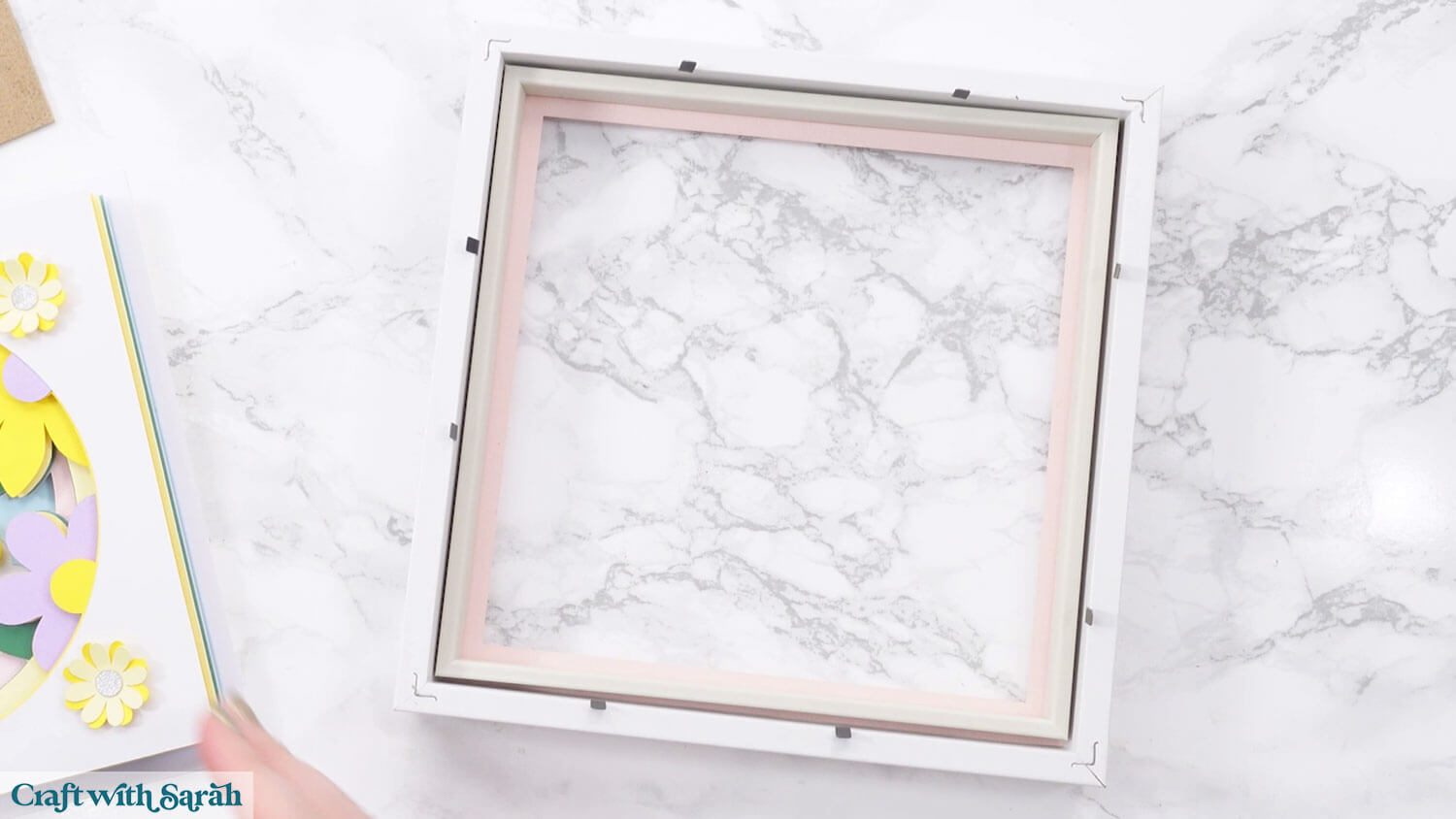
Then, add your papercraft in the middle.
The large square will make it sit on the “back” of the spacer, keeping everything perfectly in place.
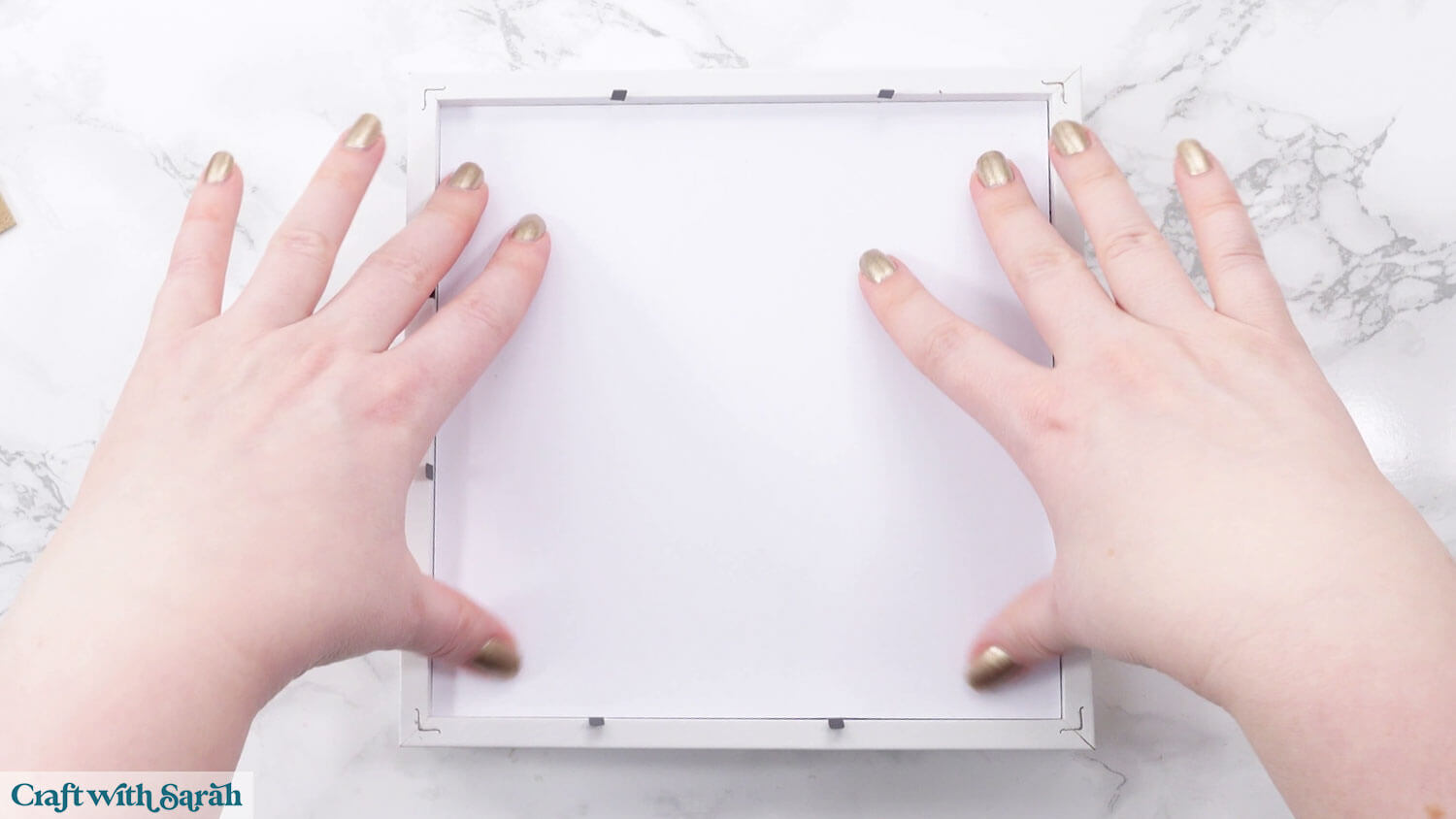
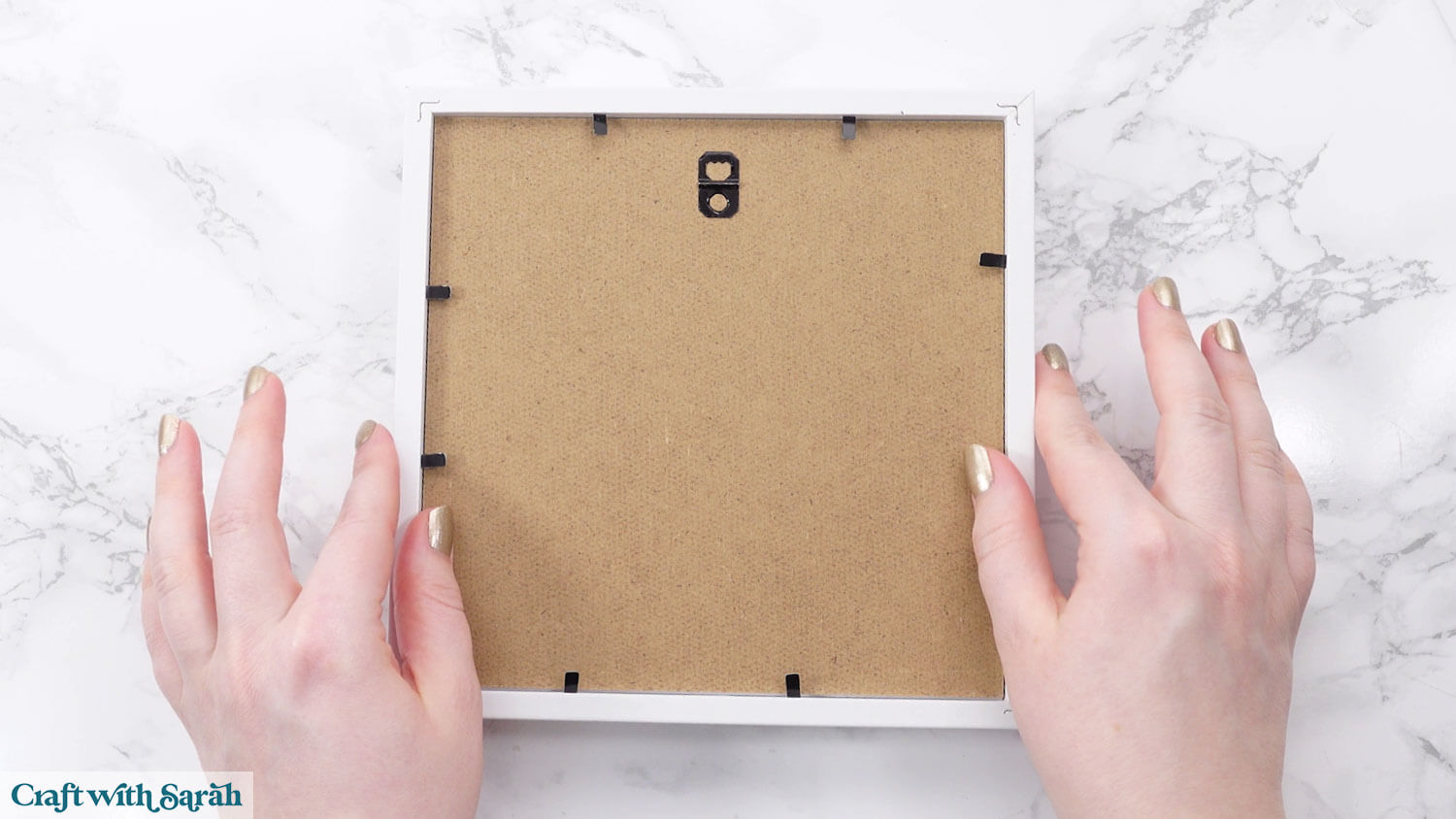
Finally, add the back of the frame and close the metal tabs.
Now your beautiful floral and butterfly shadow box papercraft is all finished!
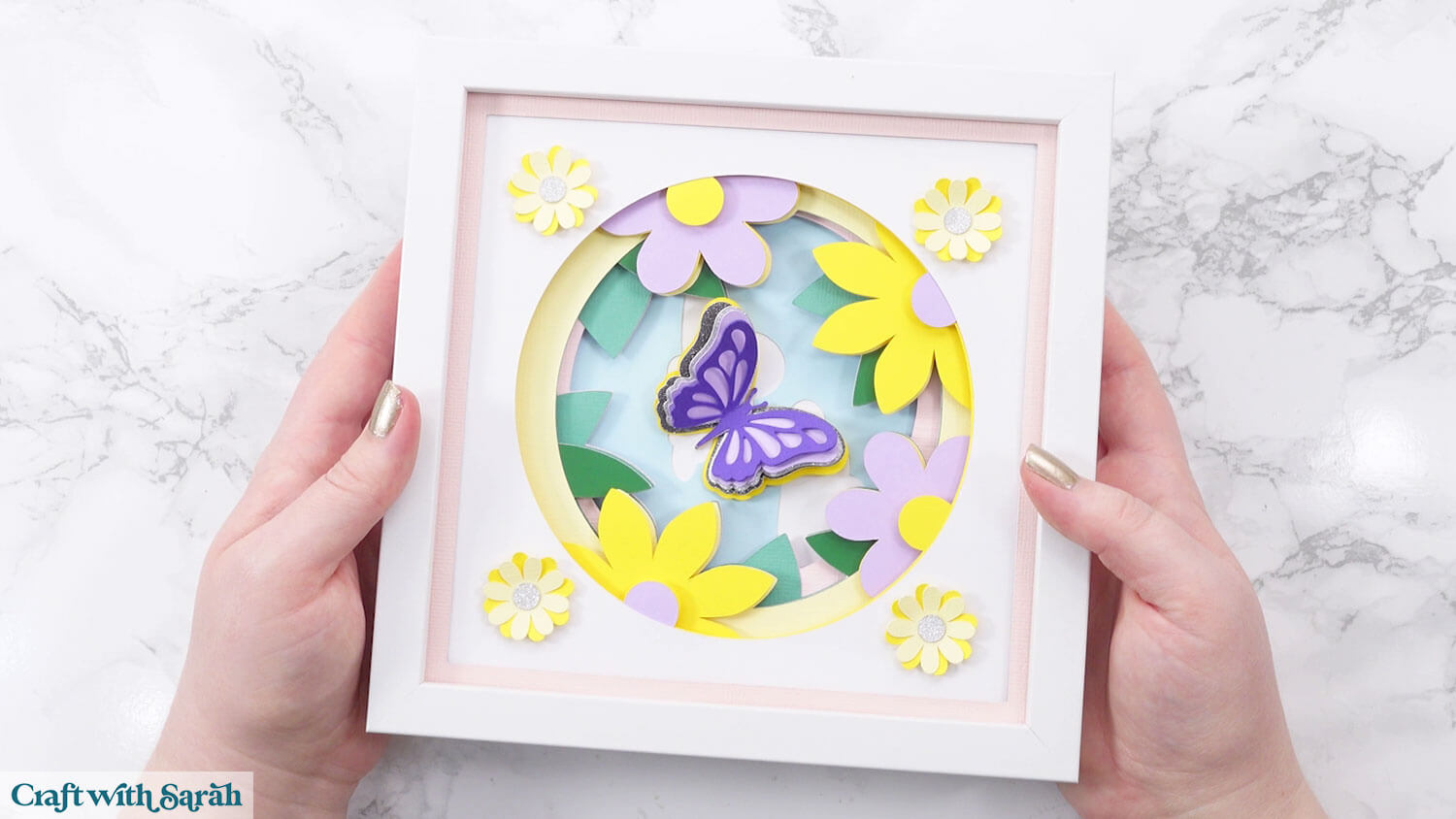
Flower shadow box to make with a Cricut
I hope you enjoyed this tutorial on how to make a simple flower shadow box with your Cricut.
I am really excited about my framing method “discovery”, as this is going to make it so much easier to frame not only this design, but all future shadow box SVGs too.
If you don’t have a shadow box frame available, check out these free easel stands for two alternative ways to display your project.
Or, go for a more simplistic approach by making a triangle stand or nail hook.
The triangle stands are completely invisible from the front of the project, making it look like it’s standing up by magic! The hooks allow you to hang the design straight on the wall without a frame.
Love shadow box craft projects?
Check out these other layered papercraft for square box frames:
- Beach lighthouse shadow box
- Waterfall shadow box
- Customizable fireplace shadow box
- Snowy owl shadow box
- Santa’s workshop shadow box
Happy crafting,
Sarah x