Flower Pot Photo Frames 🦋 Spring CC 2026
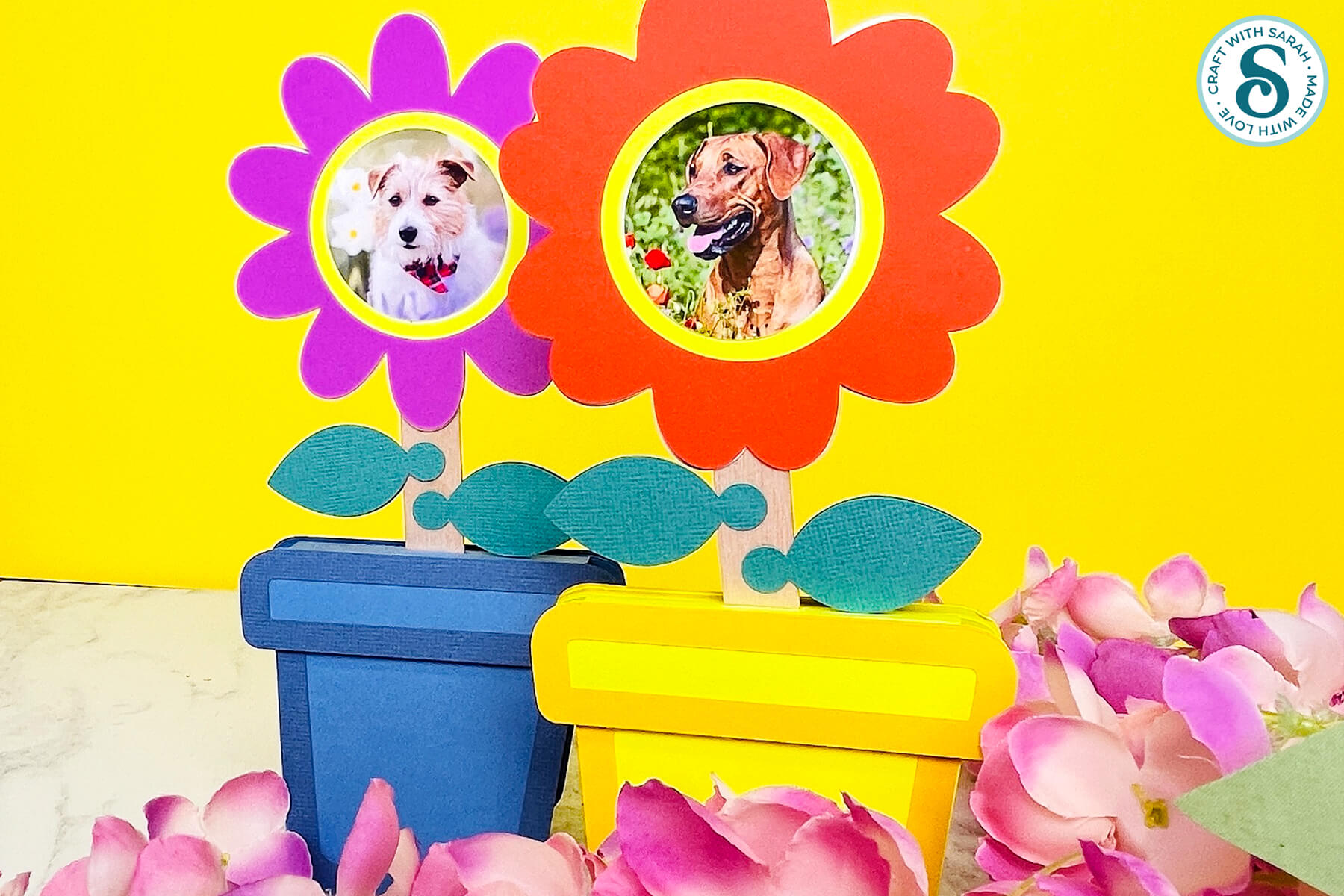
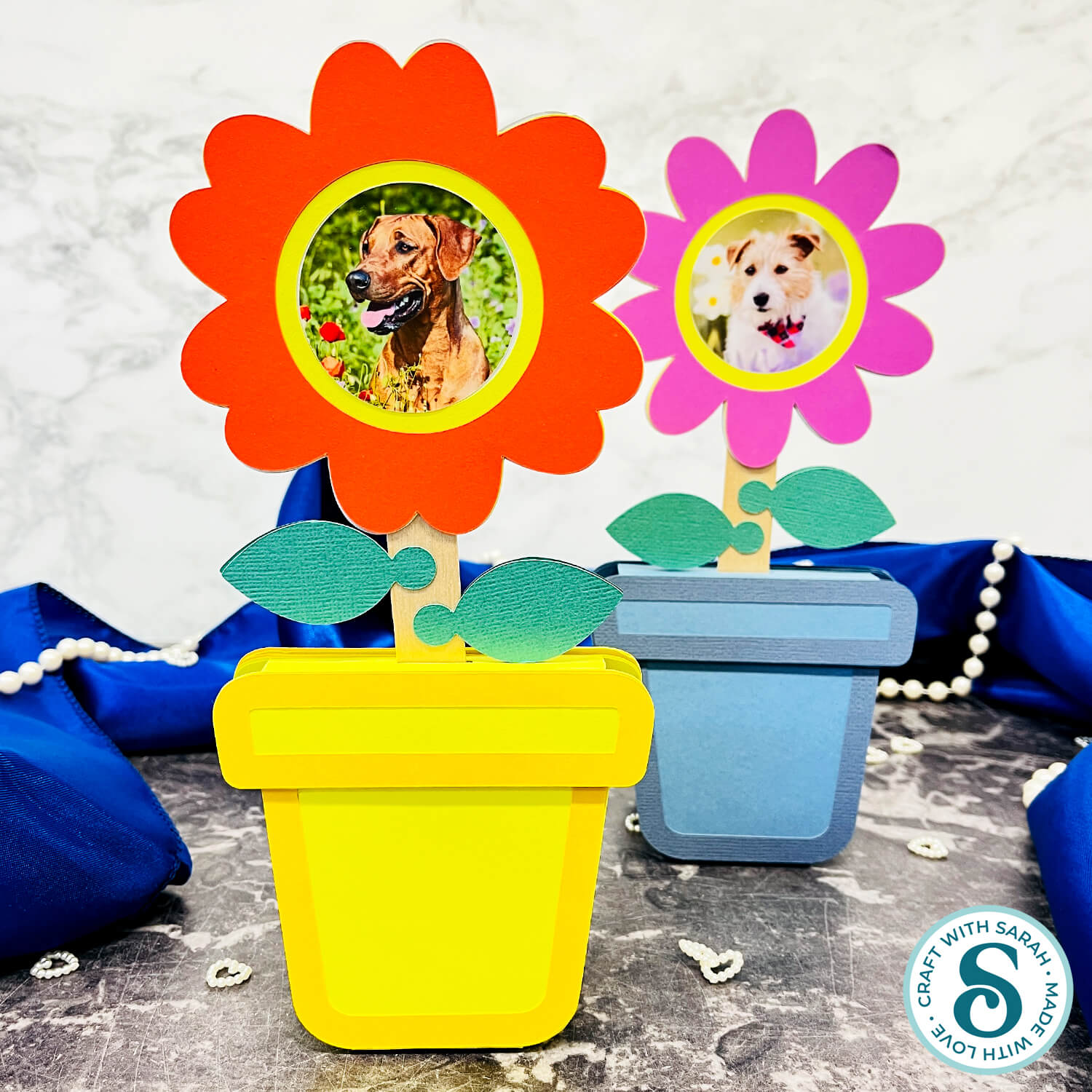
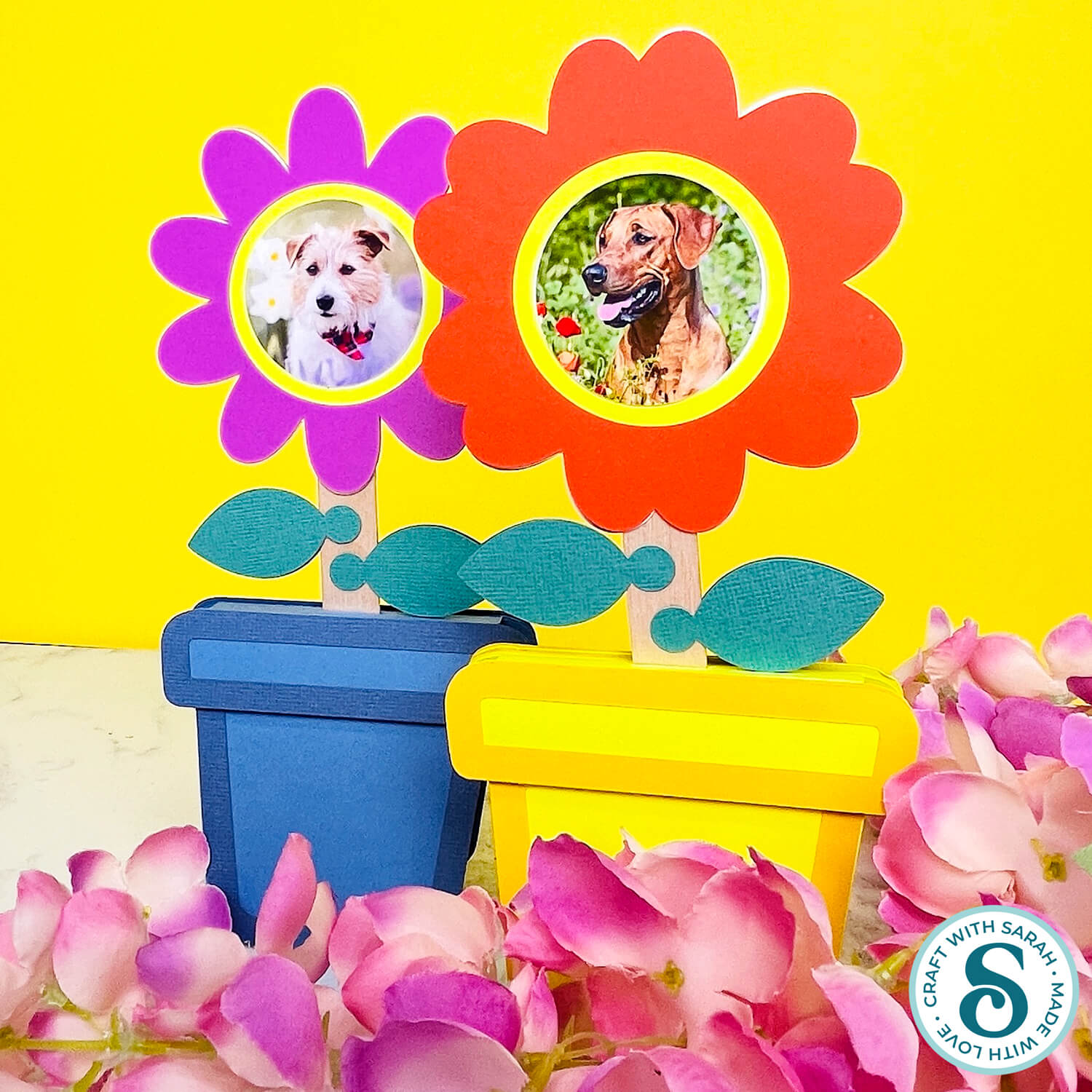
Make pretty freestanding photo frames in the shape of flowers with this quick and simple Cricut craft.
Bright, colourful papercraft flowers with your favourite photos nestled inside are the perfect way to brighten up your desk or shelves.
Two different flower designs are included. Make them both for a pretty pair, or choose just one of them.

Lollipop sticks are used to give stability to the flower stems, but if you don’t have any then I’ll show you an alternative method using cardstock.
This project uses Cricut’s “Print then Cut” feature to cut the photos into precise circles to go in the middle of the flowers.
If you don’t have a colour printer then you could cut out already printed photos instead, or use patterned paper or perhaps even pictures from magazines to add to the middle of the flowers.
This project was part of the 2026 Spring Craft Countdown
Cricut photo frames materials supply list
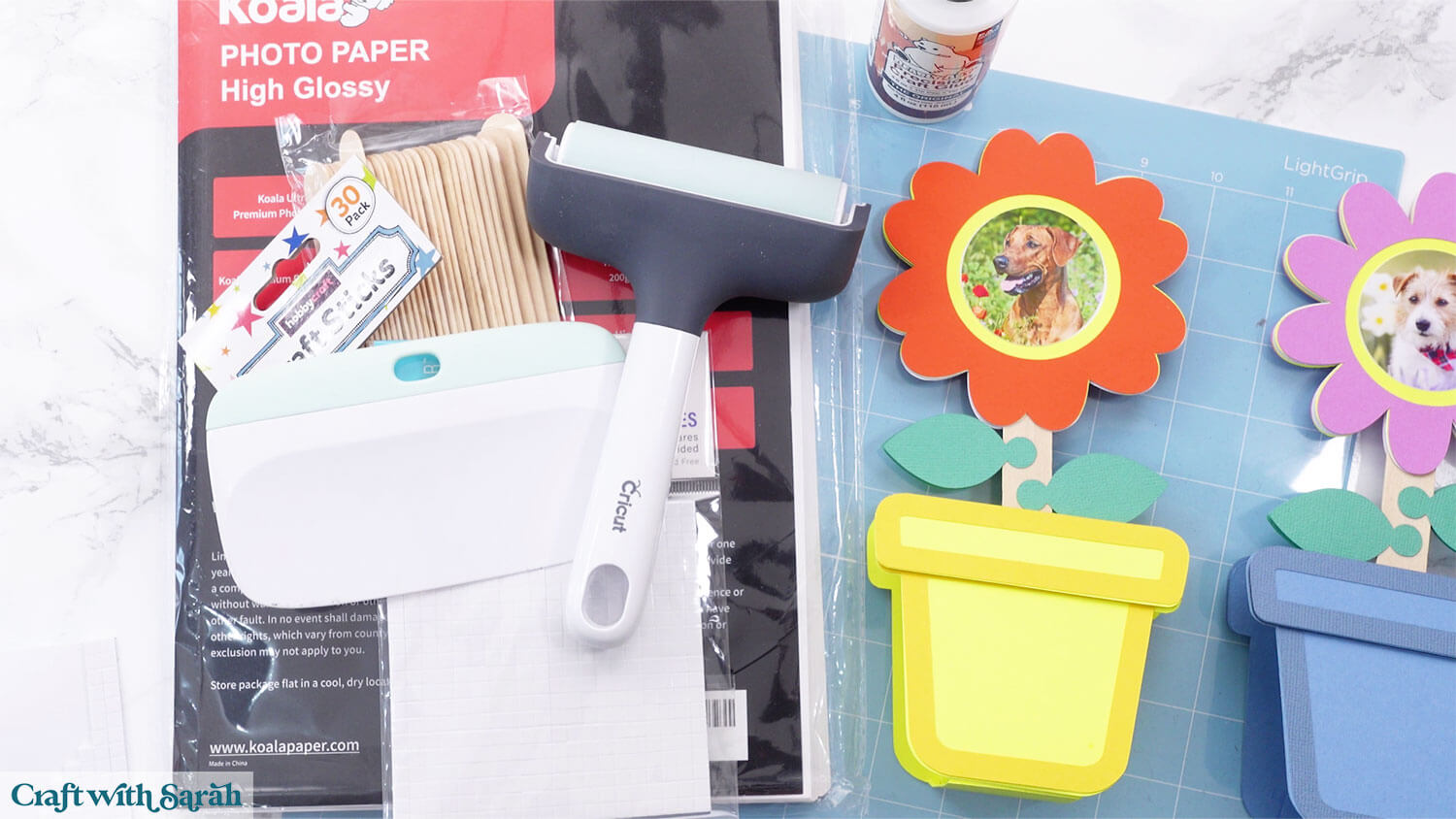
Here is a list of the materials that I used to make this project.
Please note that some of the links included in this article are affiliate links, which means that if you click through and make a purchase I may receive a commission (at no additional cost to you). You can read my full disclosure at the bottom of the page.
- Cricut machine
- Light blue Cricut cutting mat
- Coloured Card (ideally around 220-250gsm / 80lb)
- Glue (I like Bearly Art Glue and Collall) or double-sided tape
- 3D foam pads
- Cricut scoring wheel or scoring stylus
- Lollipop sticks or wooden craft sticks
- Colour printer
- Photo paper
This project is suitable for the following types of Cricut machines: Explore series, Maker series, Joy Xtra and Joy 2. You will need to make the design smaller to cut on the Joy 2. The original Cricut Joy machines do not have “print then cut” capability.
Foundation learning
If you're new to making papercrafts with your cutting machine, check out these links to get you started.
They include videos on topics such as: which file to use with your type of cutting machine, how to load the files into your cutting machine's software, how to cut cardstock with your type of cutting machine, how to recolor and modify/customize the cut files and tips for displaying your projects.
- How to use zip folder downloads
- Help guides for Cricut machines
- Help guides for Silhouette machines
- Help guides for ScanNCut machines
The following tutorials are Cricut-specific, but many of the ideas will work similarly with a Silhouette or ScanNCut machine and any cut files that are shared in them are compatible with all types of cutting machine.
- How to score with a Cricut (even without scoring tools)
- Print then cut tutorial
- Design Space tools (Combine, Attach, Slice, Weld, Flatten, etc.)
- Pattern fill tutorial (for making backgrounds & cutting images to a specific shape/size)
- Free envelope SVGs that can be sized to fit any card
- Presentation boxes for handmade cards
- How to write inside cards with Cricut pens
- How to cut layered designs at a small size
- Design Space tips & tricks
- Cricut pens tutorial
- How to mount multiple designs in the same frame with magic guides
Freestanding photo frame craft video tutorial
Watch the video below to see how to make this project. Keep scrolling for a written tutorial.
Written tutorial (with photos!)
Here’s how to make freestanding flower shaped photo frames using a Cricut machine.
Step 1) Download the cutting file & upload to Design Space
Get the files using the box below.
Purchase the File(s)
This cut file is available as part of the Instant Access Bundle.
Or, purchase this design individually here
Before you upload the SVGs to Design Space, you need to unzip the download folder that they come in.
Not sure how to do this? Click here for a tutorial that covers all the following types of computer and device:
- How to unzip a folder on a Windows computer
- How to unzip a folder on a Mac
- How to unzip a folder on an iPad
- How to unzip a folder on an iPhone
- How to unzip a folder on an Android device
After unzipping, upload the SVG file(s) into your cutting machine software.
Not sure how to use cut files with your type of machine? The following links lead to tutorials on how to use cut files in:
- Cricut Design Space
- Silhouette Studio
- CanvasWorkspace (for ScanNCut machines)
If you are using Cricut Design Space, start a new project and then click the “Upload” button on the left of the screen.
You can then either click “Browse” to find the files on your computer, or drag-and-drop them in.
Select the files in the “01 Cricut Version” subfolder that start svg-01 in the filenames.
If you are making both photo frames, each flower design needs to be loaded separately.
Press “Upload” on the next screen.
After uploading, the design should be automatically inserted onto your Canvas.
To hide the left sidebar (to give you more space for designing!), click the arrow that’s about half way down the page.
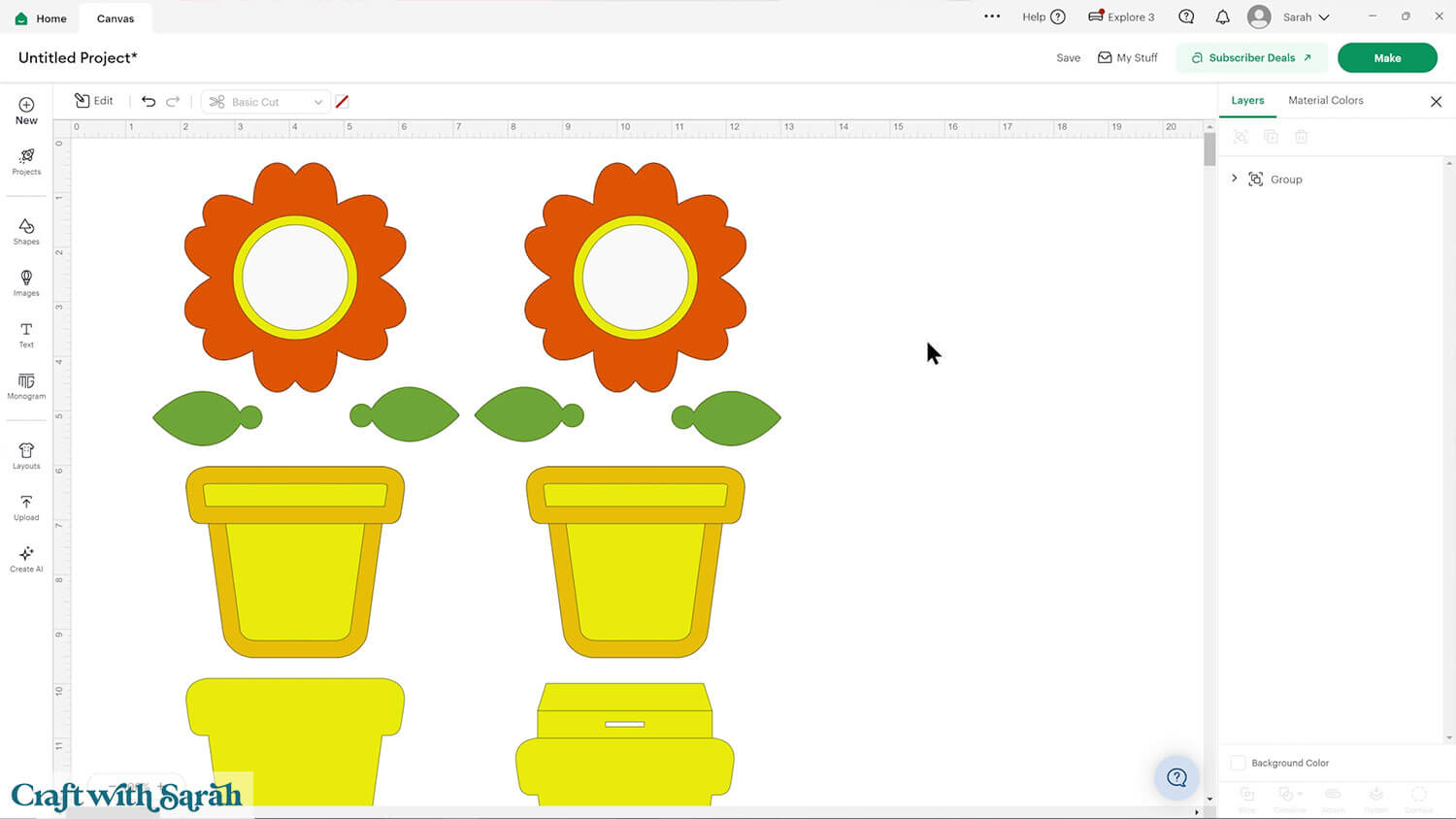
If the design doesn’t get inserted onto your Canvas, it will show under “Uploads” in your “Recently Uploaded Images”. Click on it and then press “Add to Canvas” to put it onto your Project.
Need help uploading SVGs? Get step-by-step instructions here in our detailed help guides for Cricut, Silhouette and ScanNCut.
Step 2) Check the size
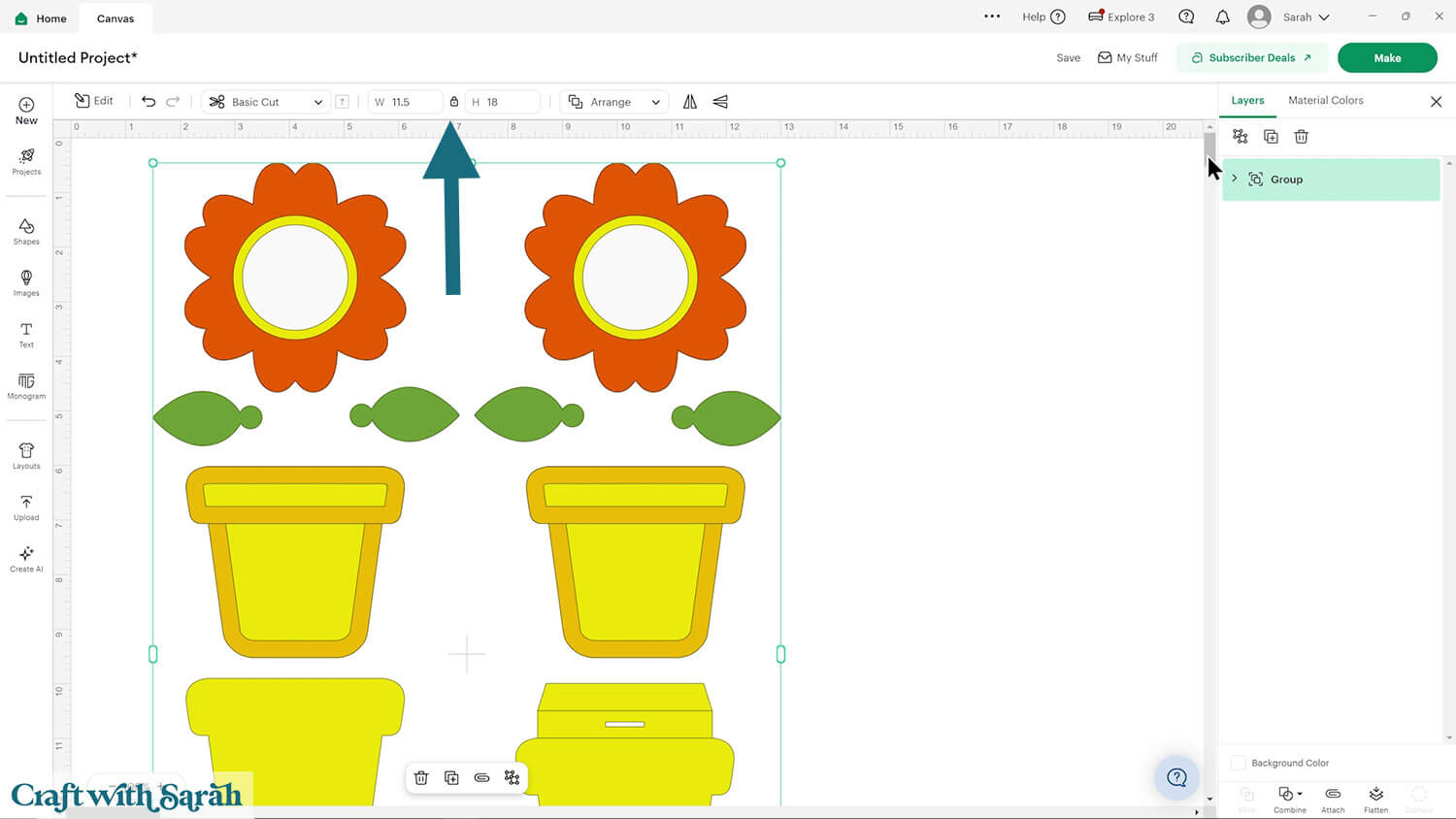
Check the size of the design is 11.5 inches wide and 18 inches tall.
If not, change the measurements to match.
TIP: Make sure the padlock icon above the width/height boxes is CLOSED before you resize. If it appears “open”, click it with your mouse to close it.
Step 3) Format the score lines
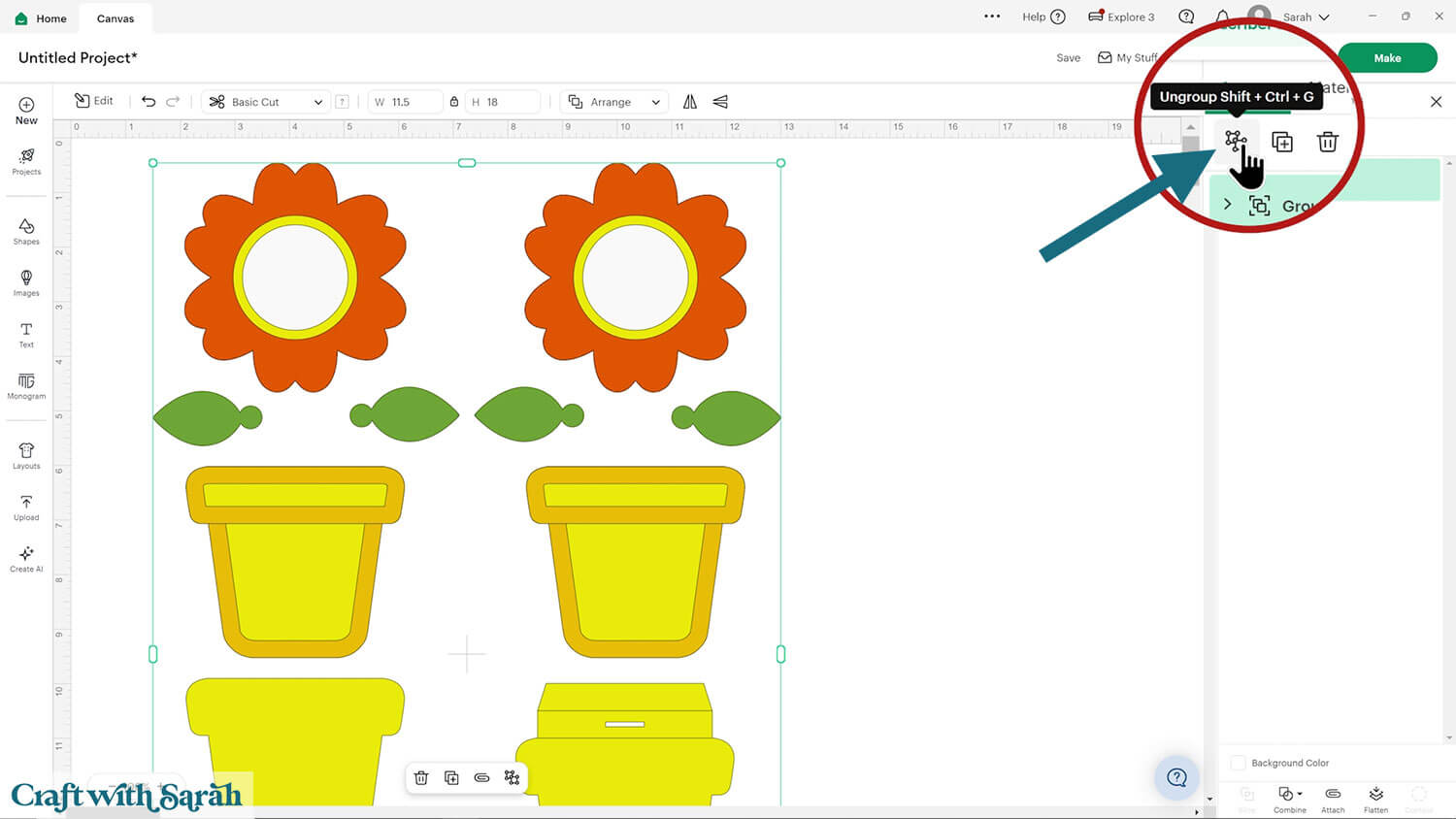
Click the design and “Ungroup” the layers.
Look down the layers panel until you see a subgroup – you know this as it has a chevron arrow on the left.
Click to open the subgroup and then select the layer with single lines.
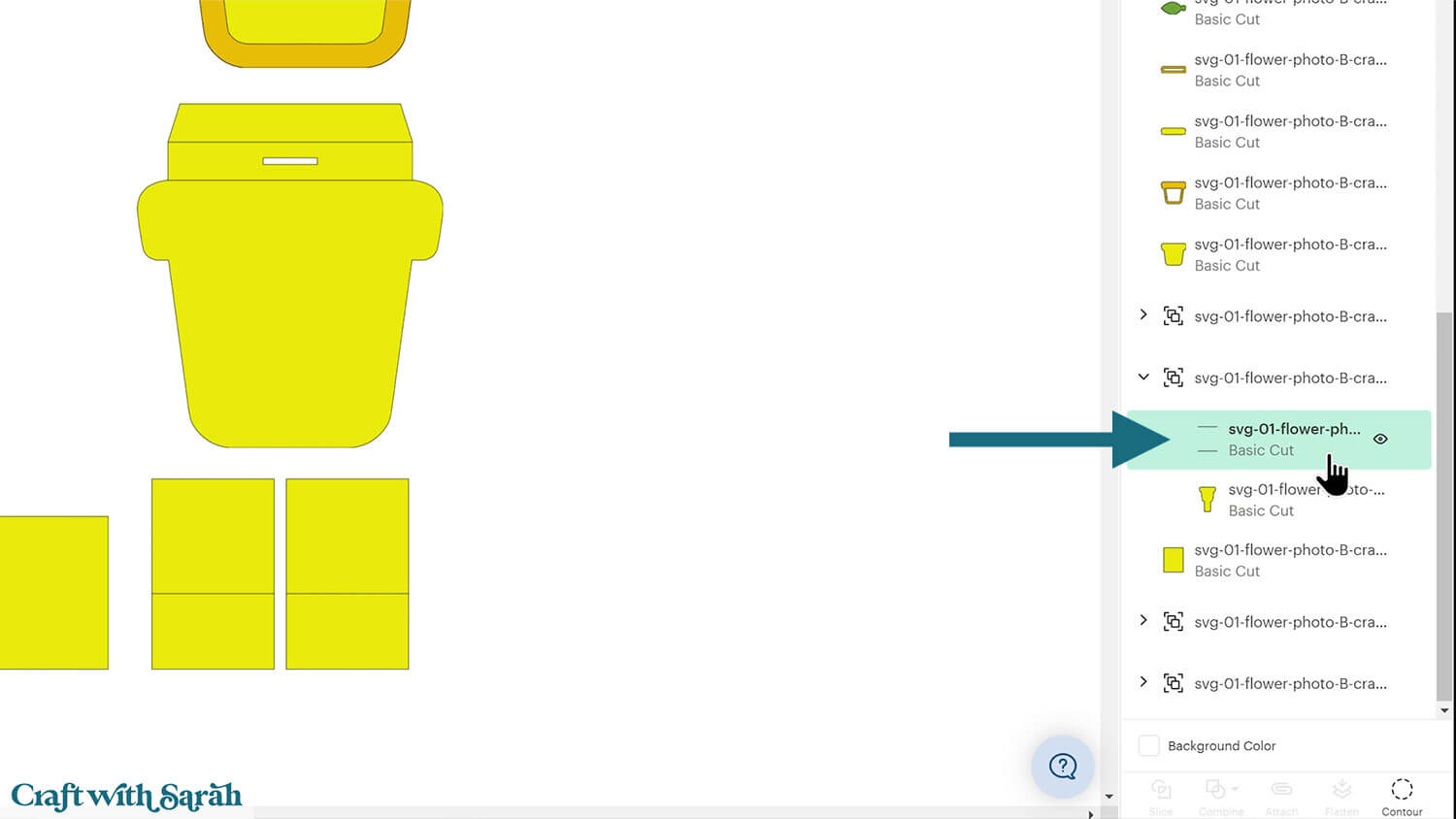
Change it to “Score” in the Operations dropdown.
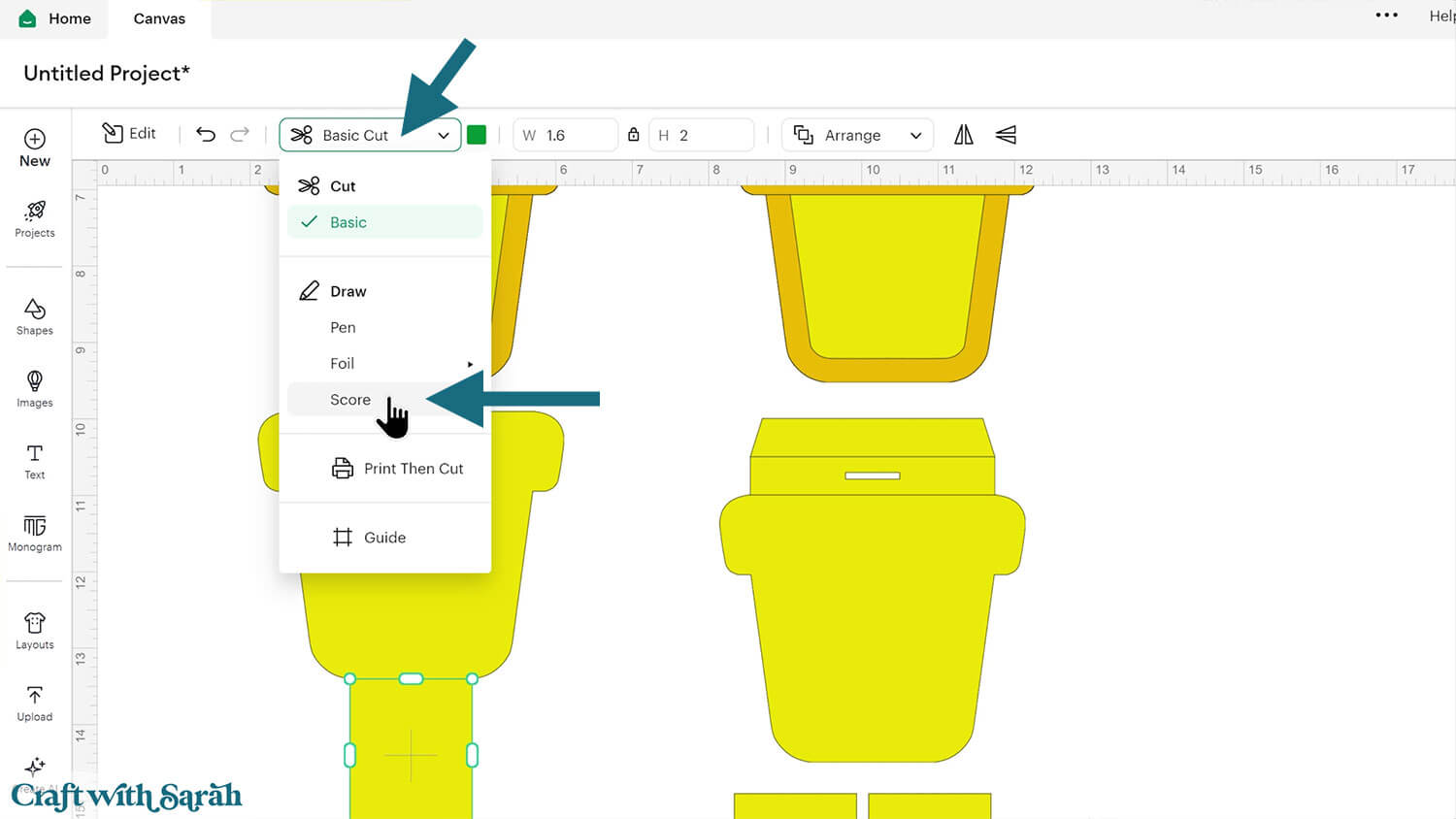
Select the entire subgroup and press “Attach”. Attach is what tells the Cricut to do the scoring on the shape underneath.
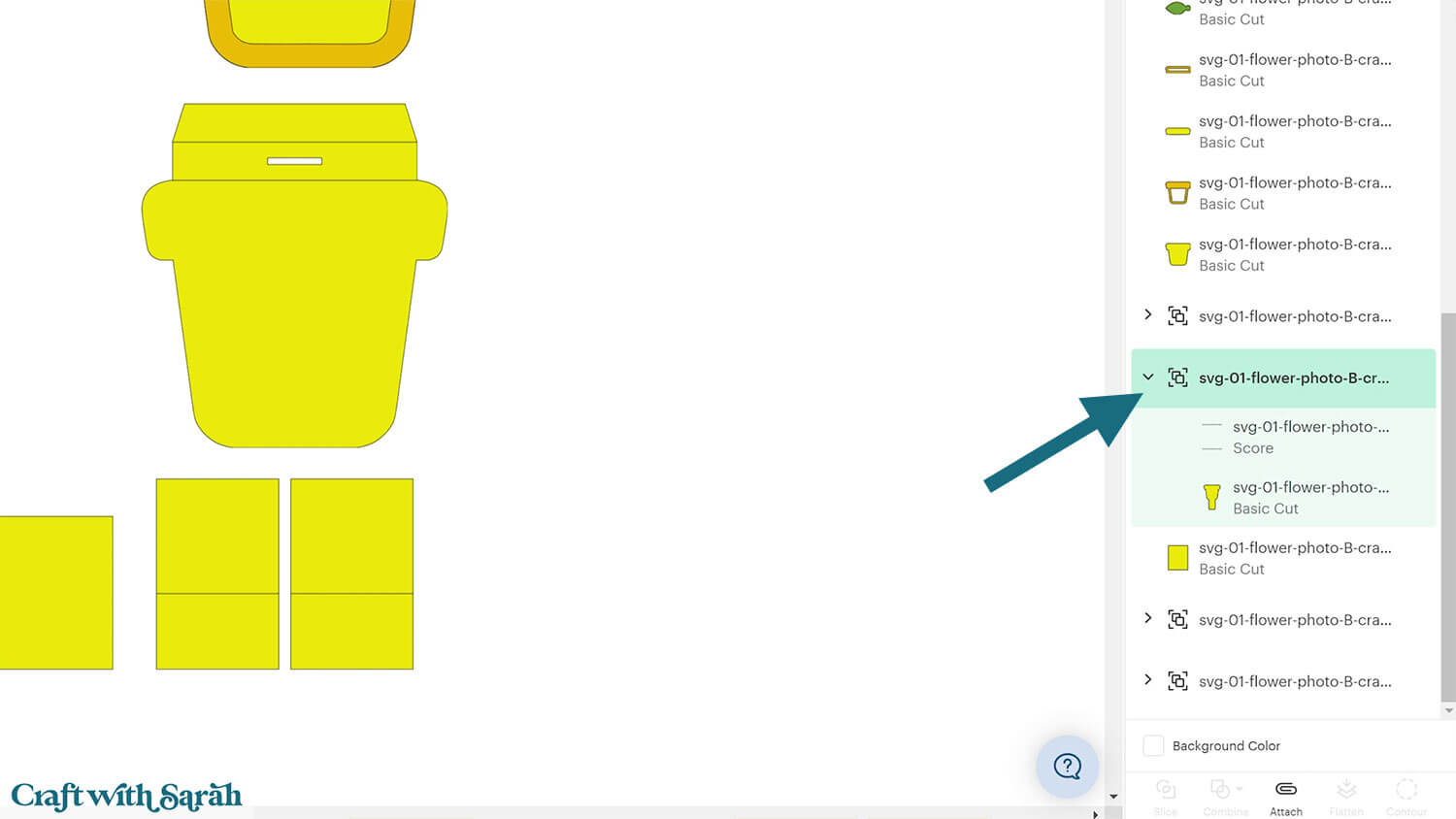
Repeat this for all other subgroups in the design.
Step 4) Add your photos
The black circles are the guides for your photos.
First, upload your photo.
Go to “Upload”, then “Upload Image”.
Select your photo and press “Continue”.
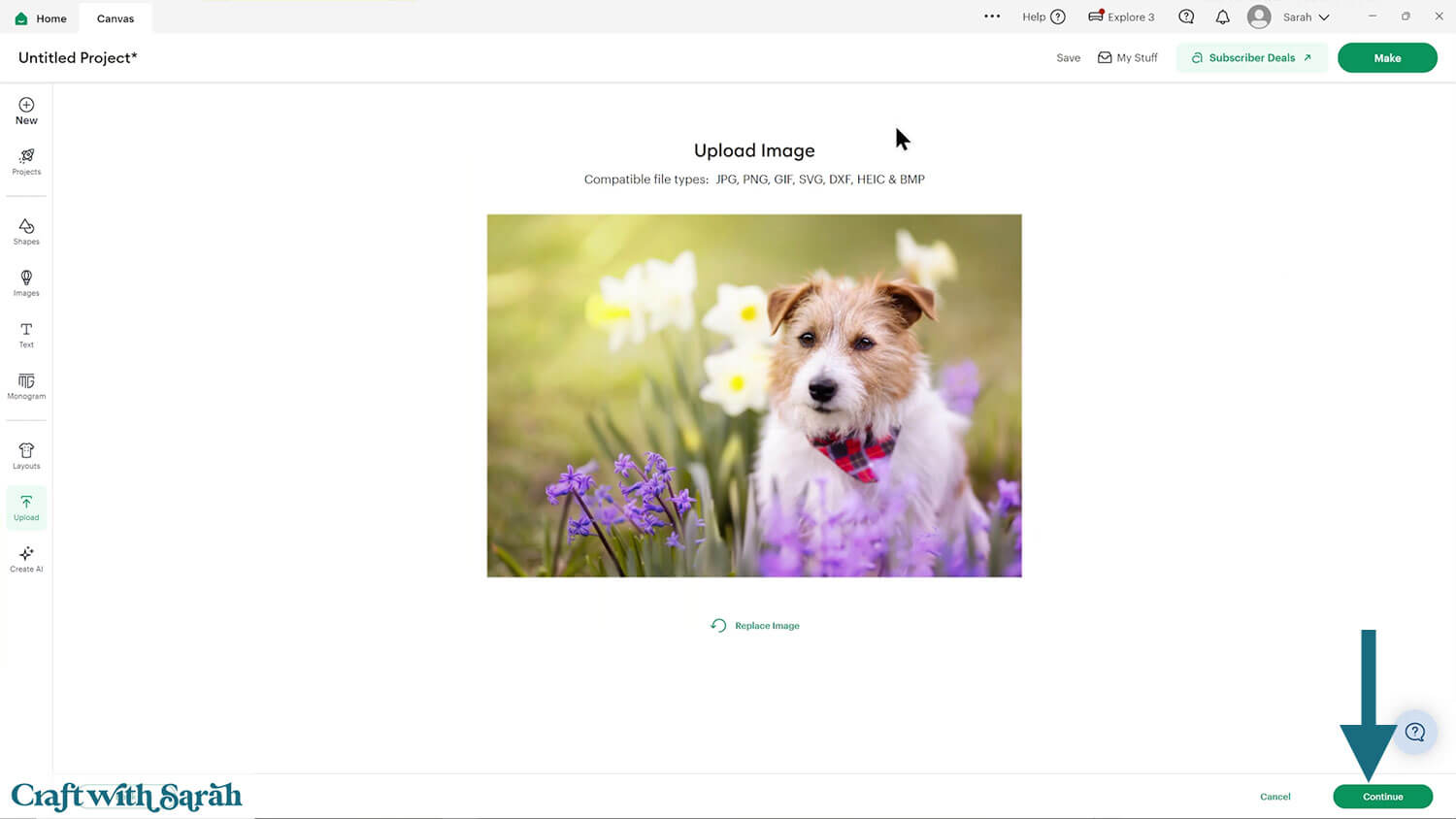
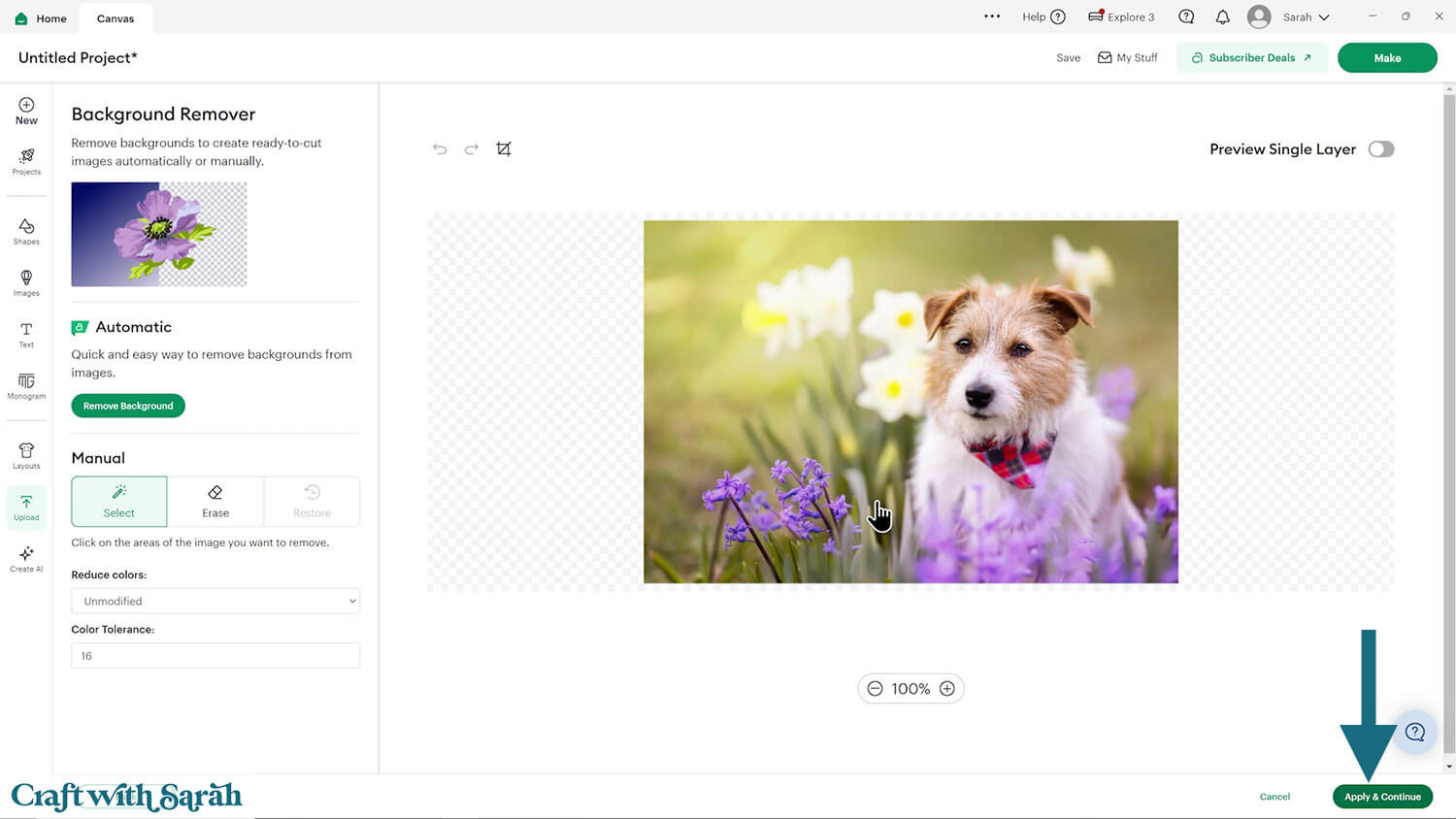
The upload process looks different when you’re uploading printable images instead of cutting files.
Don’t change anything on the next screen, just press “Apply & Continue”.
Choose “Flat Graphic”.
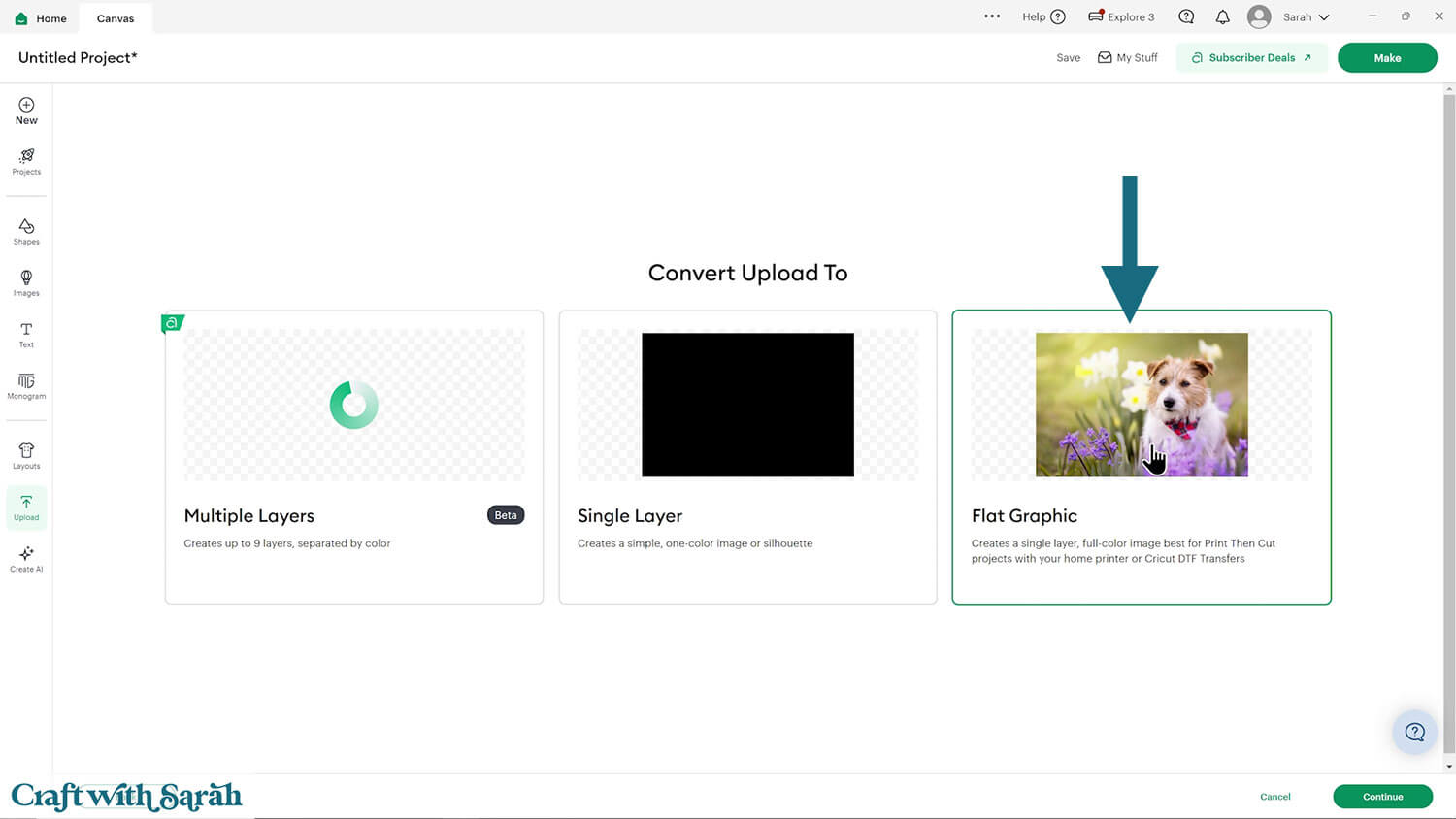
Press “Upload” on the next screen.
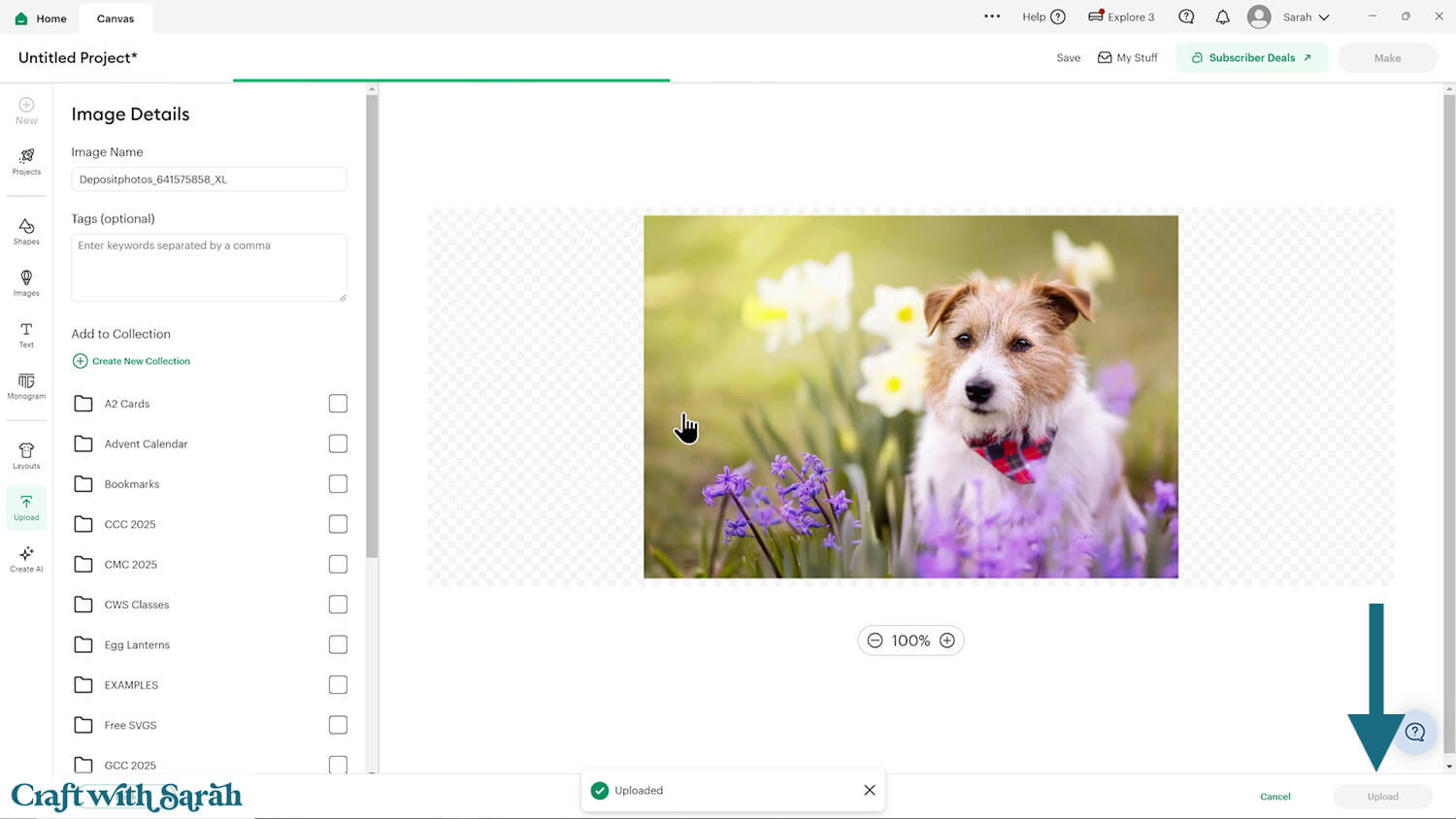
If your photo loads in really large, resize it down to a size that’s easier to work with.
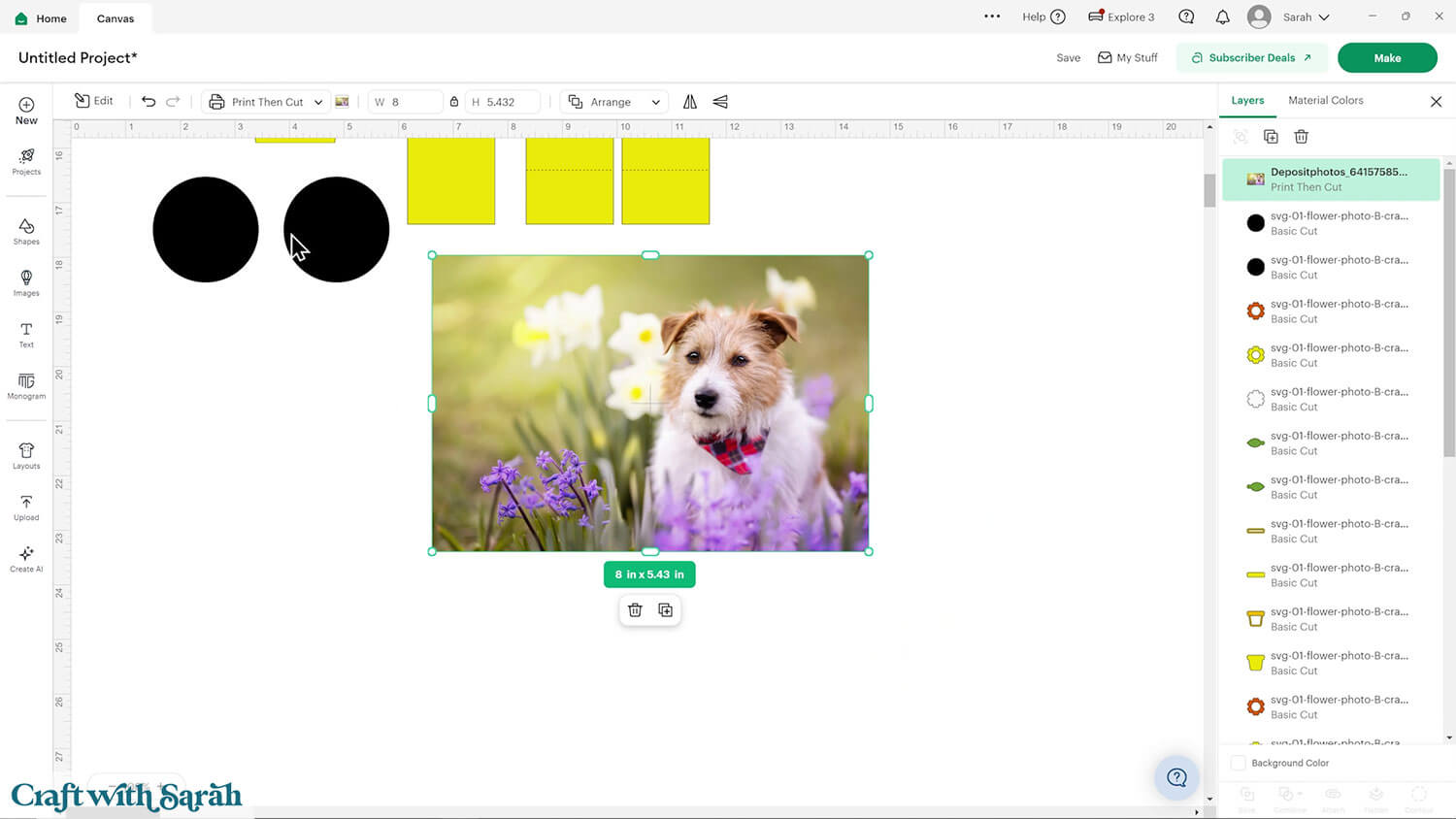
Click one of the black circles and change it to a “Guide” in the Operations dropdown menu.
This changes it to a pink outline with a transparent middle.
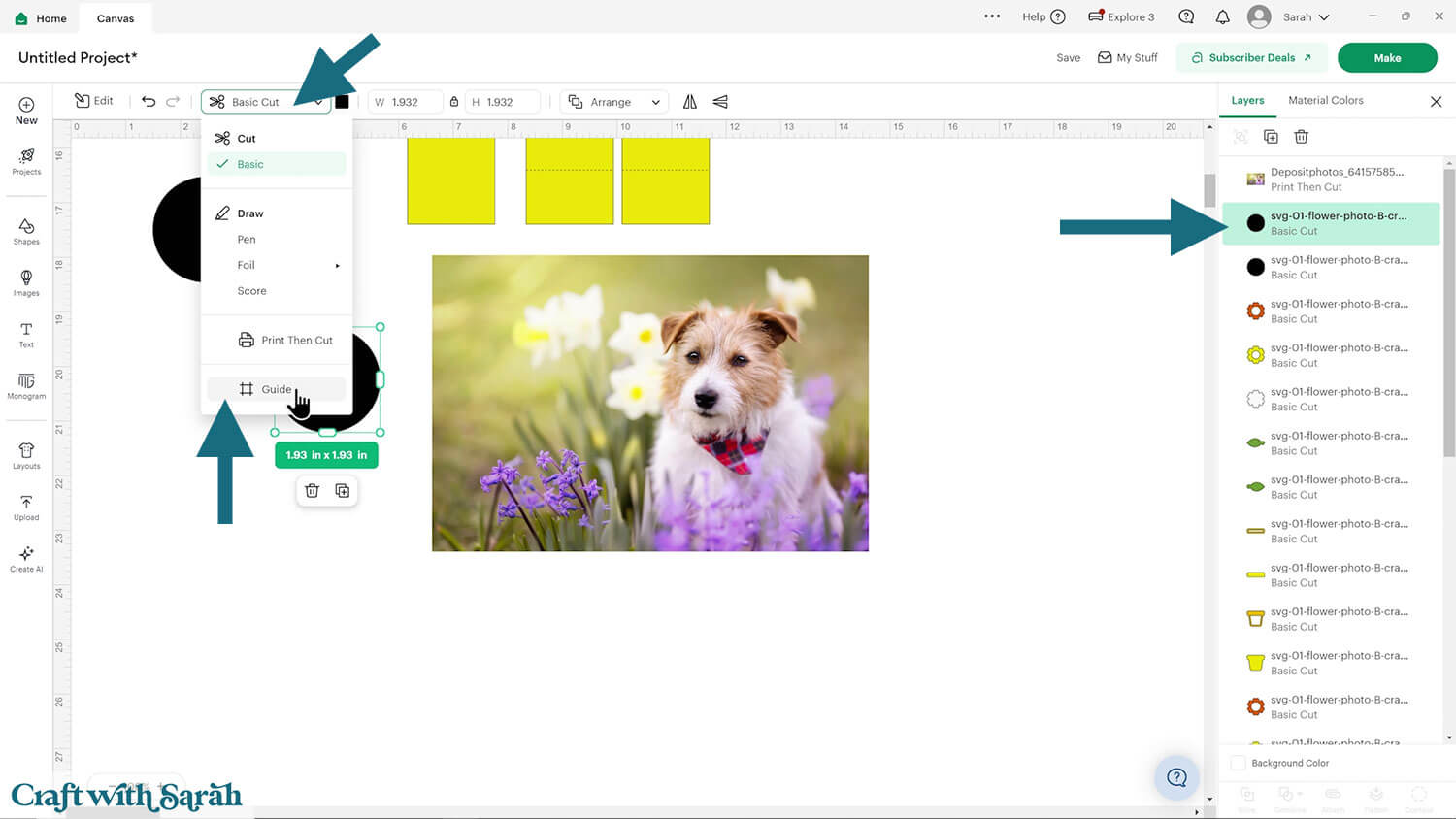
Click Arrange > Bring to Front and then position the circle over your photo.
Resize the photo until the part you want to feature in the frame is showing within the circle guide.
IMPORTANT – do not change the size of the circle, otherwise it will not fit in the flower.
When you’re happy with the position, select the circle layer AND the photo and press “Slice”.
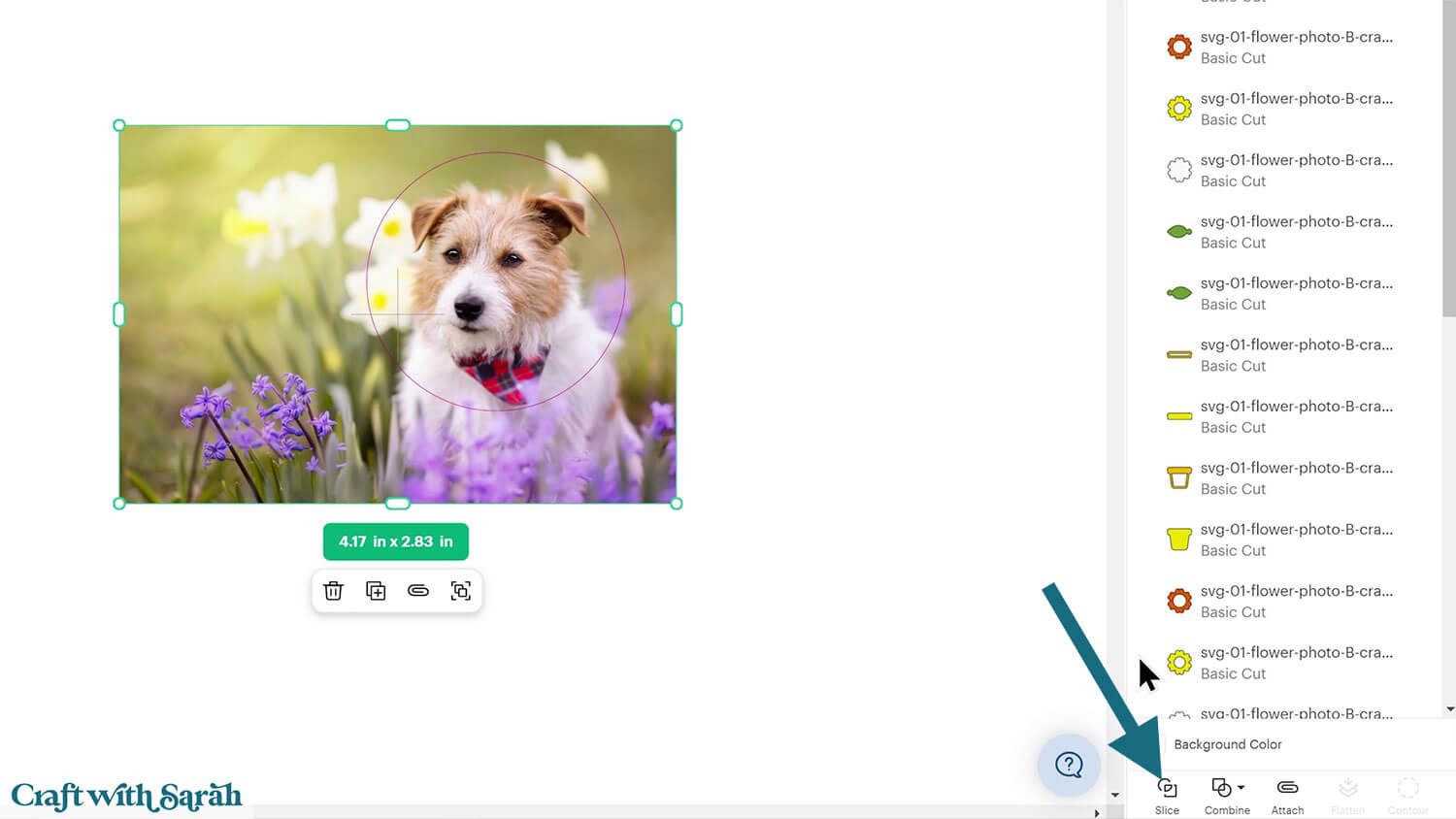
This will cut the circle shape out of the photo.
Delete the parts around the edge and the original guide and then you’re left with your photo cut into the perfect circle.
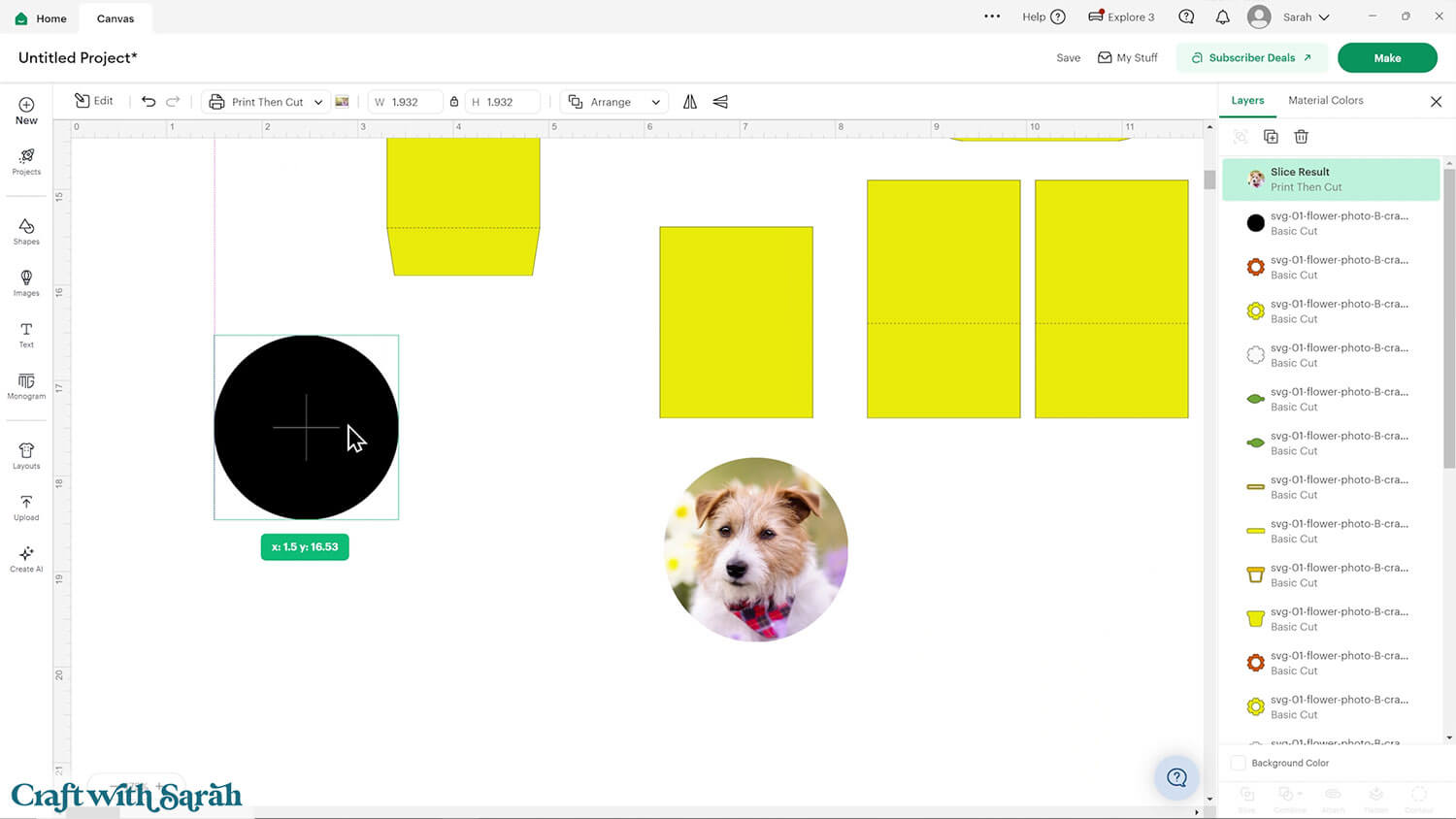
If you are using the same photo on each side of the flower then “Duplicate” that one and delete the second black circle.
Or to use a different photo, repeat the same steps with the other black circle.
Step 5) (Optional) Replace the lollipop stick
If you don’t have a lollipop stick to make up the stem of the flower then you can cut something similar from cardstock instead.
Click “Shapes” and select a square.
Change the size to 0.5 inches wide and 6 inches tall, then colour it green.
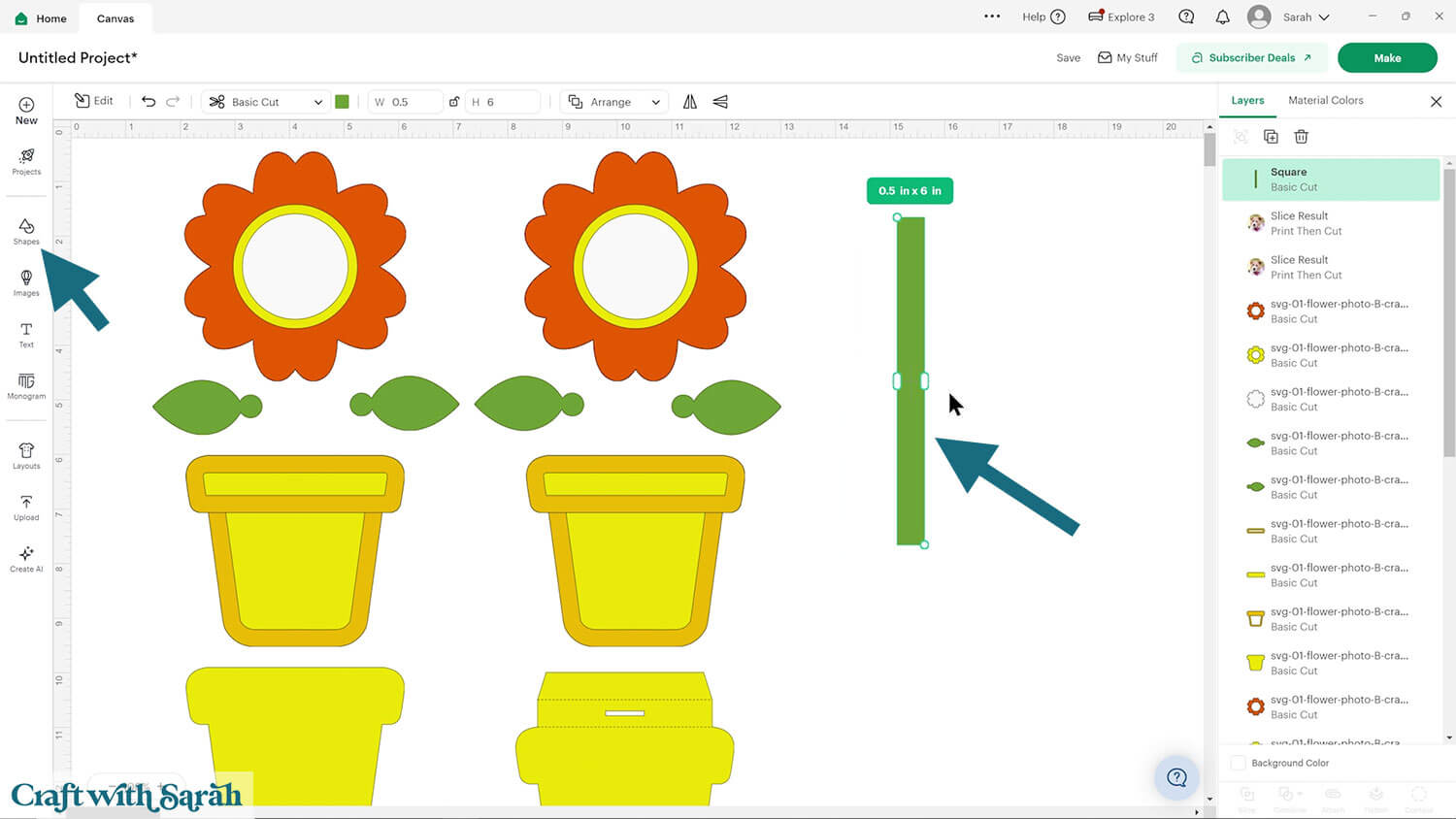
One rectangle of cardstock will not be strong enough to hold up the flower head.
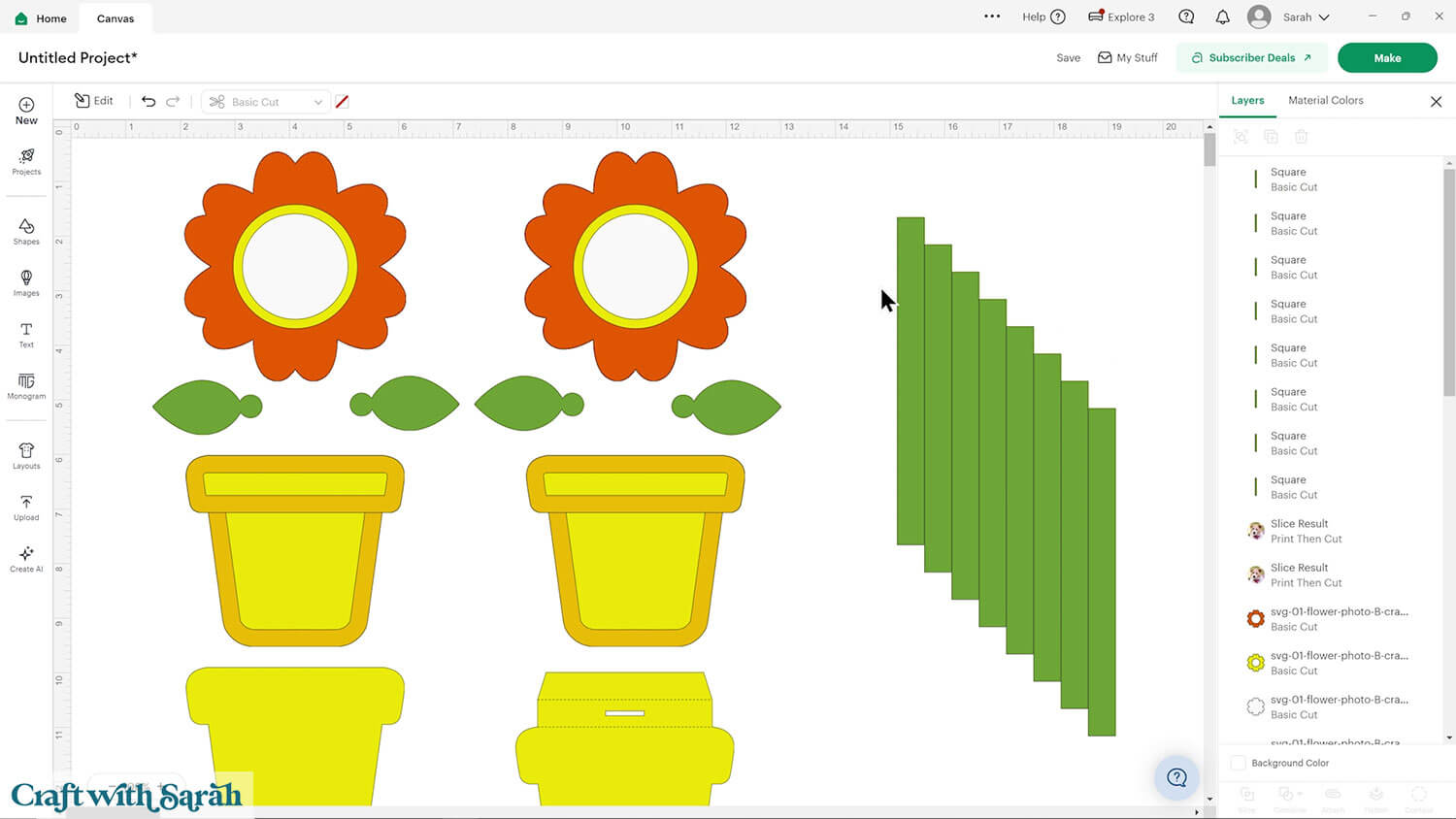
Duplicate the rectangle until you have at least 5 copies, but ideally more like 7 or 8.
After cutting, you’ll glue these back-to-back to make a strong stem.
Step 6) Cut out all the pieces
When you’re happy with how the project is looking in Design Space, save it and then click “Make” and follow the instructions on-screen to cut out all the pieces.
To change the paper size, go into the dropdowns over on the left side of the screen and choose the paper size that you want to use. You need to change it for every single colour.

To save space on your cardstock, you can move things around by clicking and dragging. Make sure when you’re moving things about that nothing overlaps because otherwise, it won’t cut out properly.
TIP: New to using cardstock with your cutting machine? Check out these machine help guides for Cricut, Silhouette and ScanNCut that go through every step of the process, including tips for getting the best quality cuts from your machine.
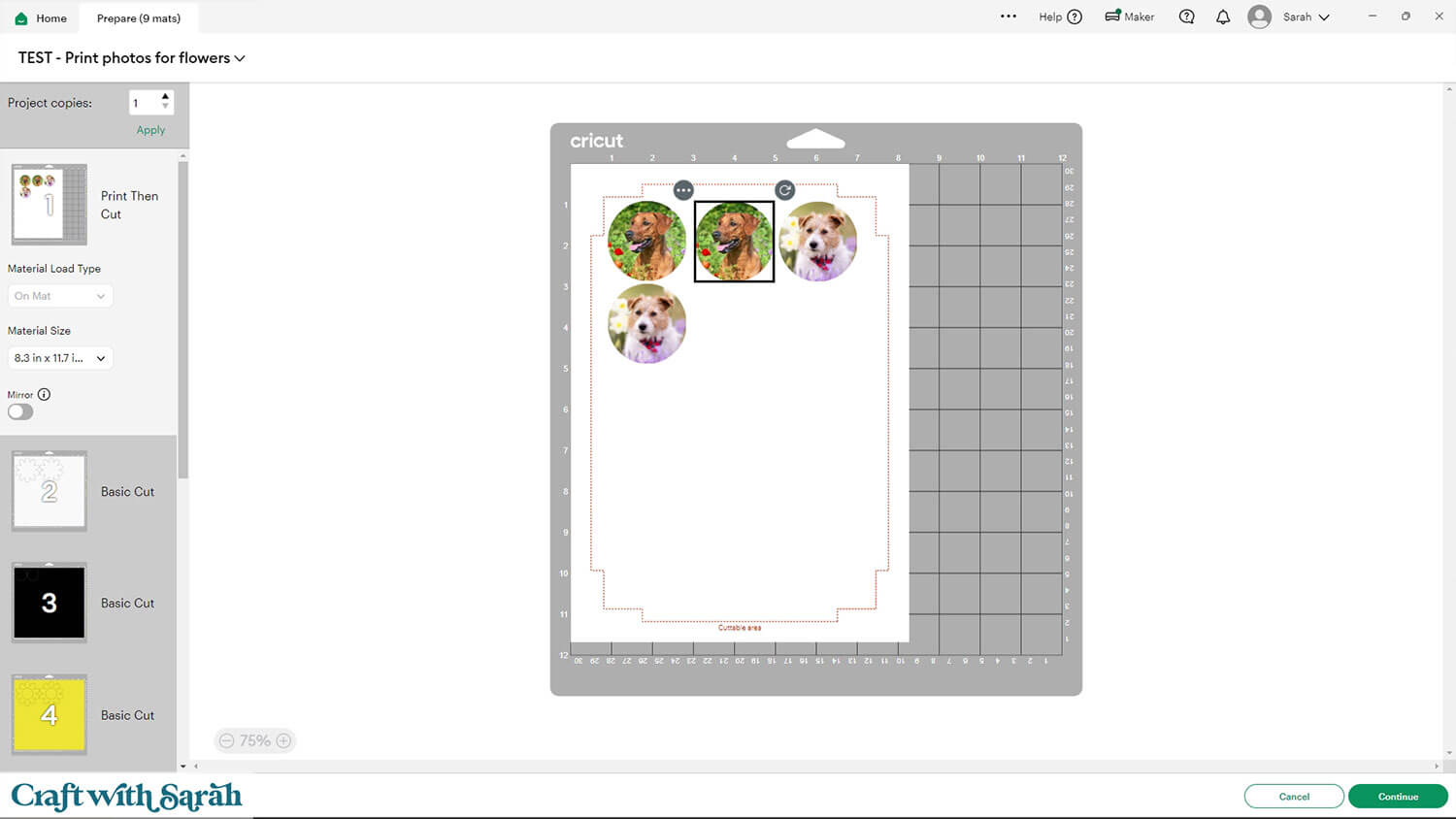
This is what your print then cut screen will look like, with your photos.
Mine is showing four dog images as I’m making both flowers at the same time.
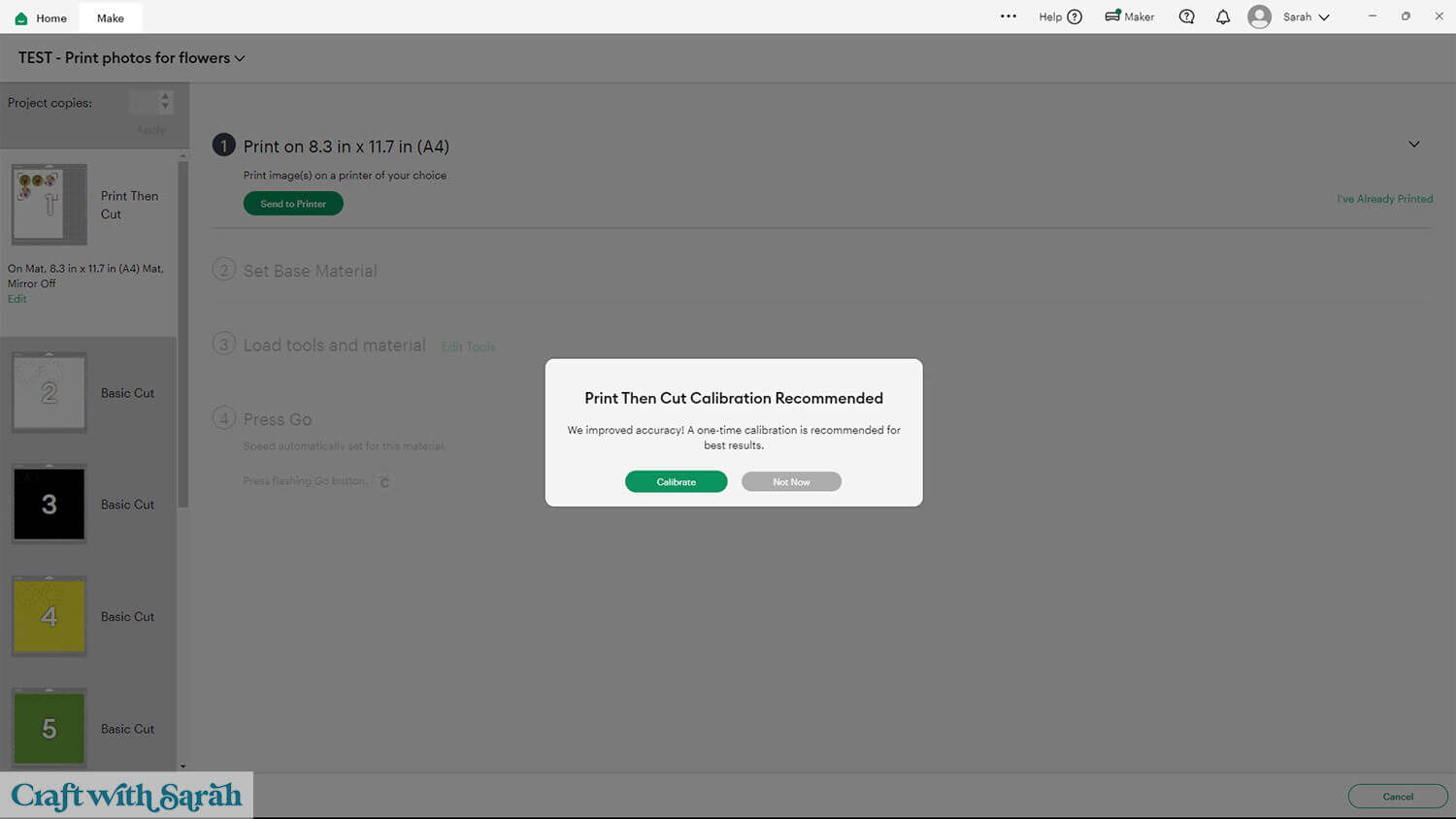
You may be prompted to calibrate your machine if you haven’t used print then cut in a while.
I skipped this step and my circles still cut out correctly, but if you’re having problems with cut accuracy then try the calibration process.
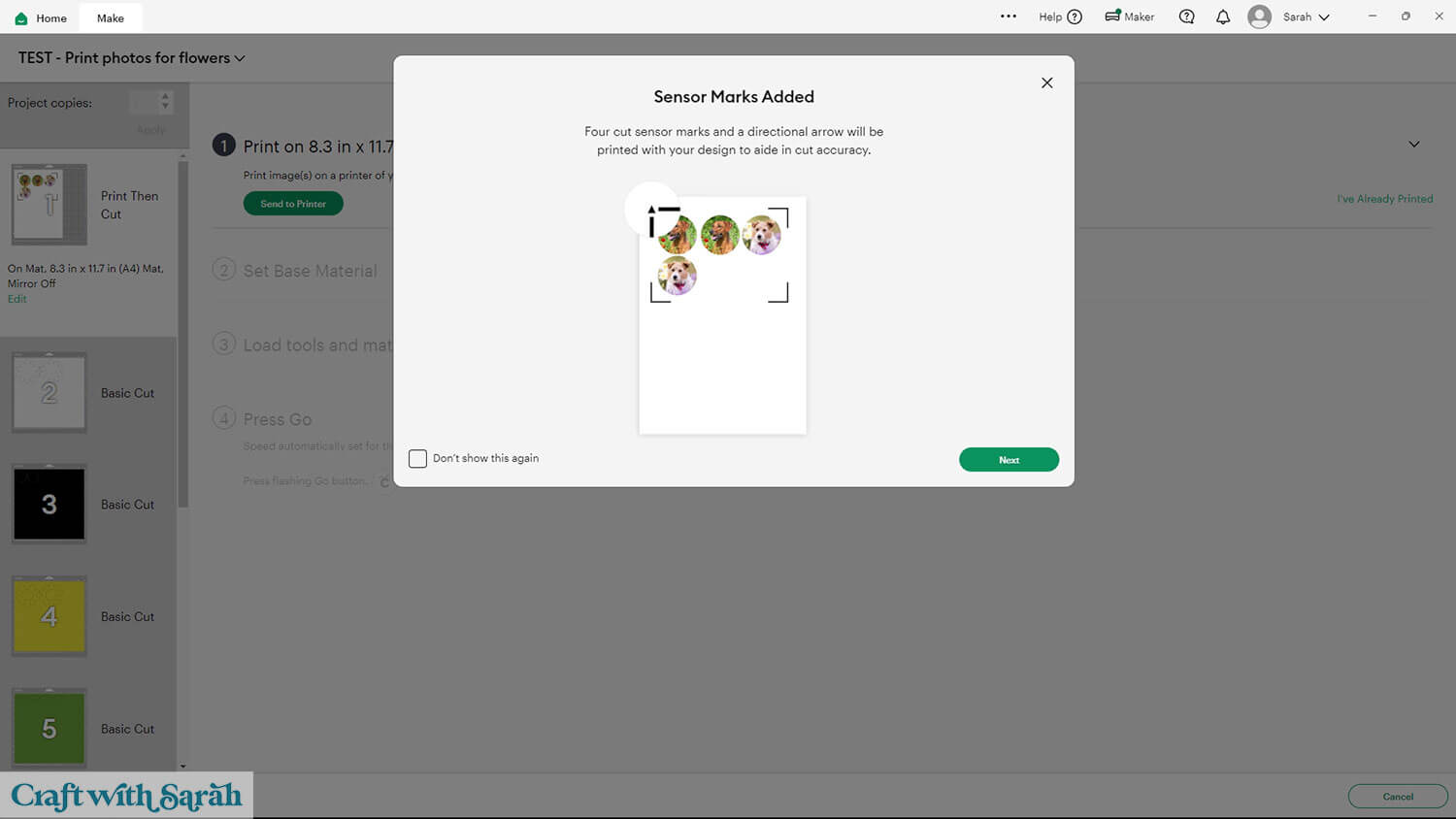
A popup window will appear to walk you through the print then cut process.
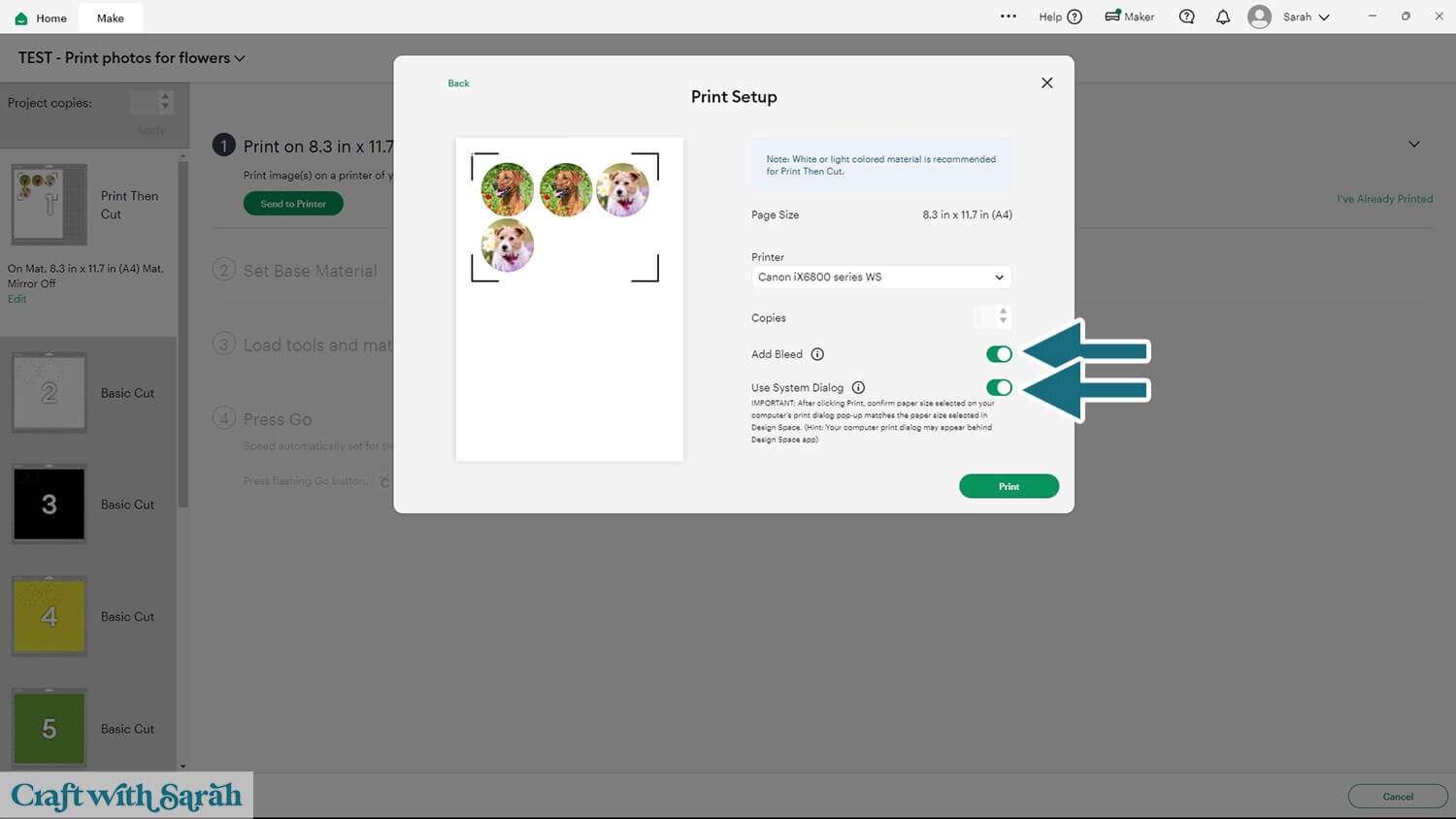
On the “Print Setup” screen, turn “bleed” ON and turn “use system dialog” ON.
Go into your printer preferences or print options.
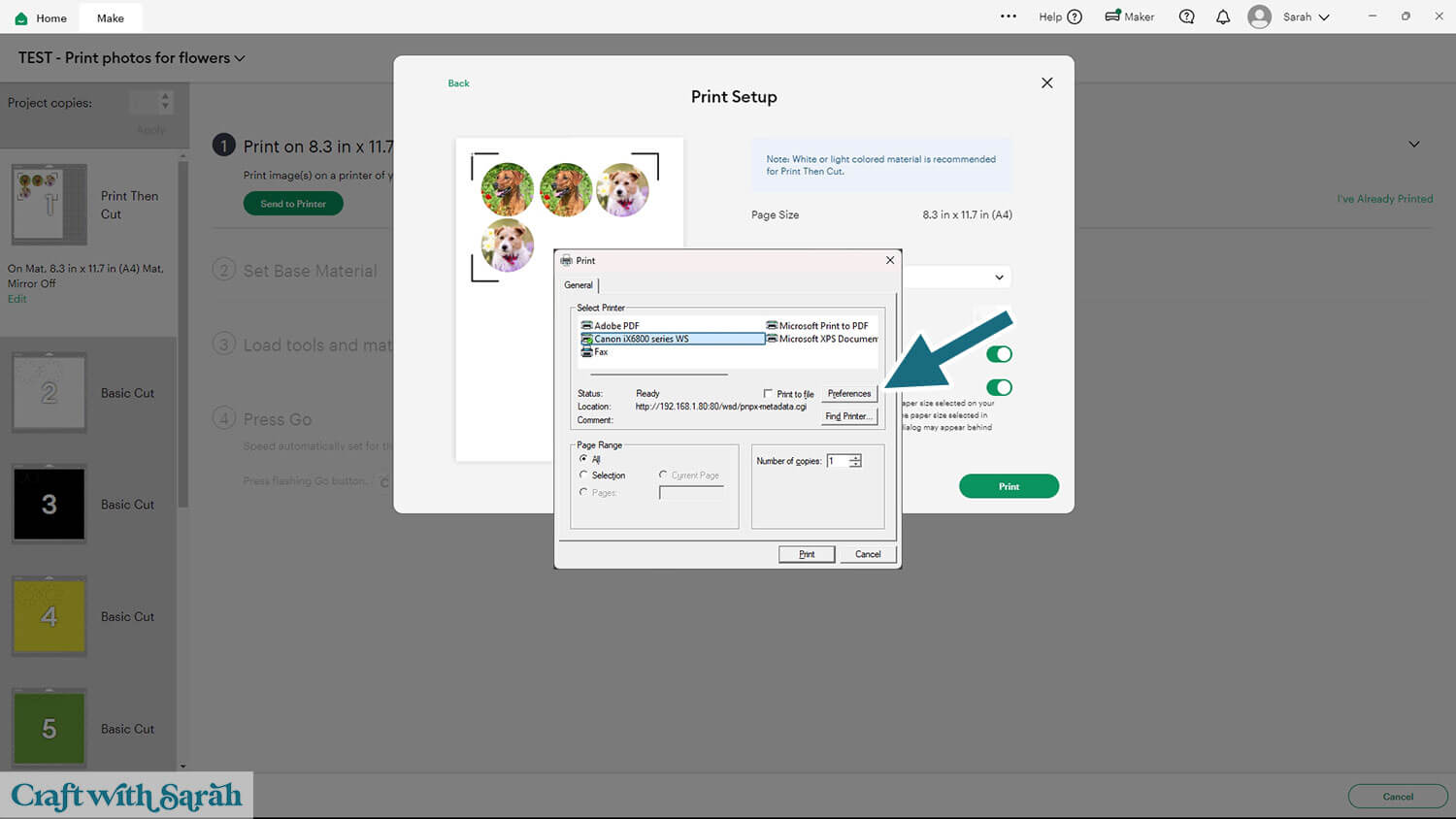
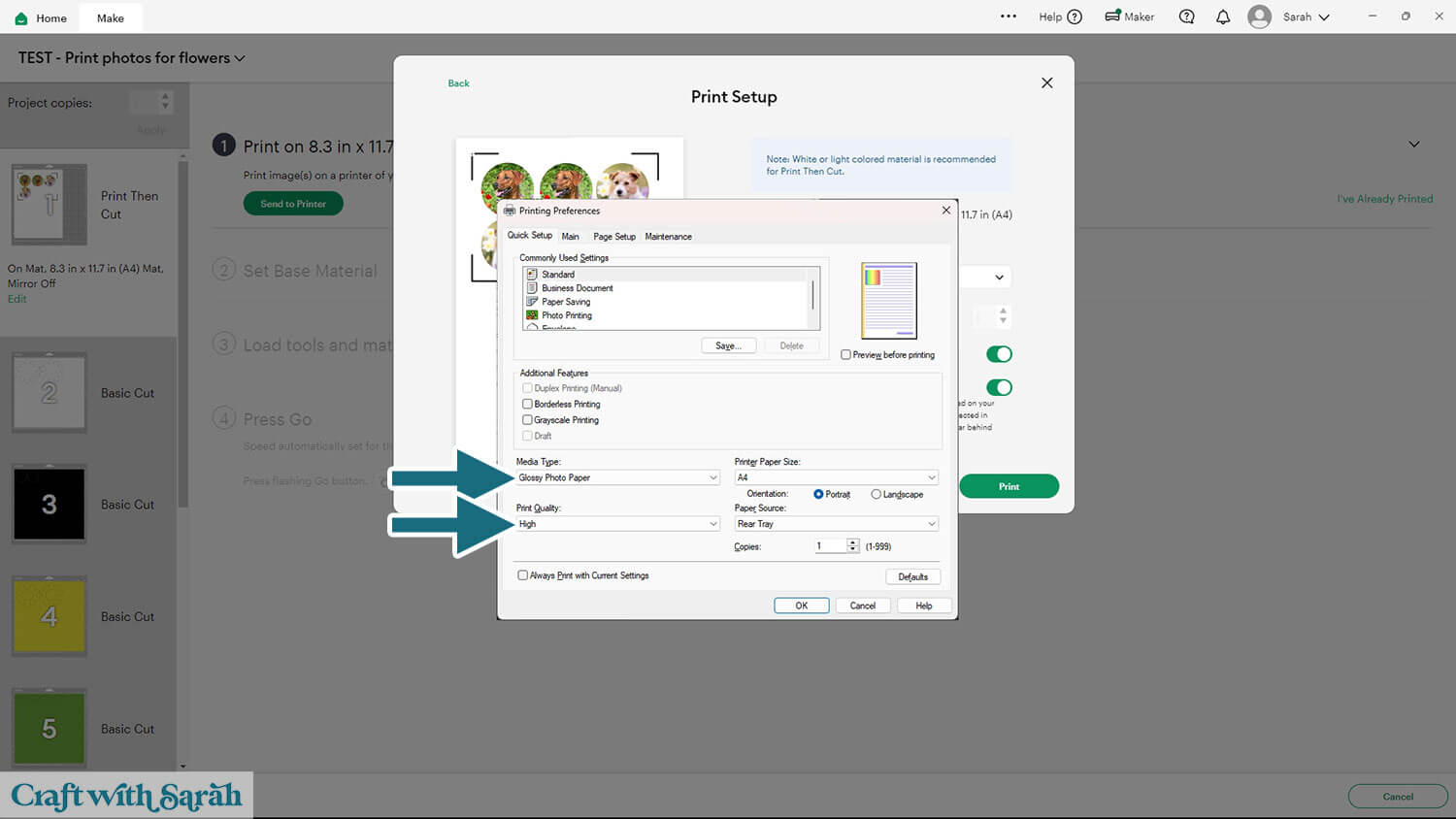
Change the paper type to match what you are using. I’m using Glossy Photo Paper.
If there is a “quality” setting then change it to High/Best.
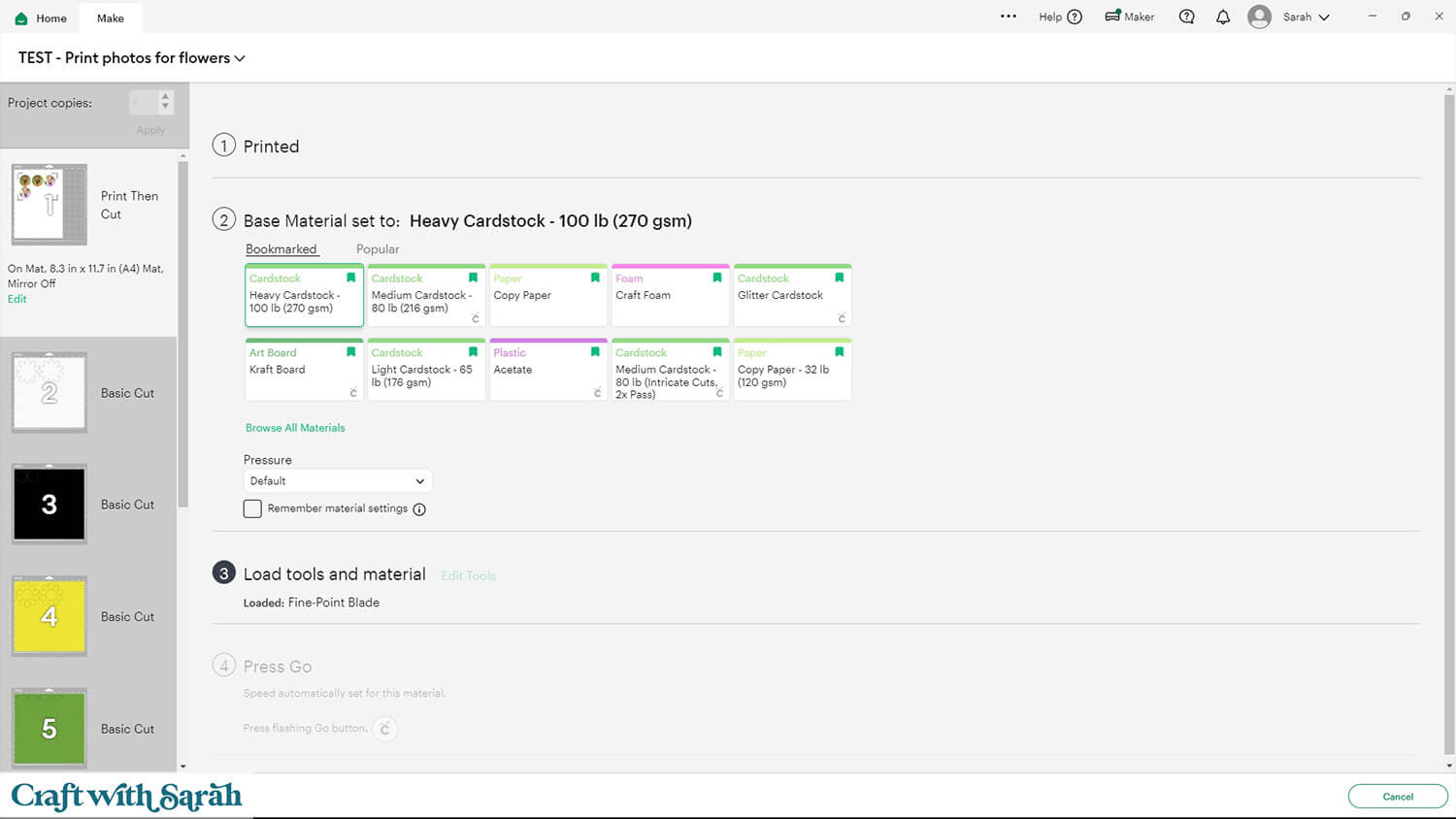
Once the photos are printed, follow the cut process through as normal. I find that the “Heavy Cardstock” setting works well for photo paper.
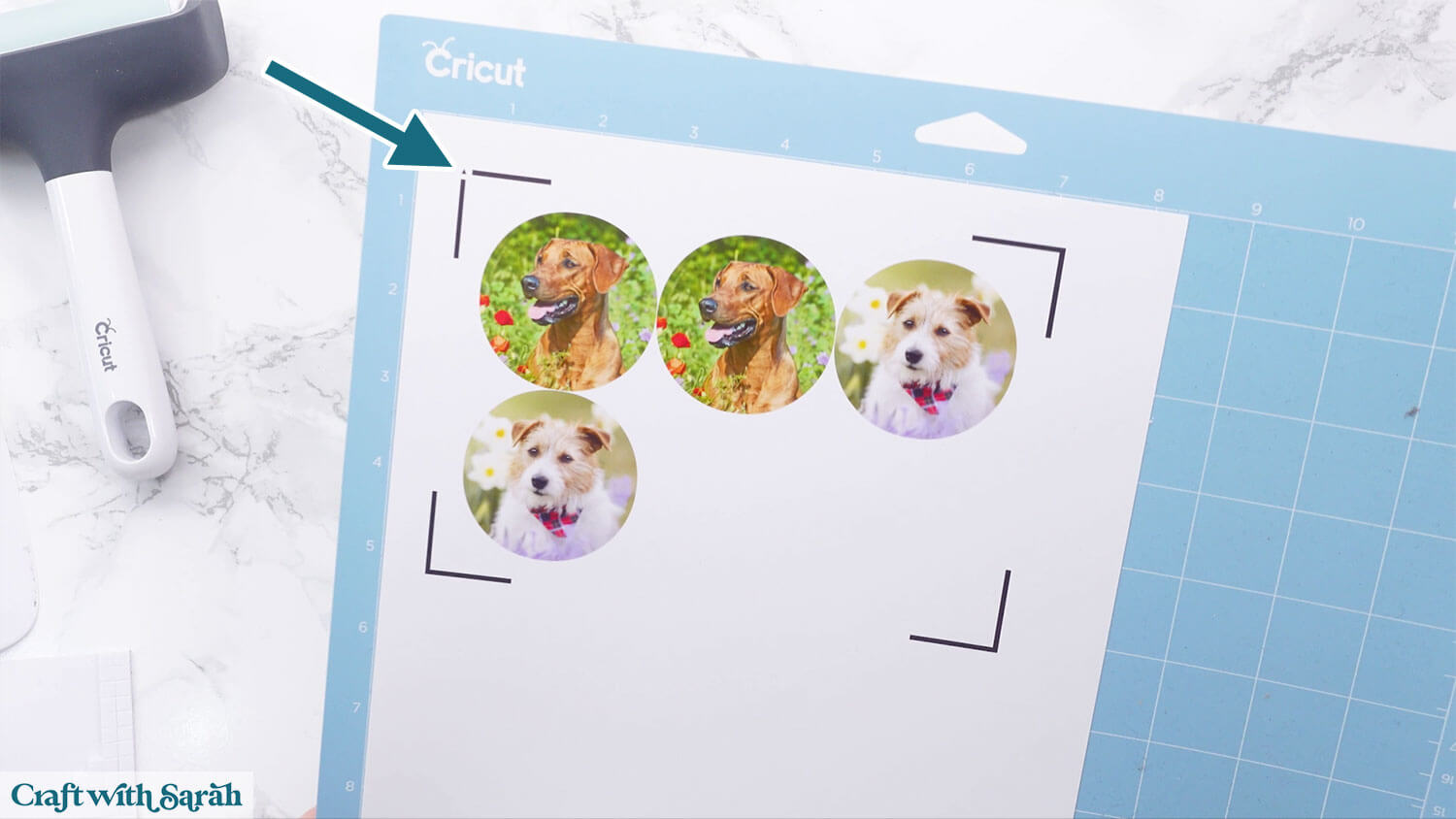
When you put the photo paper on your Cricut mat, make sure the little triangle icon is on the top-left of the mat.
Step 7) Stick the project together
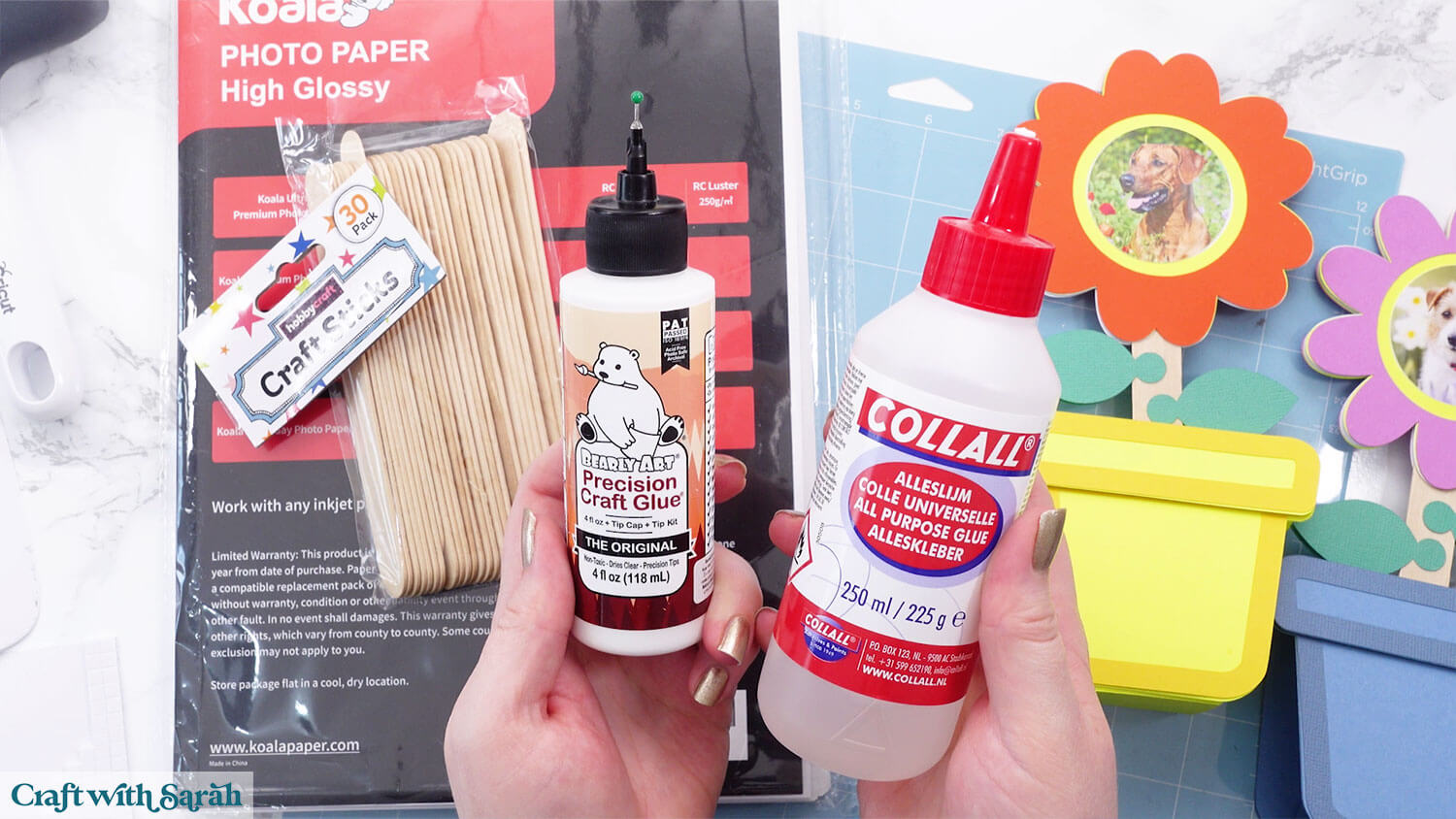
My favourite glues to use on papercraft projects are Bearly Art Glue and Collall All Purpose Glue.
These are great because they don’t “warp” or bend the cardstock like some glues do. You can use as much of it as you want and the card stays perfect – and it dries perfectly clear too!
Bearly Art Glue comes with a tiny nozzle to make it easy to apply glue to small areas of card. The Collall glue doesn’t come with this, so it’s easiest to decant it into needle tip applicator bottles so that you have more control.
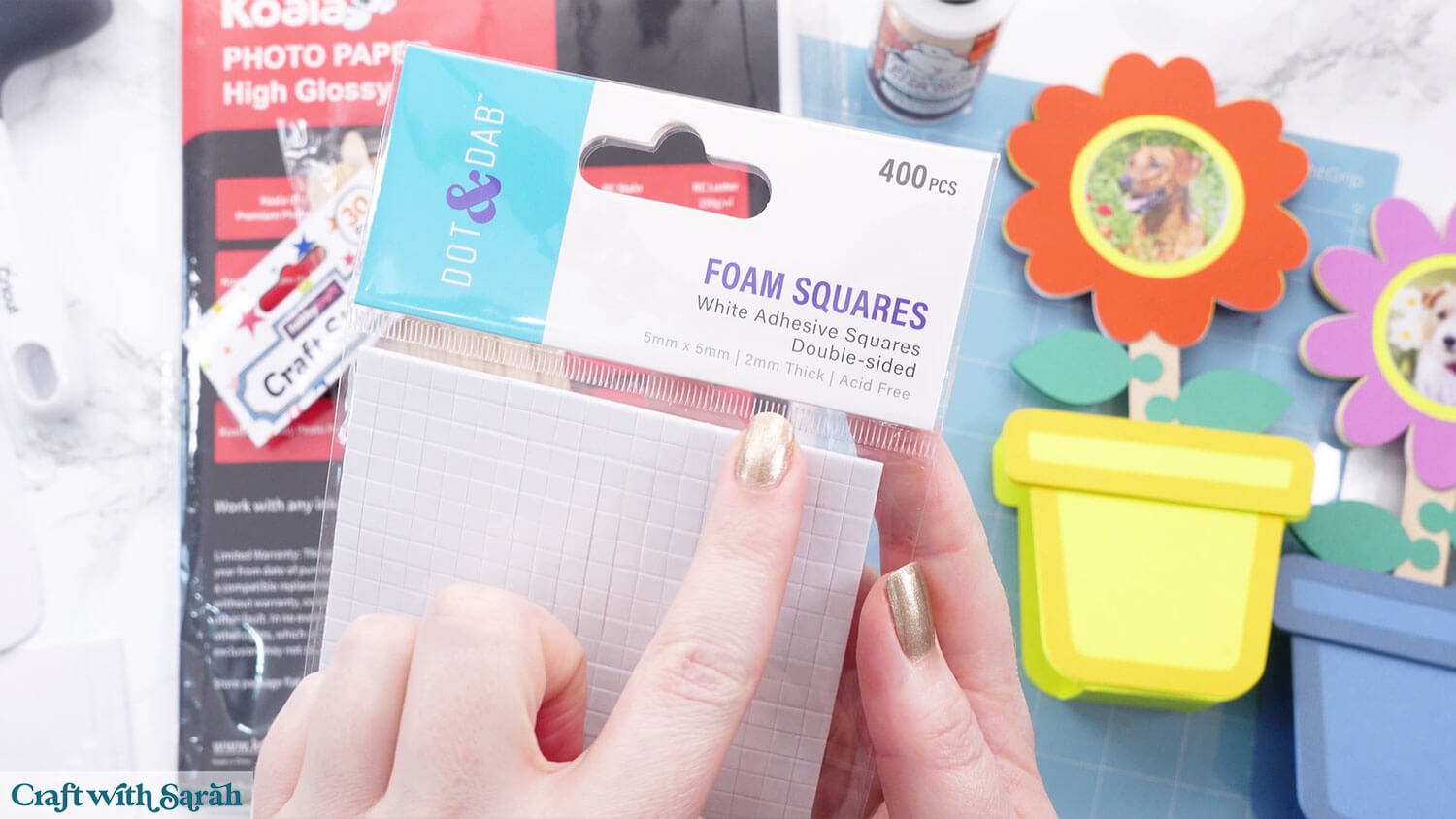
The foam pads that I use are from “Dot & Dab”, but any foam squares will work. If yours are big then you may need to cut them smaller with scissors to fit inside the edges of the layers.
First, glue the outline piece of the flower pot to the lighter coloured shape.
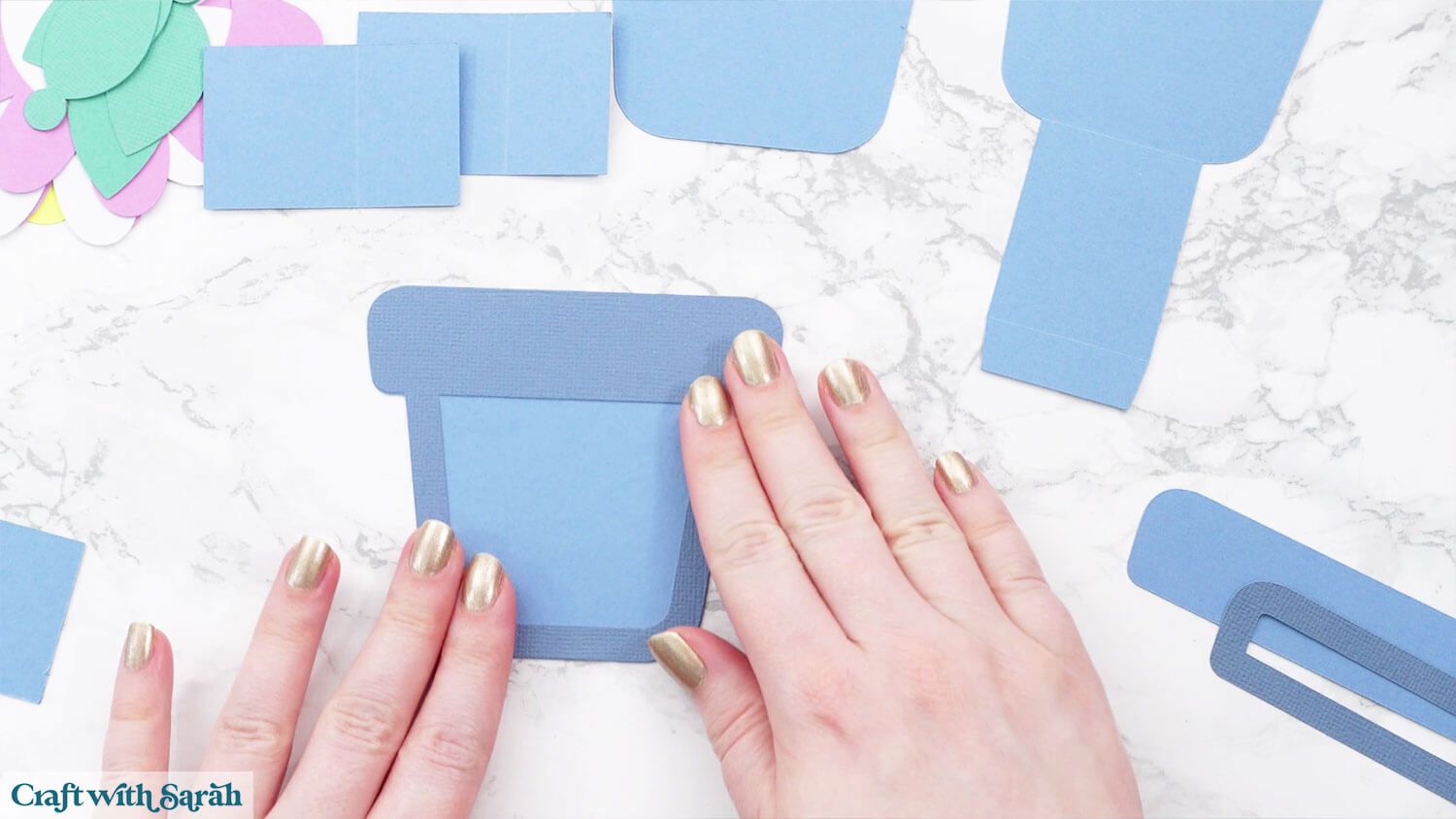
Use foam squares to attach the solid “top” of the flower pot.
Glue on the outline.
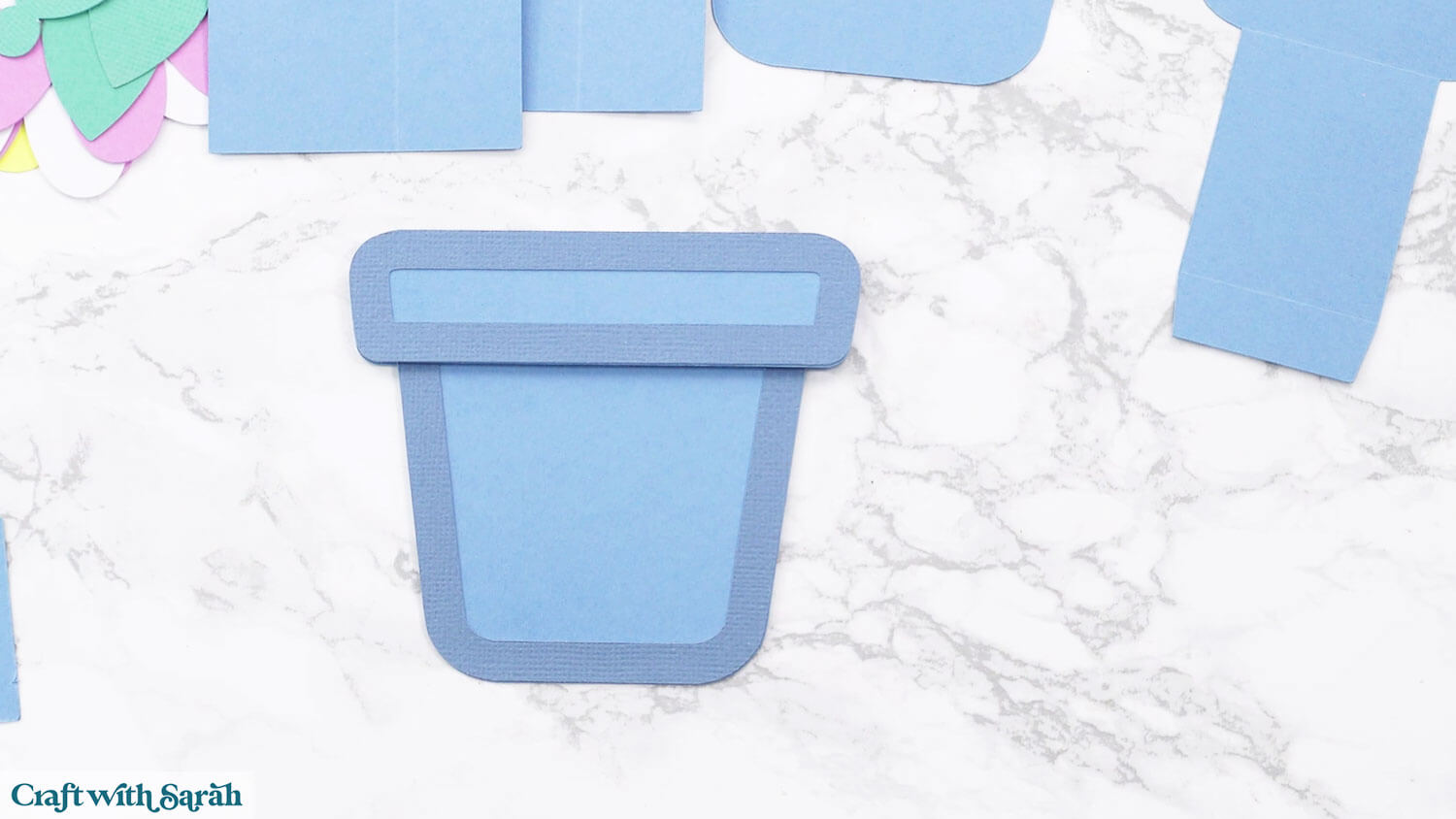
Repeat for the flower pot shapes for the other side of the frame.
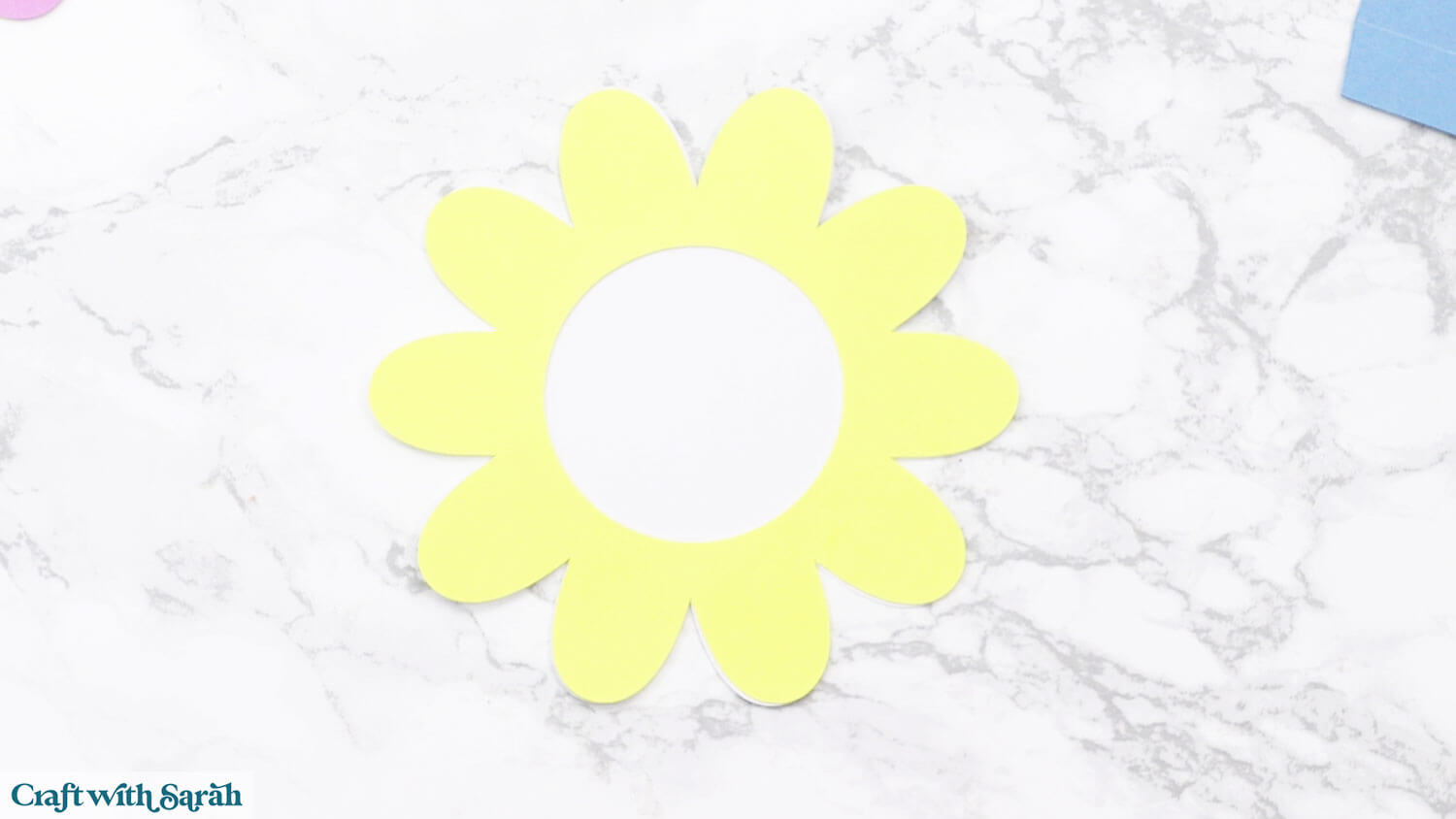
Glue the largest coloured flower (with a hole in the middle) onto the white solid flower.
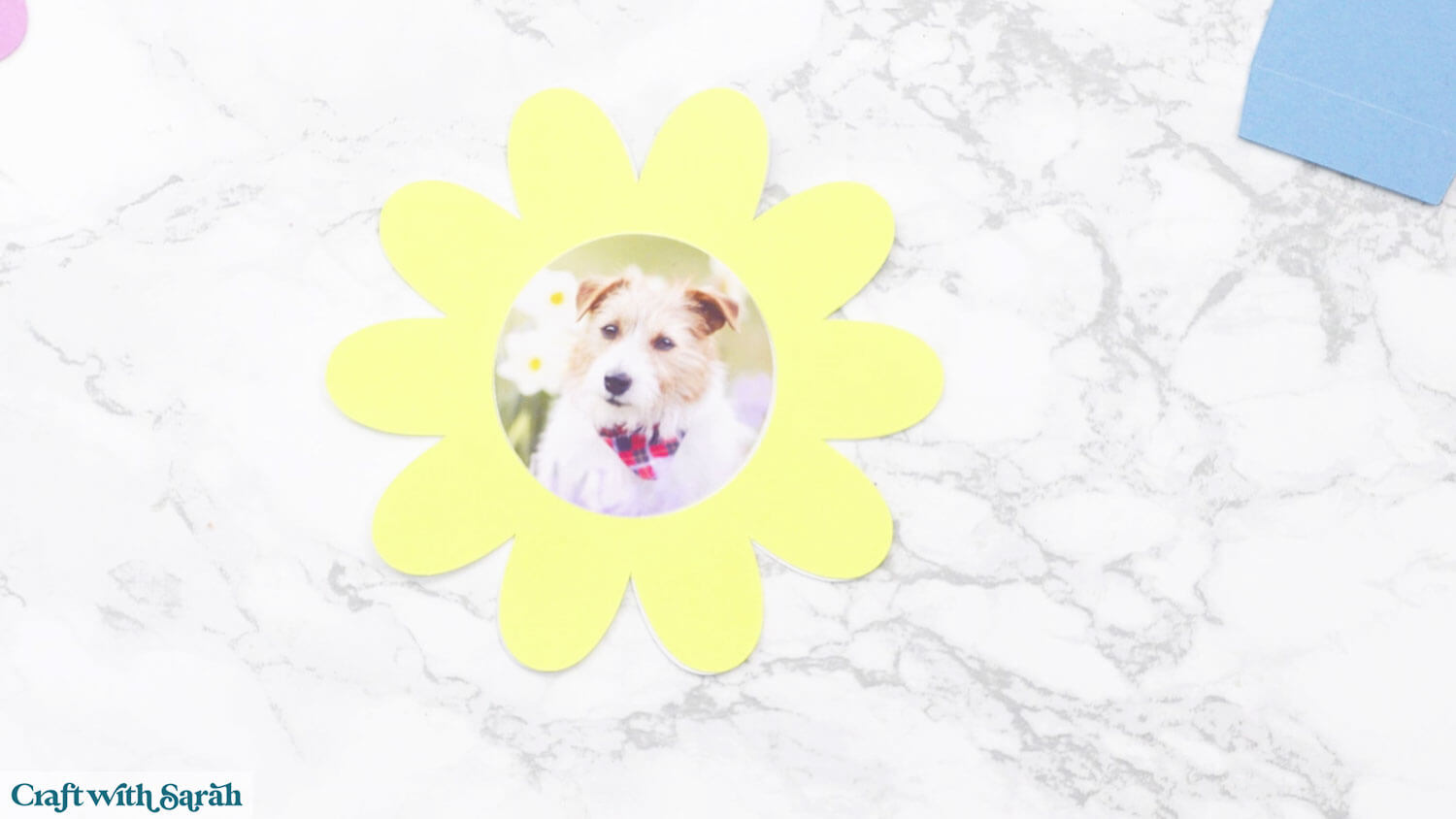
Glue the photo in the middle.
Glue the other flower on top.
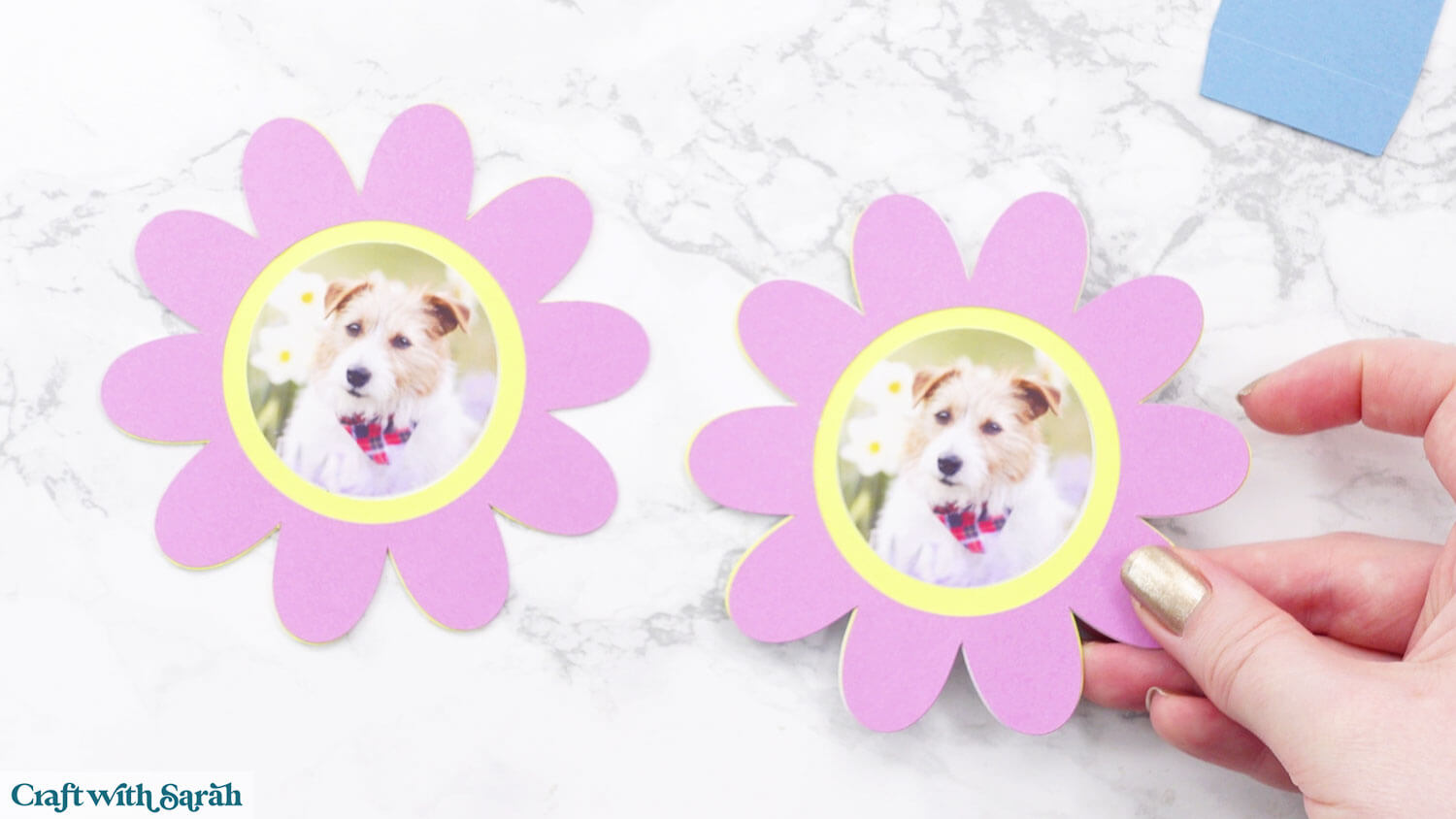
Repeat for the flower for the back of the frame.
Select the structure piece with the rectangle along the bottom.
Valley fold the score line closest to the flower pot shape and mountain fold the tab at the back.
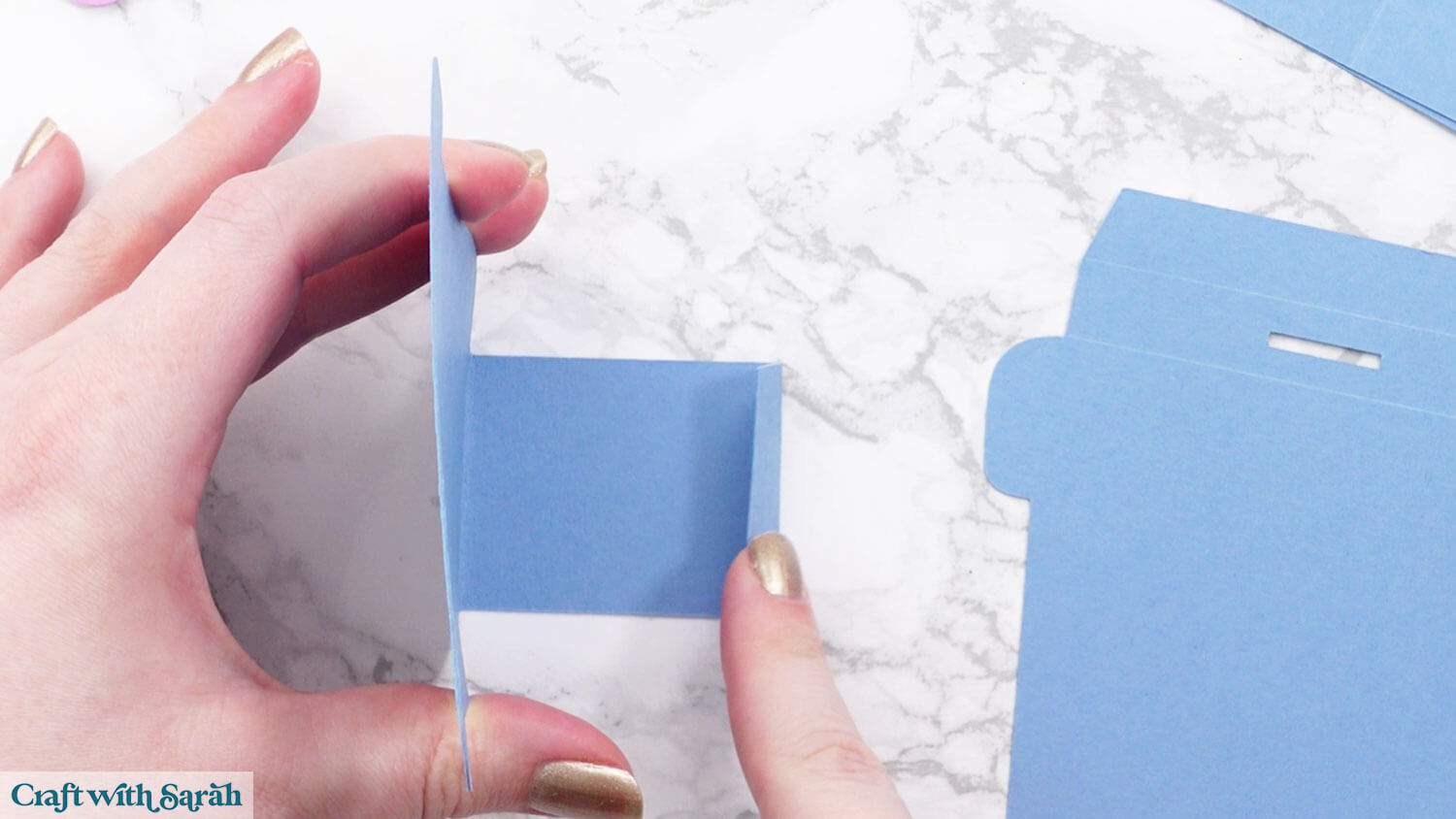
Fold over the score lines on the part of the structure with the lollipop stick hold to make a “bridge”.
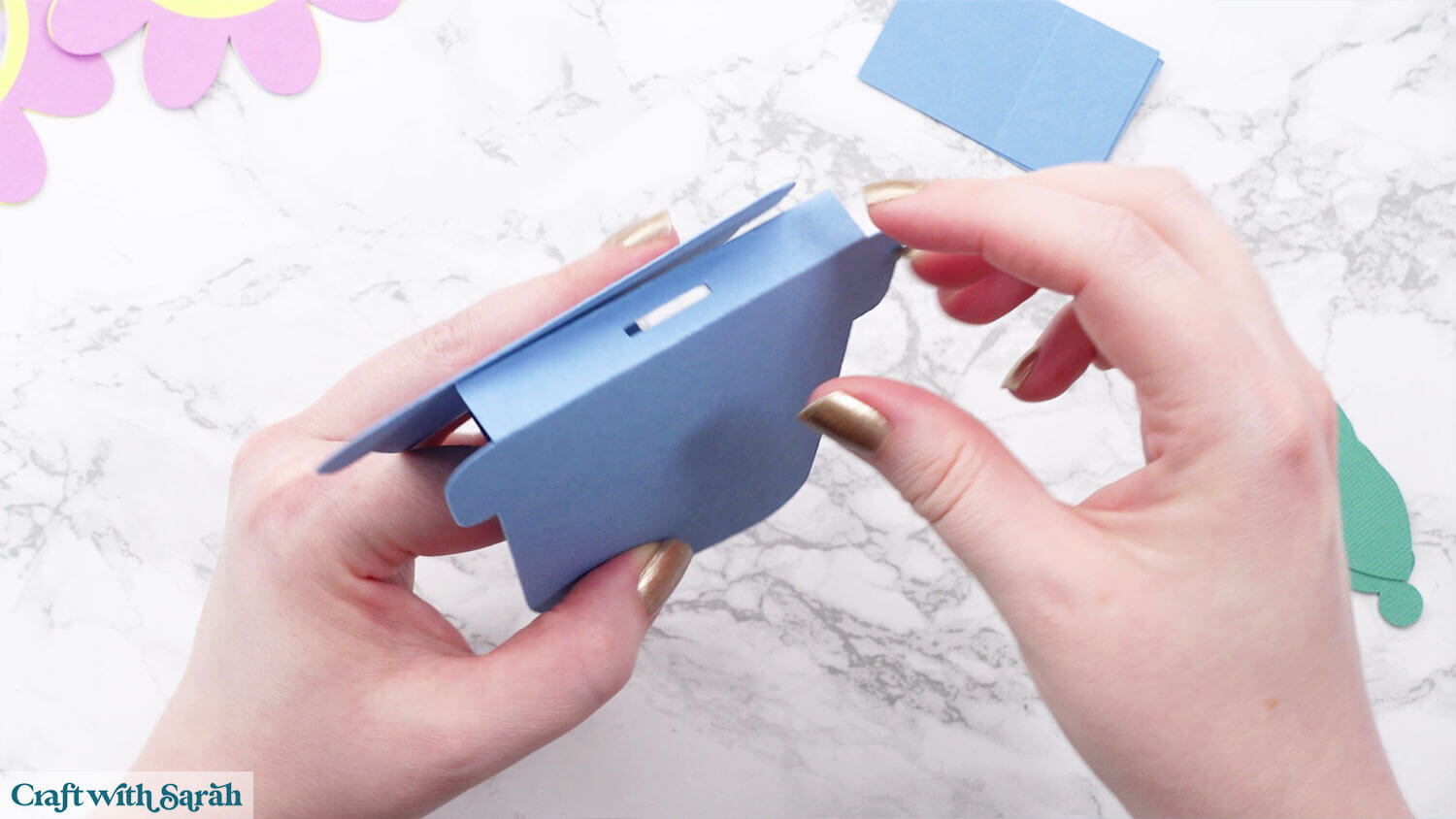
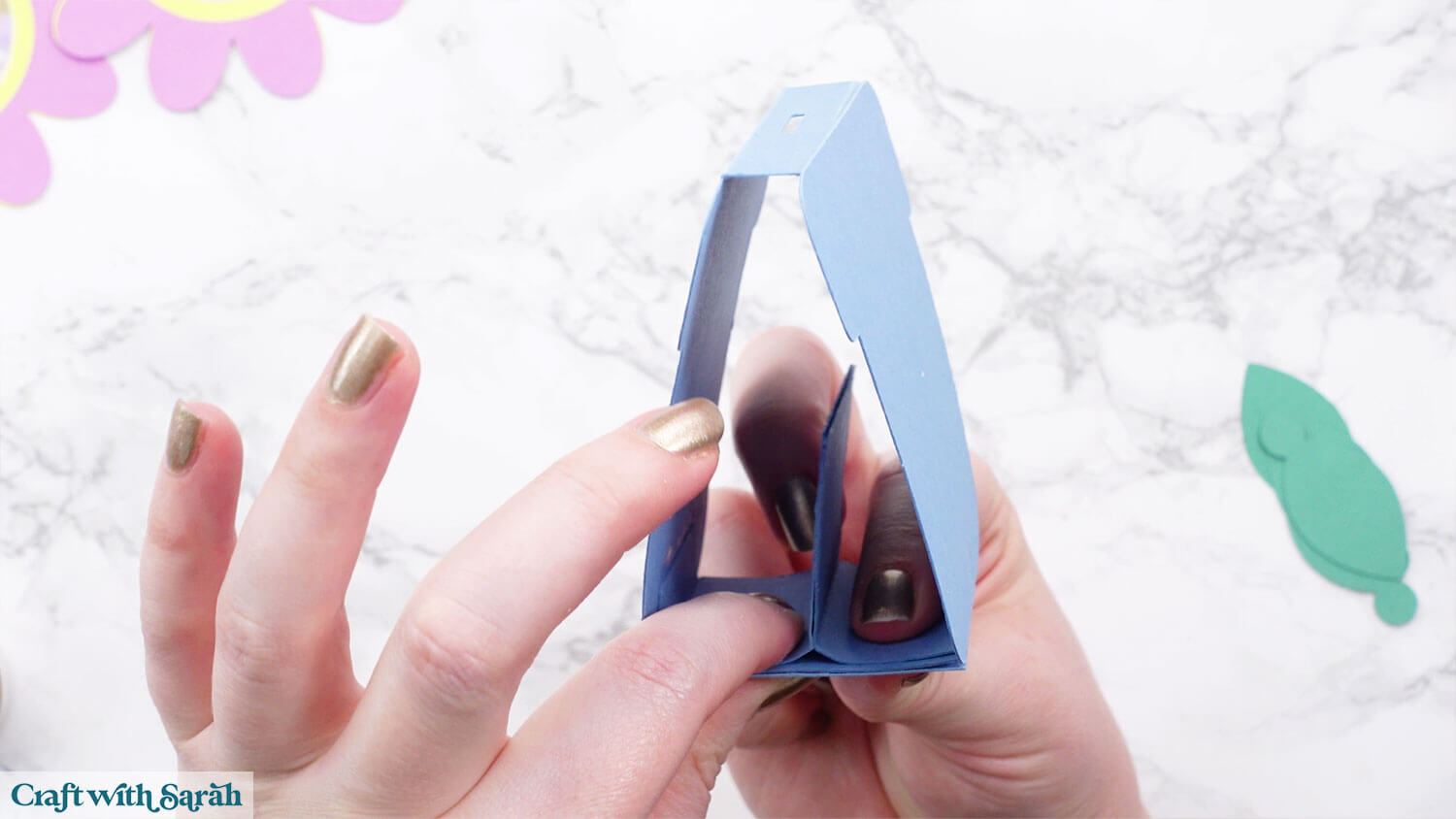
Glue the two structure pieces together.
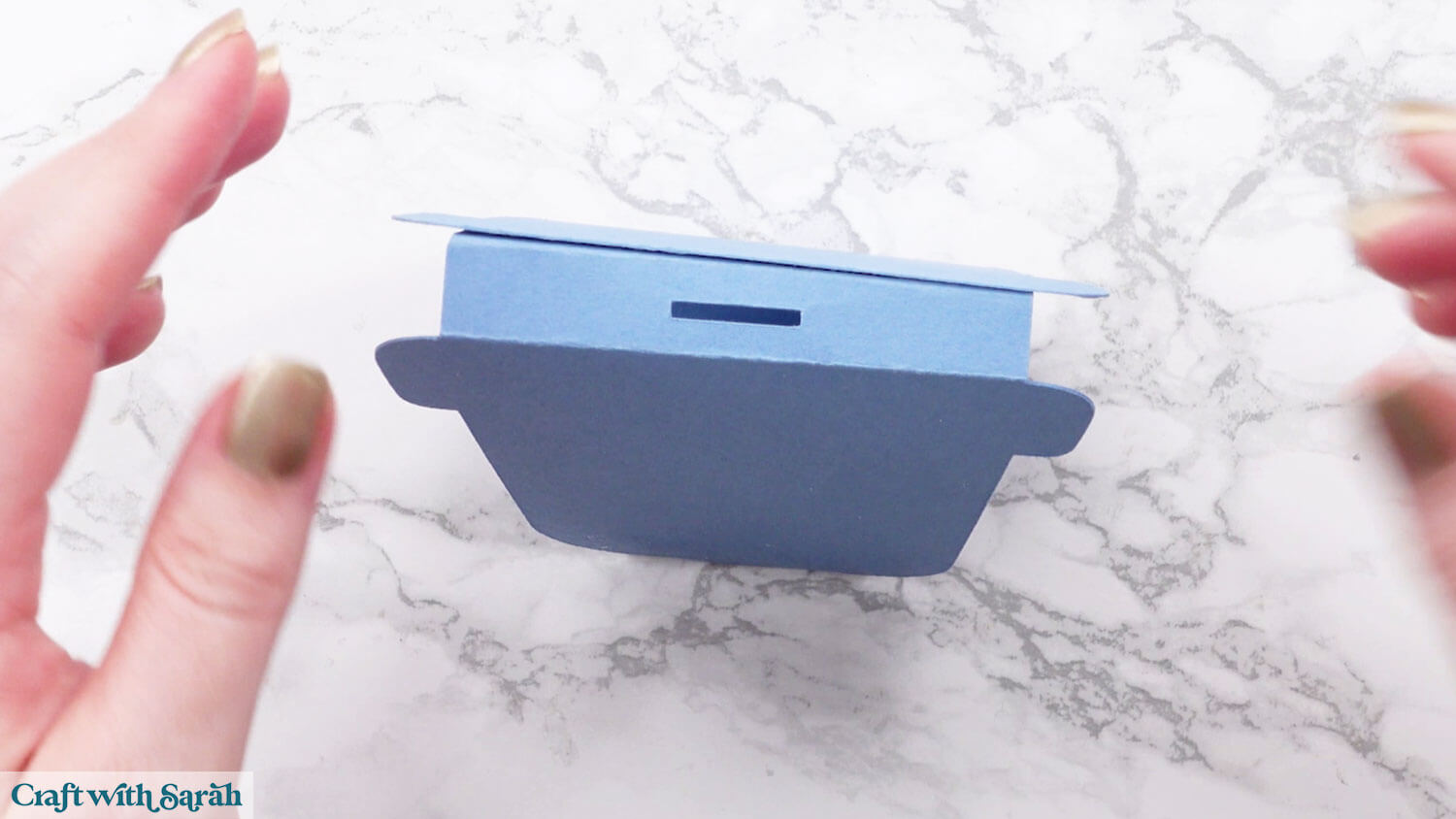
Add glue on the bottom of the structure and glue the small rectangle piece on, for stability. This is the rectangle piece that does not have any score lines.
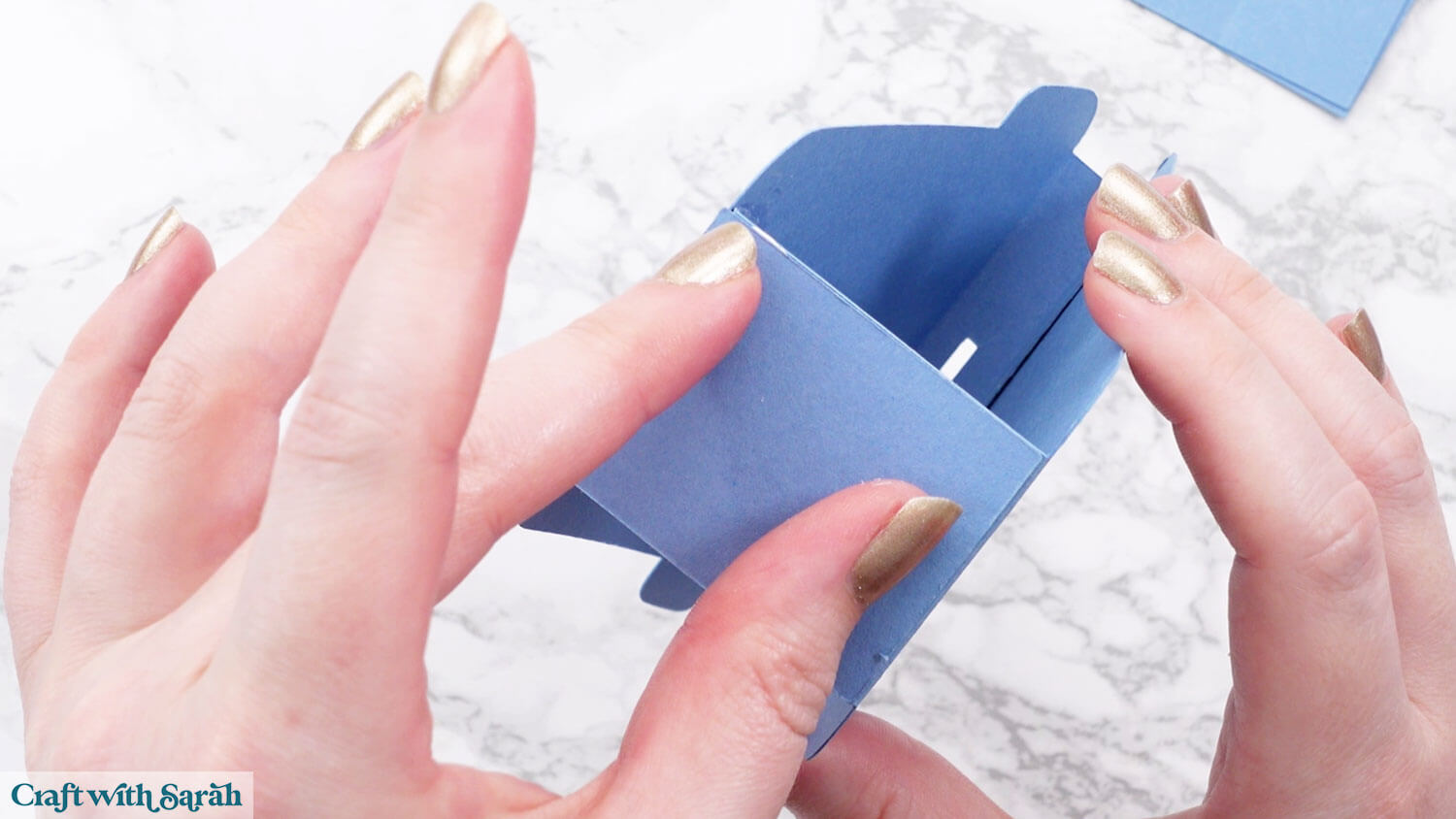
Fold the score lines on the remaining two rectangle shapes.
Add glue to the outside in a U shape.
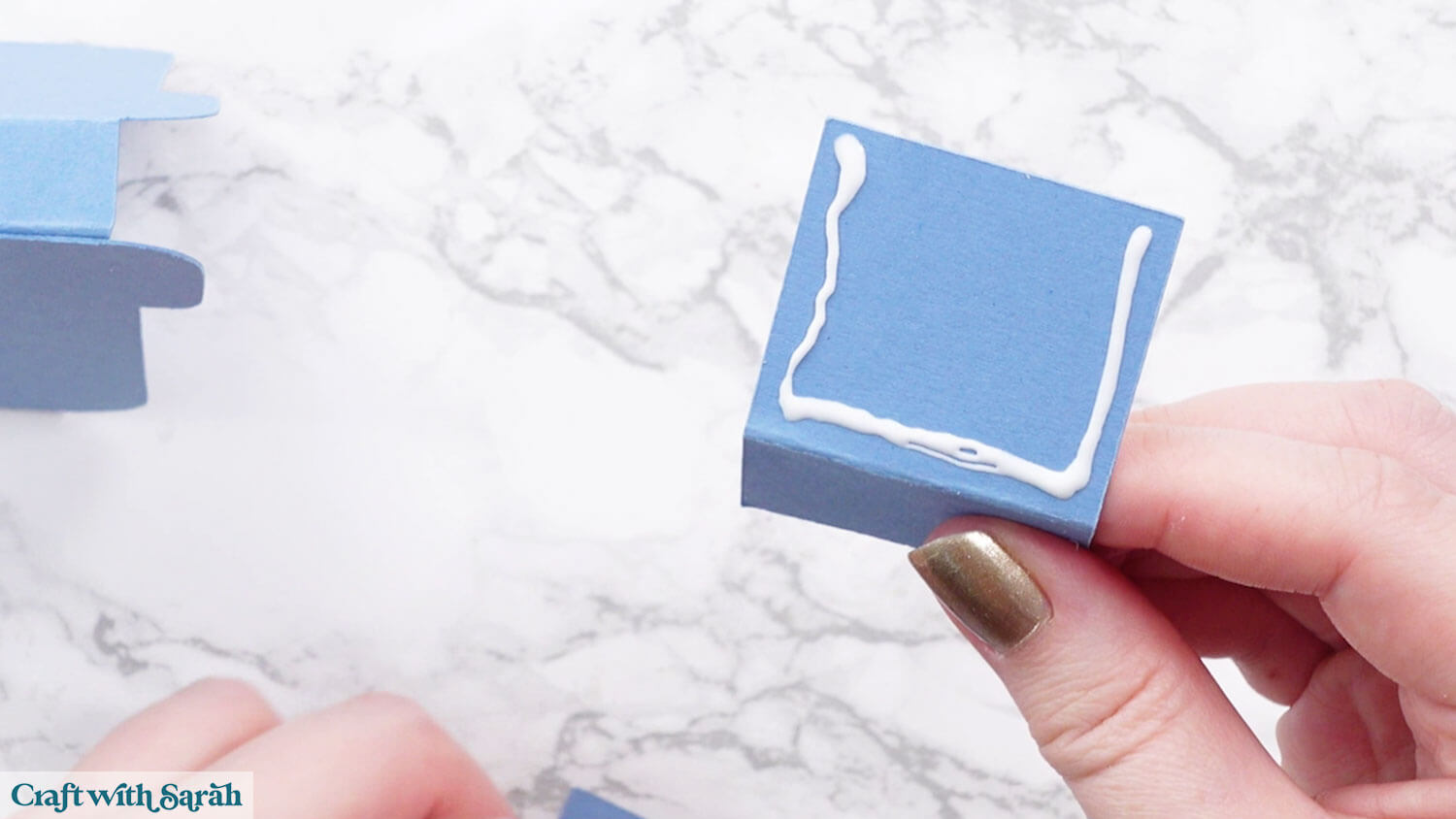
Stick it to the second rectangle. Be careful not to smear the glue too much, as the middle part needs to have a gap in for the lollipop stick to sit in.
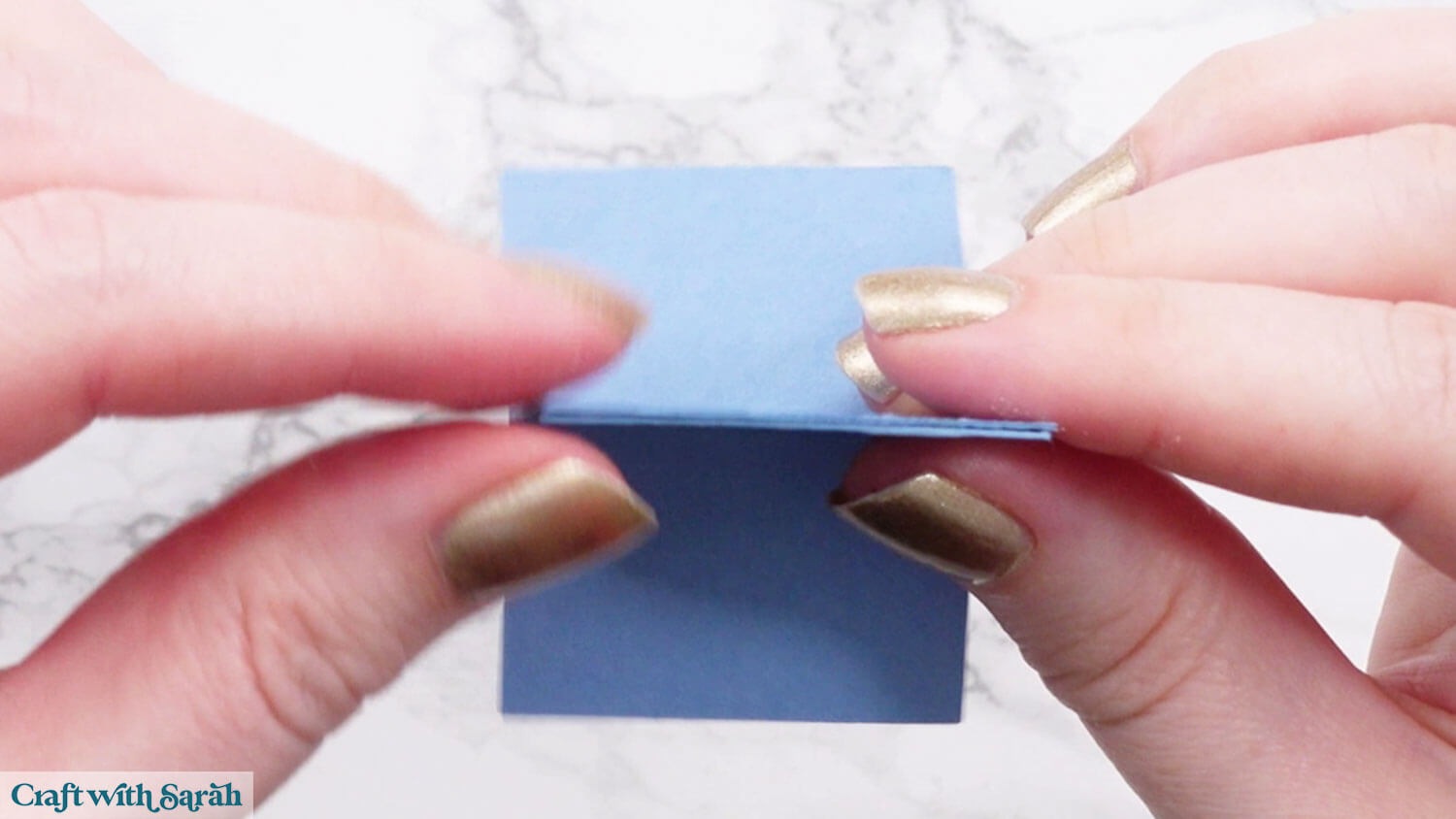
Glue this piece into the inside of your photo frame structure.
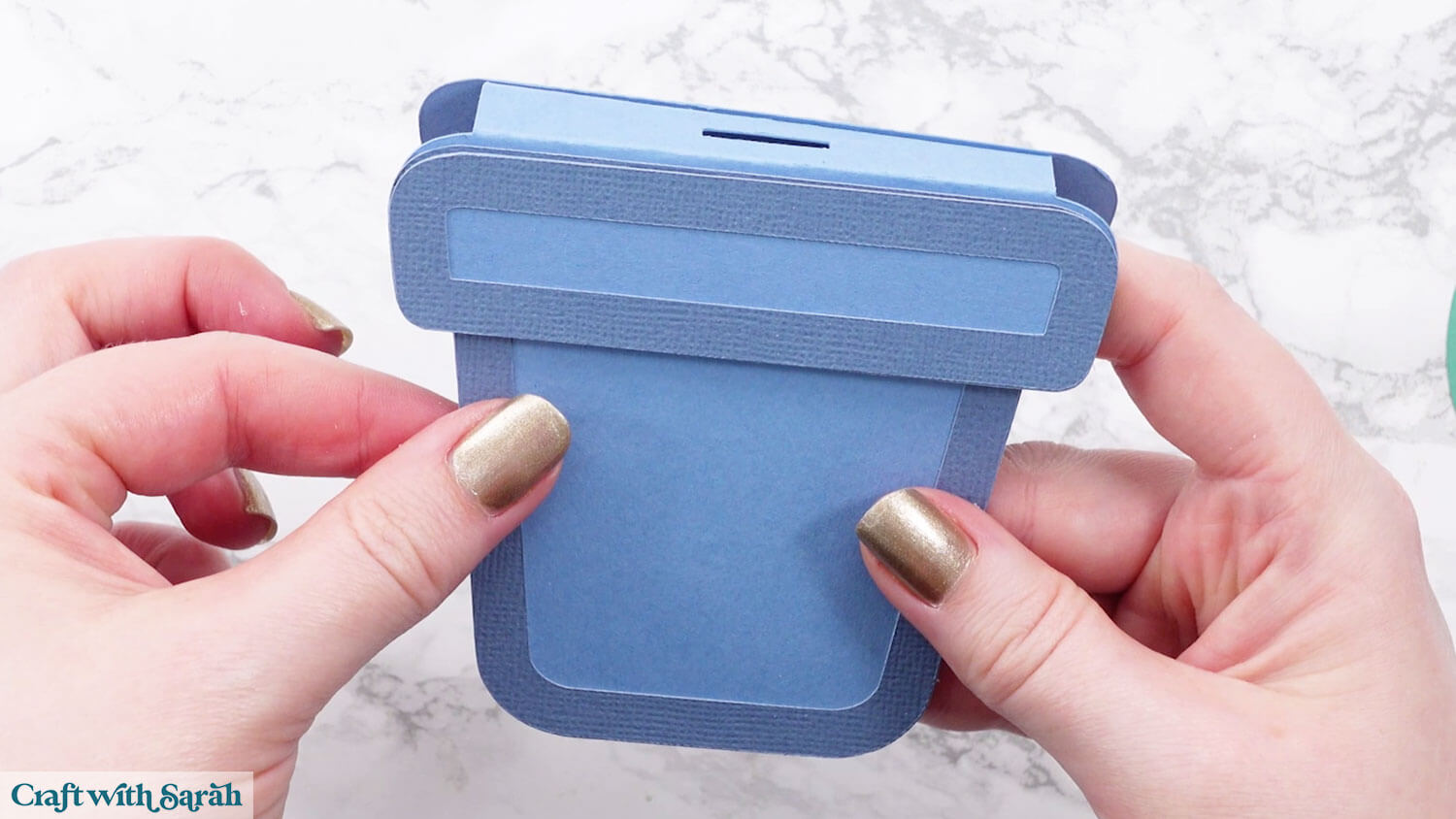
Glue the flower pots to the front and back of the structure.
Thread the lollipop stick into the hole between the two folded pieces and use it to glue the first leaf, so that you know how far the flower pot goes up against the lollipop stick.
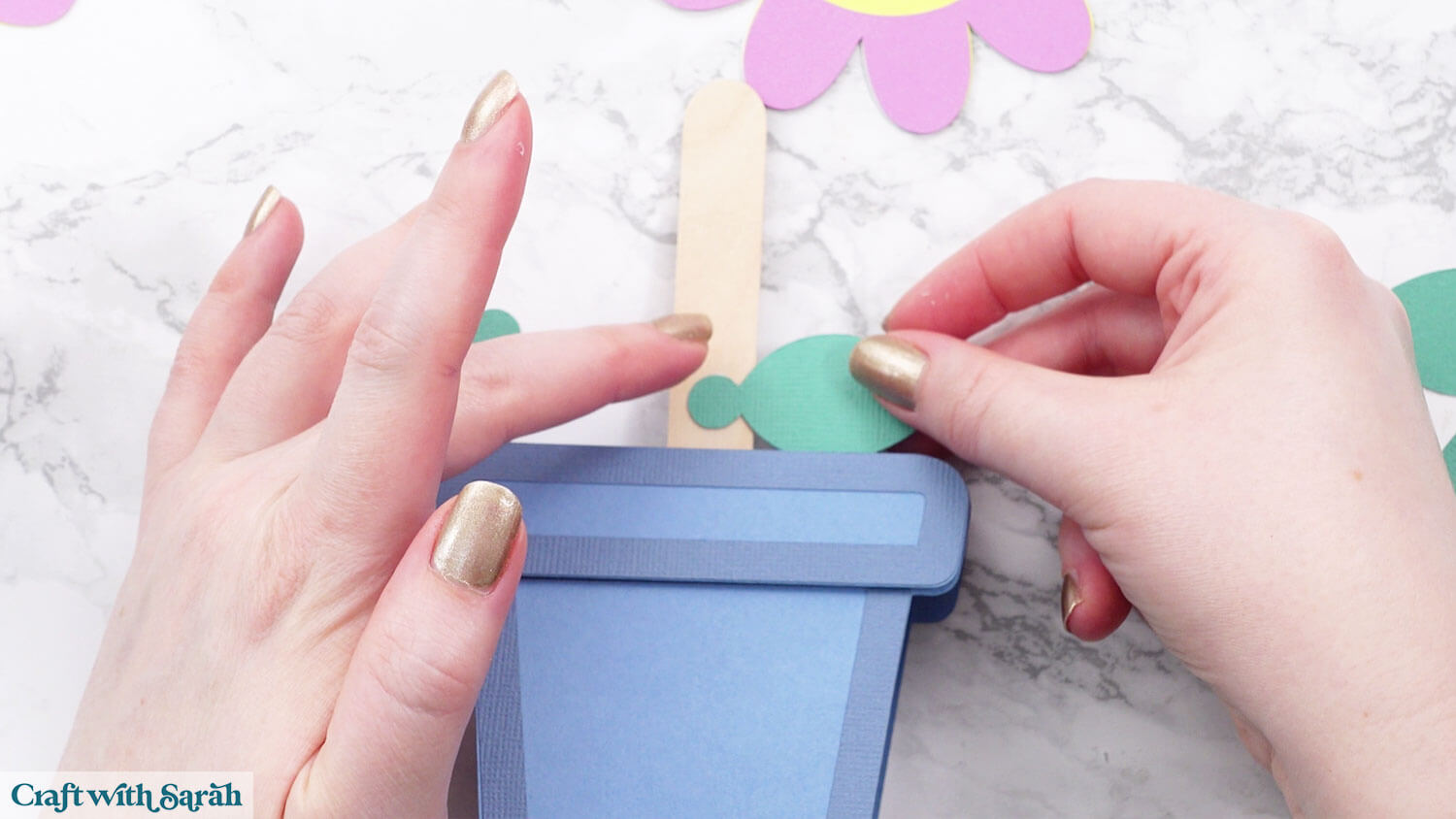
Take the lollipop stick out so it is flat, then glue the other leaf and the flower.
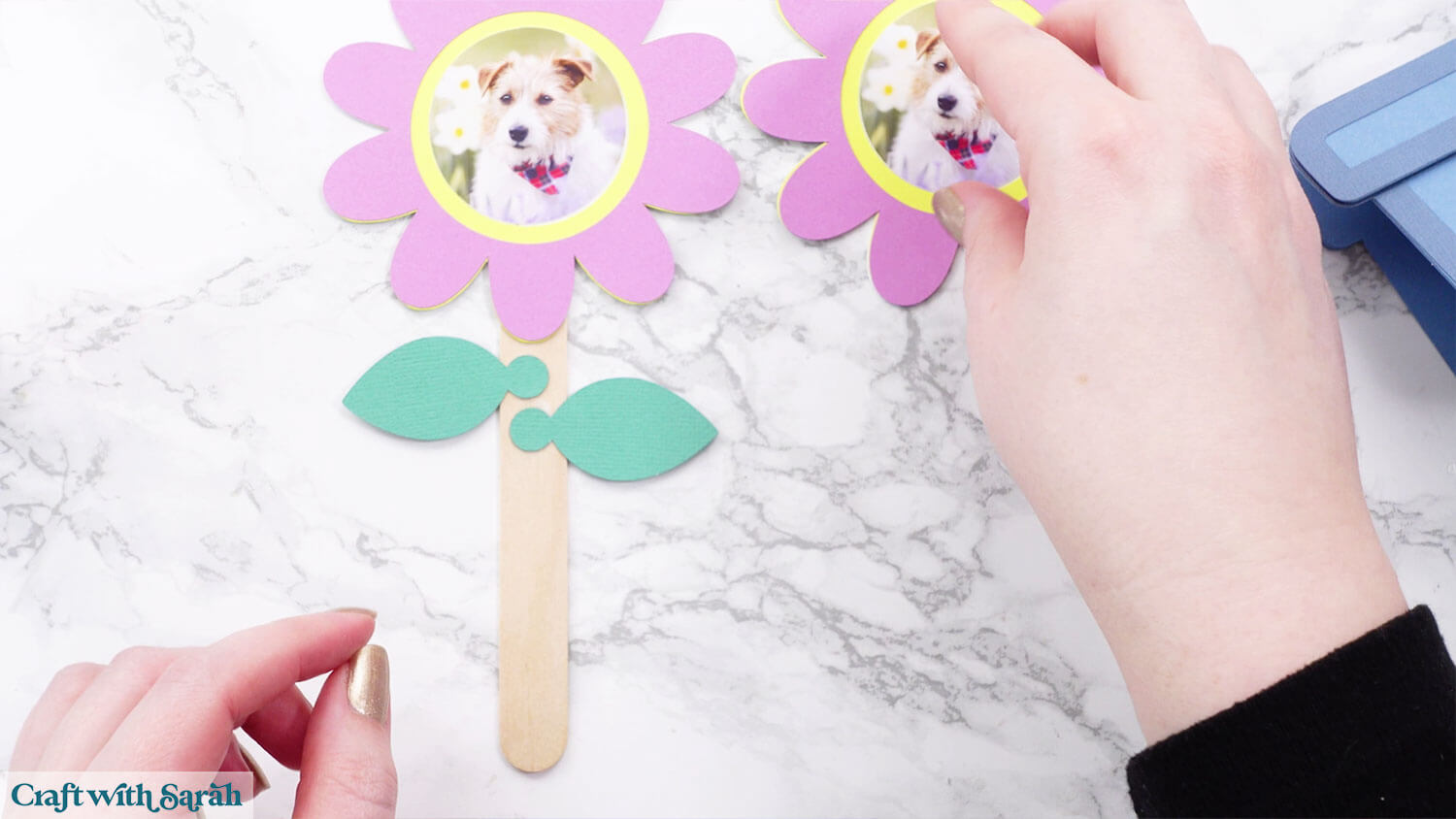
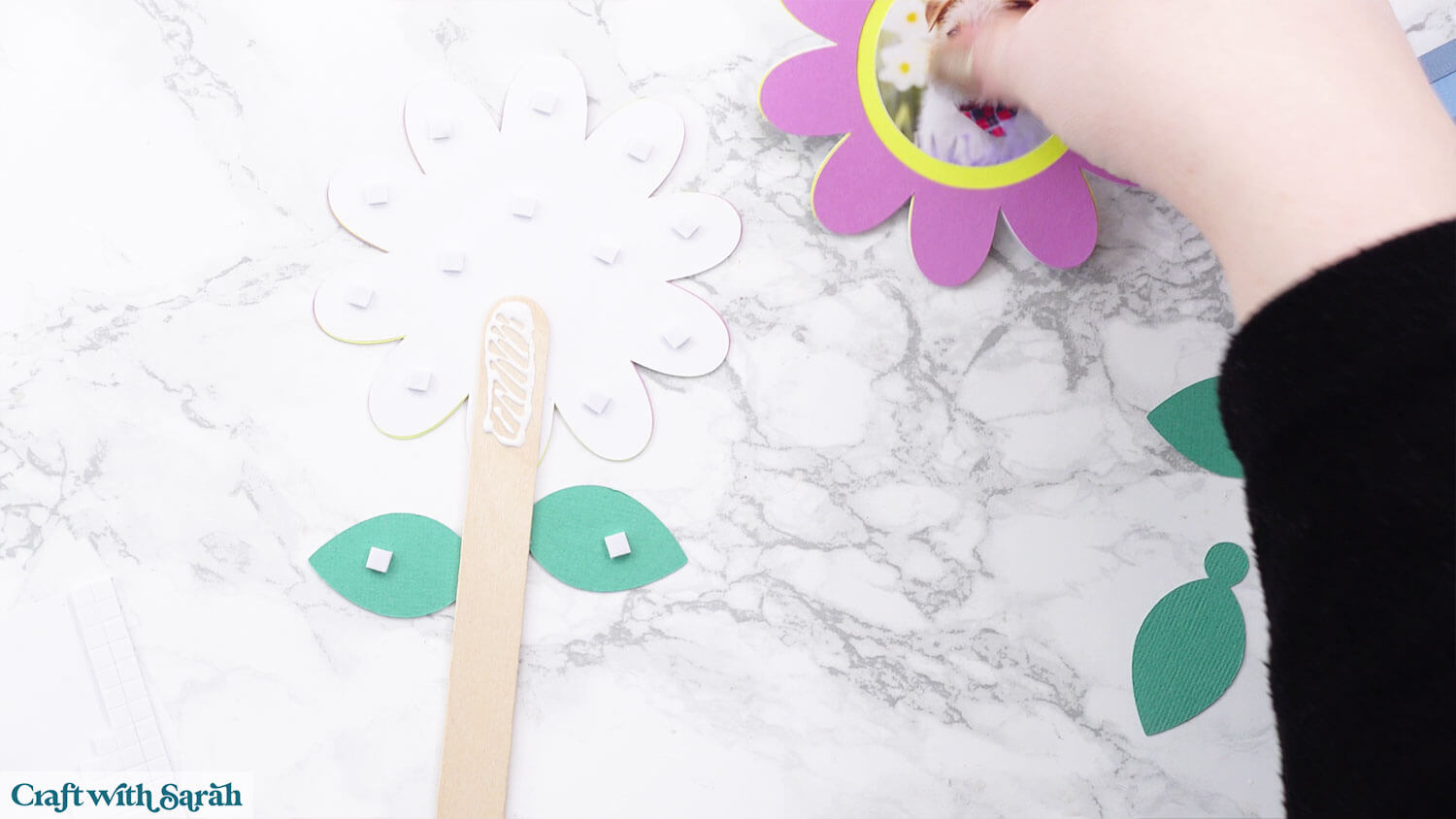
When the glue is fully dry, turn it over and add foam squares. Don’t add any foam on top of the lollipop stick as that is already thick.
Put glue on the top of the lollipop stick instead.
Attach the second flower and leaves.
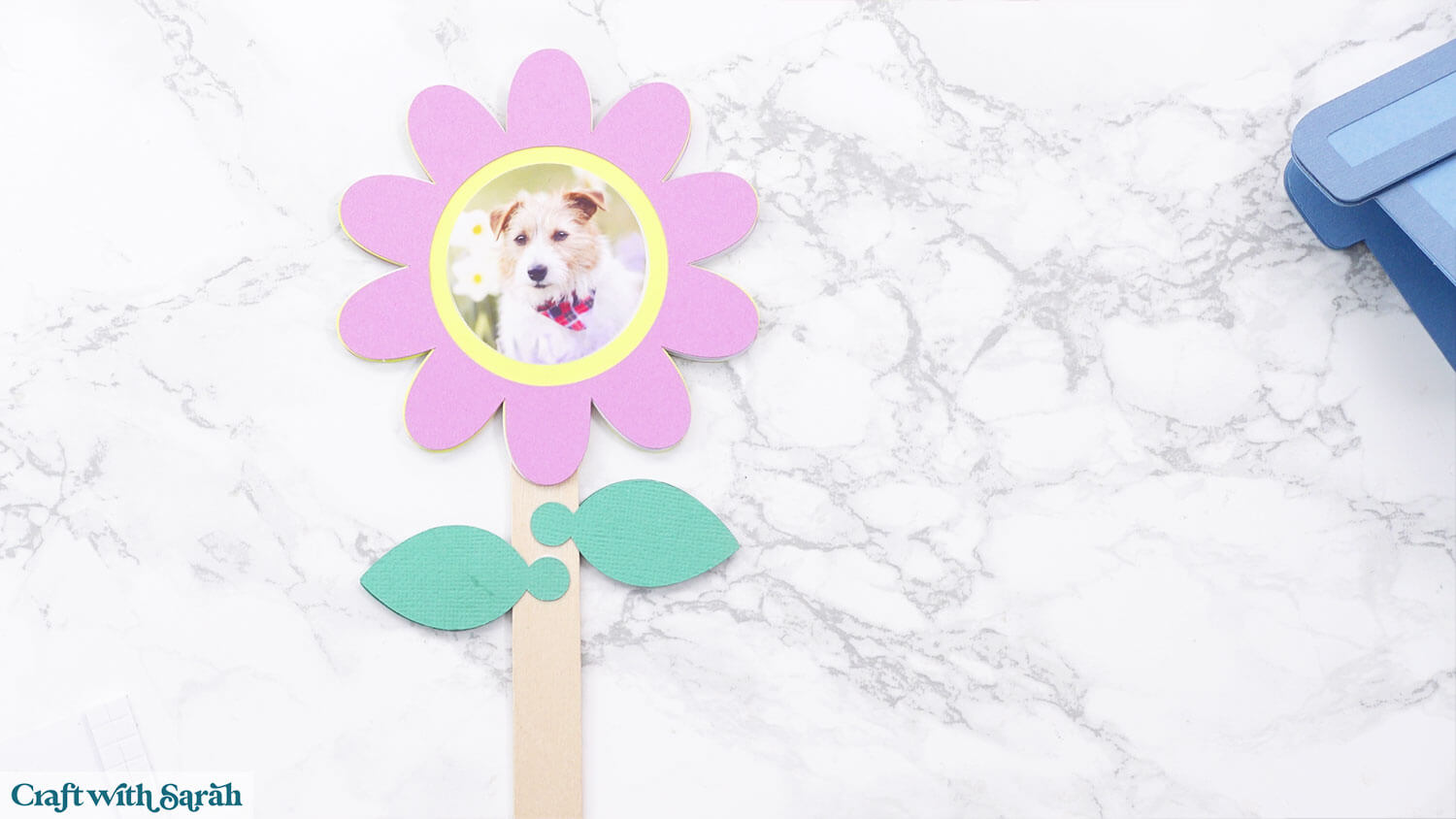
Thread the lollipop stick through the slit in the top and bottom of the structure, and you’re finished!
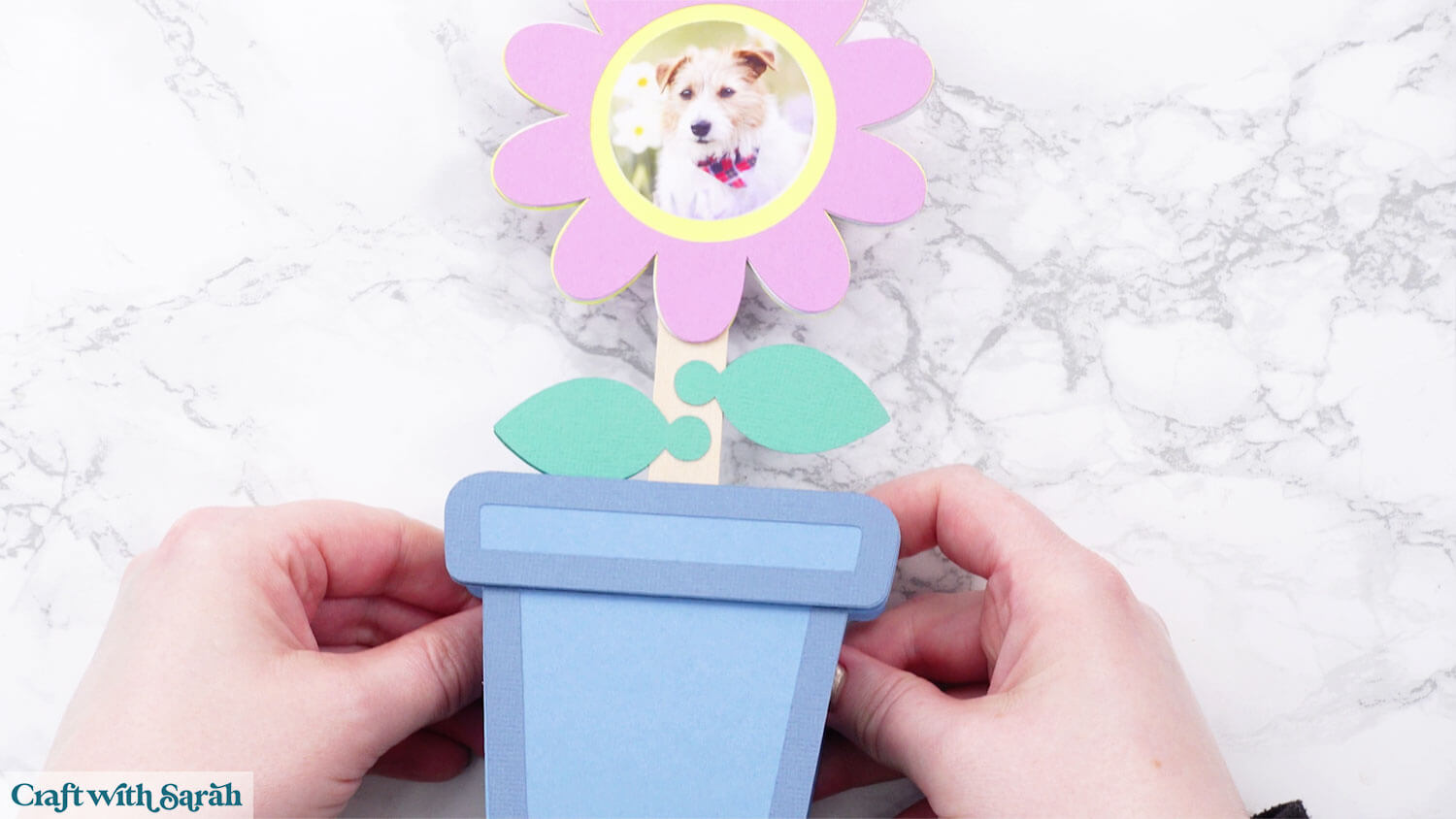
Easy photo frames to make with a Cricut
I hope you enjoyed this tutorial on how to make freestanding photo frames with your Cricut machine.
Having them double-sided is a great feature too, particularly if you are going to be displaying them where both sides can be seen.
I love how bright and colourful they are, and how they can be customised with any photos.
Love using photos in your craft projects?
Check out these other Cricut crafts that you can add your own photos to:
- Family portrait Christmas decorations
- Bunny photo holders for Easter
- Camping scene add-a-photo shadow box
- Rainbow bridge shadow box for pet loss
- Mirage cards
Happy crafting,
Sarah x