Handbag & Satchel Cards ⭐ Card Making Countdown 2026
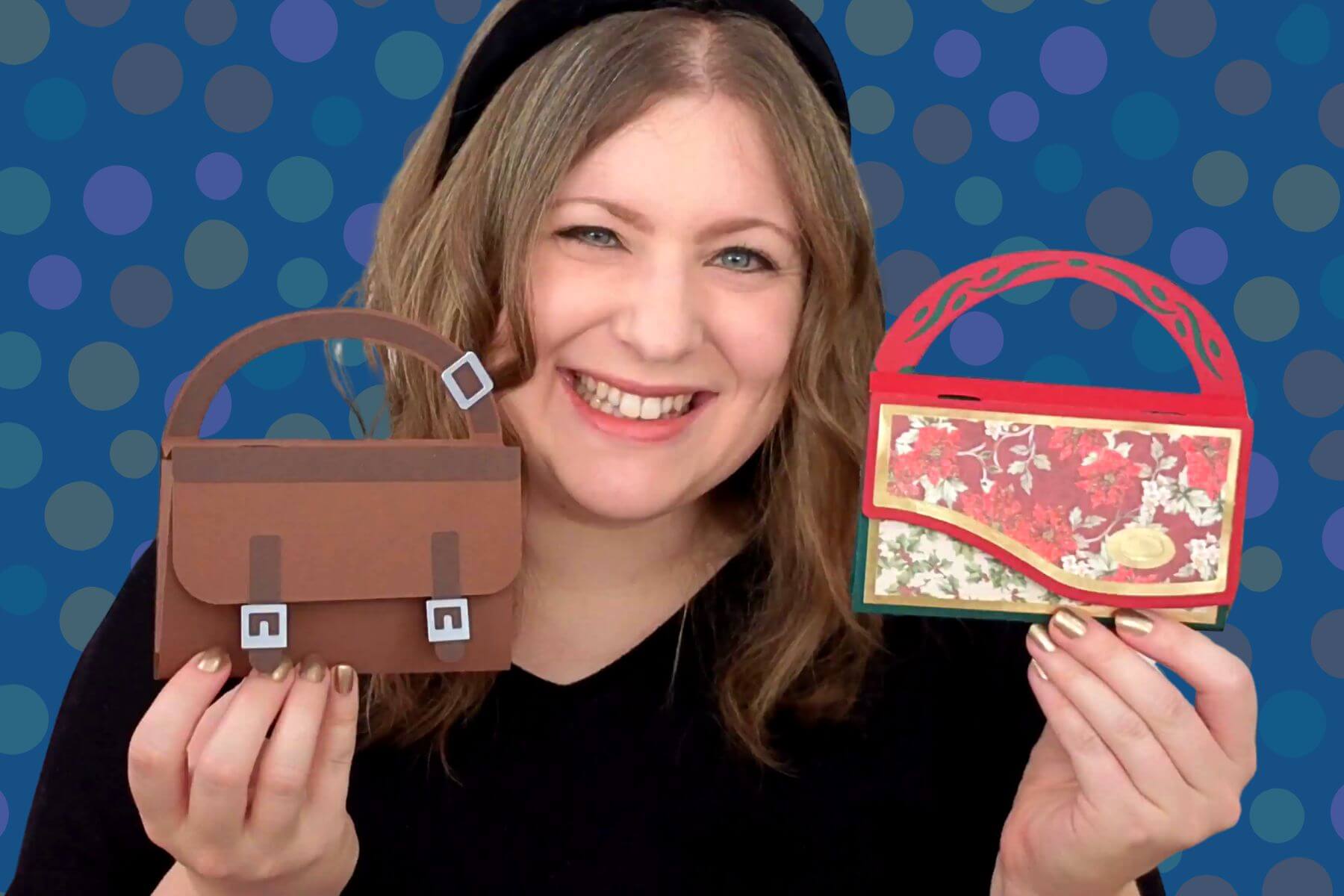
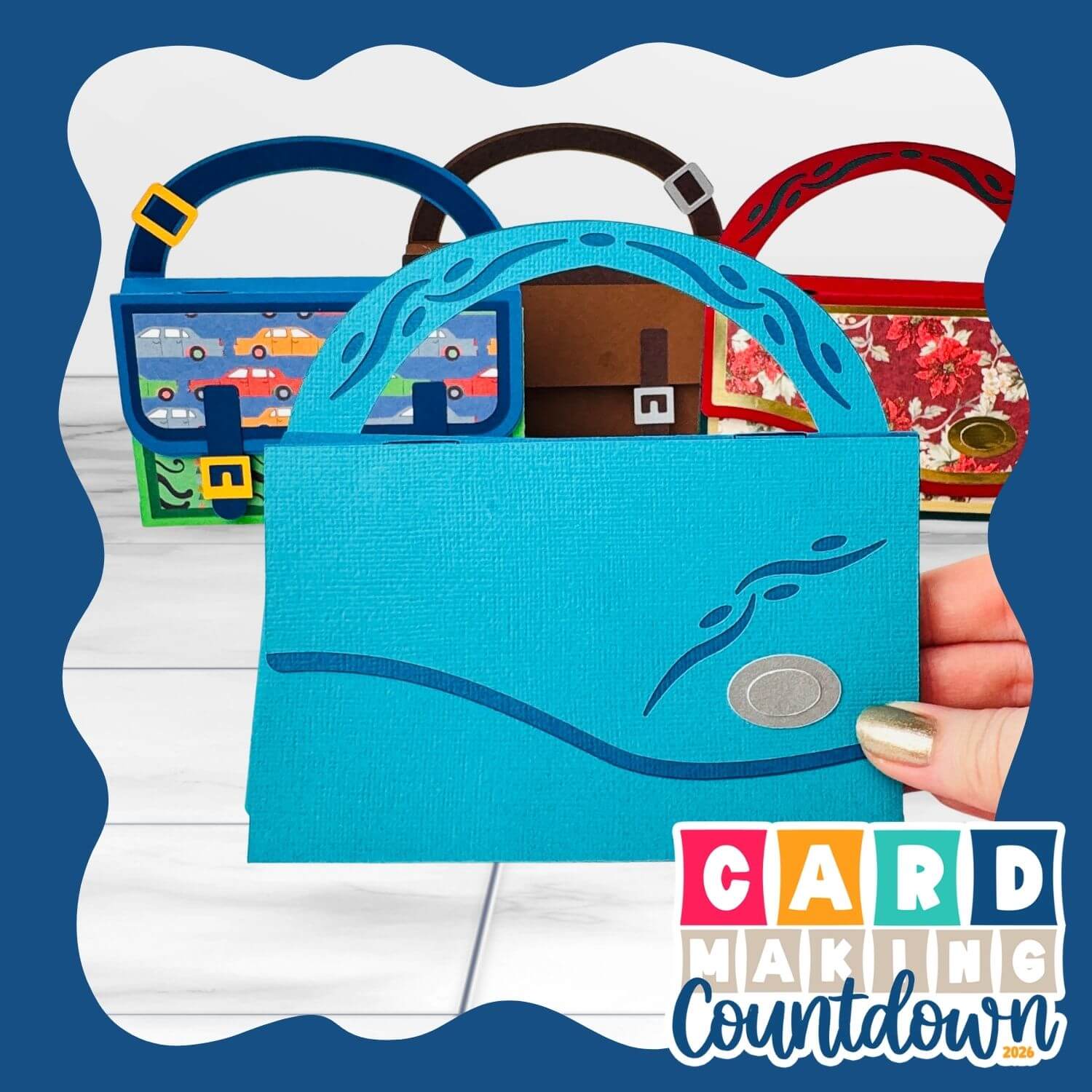
These freestanding handbag and satchel cards are also gift card holders.
Welcome to Day 14 of the 2026 Card Making Countdown.
Today we are making handbag and satchel cards that hold gift cards inside them.
They stand up by themselves and are built with clever accordion-effect sides so that they fold flat for postage.
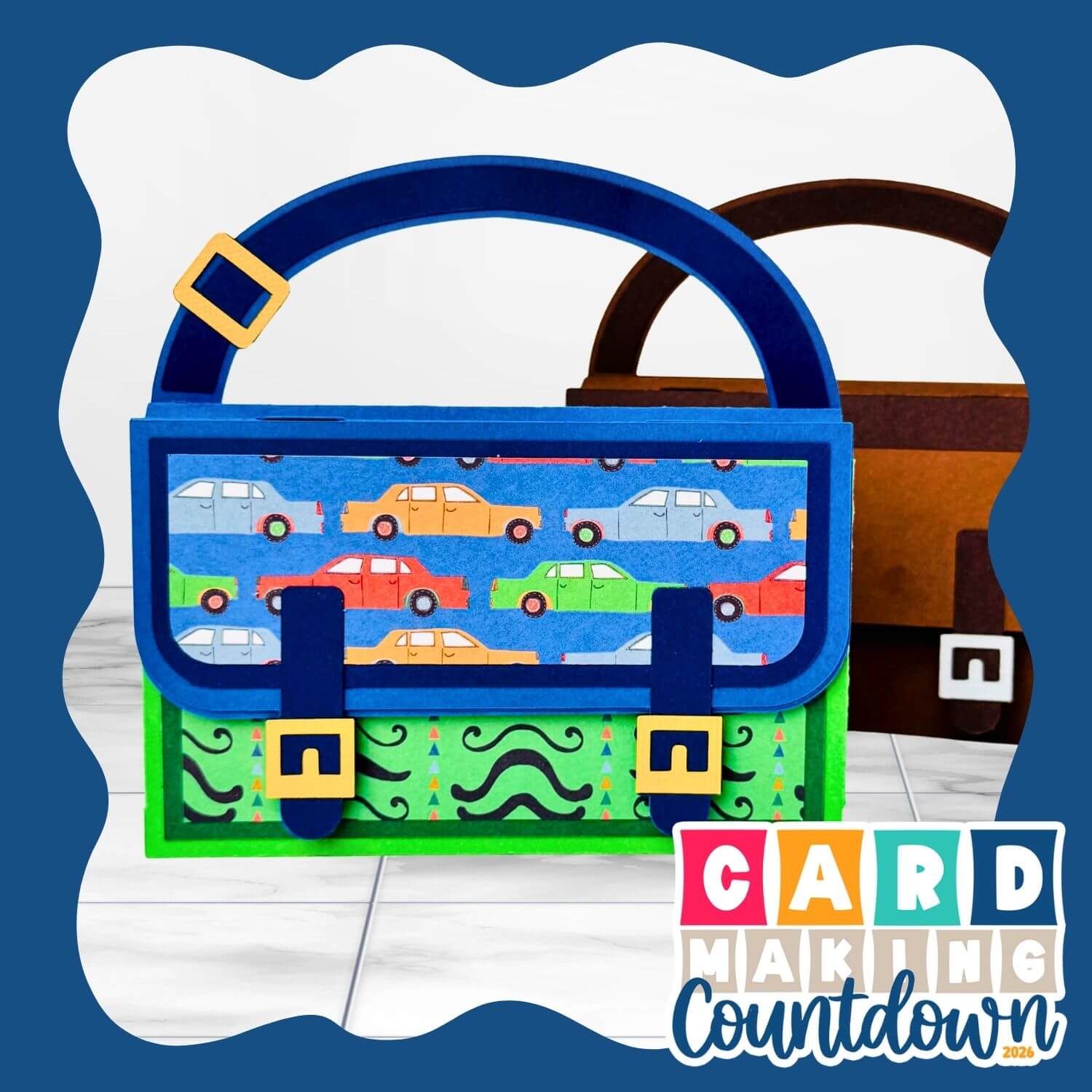
Four different templates are included: a decorative handbag, a patterned paper handbag, a plain brown satchel and a patterned paper satchel.
This project is part of the 2026 Card Making Countdown
Handbag gift card holders supply list
Here is a list of the materials that are used to make this project.
Please note that some of the links included in this article are affiliate links, which means that if you click through and make a purchase I may receive a commission (at no additional cost to you). You can read my full disclosure at the bottom of the page.
- Cricut machine
- Light blue Cricut cutting mat
- Cricut scoring wheel or scoring stylus
- Coloured card (medium or thick, solid core cardstock works best for the base card pieces)
- Patterned paper
- Glue (I like Bearly Art Glue and Collall)
This project is suitable for the following types of Cricut machines: Explore series, Maker series and Joy Xtra. They are too large to cut with the Joy or Joy 2.
Foundation learning
If you're new to making papercrafts with your cutting machine, check out these links to get you started.
They include videos on topics such as: which file to use with your type of cutting machine, how to load the files into your cutting machine's software, how to cut cardstock with your type of cutting machine, how to recolor and modify/customize the cut files and tips for displaying your projects.
- How to use zip folder downloads
- Help guides for Cricut machines
- Help guides for Silhouette machines
- Help guides for ScanNCut machines
The following tutorials are Cricut-specific, but many of the ideas will work similarly with a Silhouette or ScanNCut machine and any cut files that are shared in them are compatible with all types of cutting machine.
- How to score with a Cricut (even without scoring tools)
- Print then cut tutorial
- Design Space tools (Combine, Attach, Slice, Weld, Flatten, etc.)
- Pattern fill tutorial (for making backgrounds & cutting images to a specific shape/size)
- Free envelope SVGs that can be sized to fit any card
- Presentation boxes for handmade cards
- How to write inside cards with Cricut pens
- How to cut layered designs at a small size
- Design Space tips & tricks
- Cricut pens tutorial
- How to mount multiple designs in the same frame with magic guides
Purse cards video tutorial
Watch the video below to see how to make this project. Keep scrolling for a written tutorial.
How to make handbag and satchel cards with a Cricut
The same steps shown below can be used for both the handbag and satchel cards.
Step 1) Download the cutting files & upload to Design Space
Get the files using the box below.
Purchase the File(s)
This cut file is available as part of the Instant Access Bundle.
Or, purchase the designs individually:
Handbag Shaped Greetings Card & Gift Card Holder
Satchel Shaped Greetings Card & Gift Card Holder
Before you upload the SVGs to Design Space, you need to unzip the download folder that they come in.
Not sure how to do this? Click here for a tutorial that covers all the following types of computer and device:
- How to unzip a folder on a Windows computer
- How to unzip a folder on a Mac
- How to unzip a folder on an iPad
- How to unzip a folder on an iPhone
- How to unzip a folder on an Android device
After unzipping, upload the SVG file(s) into your cutting machine software.
Not sure how to use cut files with your type of machine? The following links lead to tutorials on how to use cut files in:
- Cricut Design Space
- Silhouette Studio
- CanvasWorkspace (for ScanNCut machines)
If you are using Cricut Design Space, start a new project and then click the “Upload” button on the left of the screen.
You can then either click “Browse” to find the file on your computer, or drag-and-drop it.
Choose one of the templates in the “SVG Files” subfolder.
Press “Upload” on the next screen.
After uploading, the design should be automatically inserted onto your Canvas.
To hide the left sidebar (to give you more space for designing!), click the arrow that’s about half way down the page.
If the design doesn’t get inserted onto your Canvas, it will show under “Uploads” in your “Recently Uploaded Images”. Click on it and then press “Add to Canvas” to put it onto your Project.
Need help uploading SVGs? Get step-by-step instructions here in our detailed help guides for Cricut, Silhouette and ScanNCut.
Step 2) Check the template size
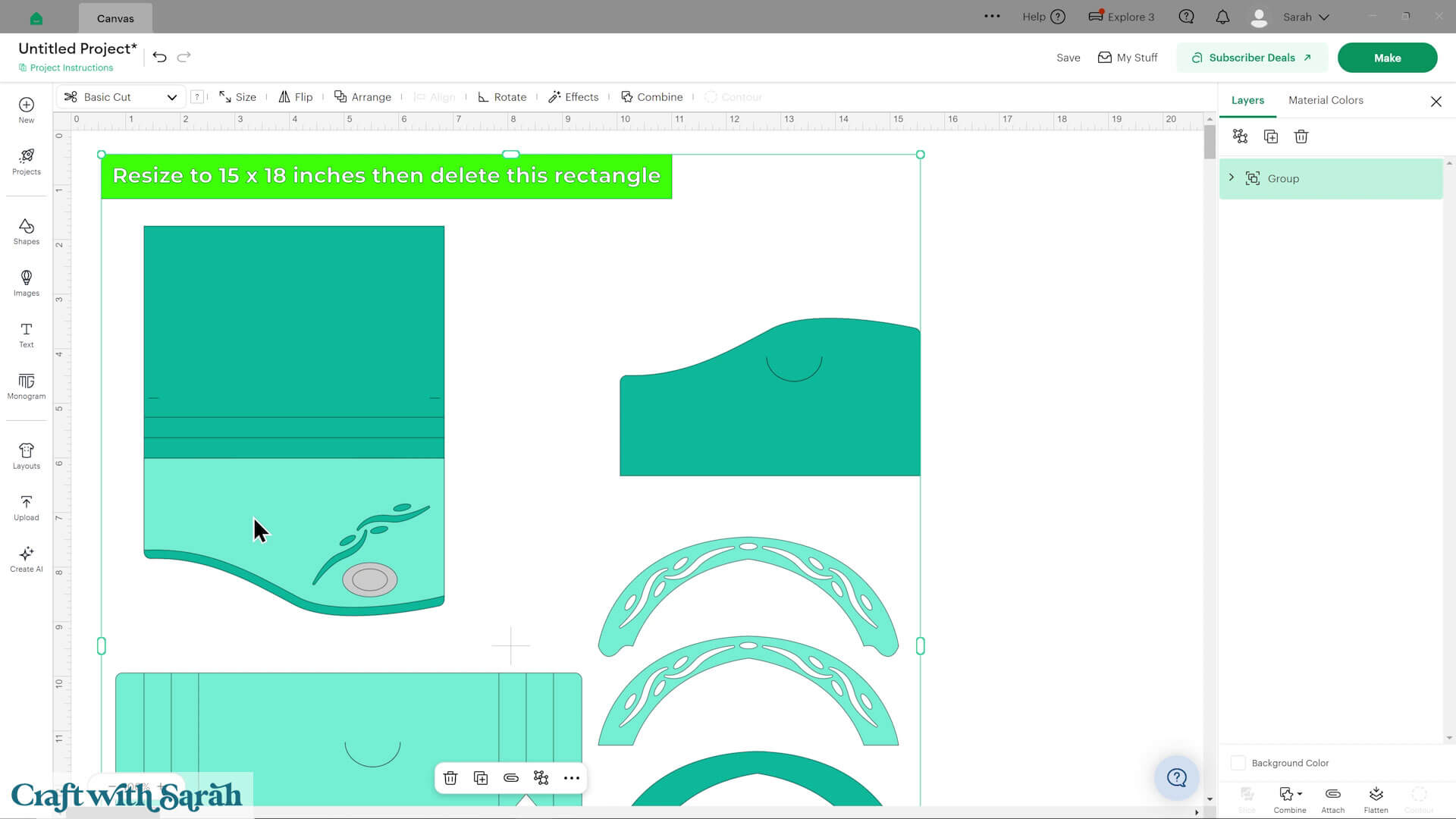
Check the size that shows in the lime green box on the top-left of the box card template.
Make sure your card is showing at that exact size. If it isn’t, then change it to match.
Click the design and press the “Ungroup” button at the top of the layers panel.
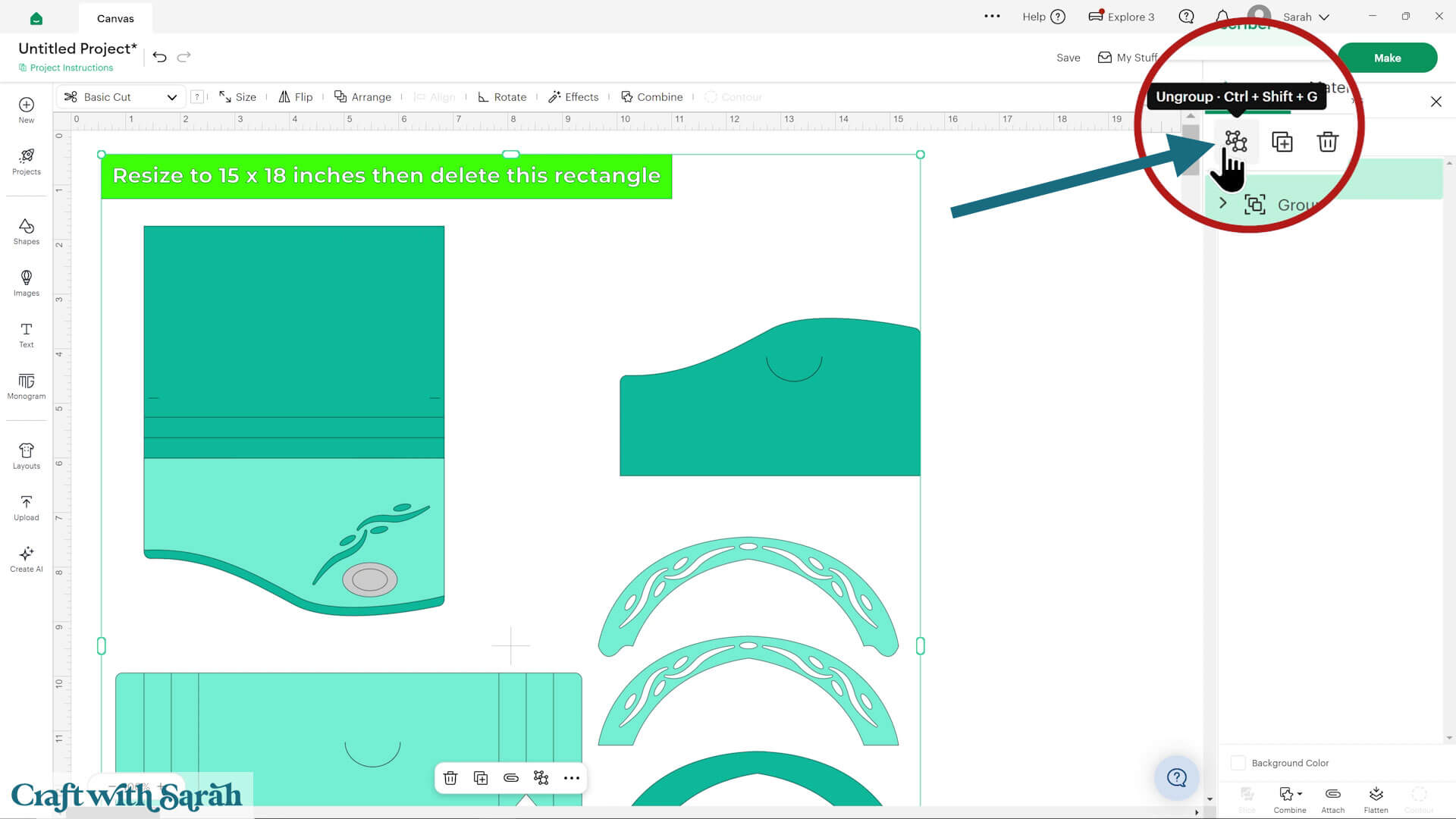
Click the green size guide box and delete it.
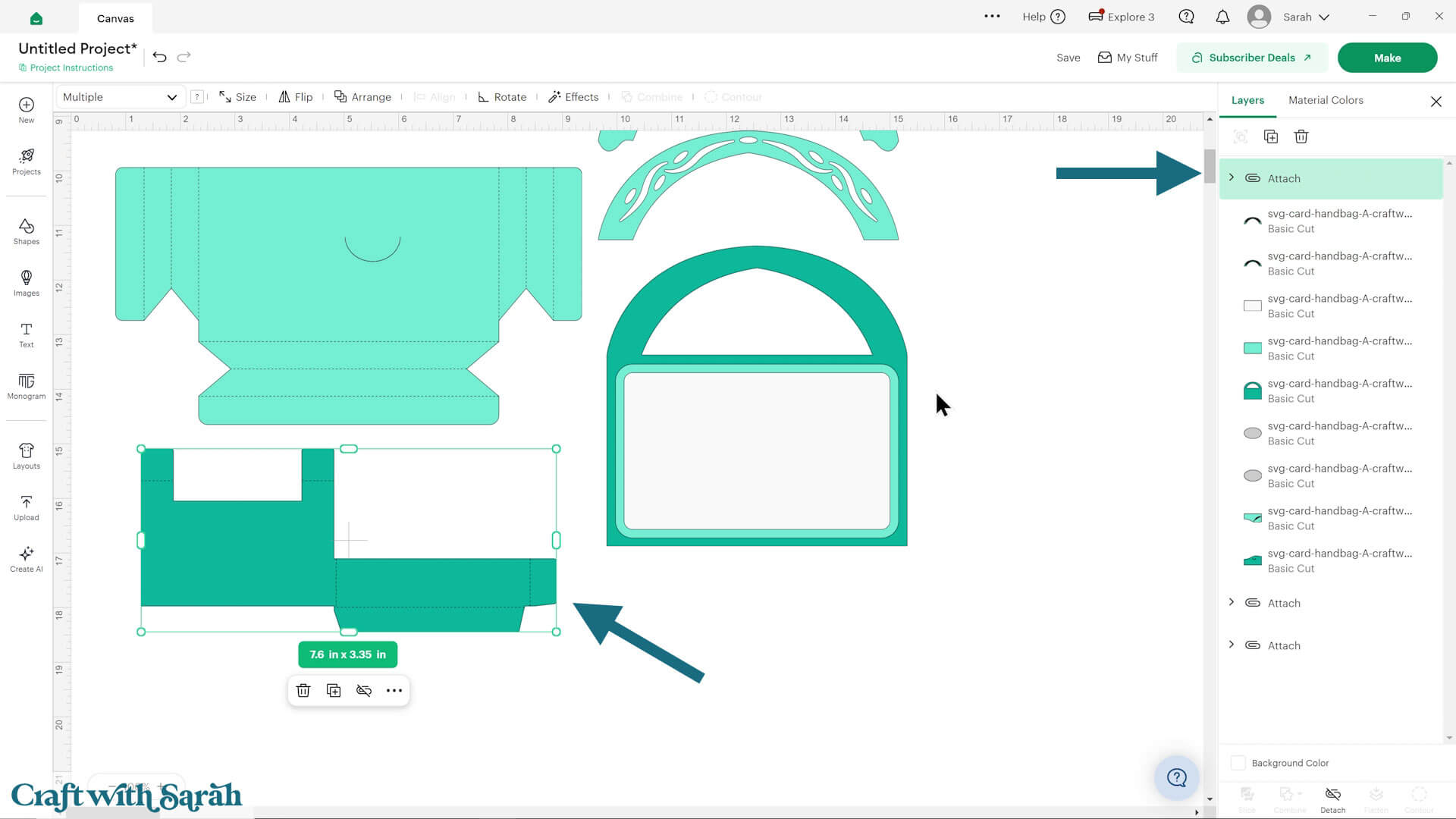
Step 3) Format the score lines
Click the top base card pieces to select it, then click the chevron arrow that appears next to it in the layers panel to open it up.
Click the top layer within that group to select just that piece.
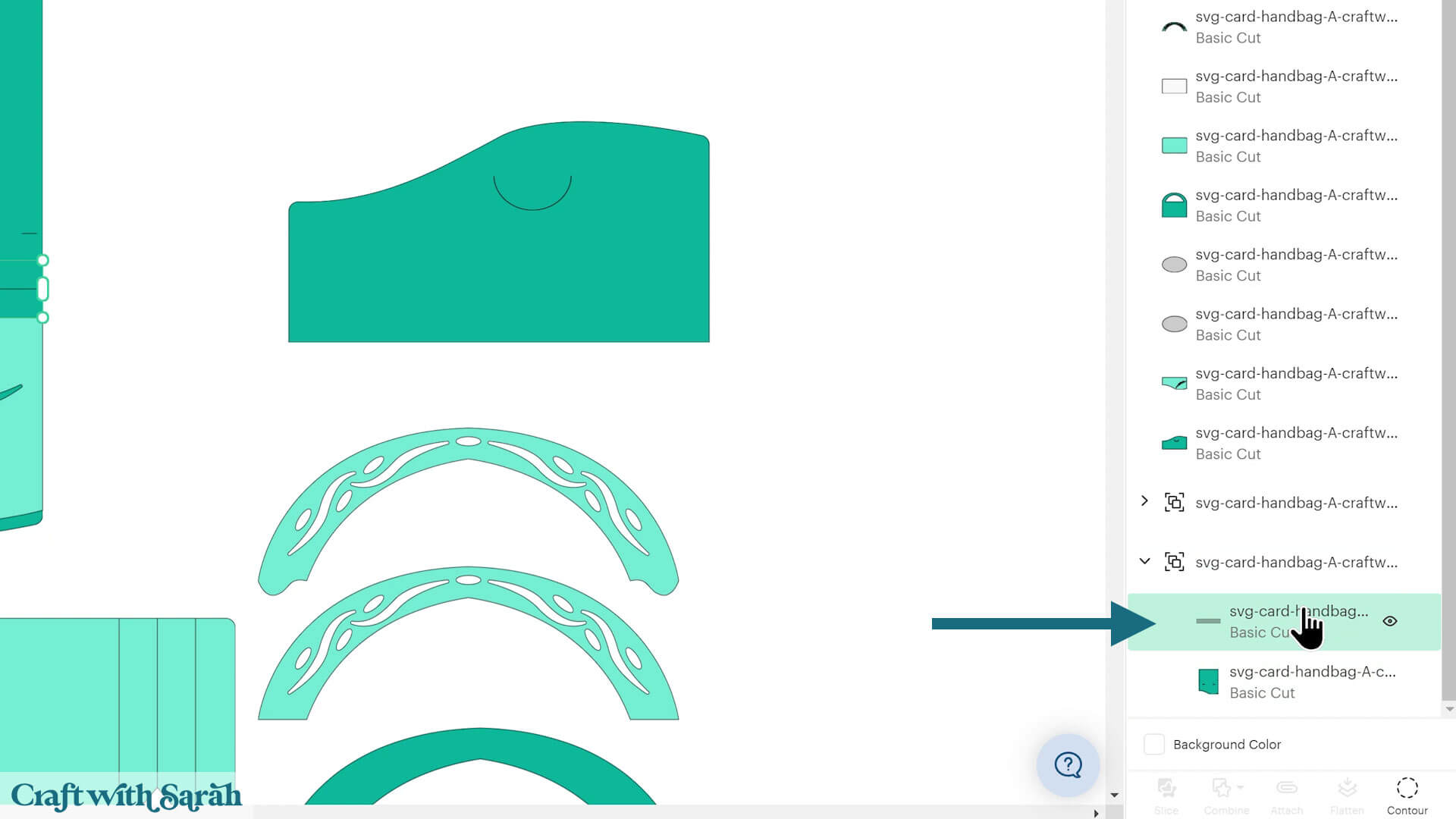
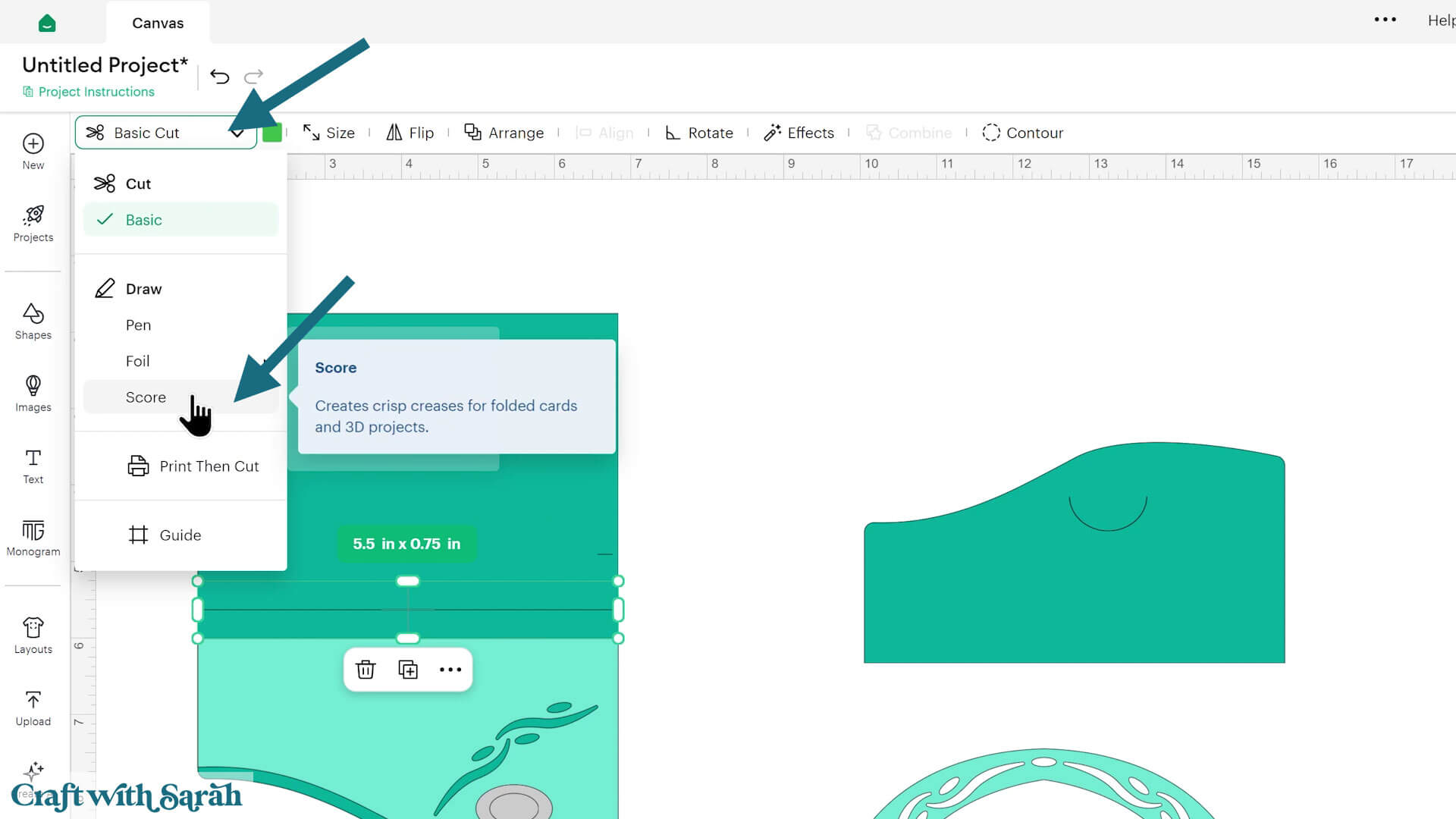
Change it to “Score” in the Operations dropdown.
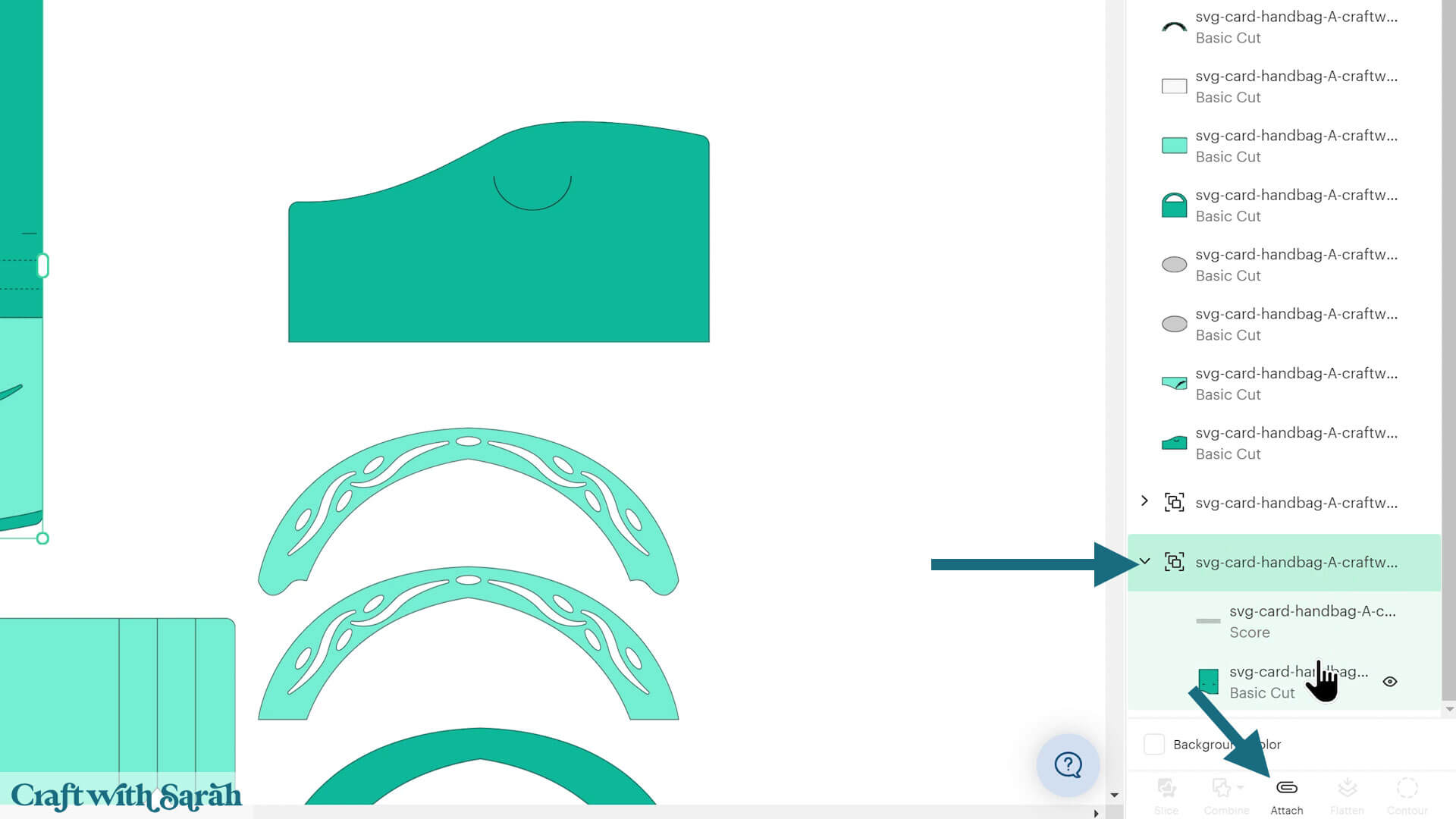
Click to select the group of the score line and the base piece, and press “Attach” to join the score line to the base piece.
Repeat for the bottom base card piece.
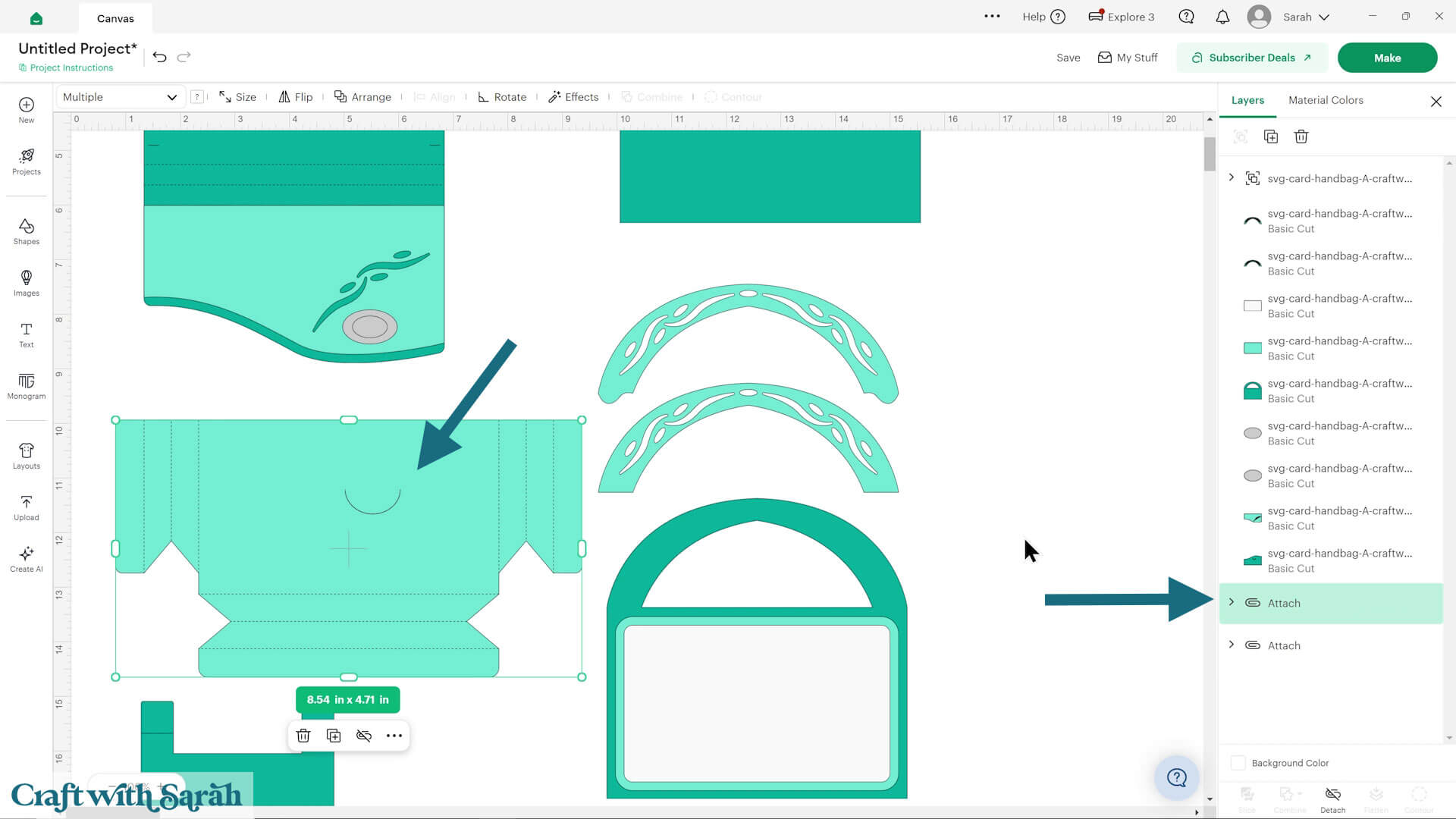
Repeat for the gift card holder piece.
Step 4) Cut out all the pieces
When you’re happy with how the project is looking in Design Space, click “Make” and follow the instructions on-screen to cut out all the pieces.
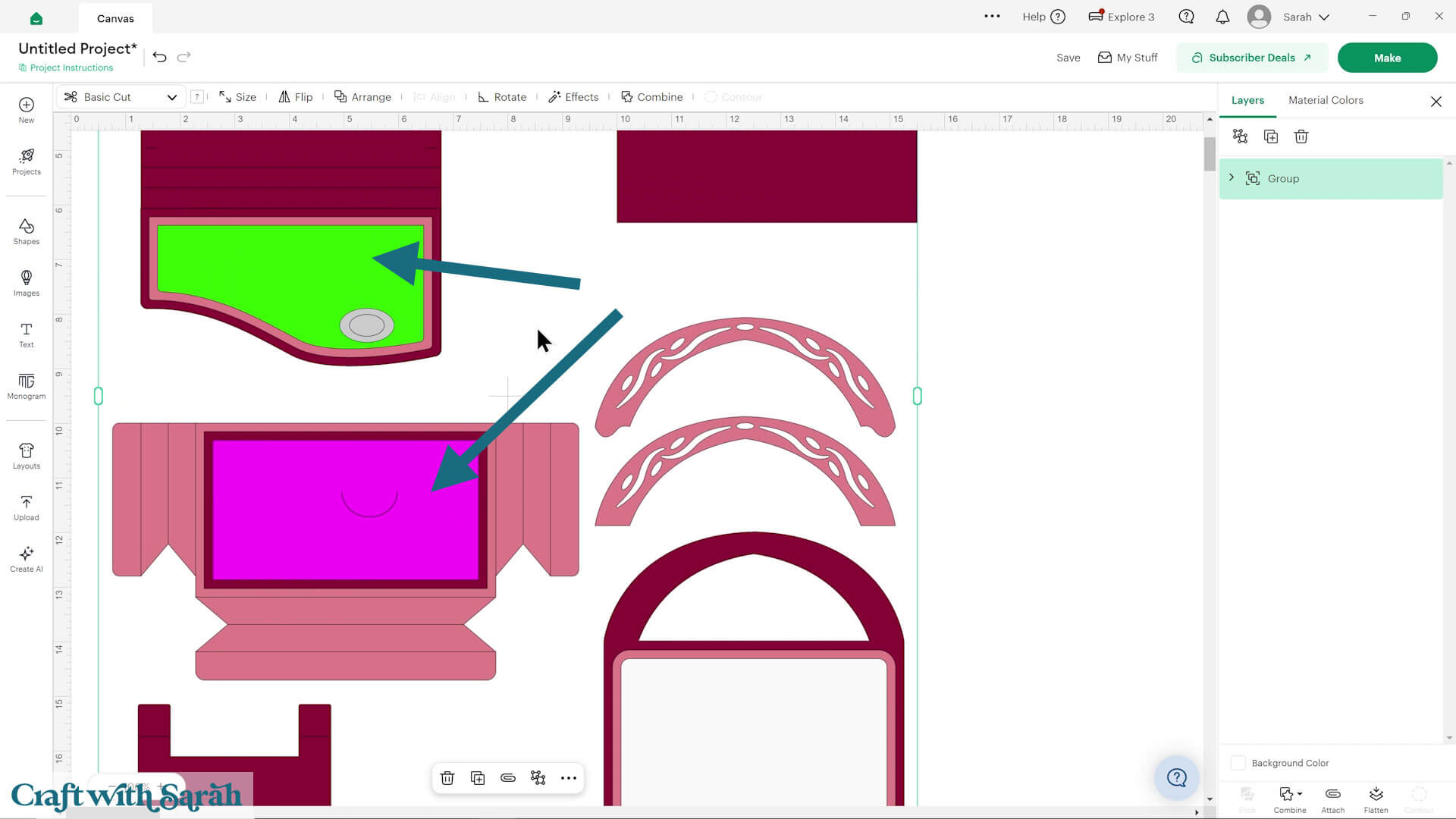
Note that on the patterned paper versions of the cards, the brightly coloured shapes are intended to be cut from patterned paper.
The white rectangle shape is the message panel to go on the back of the card.
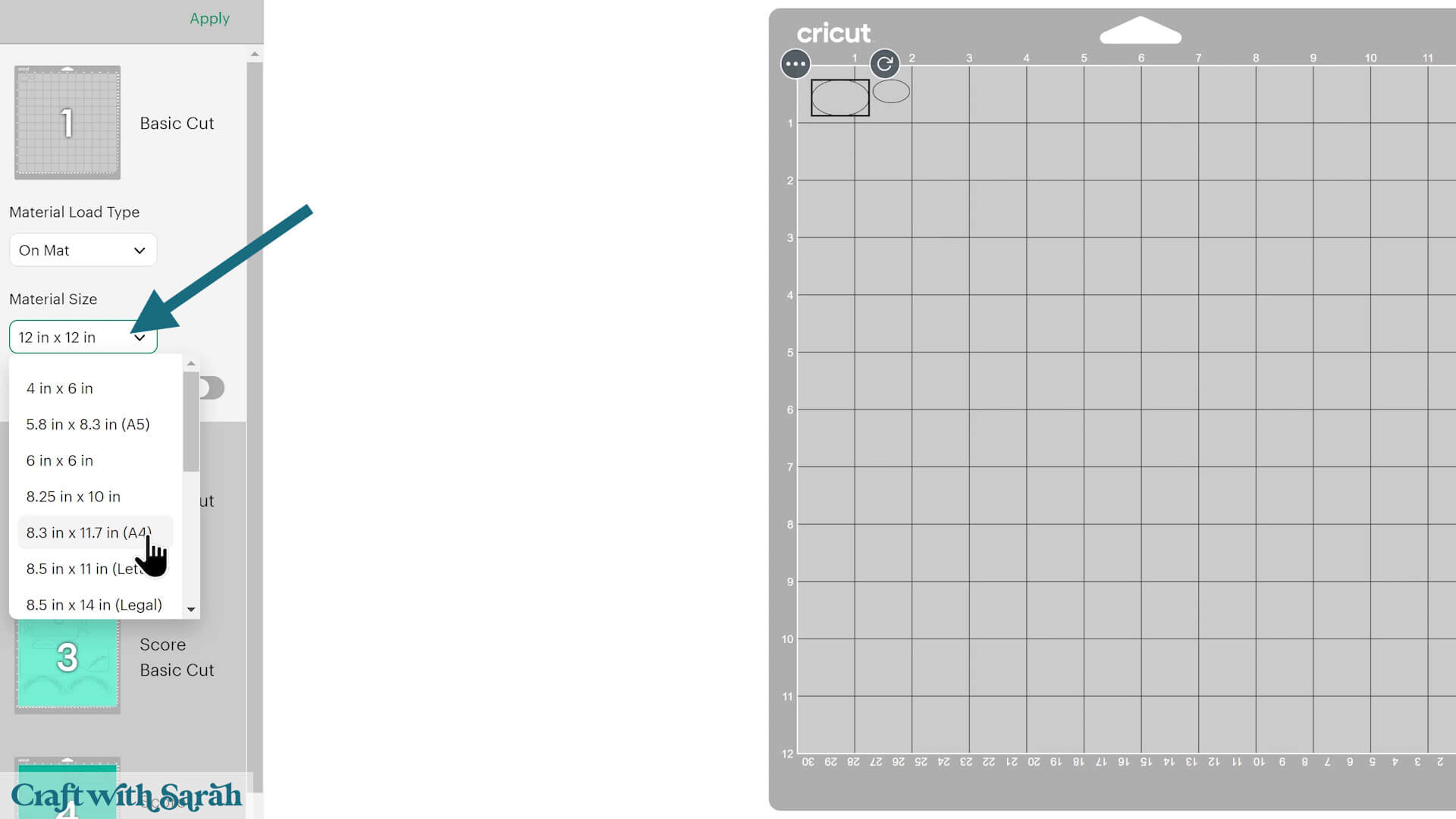
To change the paper size, go into the dropdowns over on the left side of the screen and choose the paper size that you want to use. You need to change it for every single colour.
To save space on your cardstock, you can move things around by clicking and dragging. Make sure when you’re moving things about that nothing overlaps because otherwise, it won’t cut out properly.
However, be careful NOT to rotate any patterned paper pieces, otherwise they will not cut with the pattern the correct way up when you put the card together.
I recommend strong, solid-core, double-sided coloured cardstock for the base pieces of the easel cards. Ideally around 250-300gsm (110lb).
TIP: New to using cardstock with your cutting machine? Check out these machine help guides for Cricut, Silhouette and ScanNCut that go through every step of the process, including tips for getting the best quality cuts from your machine.
Step 5) Put the card together
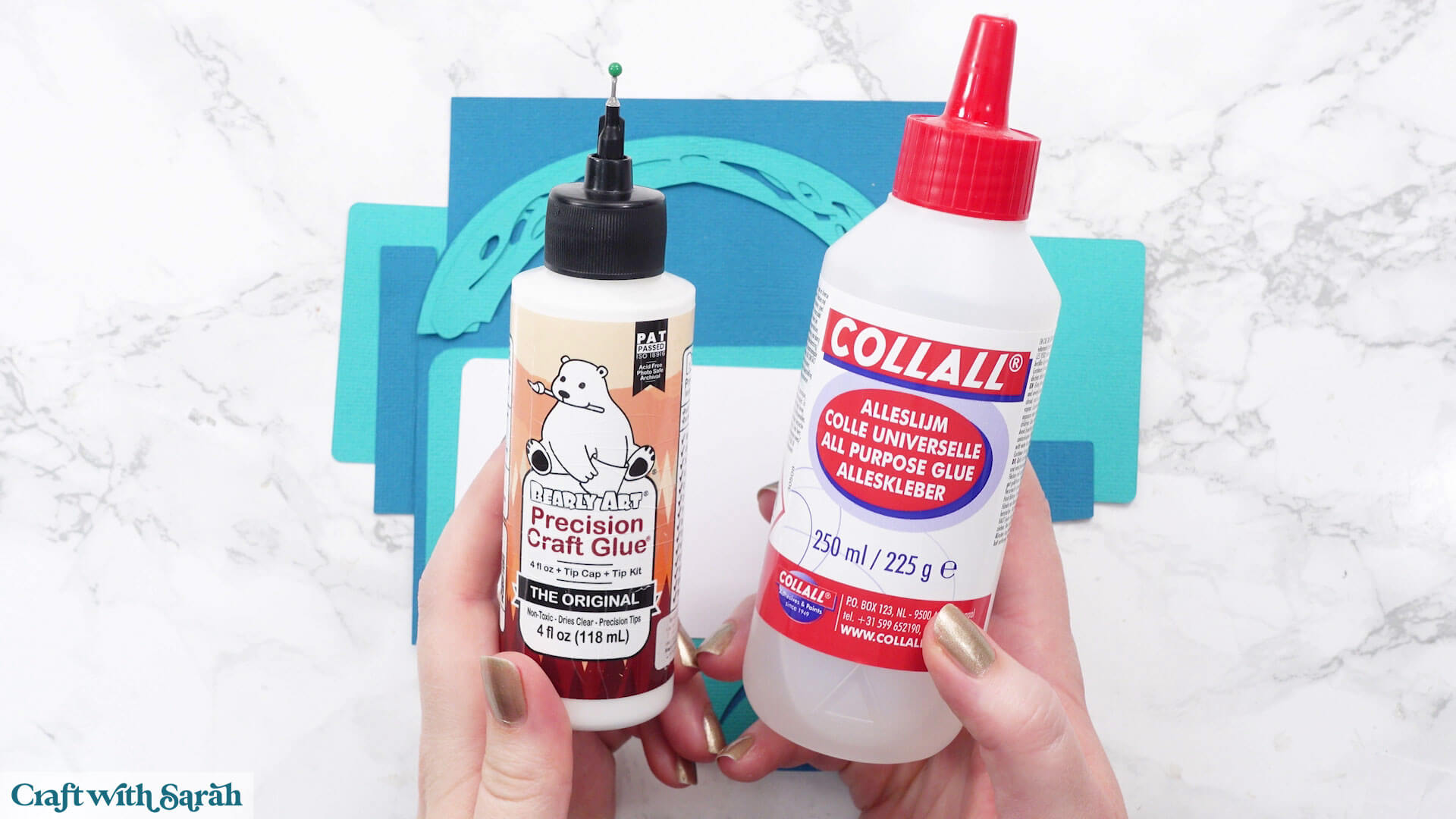
My favourite glues to use on papercraft projects are Bearly Art Glue and Collall All Purpose Glue.
These are great because they don’t “warp” or bend the cardstock like some glues do. You can use as much of it as you want and the card stays perfect – and it dries perfectly clear too!
Bearly Art Glue comes with a tiny nozzle to make it easy to apply glue to small areas of card. The Collall glue doesn’t come with this, so it’s easiest to decant it into needle tip applicator bottles so that you have more control.
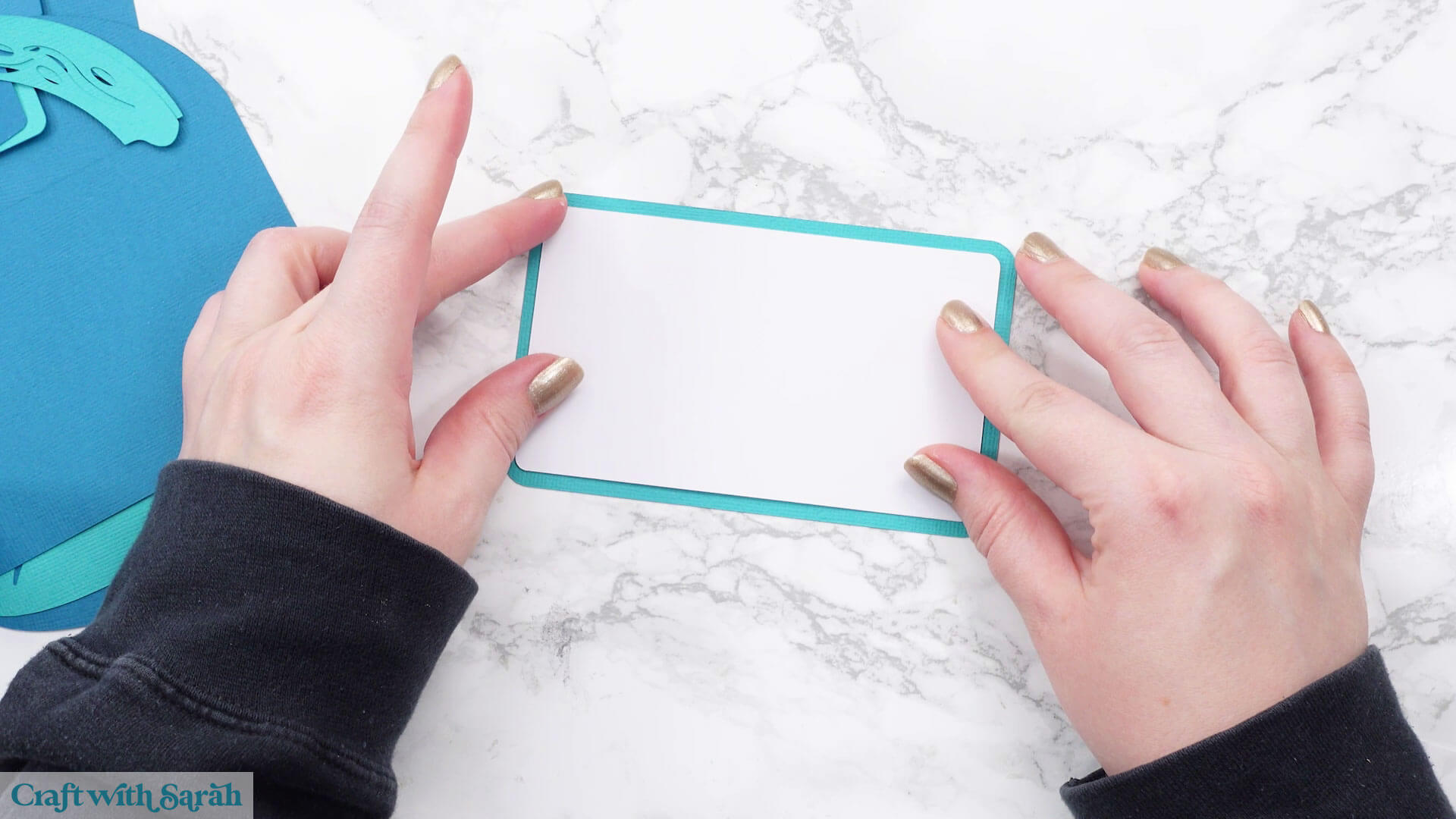
Glue the message panel onto its backer.
If you’re using the patterned paper version of either card, glue the patterned paper pieces onto their matching backers too.
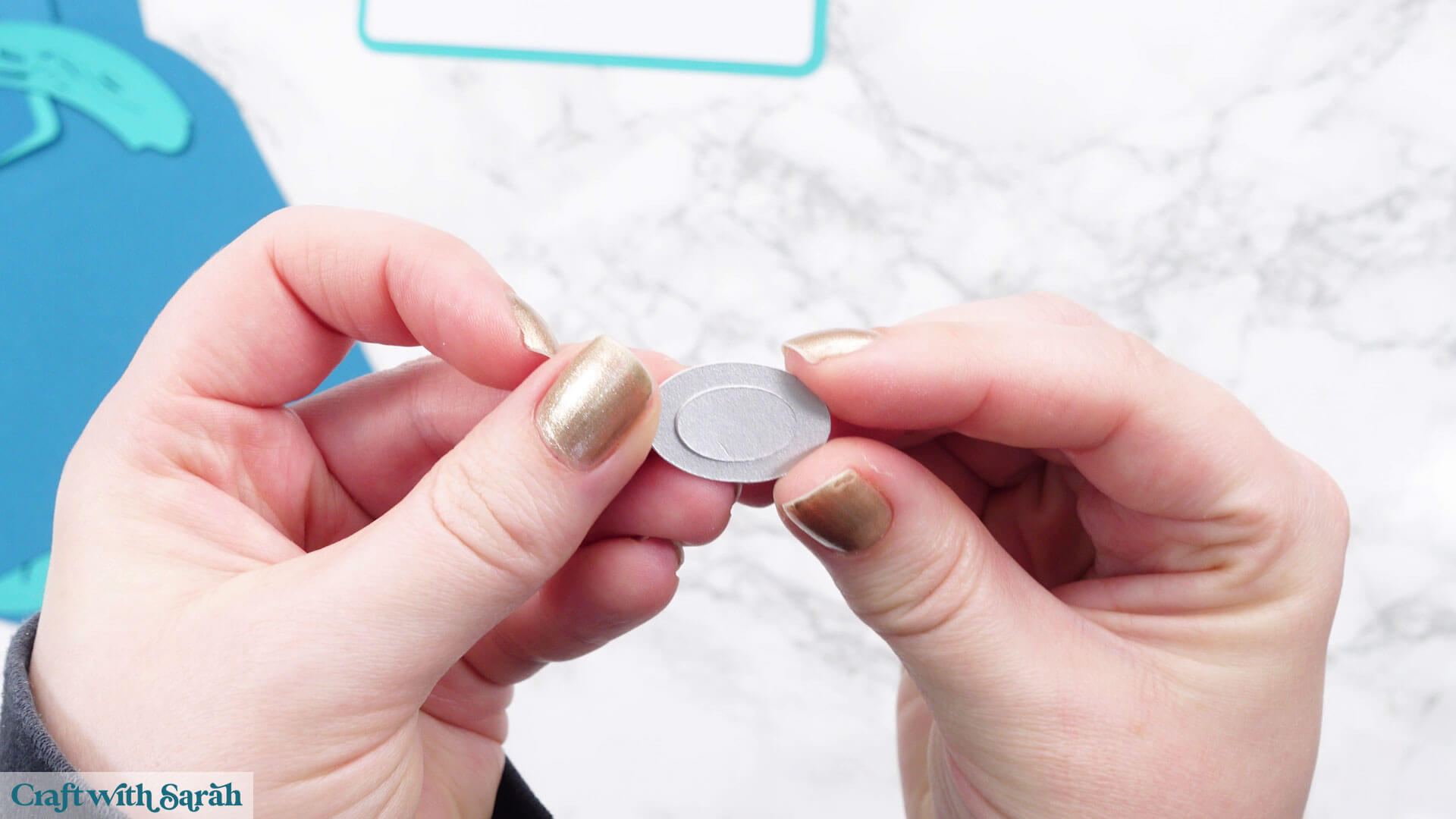
If making the handbag card, glue the two small ovals together.
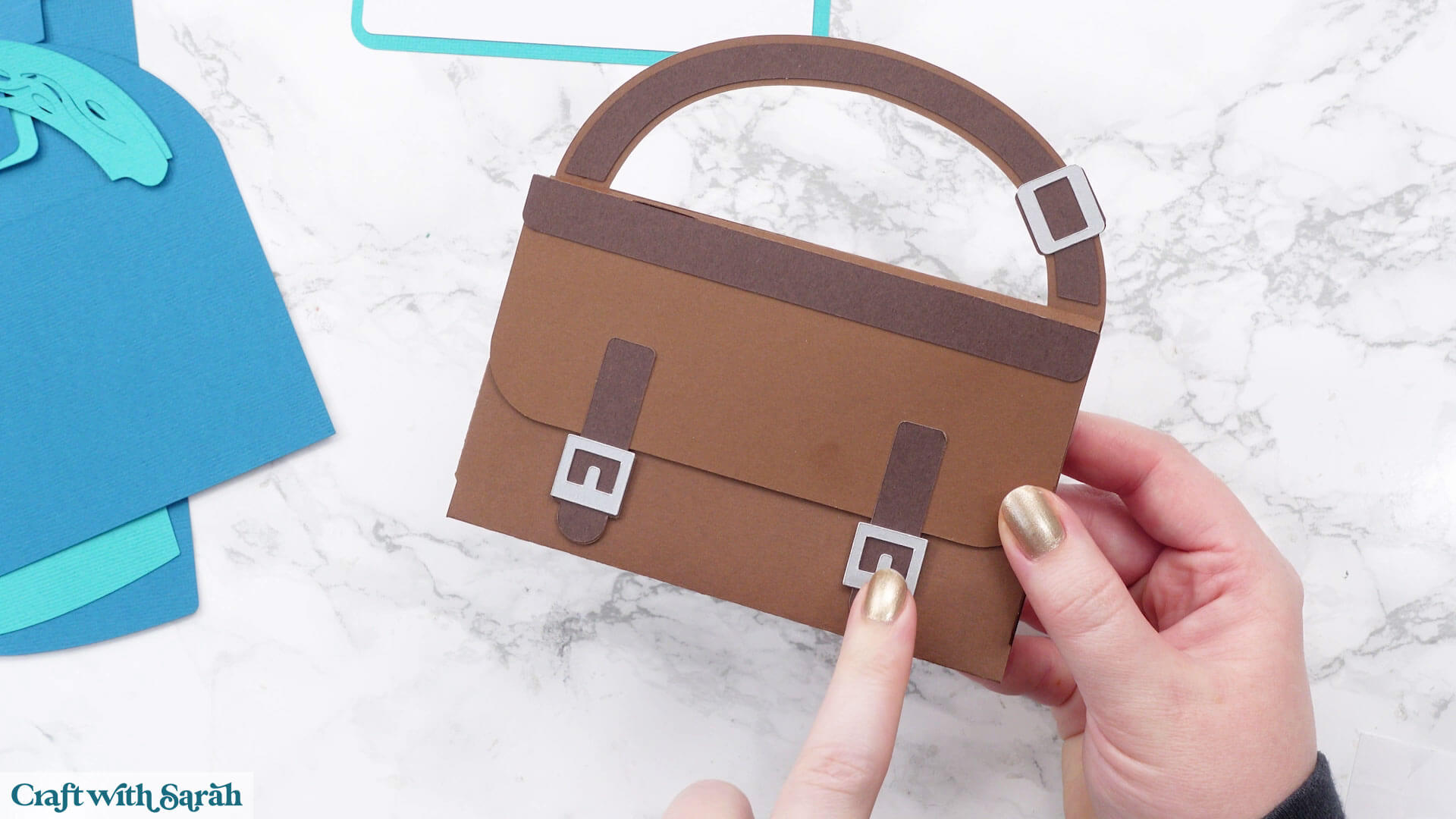
If making the satchel card, glue the buckles to the long thin pieces.
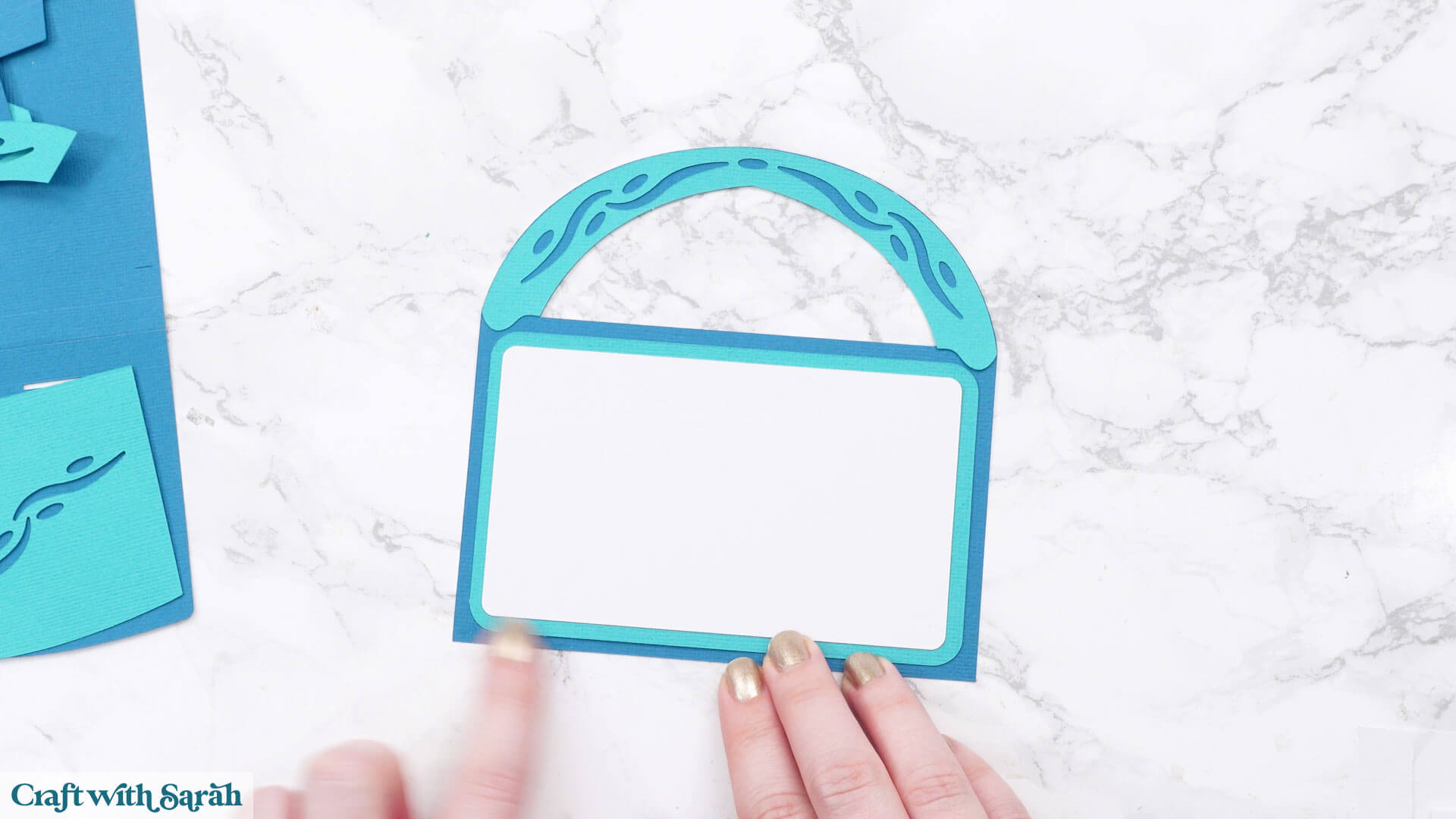
Glue the message panel and the front and back handle decorations to the back of the base piece.
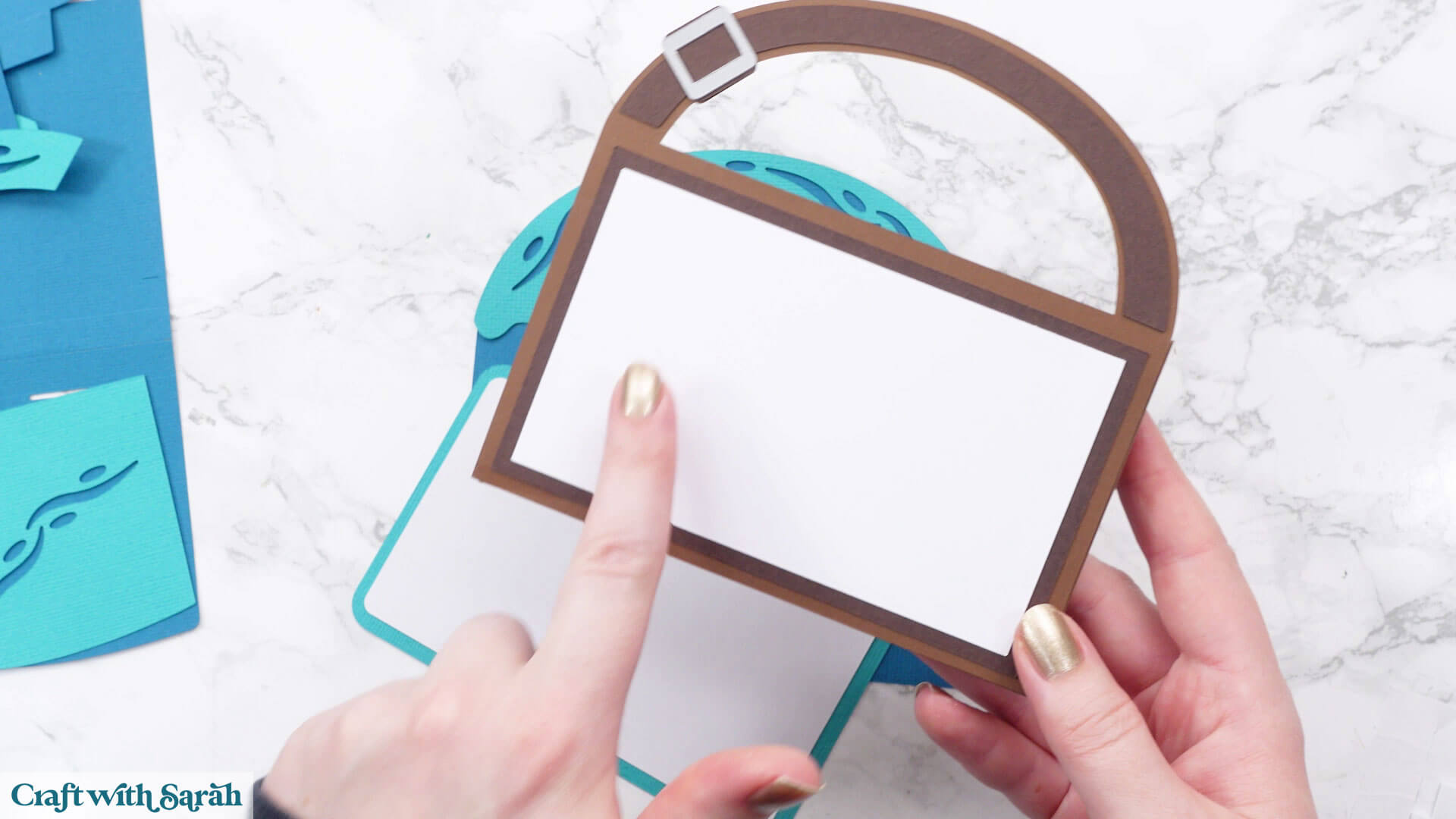
Select the gift card holder piece.
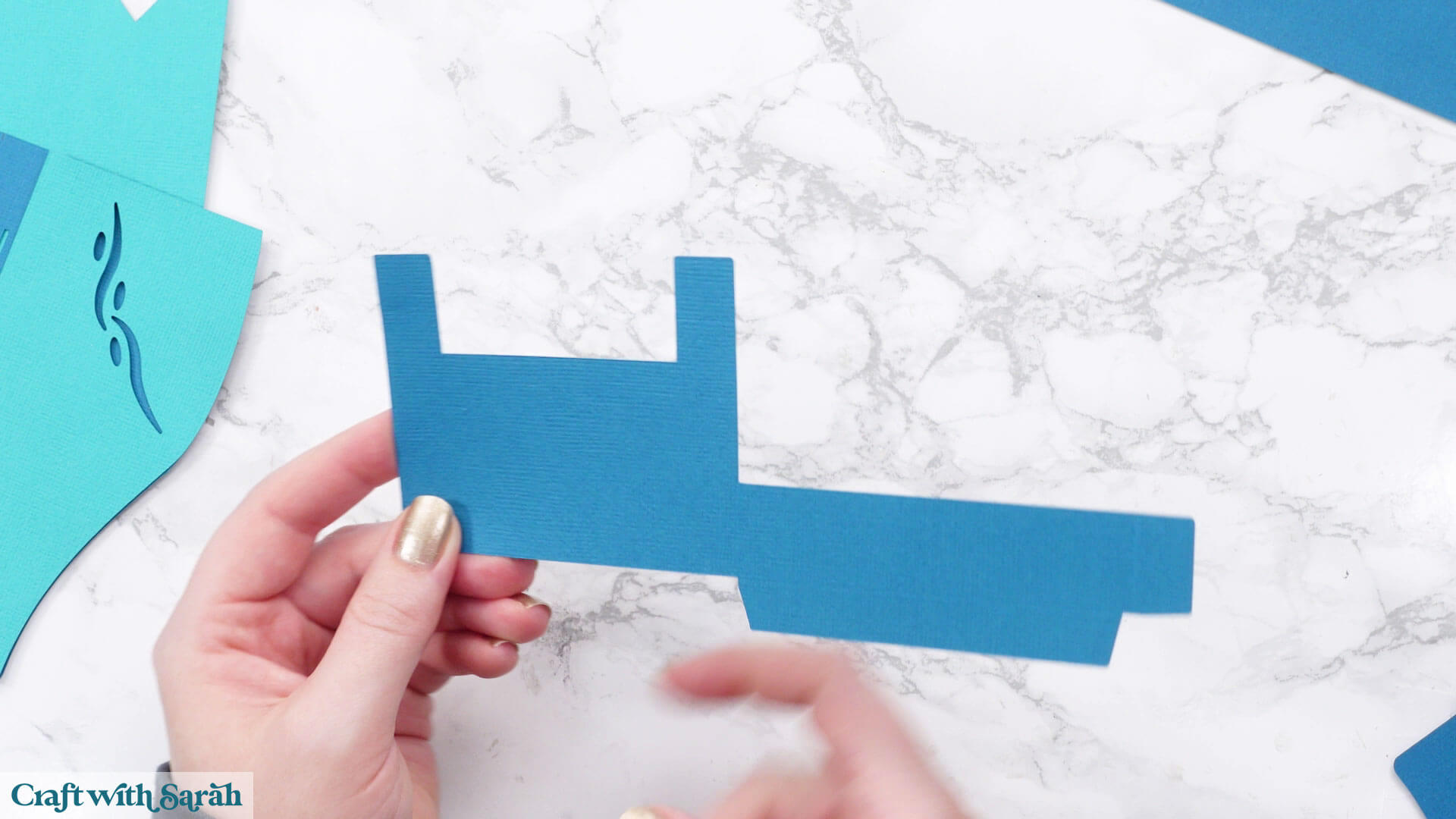
Fold the bottom score lines around and glue to the back.
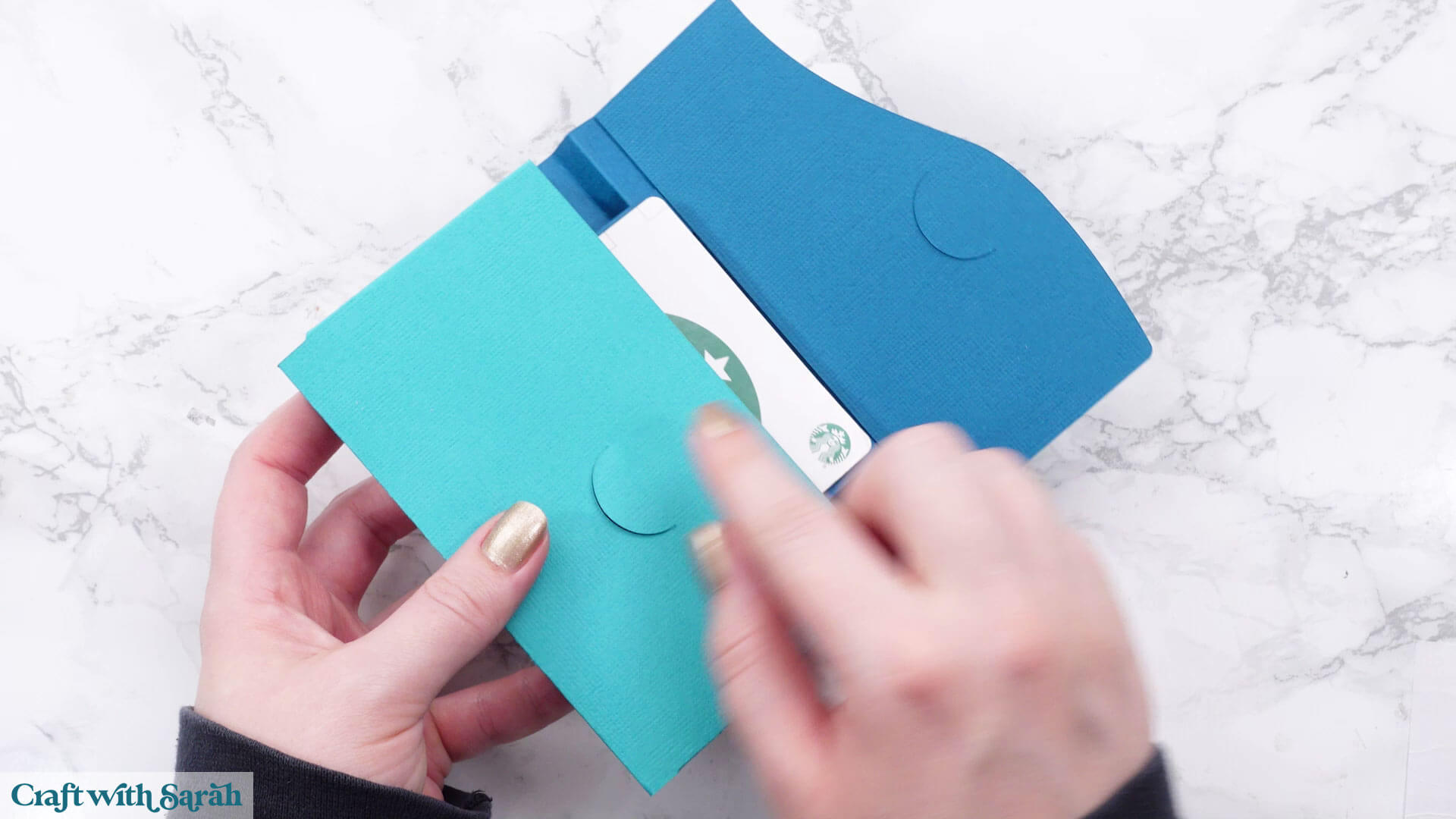
This makes a pocket on the front for the gift card to sit in.
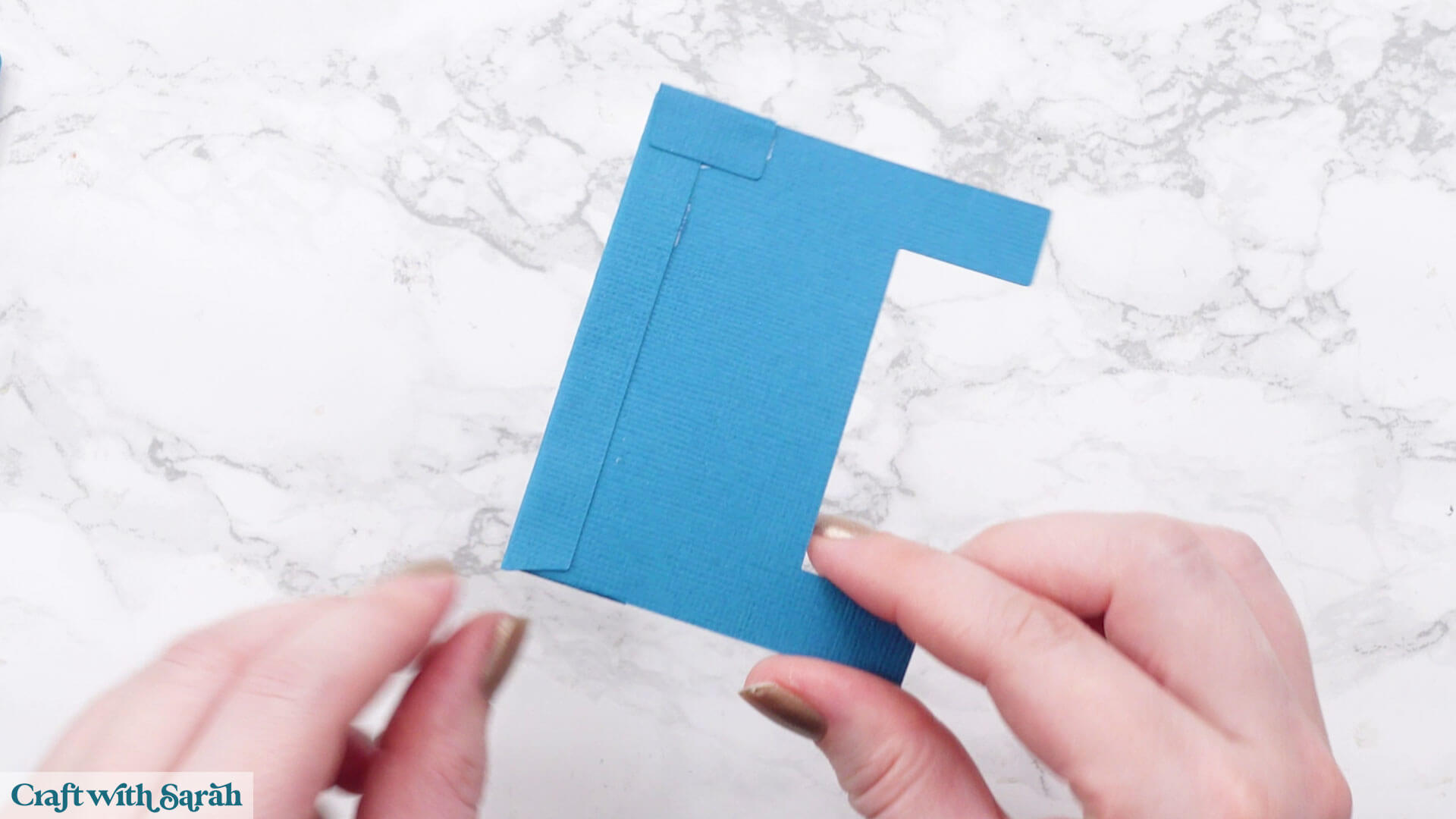
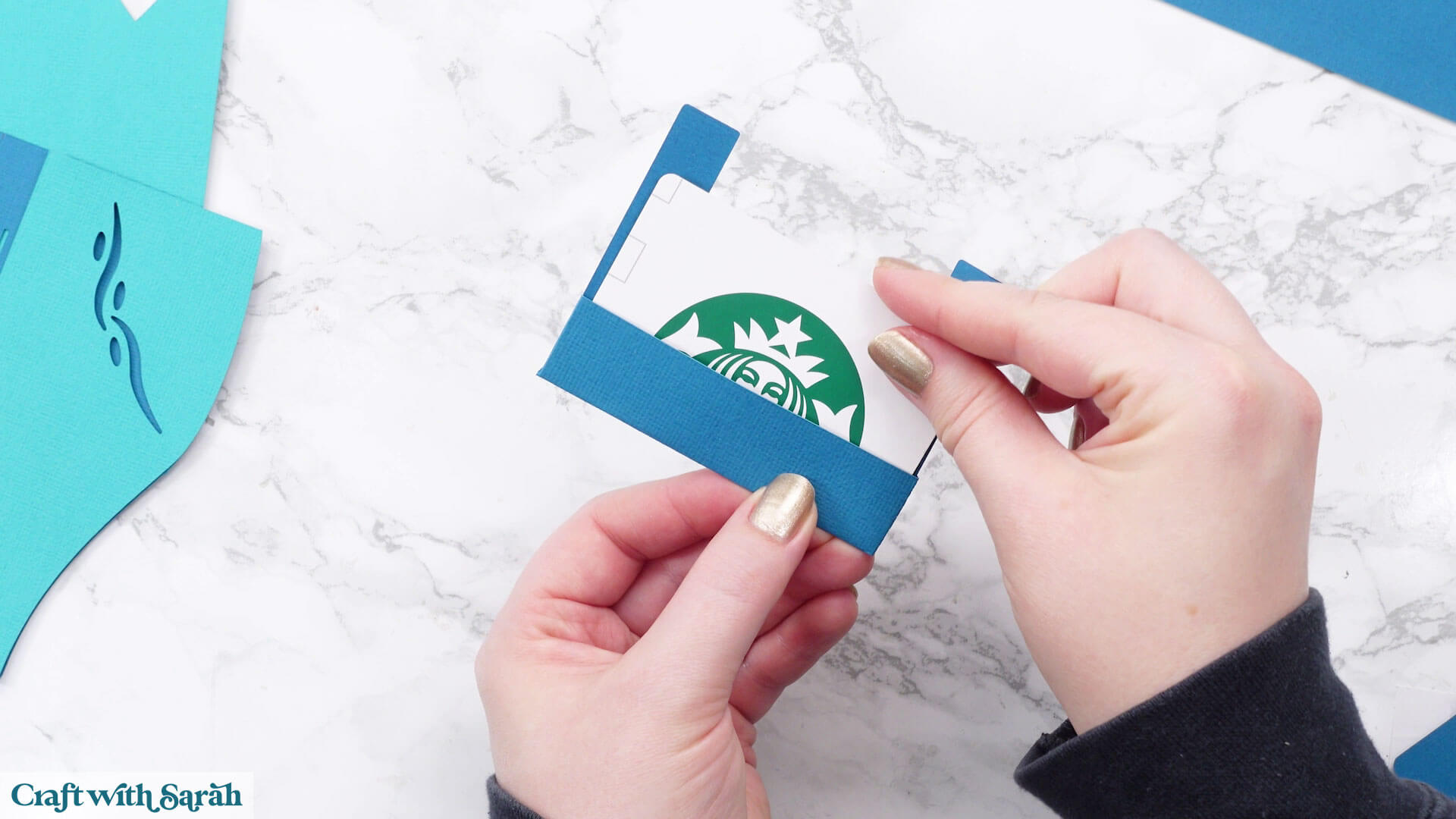
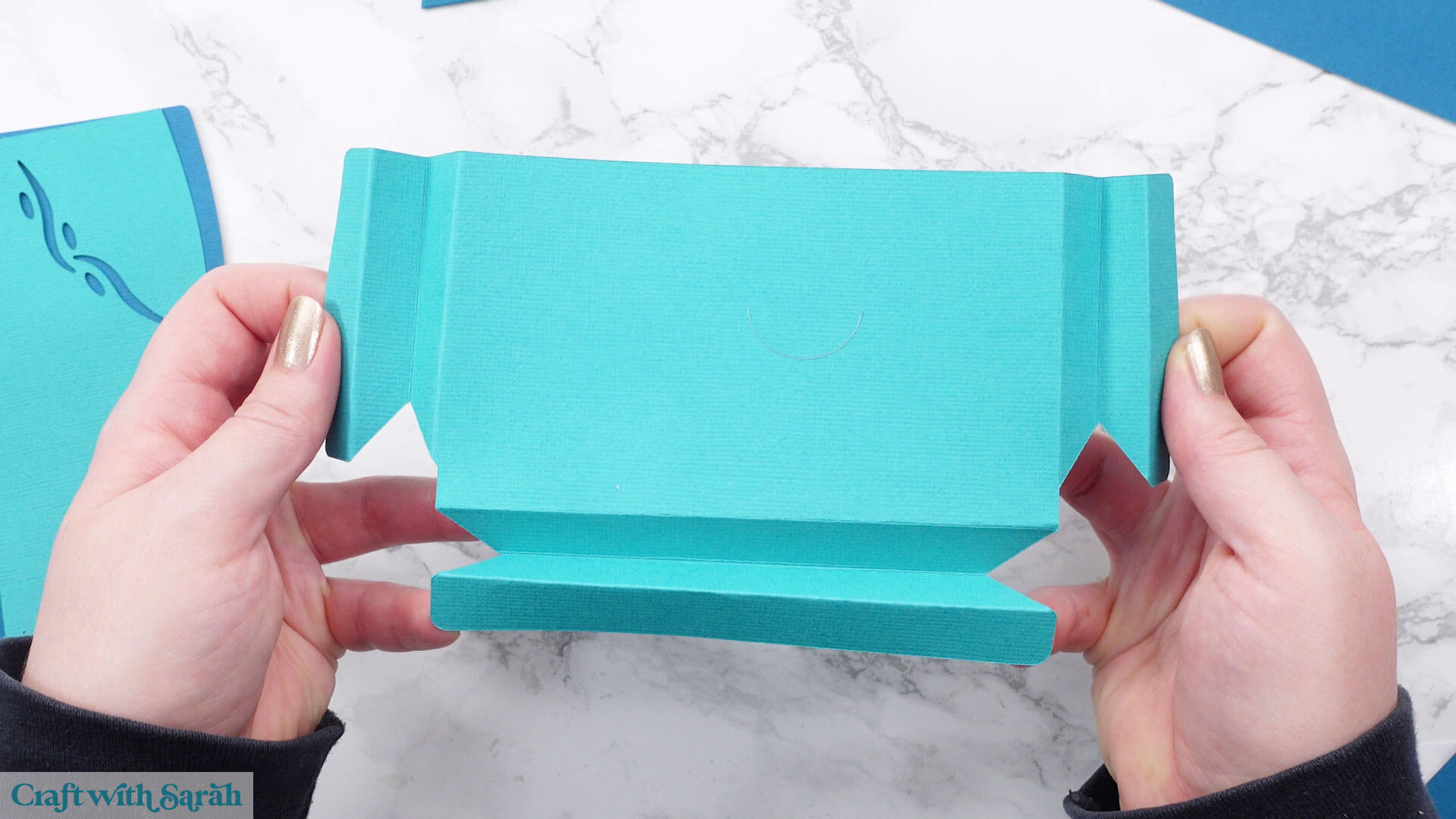
Select the bottom base piece and fold the tabs into accordion shapes, as shown below.
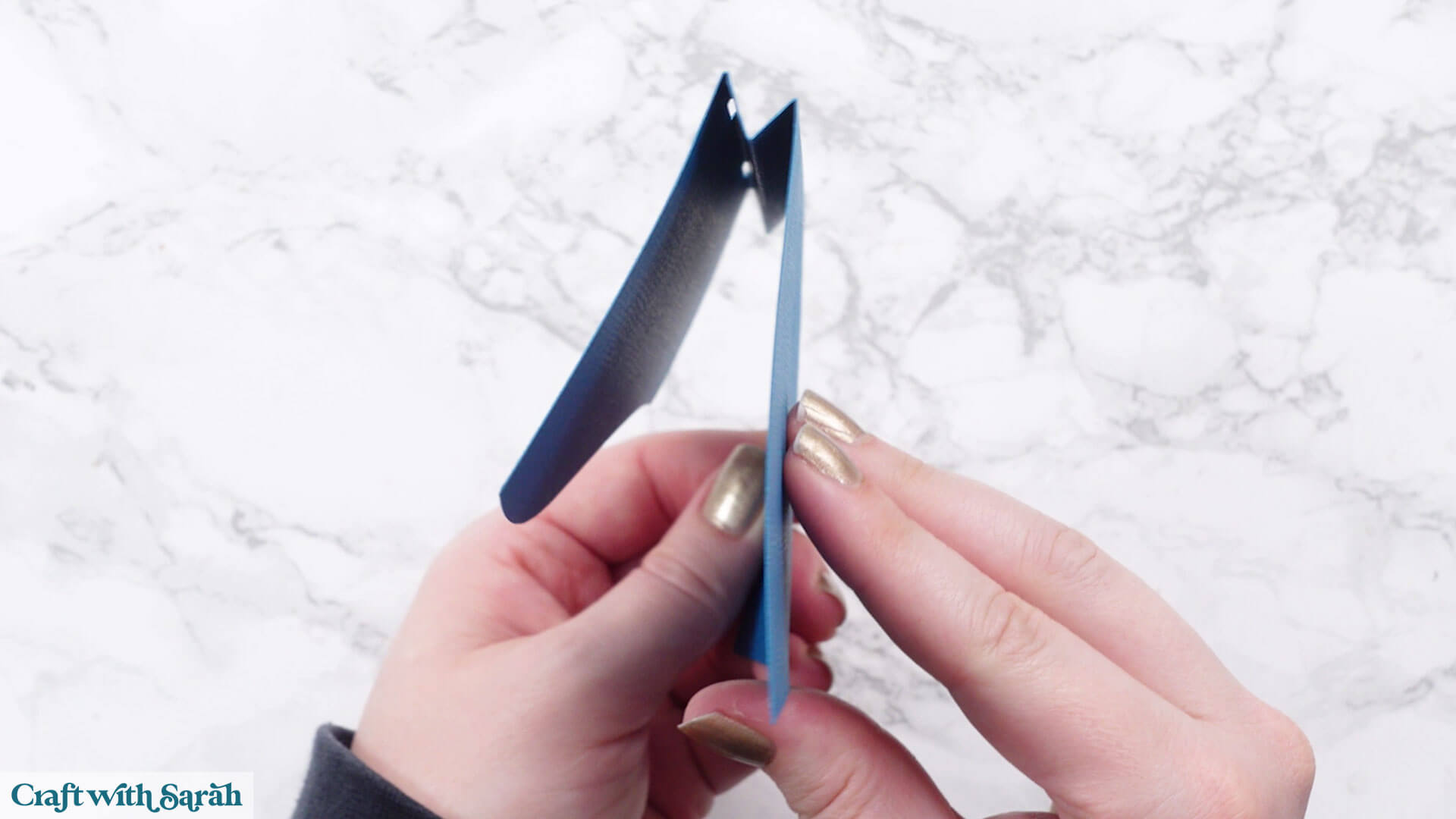
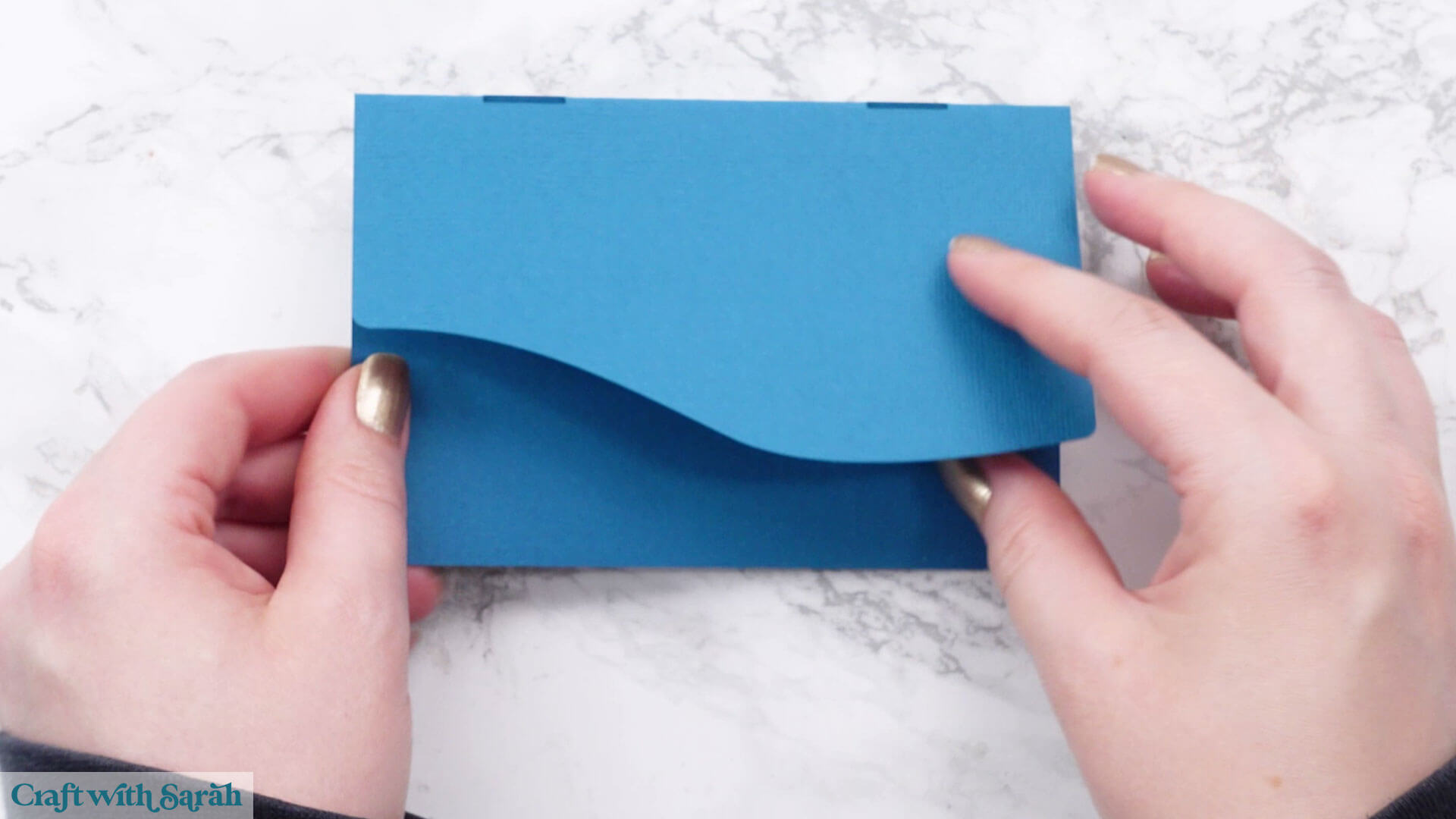
Select the top base piece and fold the tabs into accordion shapes, as shown below.
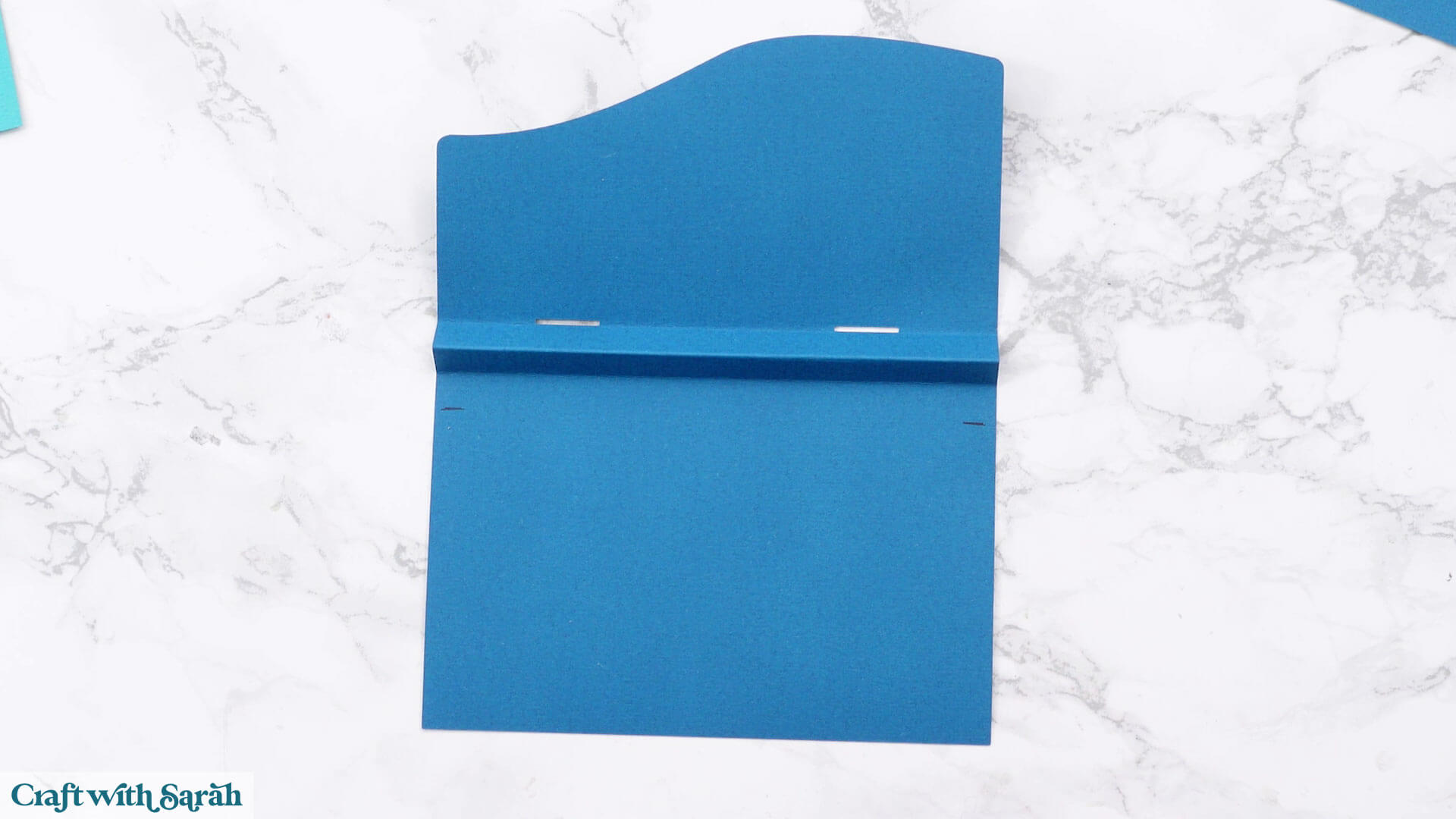
There are two small cut lines in the bottom section of the card.
If you can’t see them very well then mark them with pen.
Glue the backs of the tabs of the bottom piece to the inside of the top piece.
Line up the tabs along the bottom of the darker piece, and don’t go up any further than the cut/pen lines.
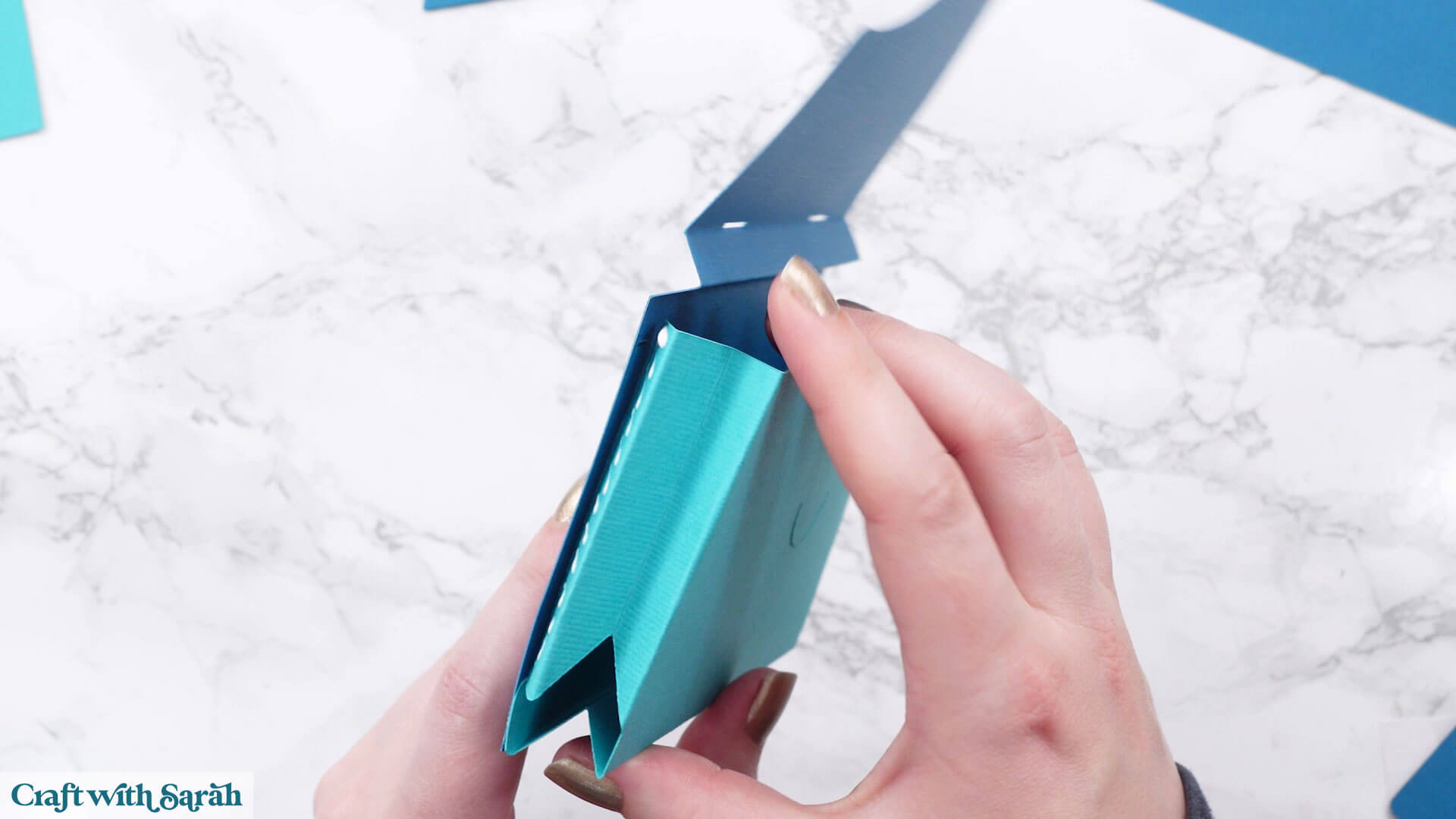
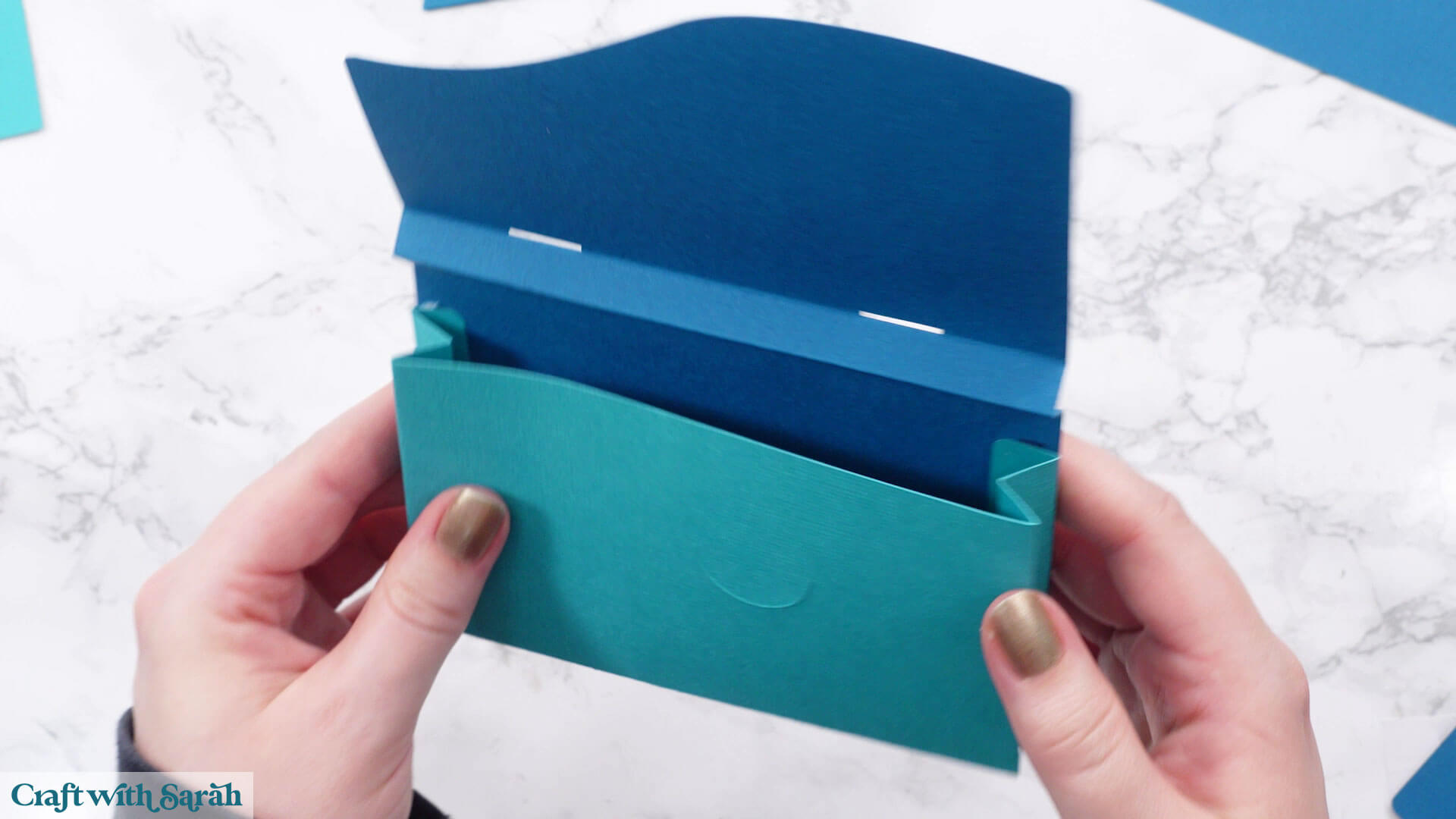
Thread the gift card holder through the holes in the top flap of the card.
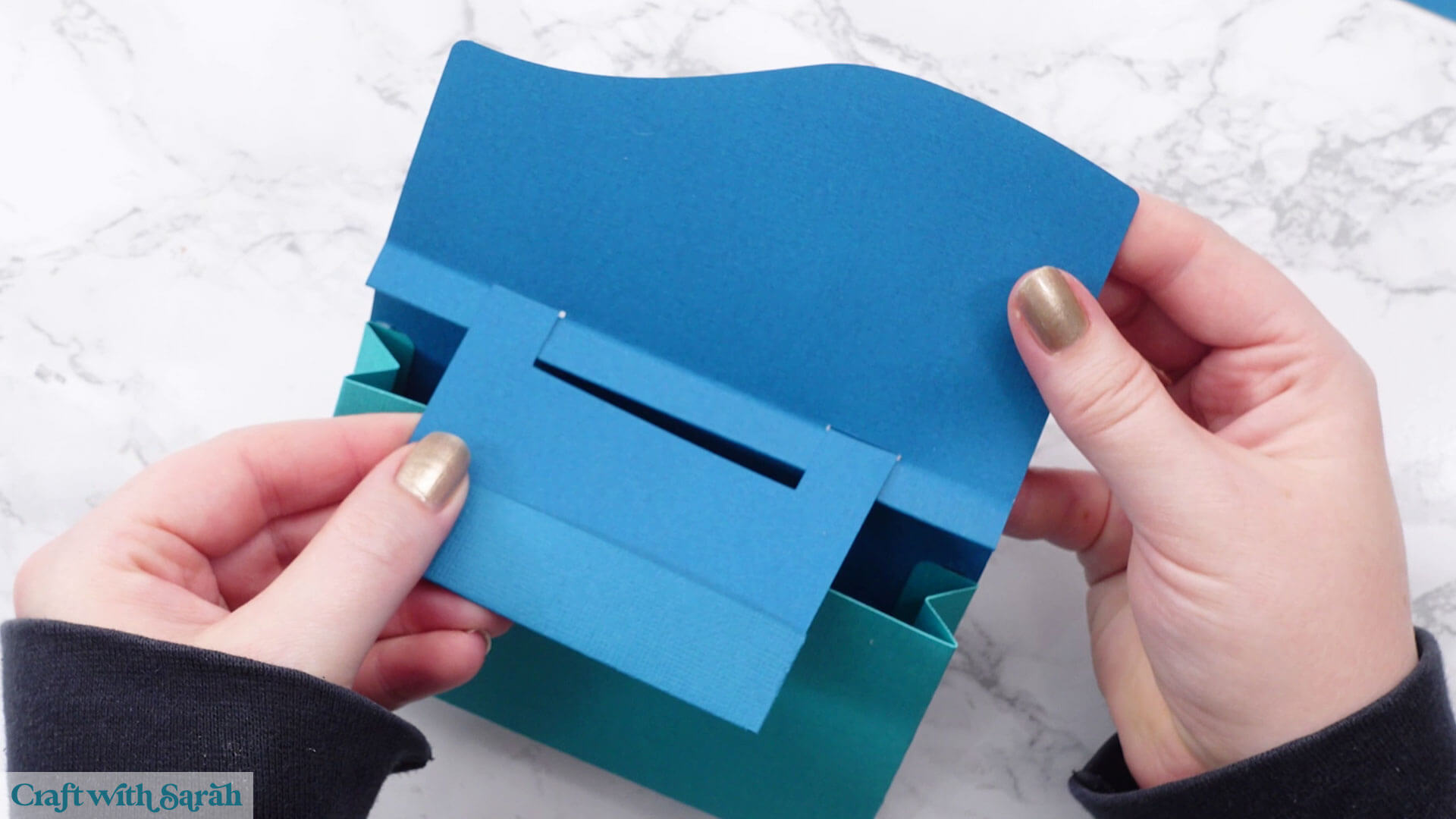
Fold down along the score lines and add glue up to the score lines.
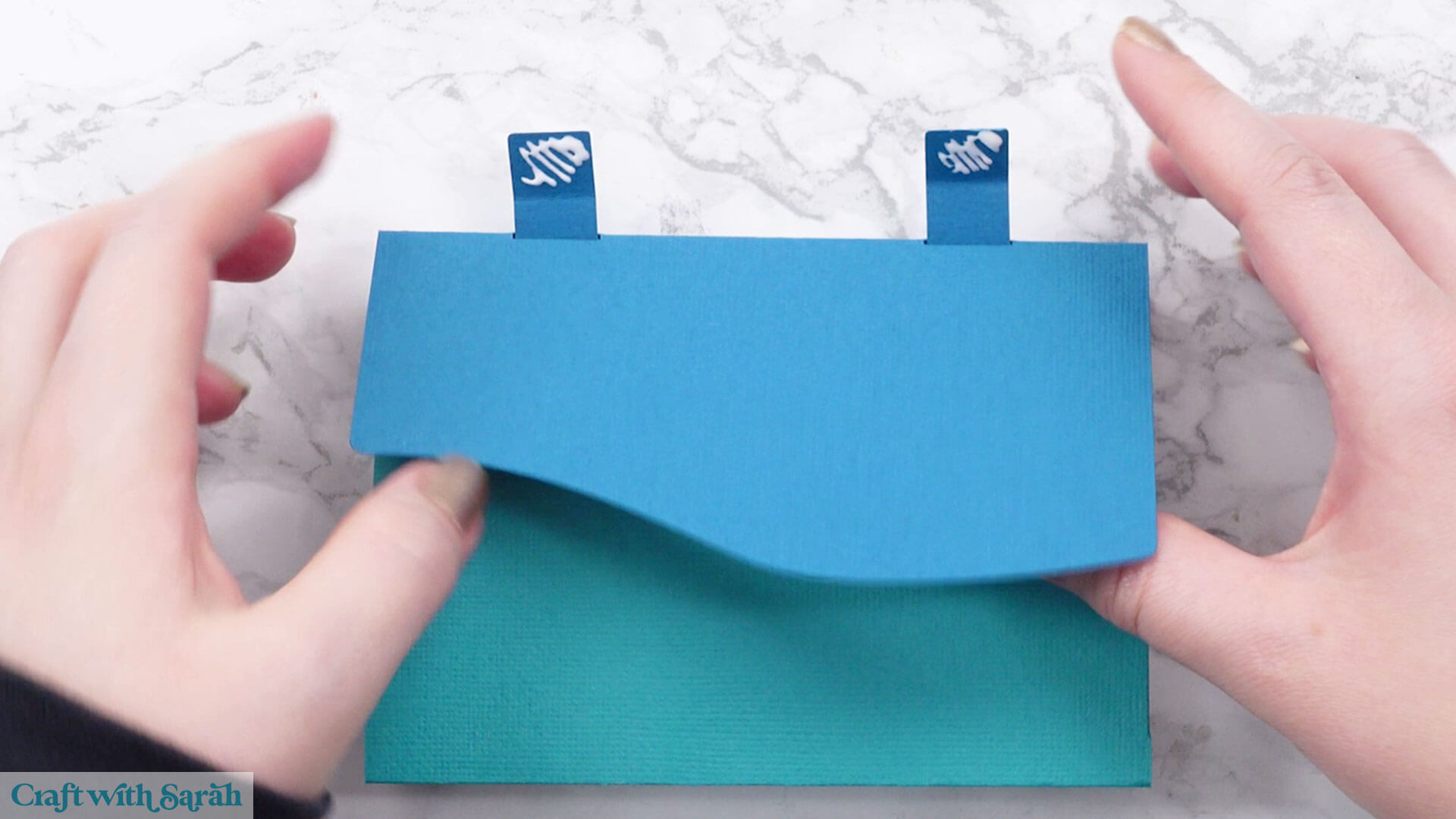
Glue to the front of the card.
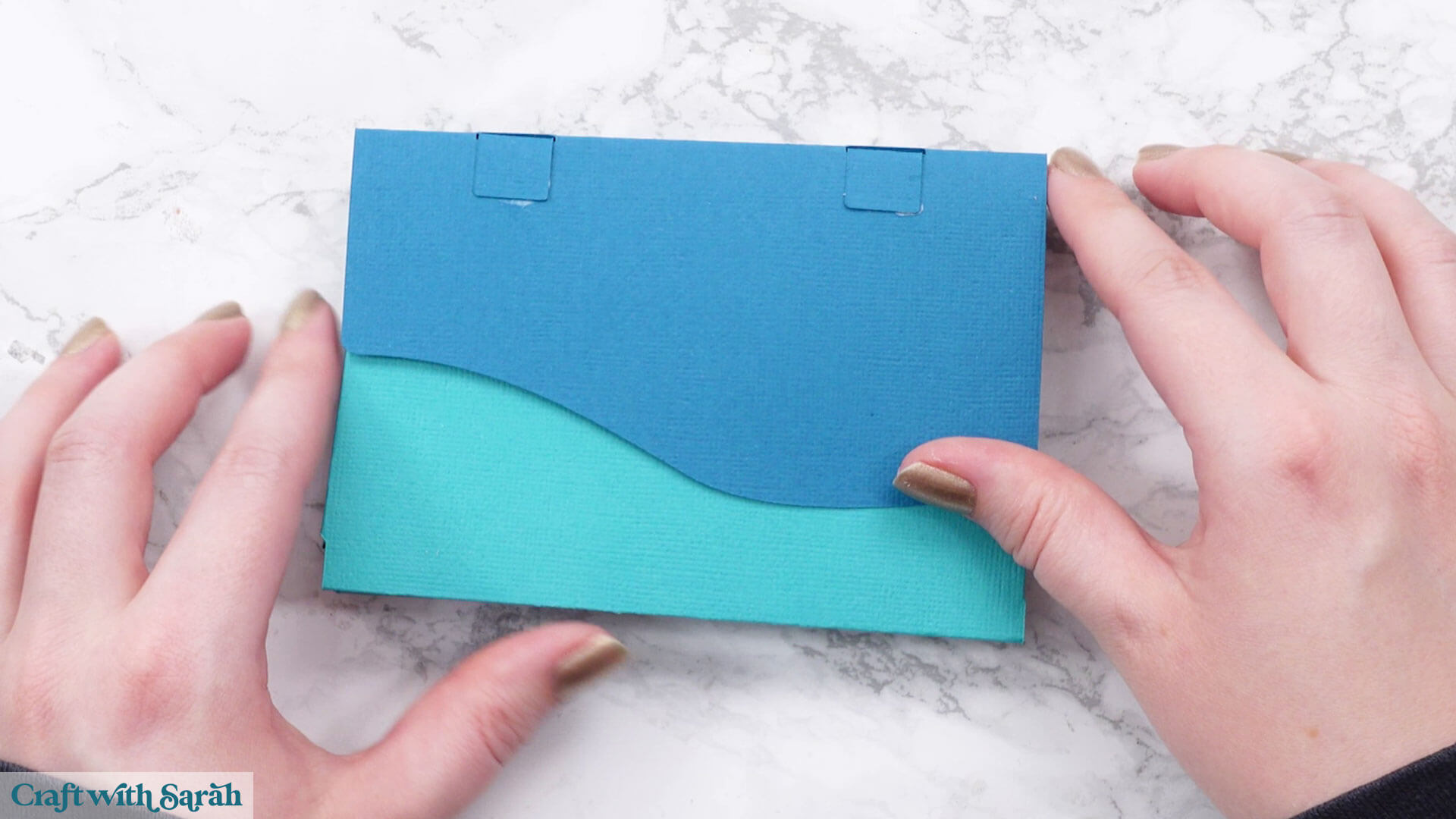
Glue the details onto the card. This will vary depending on which version you are making.
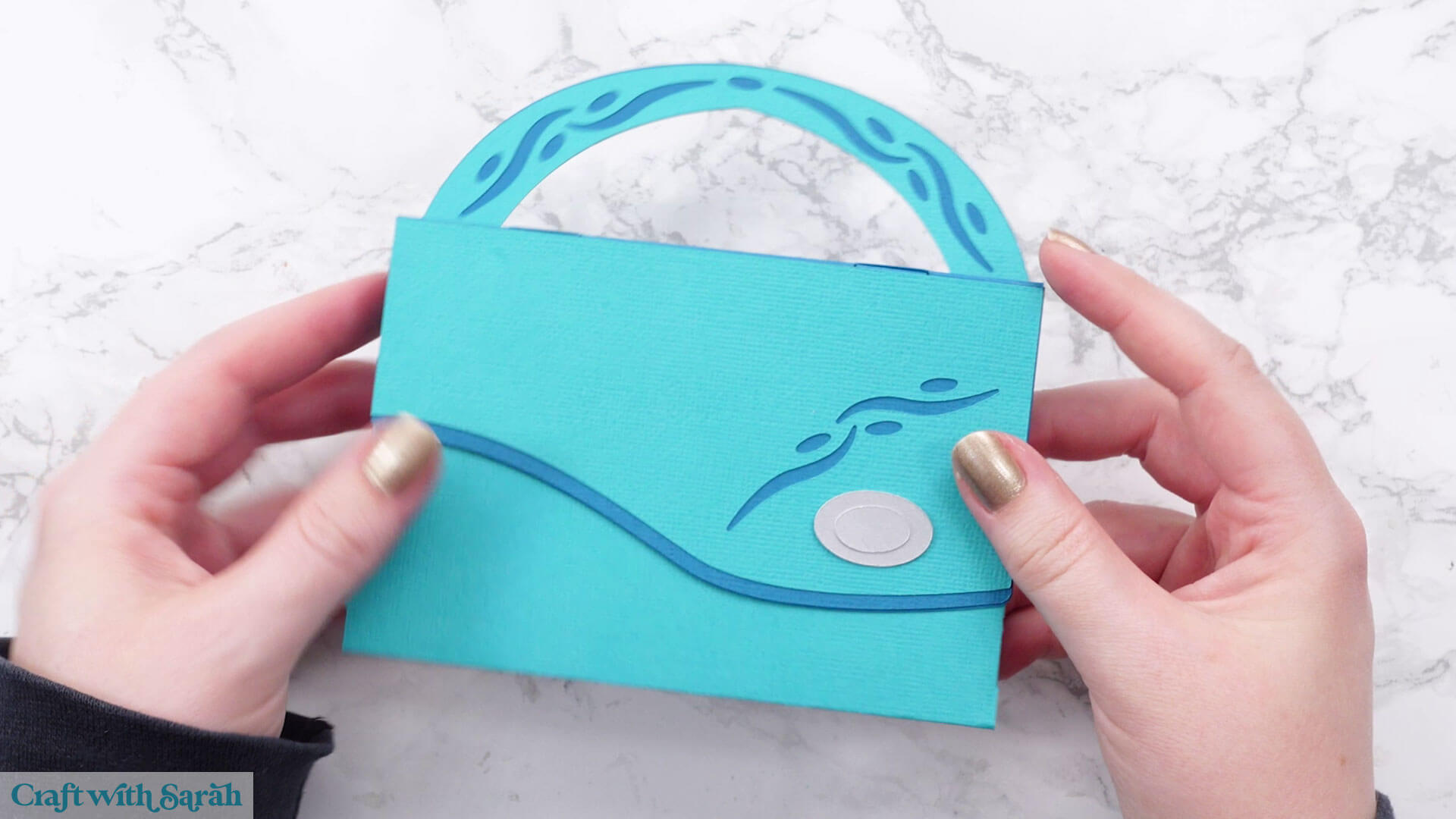
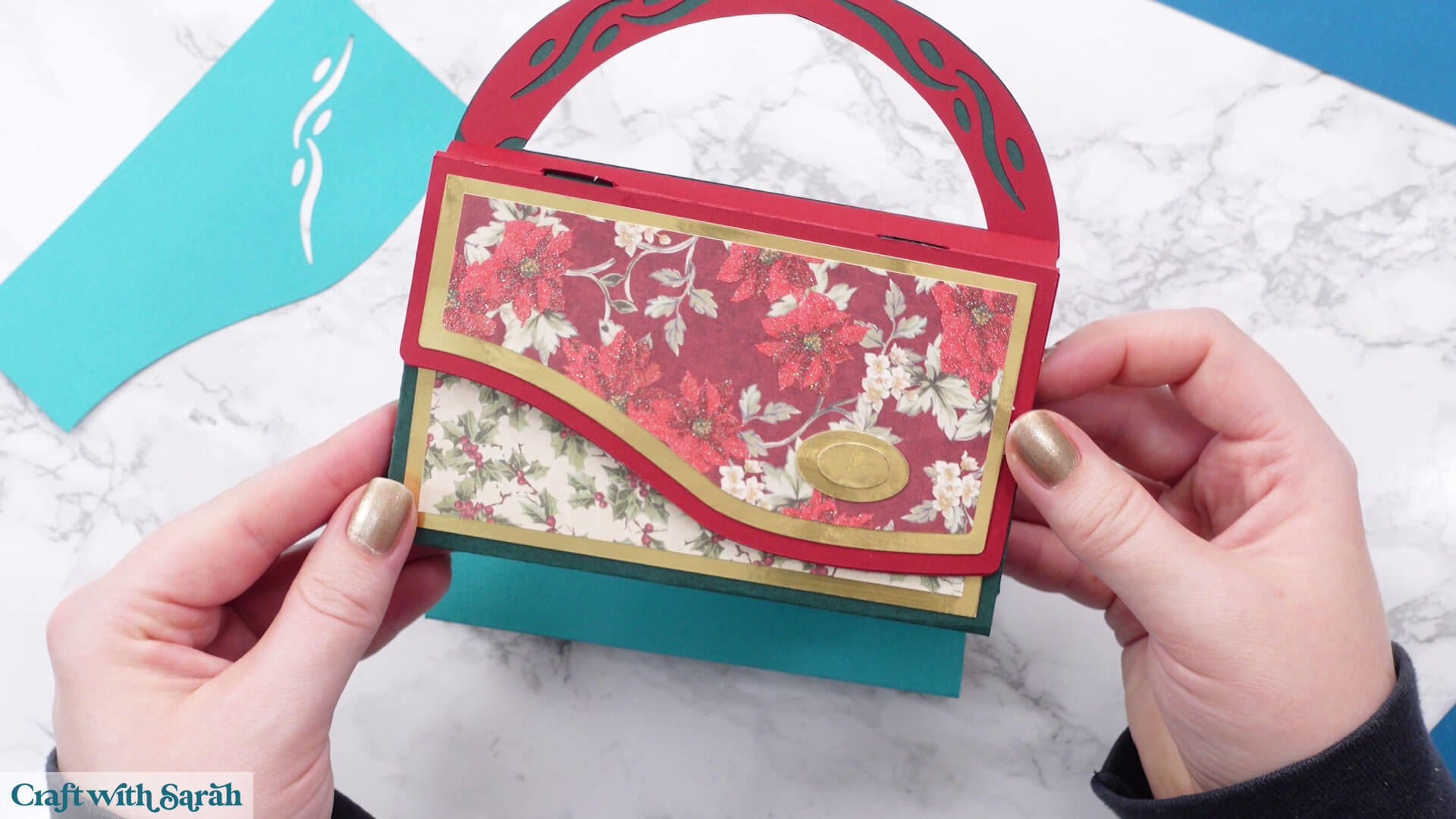
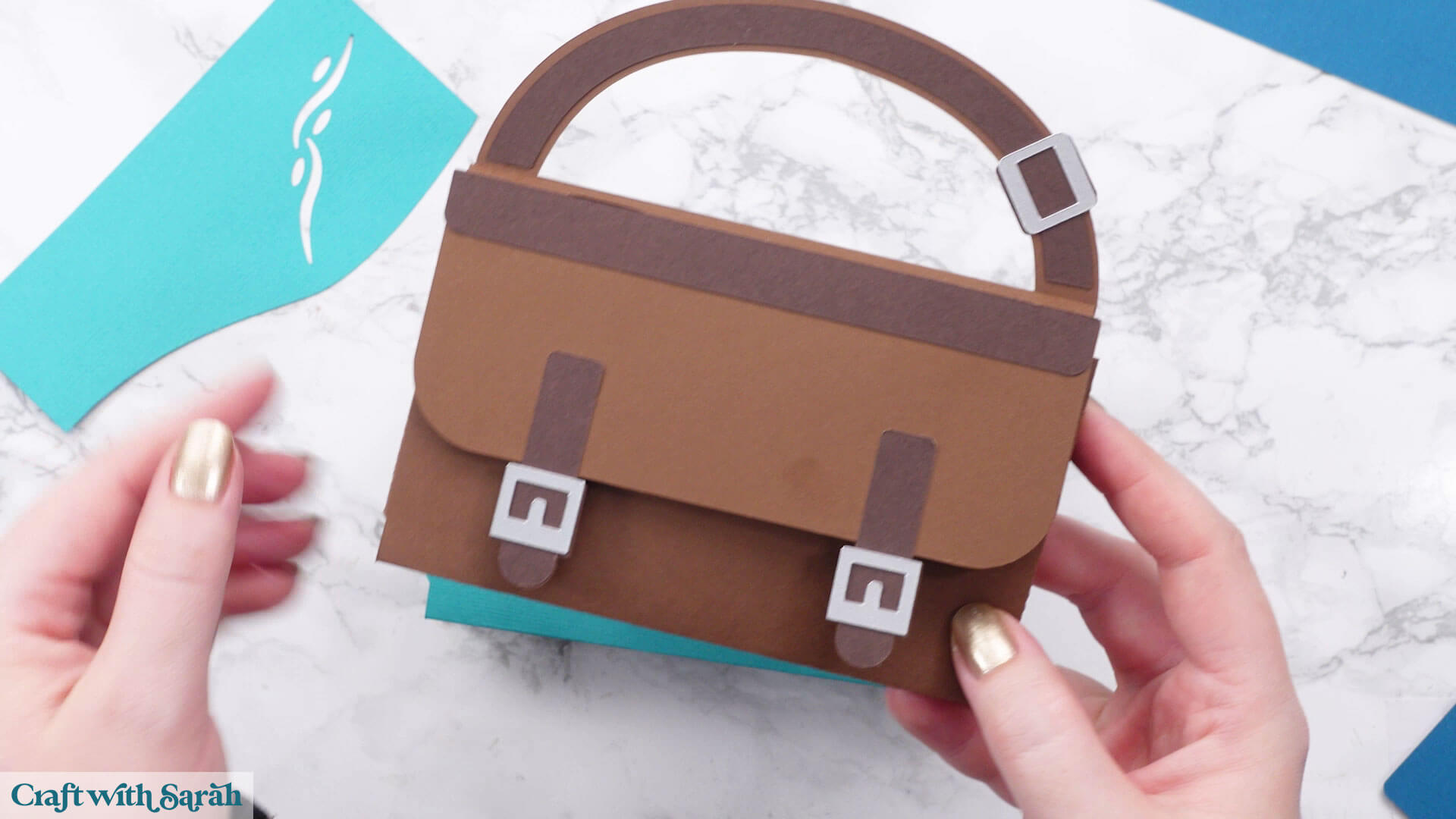
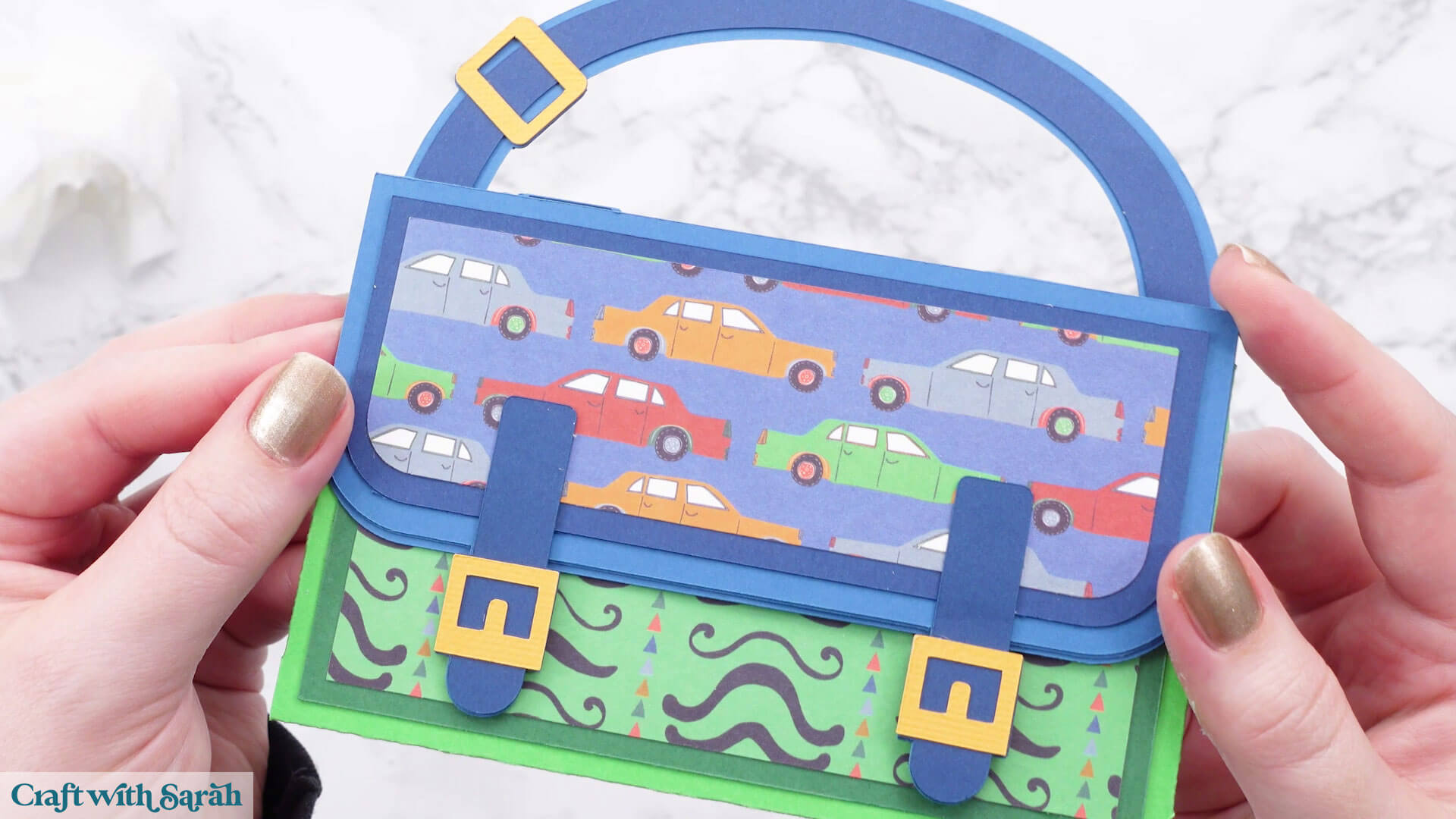
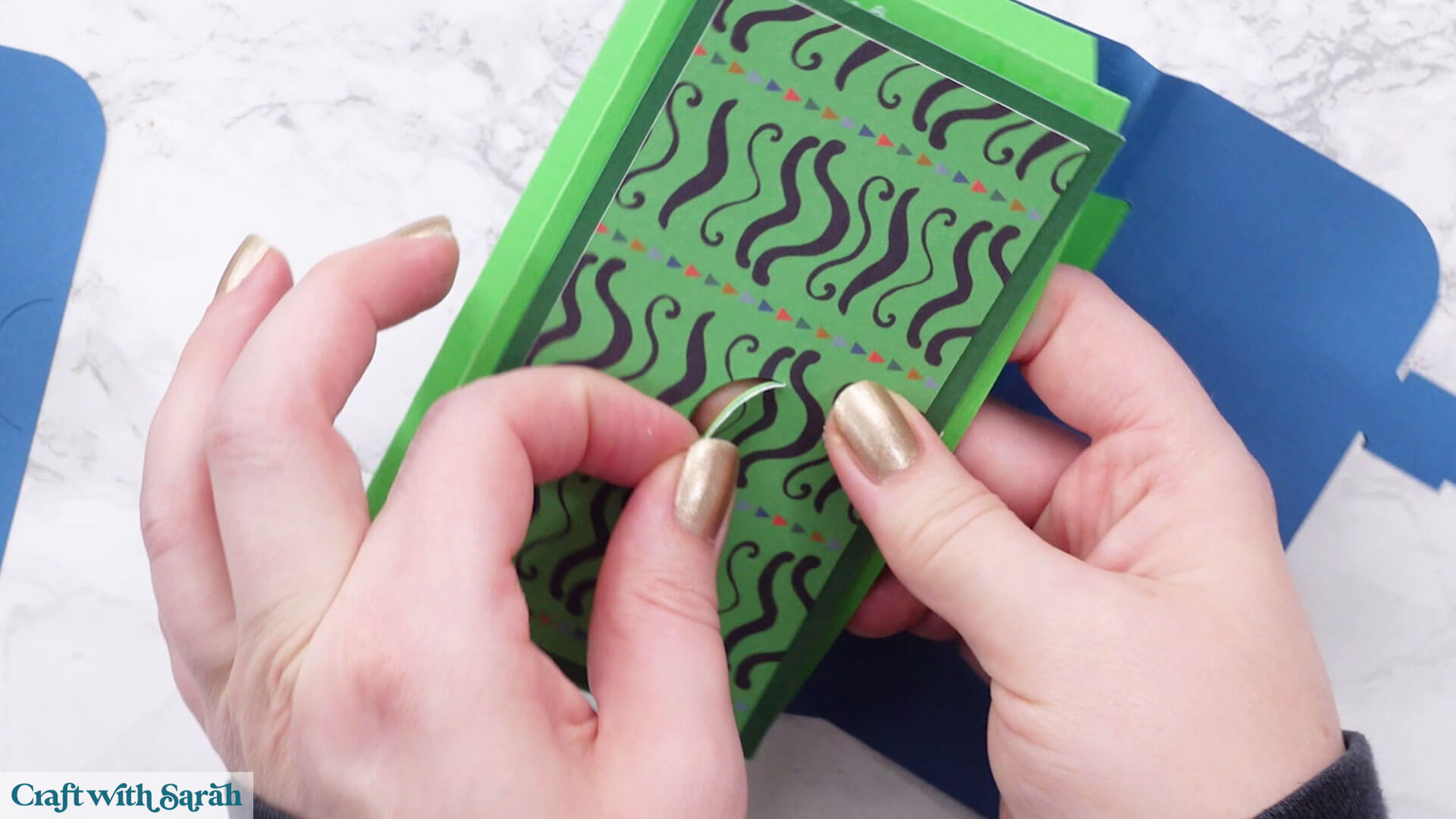
When gluing on parts that go over the bottom of the card that has a semicircle slit, make sure the slits line up exactly. This is how the card stays shut.
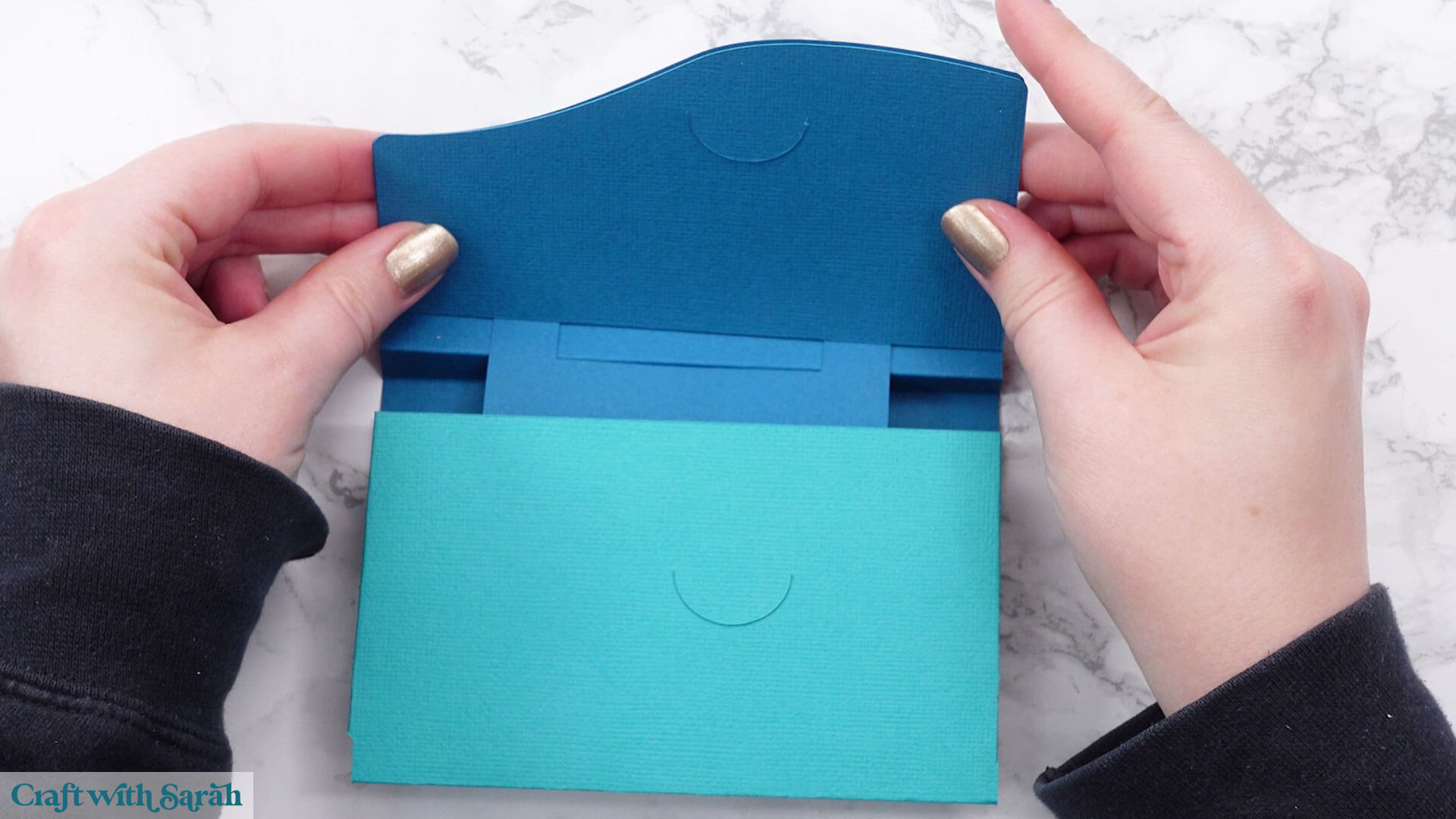
Glue the top piece of the card that as a semicircle cut out of it to the inside of the top flap.
Don’t glue directly under the flap as this needs to be able to be gently bent outwards to act a as a “clasp”.
Glue the handle piece onto the back of the card.
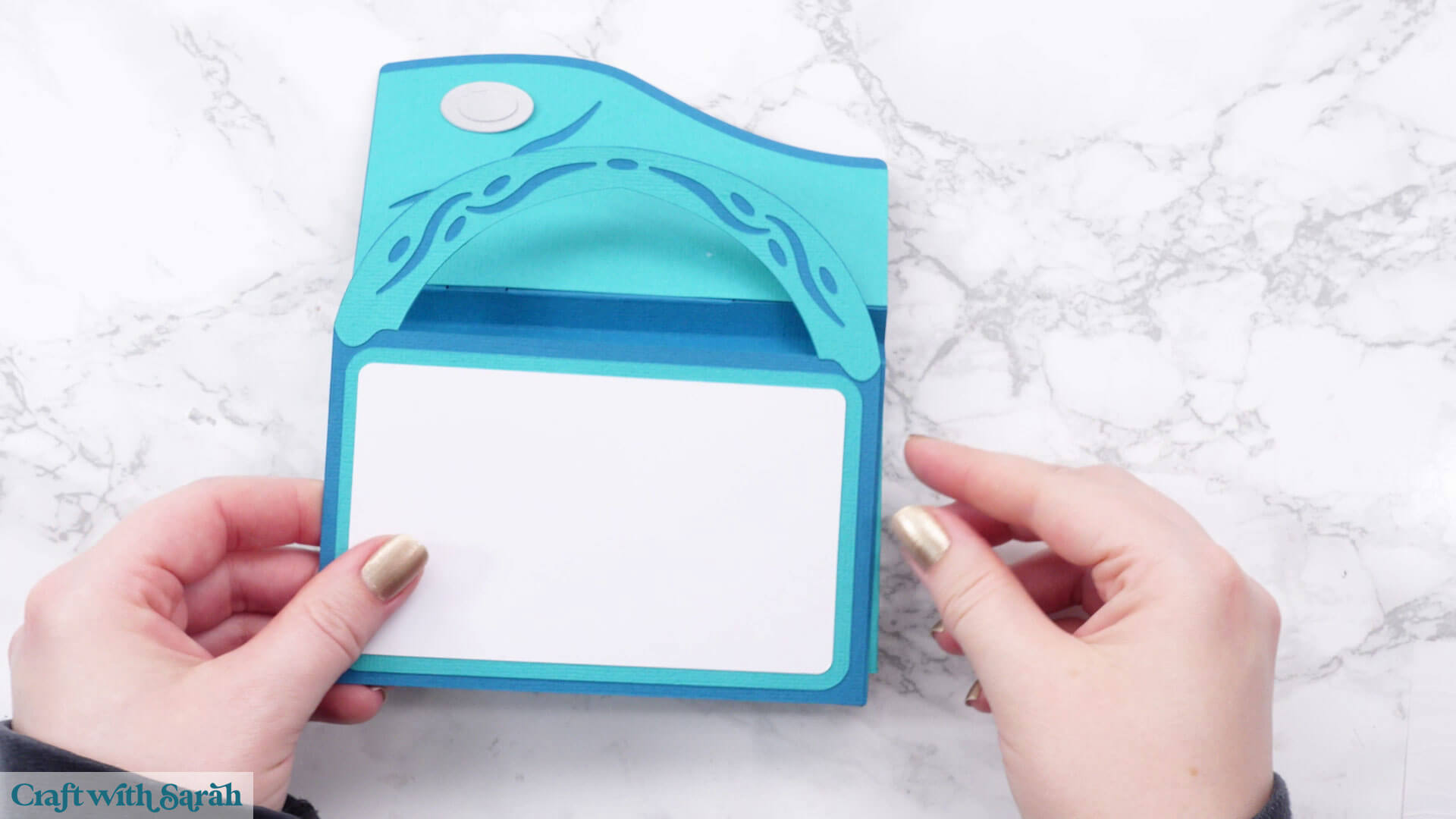
Add your gift card inside.
Close the front of the card by slotting the two semicircles in with each other.
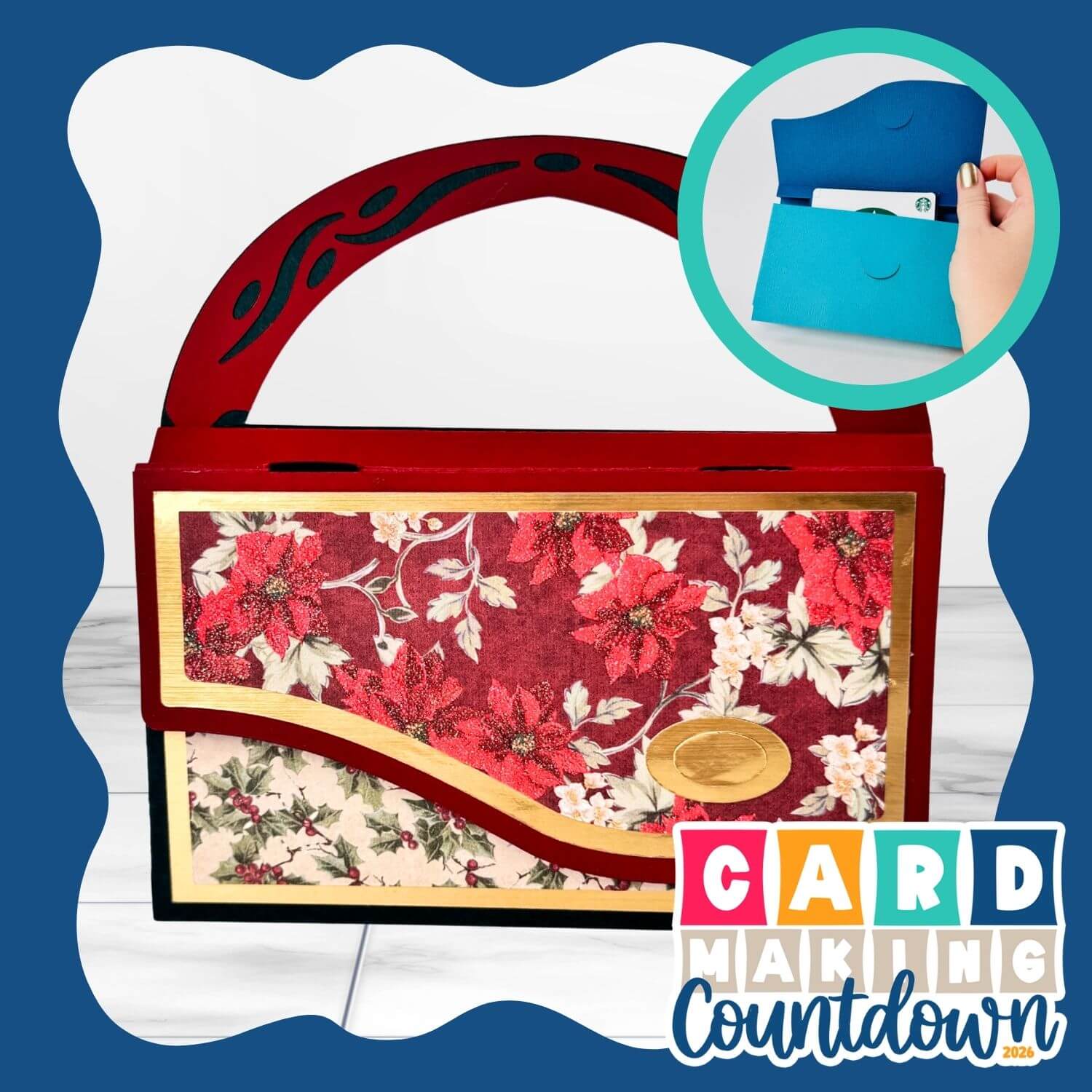
Handbag and satchel gift card holders
Your handbag or satchel card is now finished.
Write your message on the back, then it’s ready to be given to someone special.
The sides of the bag fold inwards on themselves to make the card flat for postage.
Put your cards in a custom envelope or 3D presentation box to make them even more special.
Happy crafting,
Sarah x