Free SVG for Mother’s Day ⭐ No. 1 Best Mum Gnome (+ MOM & MAM)
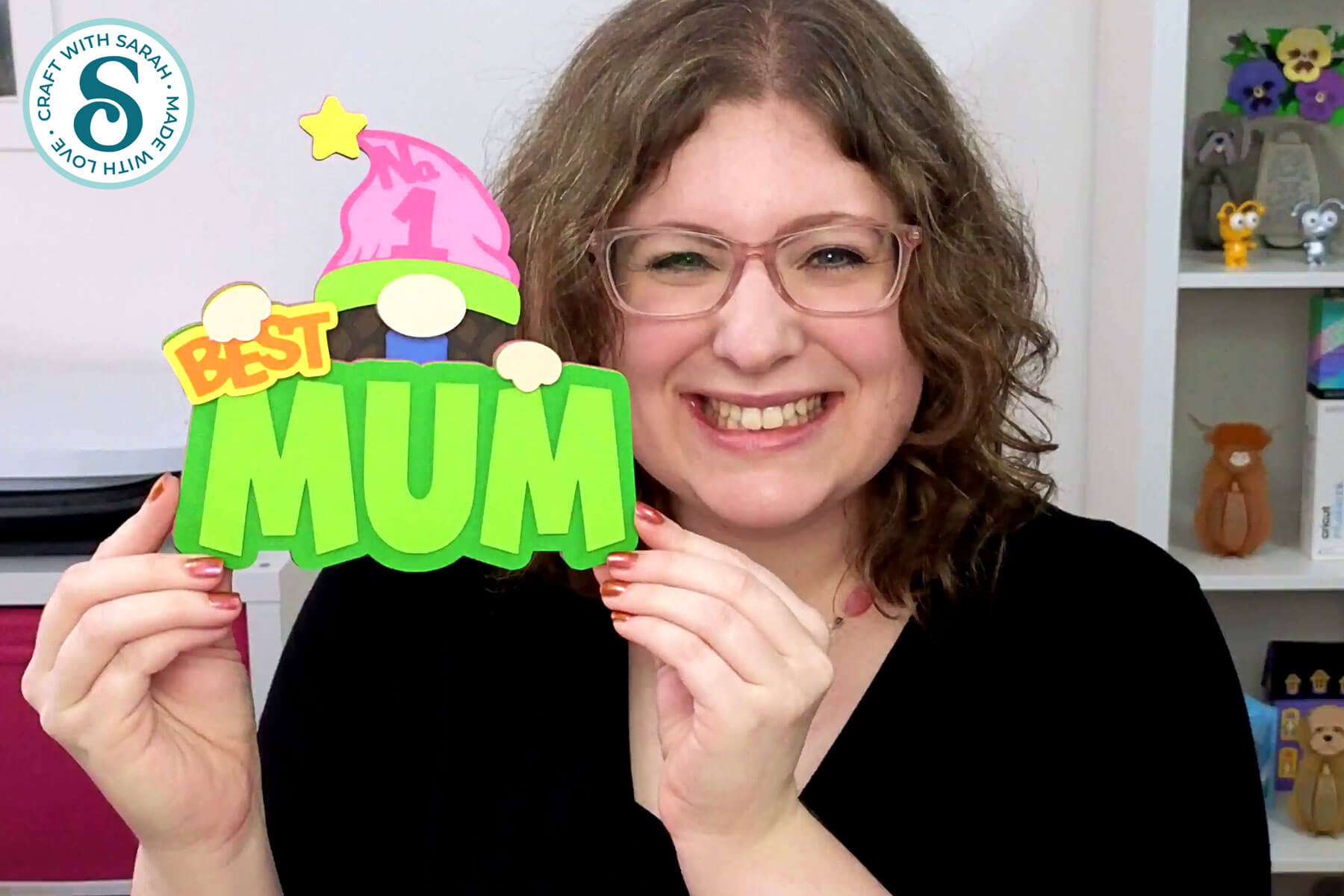
Make the best Mother’s Day gift with this adorable gnome papercraft.
Mother’s Day always feels like the perfect time to make something from the heart. Store bought gifts are lovely, of course, but a handmade project is extra special.
This layered papercraft is a fun Mother’s Day craft that comes together beautifully on a Cricut, and it makes a sweet handmade card or a thoughtful gift for your mom.
The design features an adorable little gnome peeking out from oversized letters that spell MUM.
Her hat proudly says “No. 1” and she’s holding a sign that reads “BEST”, so the whole piece comes together to say “No. 1 BEST MUM”.
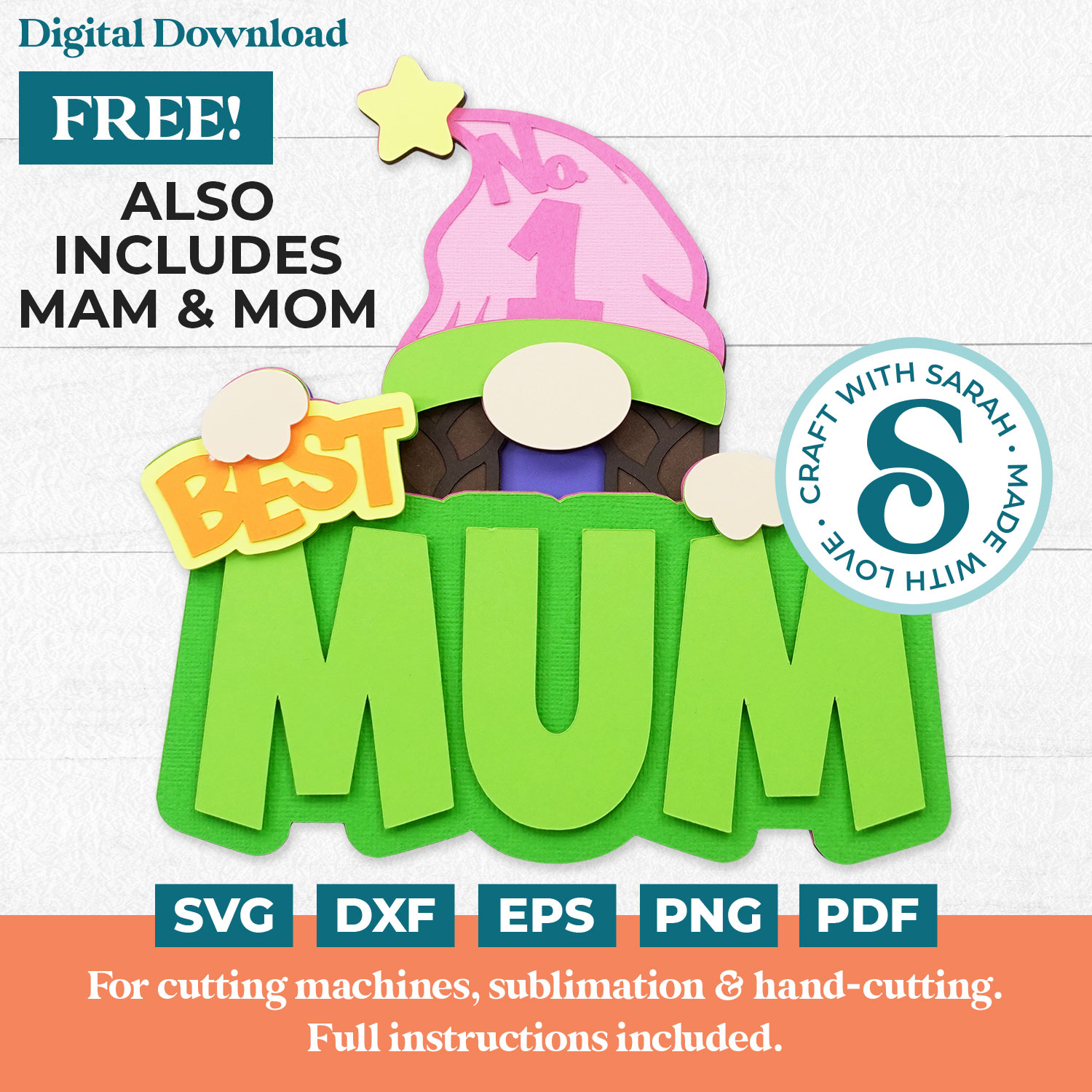
MOM and MAM versions are also included. ❤️
Oh, and if you’re planning ahead for Father’s Day, there’s a matching “Best Dad” version too.
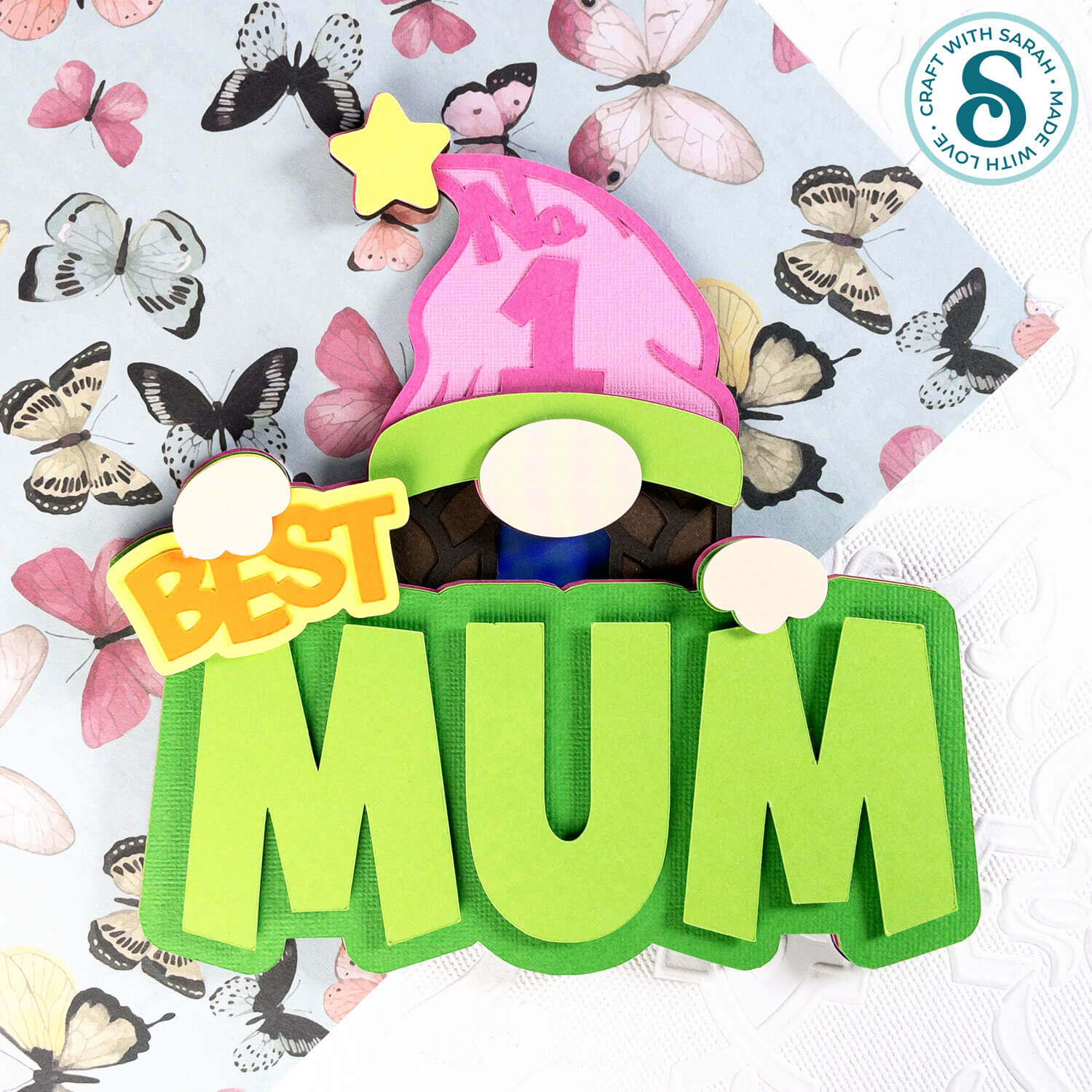
This project is made with layered cardstock, cut with a Cricut or similar type of electronic cutting machine.
Print/sublimation and hand-cutting versions are included too.
Once everything is cut, it’s simply a matter of stacking the layers and watching the little gnome come to life.
Grab your cardstock, open up Design Space, and let’s start cutting. ✂️
Video tutorial for Mother’s Day gnome project
Watch the video below to see how to make this craft project. Keep scrolling for a written tutorial.
Materials list for Mother’s Day craft project
Here is a list of the materials to make this project.
Please note that some of the links included in this article are affiliate links, which means that if you click through and make a purchase I may receive a commission (at no additional cost to you). You can read my full disclosure at the bottom of the page.
- Cricut Machine
- Light blue Cricut cutting mat
- Coloured Card
- Collall All Purpose Glue, Bearly Art Glue or similar
- 3D foam pads
Free Mother’s Day SVG assembly instructions
Here’s how to make this craft project for mom using a Cricut machine.
Step 1) Download the free file & unzip the downloaded folder
Download the Free Cutting File
Please login to your account to download this file.
TERMS OF USE:
You may sell finished, handmade physical craft items that you have made using this product but must not sell or share the digital files. Read full terms of use
Before you upload the SVGs to Design Space, you need to unzip the download folder that they come in.
Not sure how to do this? Click here for a tutorial that covers all the following types of computer and device:
- How to unzip a folder on a Windows computer
- How to unzip a folder on a Mac
- How to unzip a folder on an iPad
- How to unzip a folder on an iPhone
- How to unzip a folder on an Android device
After unzipping, upload the SVG file(s) into your cutting machine software.
Not sure how to use cut files with your type of machine? The following links lead to tutorials on how to use cut files in:
- Cricut Design Space
- Silhouette Studio
- CanvasWorkspace (for ScanNCut machines)
Step 2) Upload the SVG file into Design Space
If you are using Cricut Design Space, start a new project and then click the “Upload” button on the left of the screen.
You can then either click “Browse” to find the file on your computer, or drag-and-drop it.
Upload the files from the “01 Cricut Version” subfolder.
There are separate SVG files for a MOM version, MAM version and MUM version.
This is how it should look after you have selected the file:
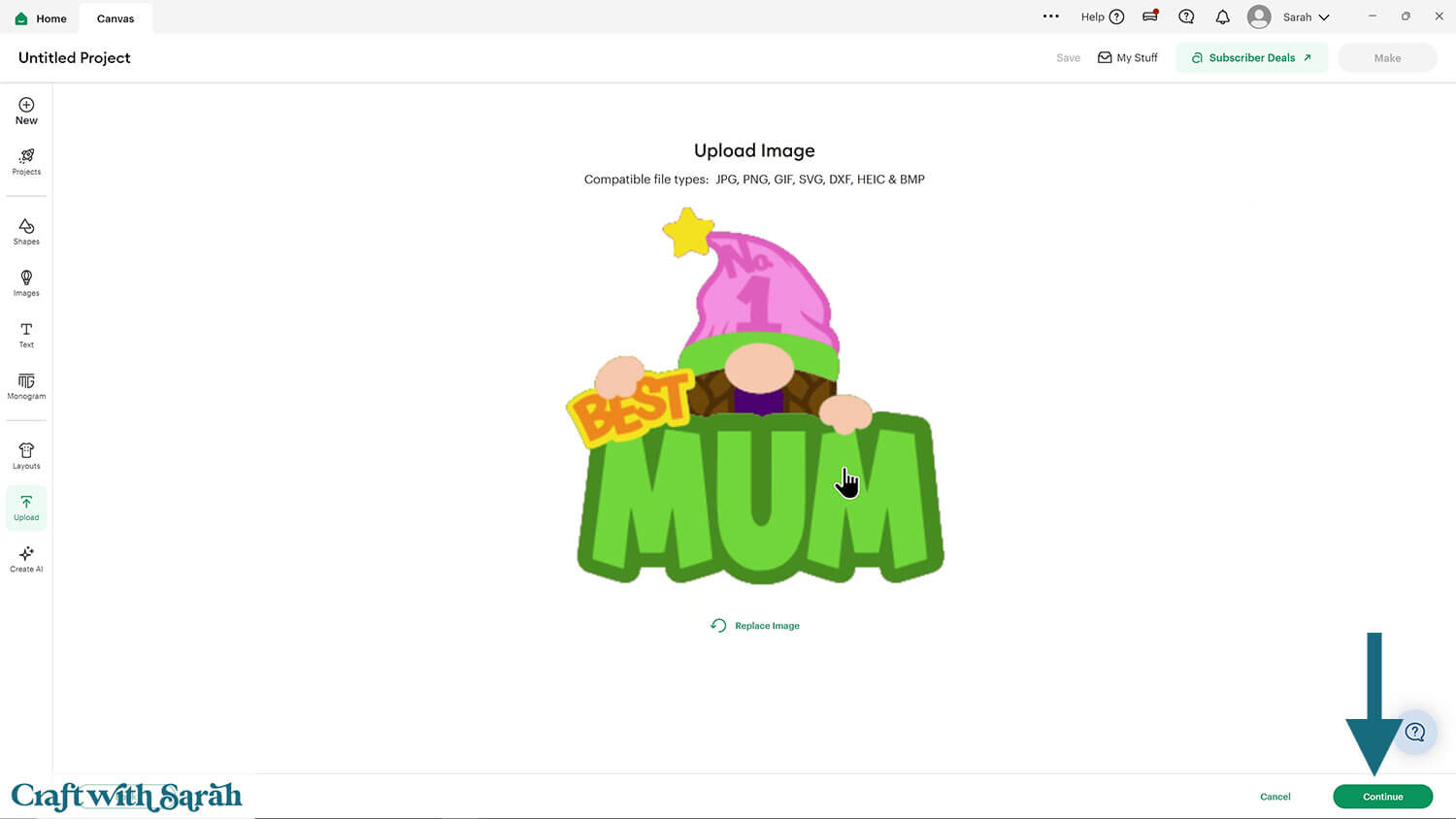
Don’t worry if the image preview appears blurry – it will show in full quality once it’s inserted onto your project.
Press “Upload” on the next screen.
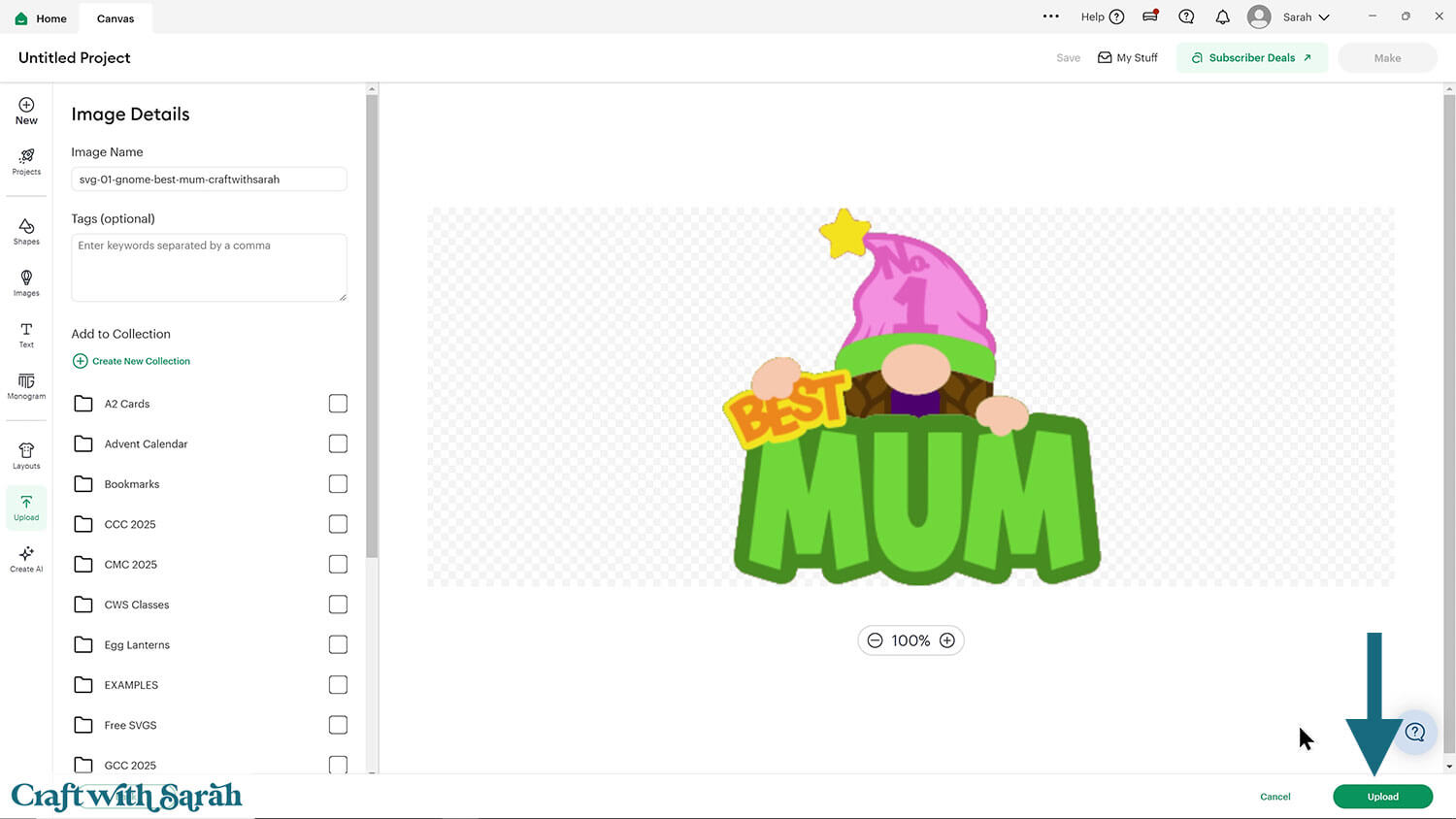
After uploading, the gnome design should be automatically inserted onto your Canvas.
To hide the left sidebar (to give you more space for designing!), click the arrow that’s about half way down the page.
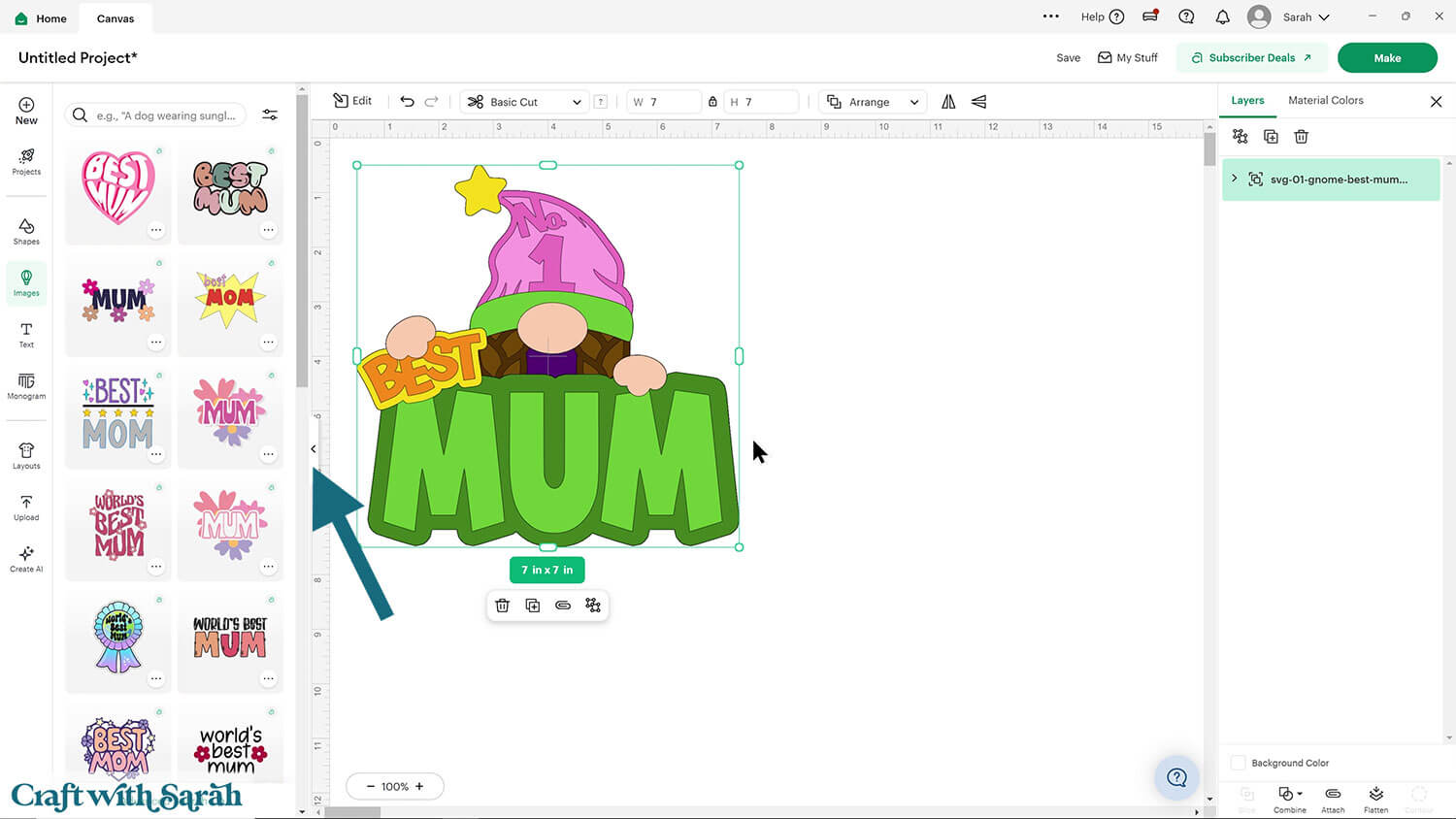
If the design doesn’t get inserted onto your Canvas, it will show under “Uploads” in your “Recently Uploaded Images”. Click on it and then press “Add to Canvas” to put it onto your Project.
Click the design on your canvas and use the width/height boxes near the top of the screen to make it the size that you want to cut it.
Make sure that the padlock icon is closed when you are resizing so that all the pieces stay in proportion.
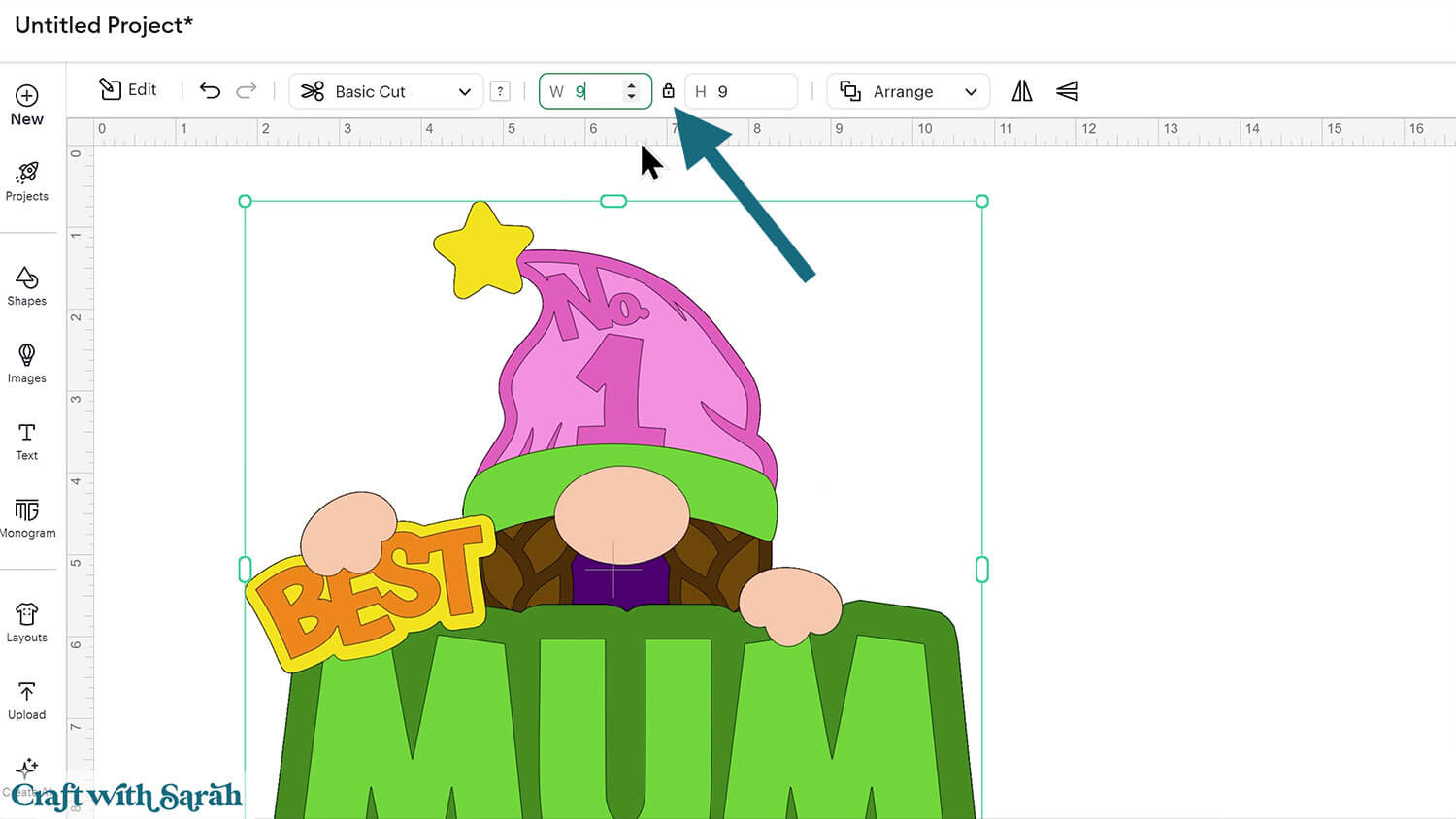
This design has been specifically created to cut well at small sizes, so you can size it down to around 4 inches tall and it should still cut perfectly.
Here are some tips for making sure the design fits perfectly into a shadow box frame:
The below video has some tips on how to frame your craft project, including my Number One hack for making sure that your design will fit perfectly every time without wasting any of your craft materials.
Don't have a Cricut? Check out my top framing tips for:
- Silhouette Studio (for Silhouette machines)
- CanvasWorkspace (for ScanNCut machines)
Want to learn more about designing your own shadow box backgrounds? Check out this Papercraft Porch Class on creating custom backgrounds for frames and greetings cards.
There are matching versions of this video for Silhouette and ScanNCut machines on the Cutting Machine Help page.
Step 3) Cut the design
When you’re happy how the gnome SVG is looking in Design Space, click “Make” and follow the instructions on-screen to cut out all the layers.
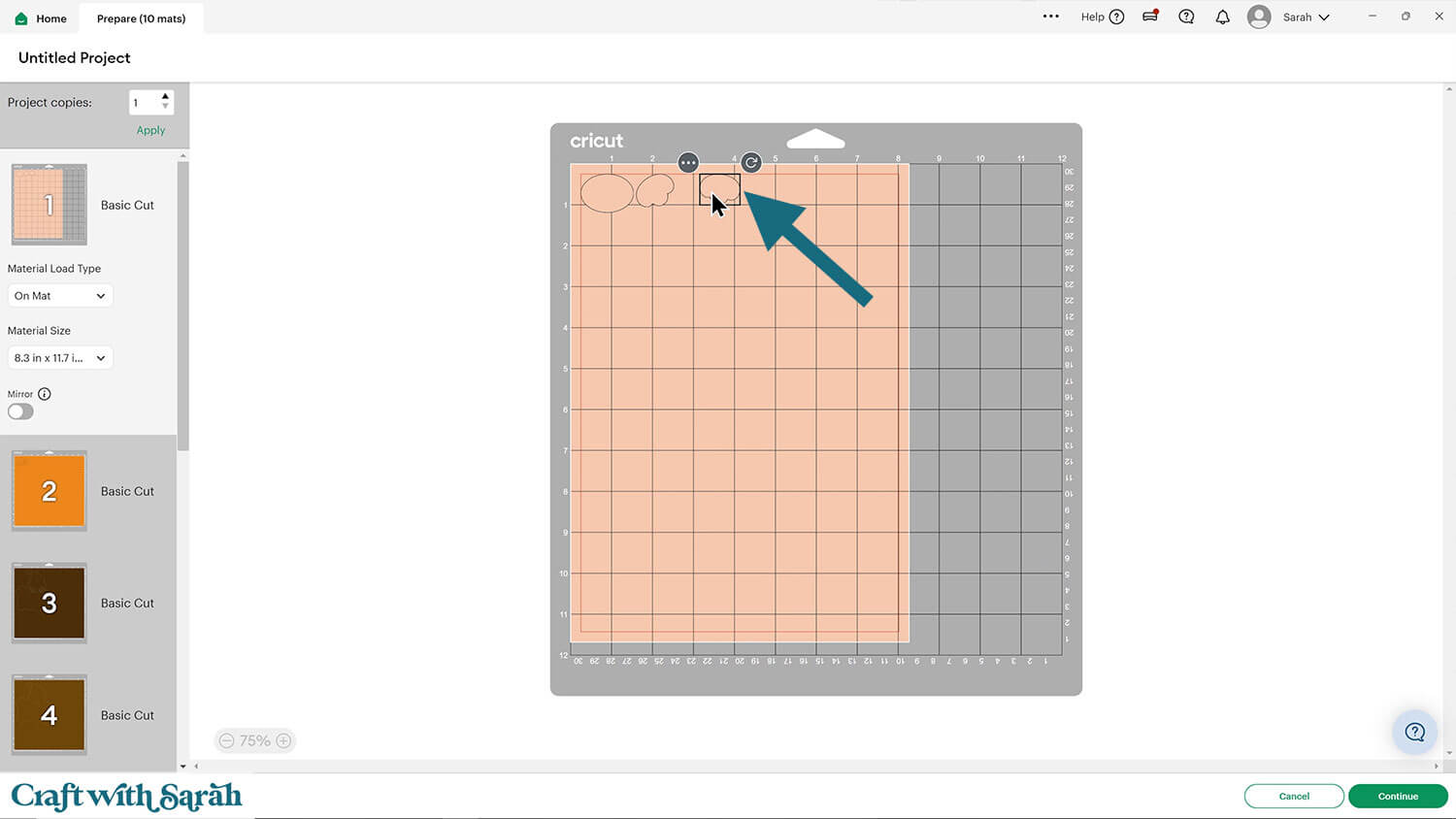
Change the paper size with the dropdowns on the left of the screen. You need to change it for every colour.
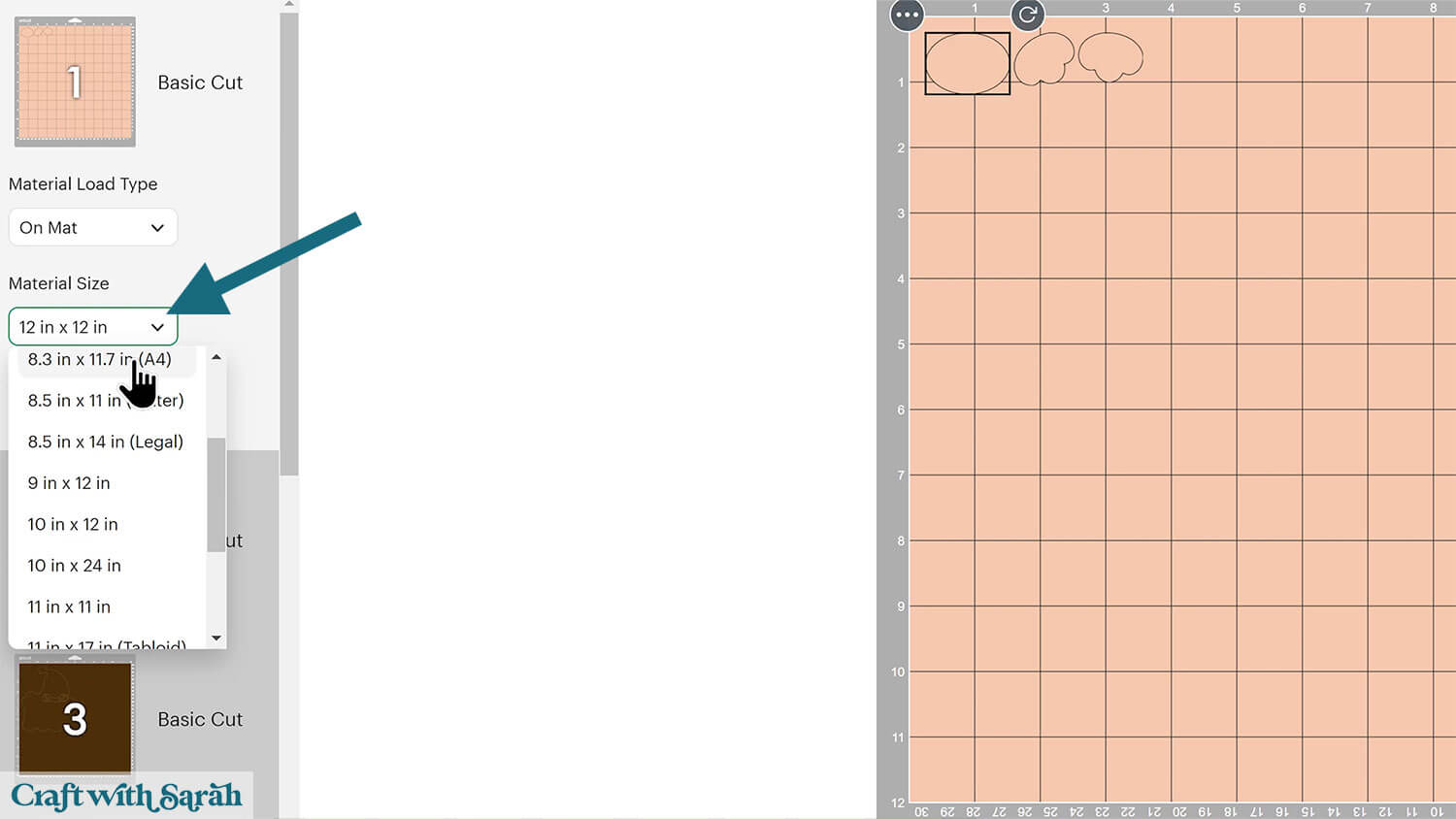
You can drag-and-drop the pieces on the screen to move them about to take up less space on your cardstock.
Make sure that no pieces overlap, otherwise they won’t cut out correctly.
Step 4) Stick the layered gnome together
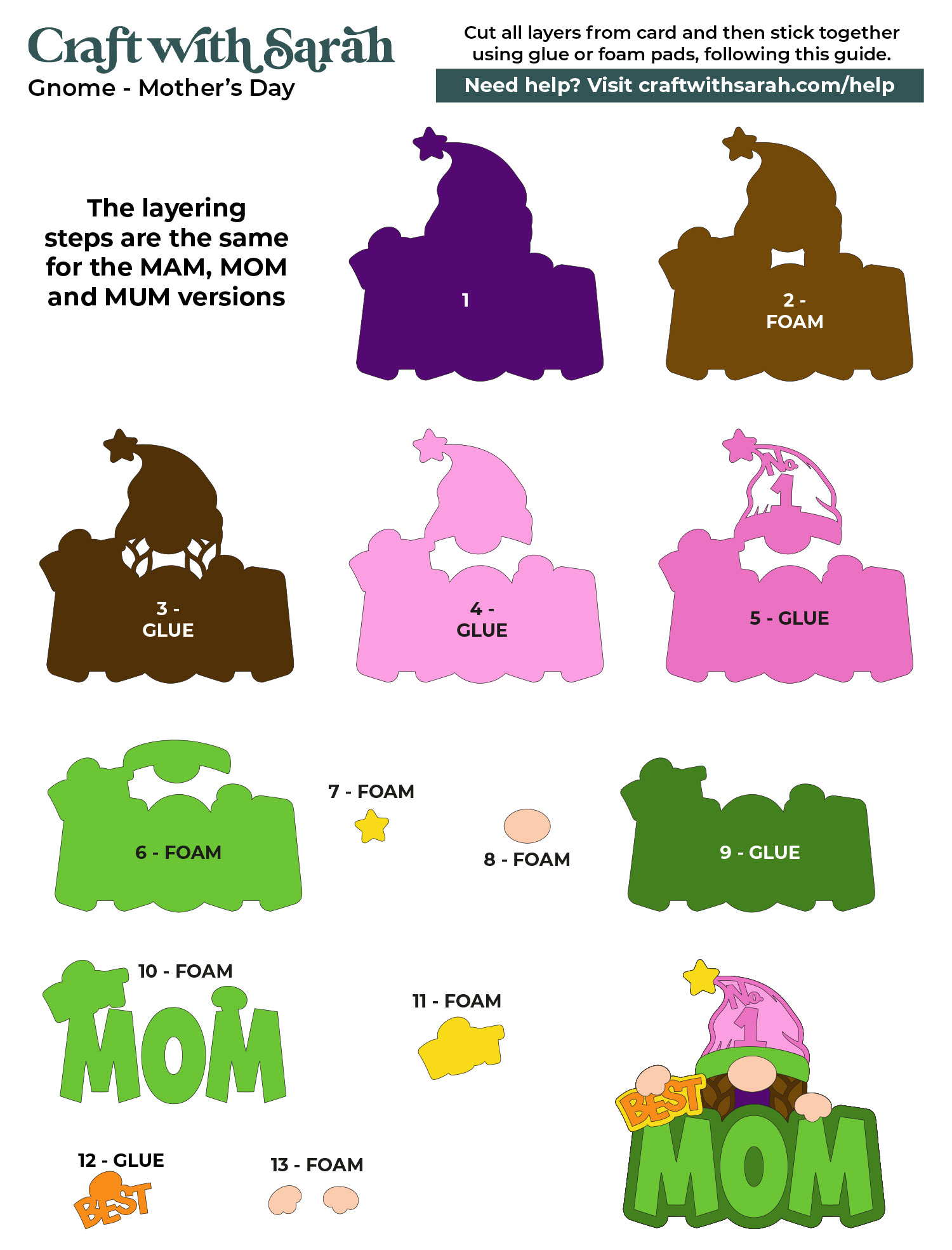
Use 3D foam pads and glue to stick the layers together.
Use this guide to see the order to stick the layers together in. A high quality printable version of this assembly guide is included in the folder when you download this SVG.
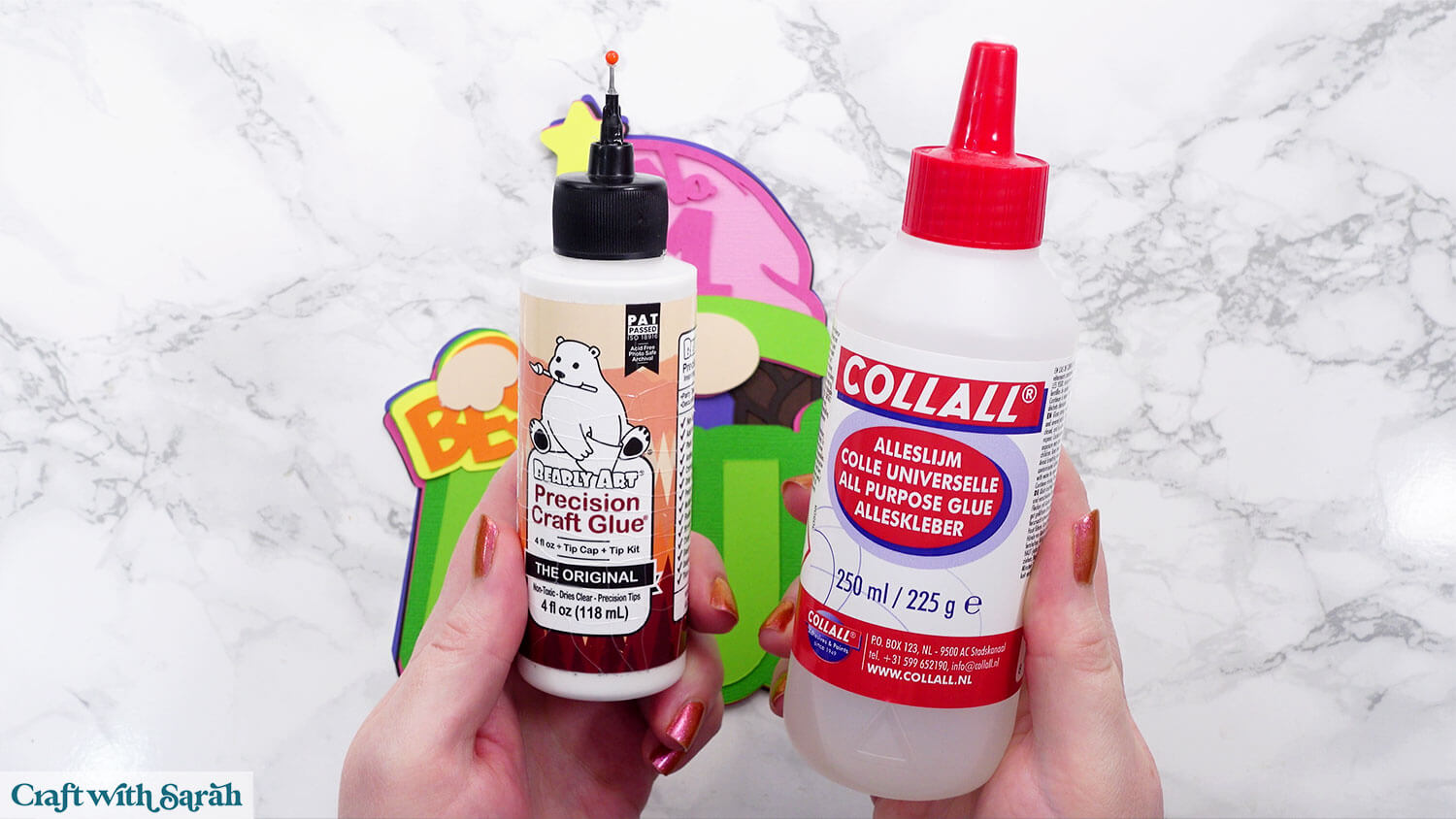
I used Bearly Art Glue to stick the project together.
It’s SO good because it doesn’t “warp” or bend the cardstock like some glues do. You can use as much of it as you want and the card stays perfect – and it dries perfectly clear too!
Collall All-Purpose Glue is another great one to use for cardstock, which is more readily available in the UK.
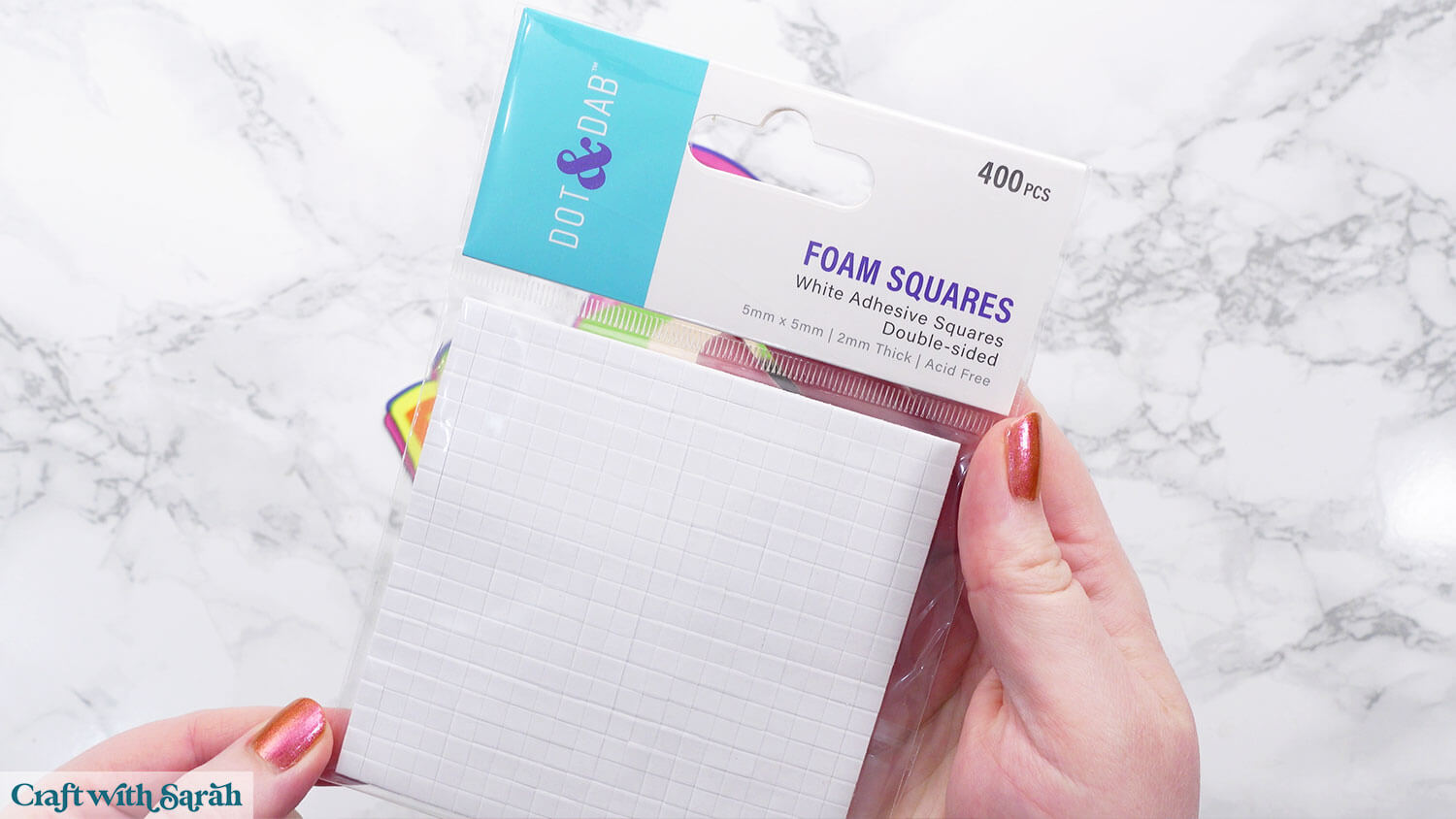
I like these foam pads from “Dot & Dab”, but any will do. If yours are large then you might need to cut them smaller with a pair of scissors.
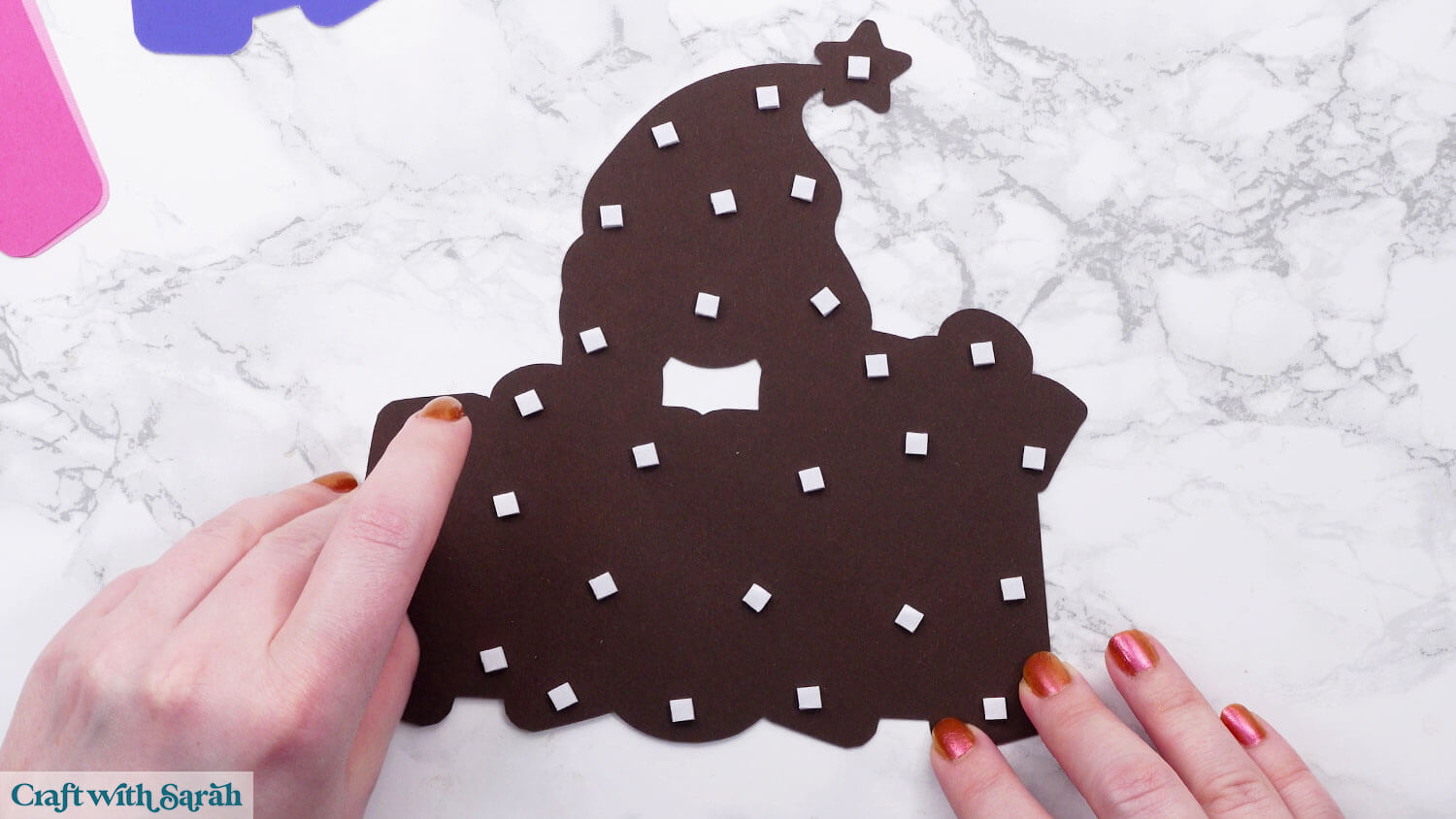
When adding the foam pads to larger pieces, make sure you add some in the middle of the pieces of card so it gives some stability to the middles. If you don’t add any foam pads in the middles then it can dip/sag down under the weight of the other layers which doesn’t look as good.
Best Mum Craft Project
I’m glad you joined me for this Mother’s Day themed craft. As always, feel free to get creative with the colors, embellishments, and how you display it.
Whether you add it into a frame, put it on a card, or do something else entirely, it’s sure to put a smile on mom’s face this Mother’s Day.
If you enjoyed this project, I’d love to see your creations! Post your finished designs to social media or share them in our Community. Seeing what you make always brightens my day!
Love layered SVGs? Check out my other free layered SVG files
Happy crafting,
Sarah x