ScanNCut Tutorials
Got a Brother ScanNCut machine and not sure how to use it? No problem!
These ScanNCut tutorials for beginners will take you through all the steps to start making beautiful papercraft projects with your machine.
If you’re looking for specific crafts to make rather than general machine and CanvasWorkspace tutorials, check out this huge collection of project ideas instead. The tutorials for each project are shown using a Cricut, but they can all be made with ScanNCut machines too.
While our entire collection of SVG designs can be used with a ScanNCut, as of February 2025 we changed our process to include additional ScanNCut-optimized versions with all new products (look for the “03” and “04” versions within your download folders).
We’ve also gone back and updated all free SVGs and most of the gnome SVGs to include these optimized versions too.
Still need help with your ScanNCut? Get in touch and we’ll try our best to help. 🥰
ScanNCut machine help for beginners
Explore the following help guides to learn how to upload SVGs to Canvas Workspace, customize them, design projects with them, send them to your machine as a FCM file and how to get your craft projects cut from cardstock using your ScanNCut machine.
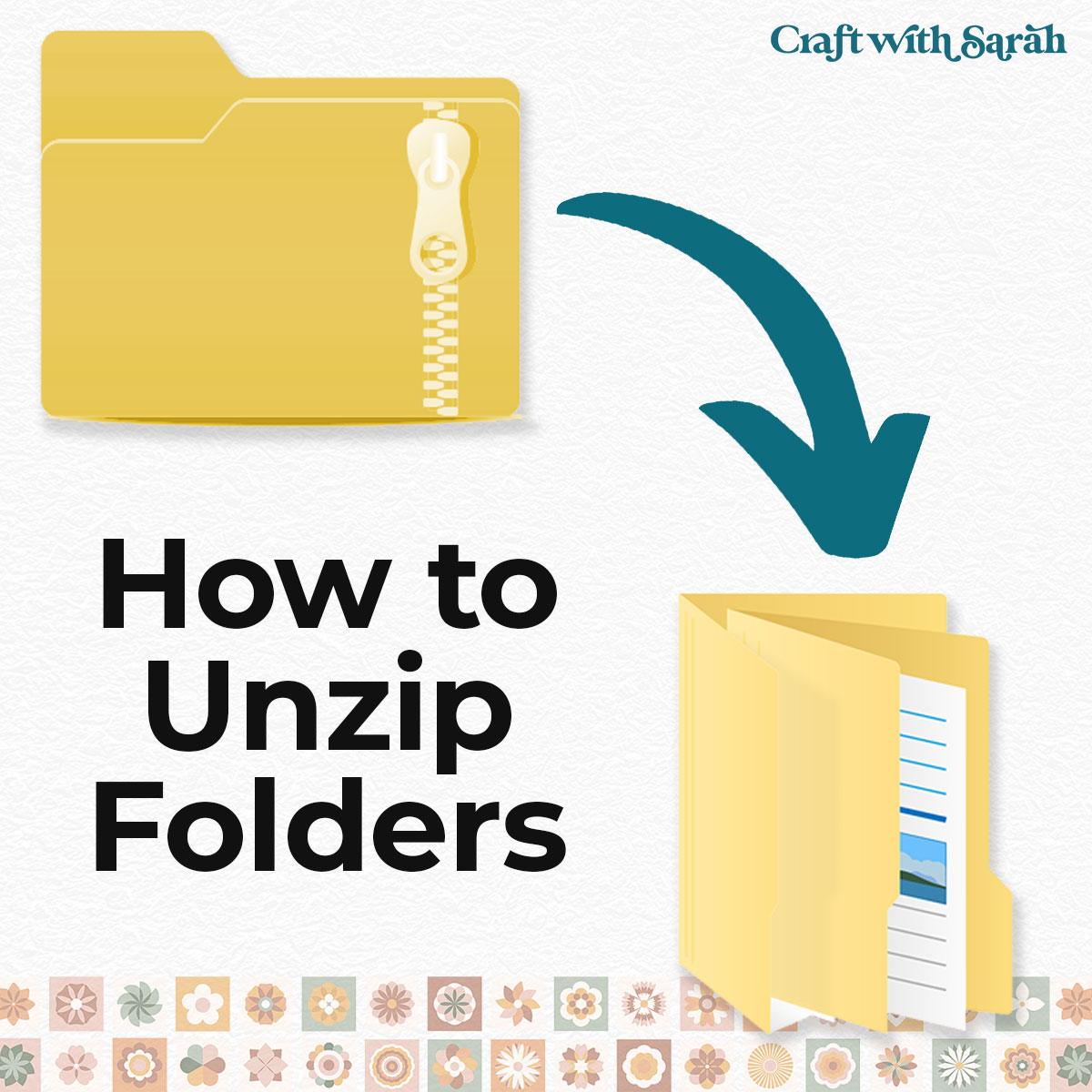
Unzipping Folders
How to open and extract "zip folders" on Windows computers, Macs, Android devices, iPhones and iPads.
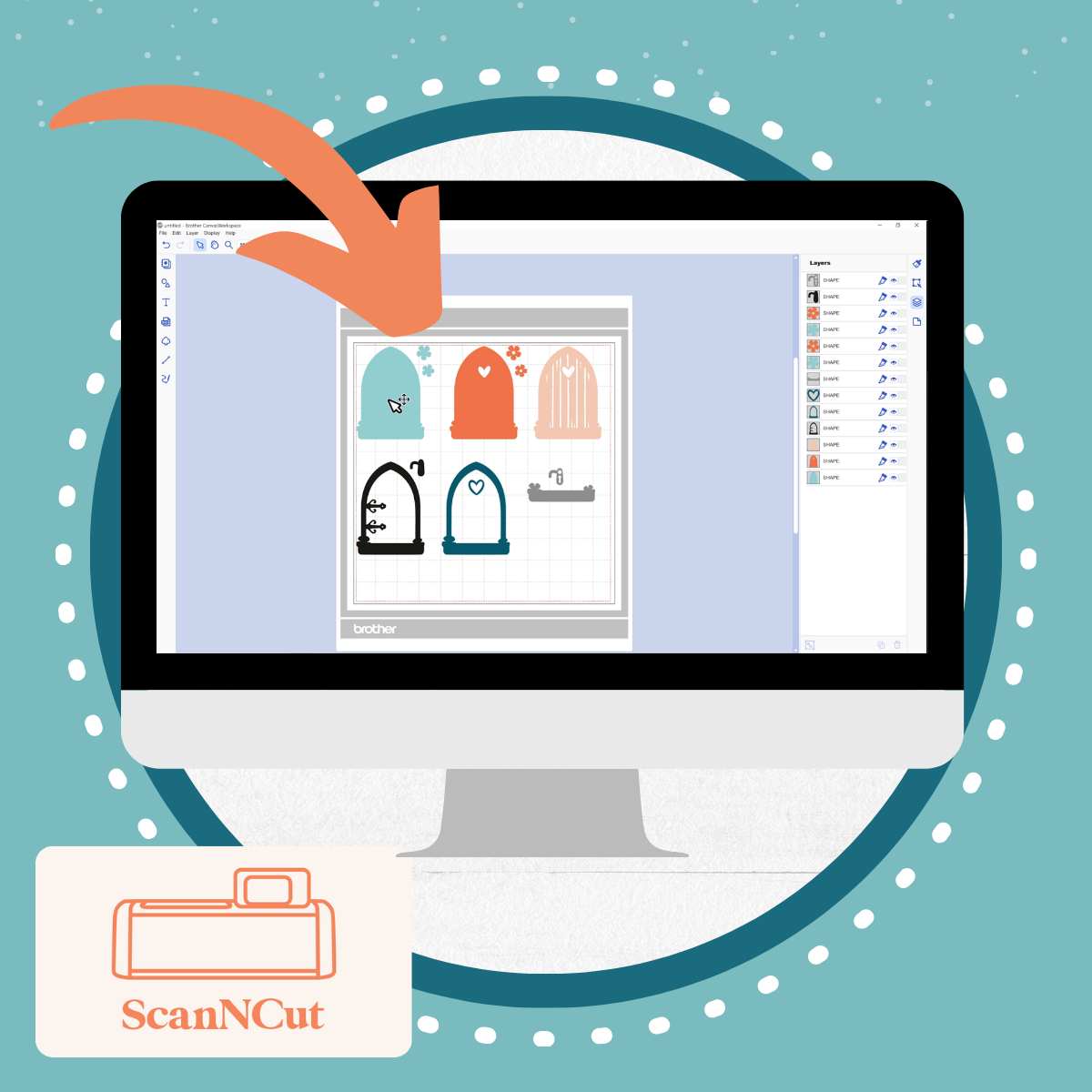
Importing SVGS
How to import SVG files into CanvasWorkspace, including which file versions to use from your download folders.
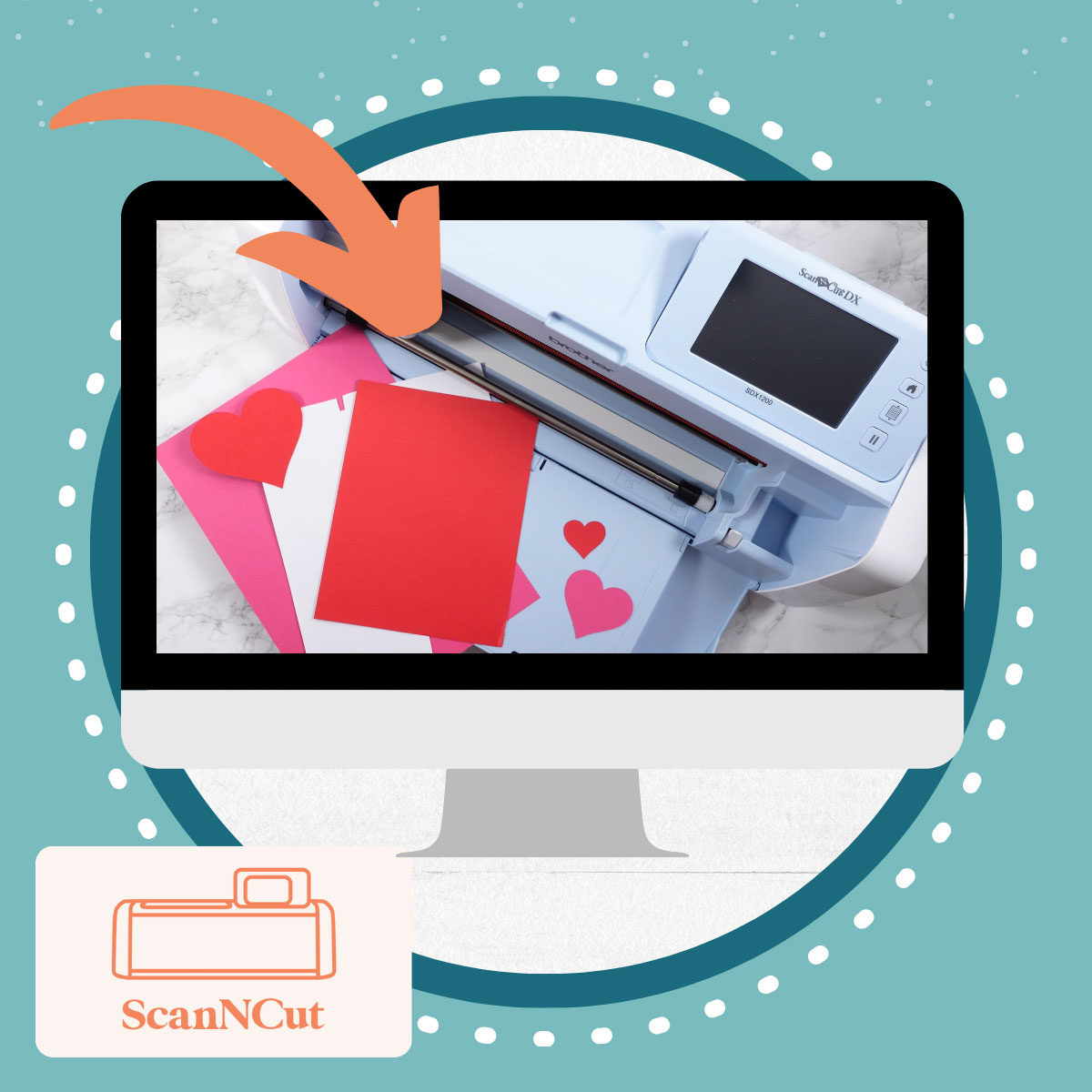
Cutting Cardstock
Cut your first cardstock project on your ScanNCut machine with this simple heart design.
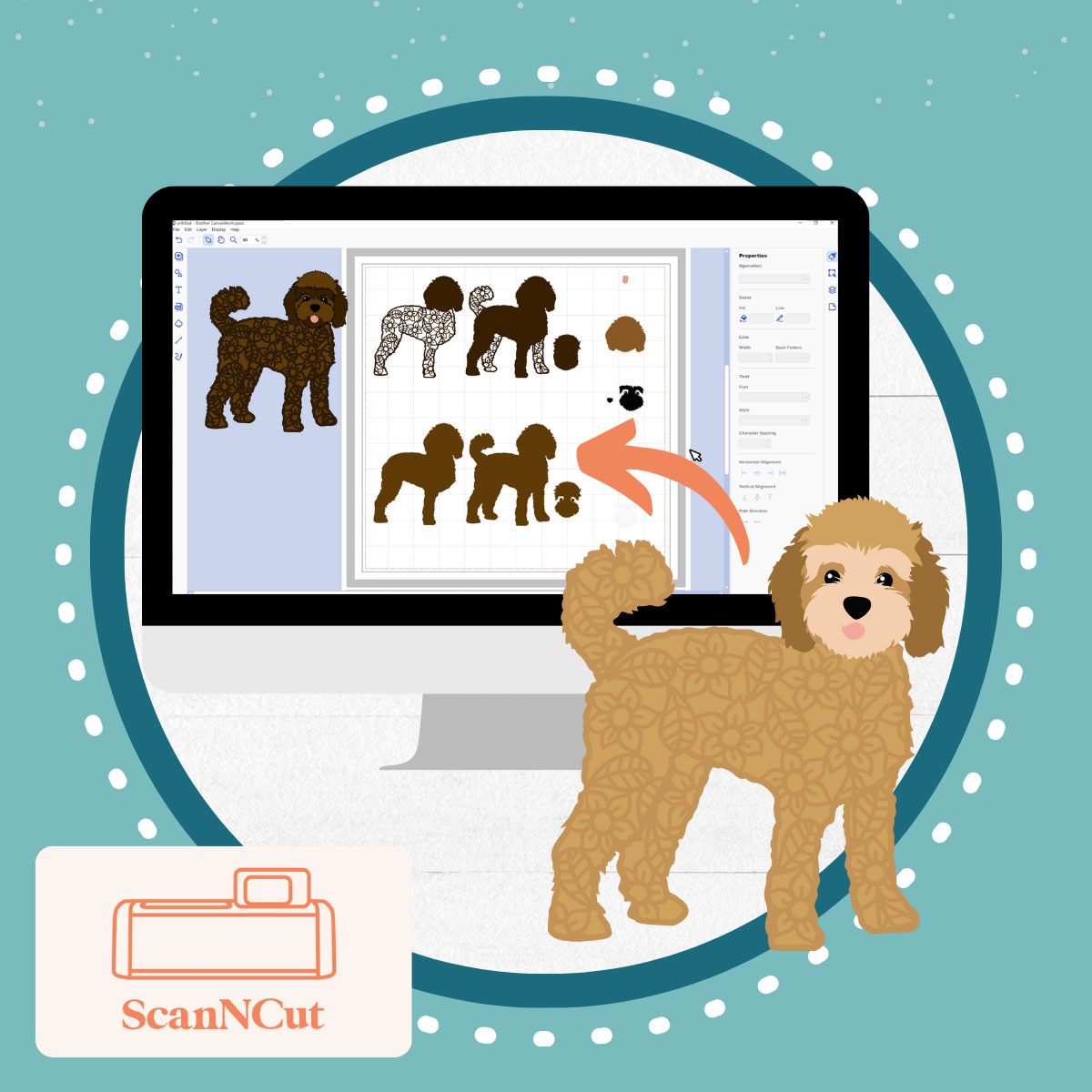
Recolor SVGs & Layers
How to change the colours of SVGs and layers within CanvasWorkspace.
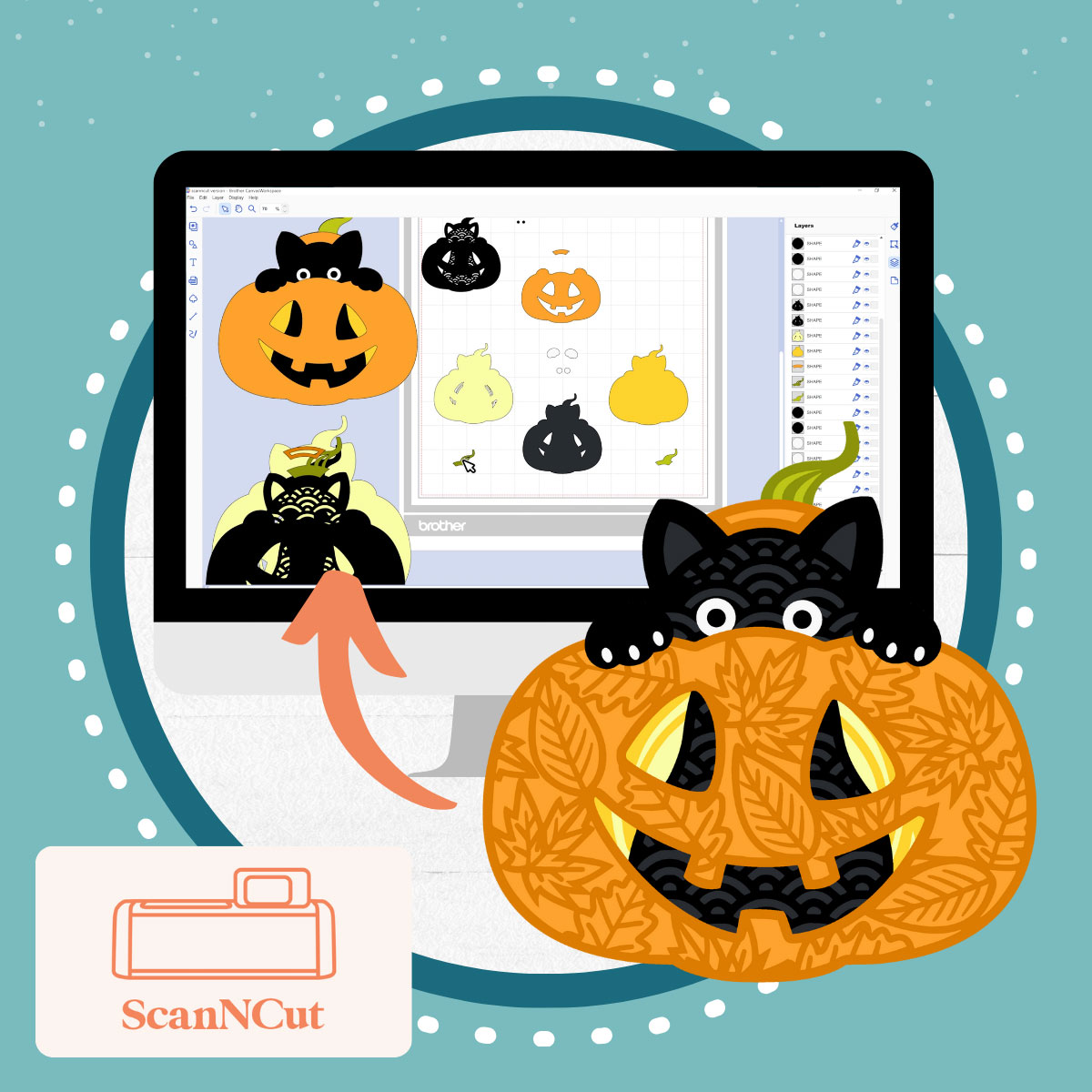
Modifying SVGs
How to edit SVGs in CanvasWorkspace, for example to remove flower patterns or reduce the number of pieces.
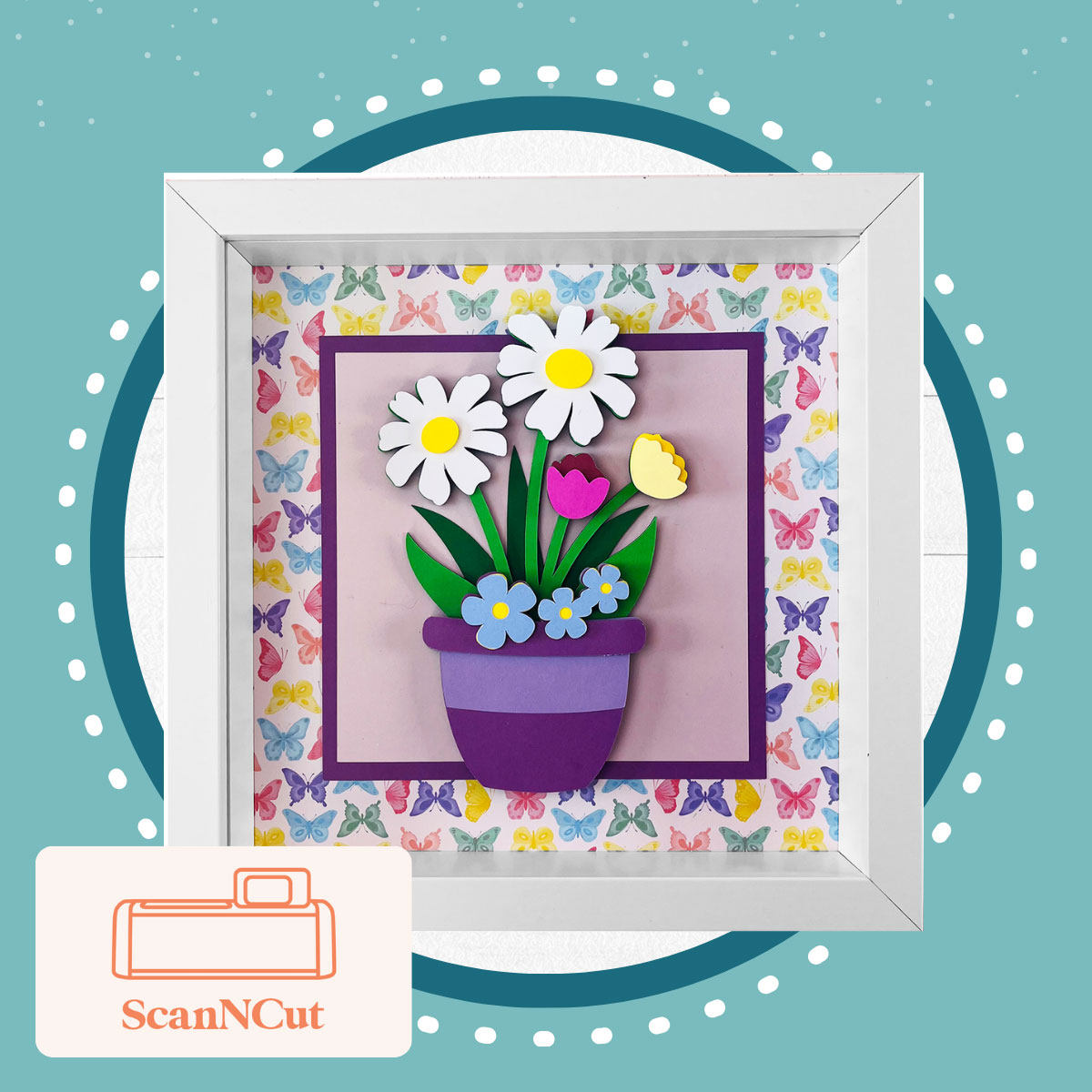
Framing Designs
Use CanvasWorkSpace to make sure your finished crafts will fit perfectly inside your shadow box frame, every time.